> ## Documentation Index
> Fetch the complete documentation index at: https://docs.m3ter.com/llms.txt
> Use this file to discover all available pages before exploring further.
# Working with Scheduled Events
You can use API calls to create, configure, and manage *Scheduled Event Configurations*. Scheduled Event Configurations define custom Event types that reference Date/Time fields belonging to configuration and billing entities. They therefore provide you with an extra degree of flexibility over and above system-generated Events for setting up Notifications based on Events:
* When you've created a Scheduled Event Configuration, it becomes available as an Event type to set up Notifications for in the same way as you can for system-generated Event types.
* You use an `offset` parameter when you create a Scheduled Event Configuration, which allows you to specify in days after a Date/Time field when Events of that type will occur.
* For example, you might want to set up a Scheduled Event Configuration that references the `endDate` field for Bill entities and then specify an `offset` of ten days. This means an Event of that type will occur ten days after a Bill end date. Using this custom Scheduled Event as a basis, you can then set up a Notification that triggers on the Event occurring, and which can then alert your Billing Operations team to check that the Bill has been settled.
This topic provides a worked example showing how to use an API call to create and configure a Scheduled Event Configuration and explains how to go on to set up a Notification based on the new custom Scheduled Event:
* [Creating a Scheduled Event Configuration](/guides/alerts-events-and-notifications/utilizing-events-and-notifications/working-with-scheduled-events#creating-a-scheduled-event-configuration)
* [Creating Notifications for Scheduled Events](/guides/alerts-events-and-notifications/utilizing-events-and-notifications/working-with-scheduled-events#creating-notifications-for-scheduled-events)
**Tip: API Reference for Scheduled Events API calls?** Details of all API calls used in this topic can be found in the [Scheduled Event Configurations](/api/scheduledeventconfigurations/introduction) section of our API Reference documentation.
## Creating a Scheduled Event Configuration
This section uses the [Create ScheduledEventConfiguration](/api/scheduledeventconfigurations/create-scheduledeventconfiguration) API call to create an example custom Scheduled Event Configuration:
* We'll reference the `endDate` field for Bill entities to create the Event Configuration.
* We'll use the `offset` request body parameter to set an offset of 5 days.
* Our custom Scheduled Event will therefore occur 5 days after the end date of Bills in our Organization.
**Note:** For this example, we use Postman to submit API Calls and the request body JSON is given for you to copy out directly to your clipboard.
**To create a Scheduled Event Configuration:**
1. First, use a `POST` call to obtain a Bearer Token for the Service User you want to use to create a Scheduled Event Configuration. See [Service Authentication](/guides/authenticating-with-the-platform/service-authentication).
2. Make a `POST` [Create ScheduledEventConfiguration](/api/scheduledeventconfigurations/create-scheduledeventconfiguration) call:
 Here is the request body JSON:
```json theme={null}
{
"name": "scheduled.bill.enddate",
"entity": "Bill",
"field": "endDate",
"offset": 5
}
```
* Note that for the `name` request parameter, you must use the following format:
* **scheduled**.*\*.*\*
If the custom Scheduled Event has been created successfully, you'll receive a 200 response similar to this:
Here is the request body JSON:
```json theme={null}
{
"name": "scheduled.bill.enddate",
"entity": "Bill",
"field": "endDate",
"offset": 5
}
```
* Note that for the `name` request parameter, you must use the following format:
* **scheduled**.*\*.*\*
If the custom Scheduled Event has been created successfully, you'll receive a 200 response similar to this:
 You've now created a Scheduled Event Configuration for the current Organization, which you can use as the basis for setting up a Notification.
**Tip: Check for Scheduled Event Configurations?** If you want to check for the Scheduled Event Configurations that have been created for your Organization, you can use the [List ScheduledEventConfigurations](/api/scheduledeventconfigurations/list-scheduledeventconfigurations) API call.
## Creating Notifications for Scheduled Events
If you've created a Scheduled Event Configuration for your Organization, you can now create a Notification based on it in the same way that you can create Notifications based on a system-generated Event. For full details on how to create a Notification Rule based on an Event, please see the [Creating, Managing, and Reviewing Notifications](/guides/alerts-events-and-notifications/utilizing-events-and-notifications/creating-managing-and-reviewing-notifications) topic.
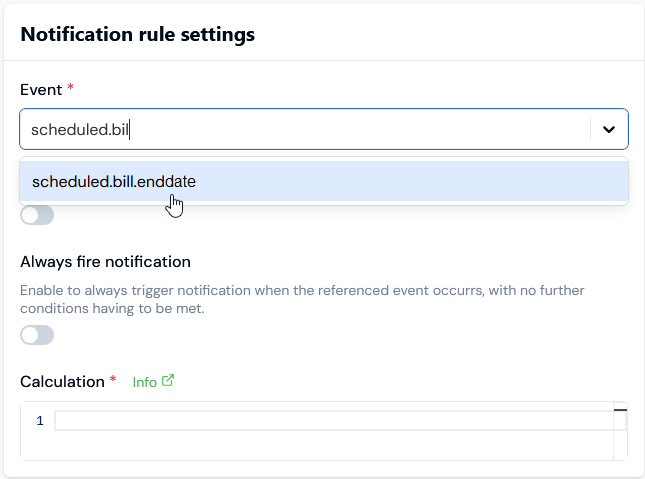
If you go to **Notifications>Create notification rule** in the Console, on the **Create** page under **Notification rule settings** your new custom Scheduled Event will show for selection in the **Event** drop-down for the same name as you used to create it. For the example shown in the [previous section](/guides/alerts-events-and-notifications/utilizing-events-and-notifications/working-with-scheduled-events#creating-notifications-for-scheduled-events) of this topic, this Event name is **scheduled.bill.enddate**, and you can start to enter this name to filter the drop-down Event list:
You've now created a Scheduled Event Configuration for the current Organization, which you can use as the basis for setting up a Notification.
**Tip: Check for Scheduled Event Configurations?** If you want to check for the Scheduled Event Configurations that have been created for your Organization, you can use the [List ScheduledEventConfigurations](/api/scheduledeventconfigurations/list-scheduledeventconfigurations) API call.
## Creating Notifications for Scheduled Events
If you've created a Scheduled Event Configuration for your Organization, you can now create a Notification based on it in the same way that you can create Notifications based on a system-generated Event. For full details on how to create a Notification Rule based on an Event, please see the [Creating, Managing, and Reviewing Notifications](/guides/alerts-events-and-notifications/utilizing-events-and-notifications/creating-managing-and-reviewing-notifications) topic.
If you go to **Notifications>Create notification rule** in the Console, on the **Create** page under **Notification rule settings** your new custom Scheduled Event will show for selection in the **Event** drop-down for the same name as you used to create it. For the example shown in the [previous section](/guides/alerts-events-and-notifications/utilizing-events-and-notifications/working-with-scheduled-events#creating-notifications-for-scheduled-events) of this topic, this Event name is **scheduled.bill.enddate**, and you can start to enter this name to filter the drop-down Event list: