> ## Documentation Index
> Fetch the complete documentation index at: https://docs.m3ter.com/llms.txt
> Use this file to discover all available pages before exploring further.
# Viewing and Managing System Alerts
System Alerts are automatically generated for your Organization in m3ter, both to inform you about key events and to notify you of any issues or errors that have occurred:
* **INFO**. Information about key events.
* **WARN**. Warnings about events.
* **ERROR**. Errors for events with information about cause of error where possible.
New Alerts are listed on your [Dashboard](/guides/getting-started/quick-start-worked-example) and from there you can open the main **Alerts** page to view the full list and follow up.
This topic explains how to view and open Alerts, follow up on them, and manage their status.
* [Viewing, Opening, and Following Up System Alerts](/guides/alerts-events-and-notifications/viewing-and-managing-alerts#viewing-opening-and-following-up-system-alerts)
* [Managing System Alerts](/guides/alerts-events-and-notifications/viewing-and-managing-alerts#managing-system-alerts)
**Note: System Alerts also generate Events.** For some Alerts corresponding Events are generated. For example, an **API\_INGEST** Alert might be generated for a missing Meter field but a corresponding **ingest.validation.failure** Event for a *MissingField* will also be listed on the **Ingest Events** page. You can use this ingest failure Event as an alternative way to follow-up on and troubleshoot the issue. See [Reviewing and Resolving Ingest Events](/guides/billing-and-usage-data/submitting-usage-data/reviewing-and-resolving-ingest-events).
## Viewing, Opening, and Following Up System Alerts
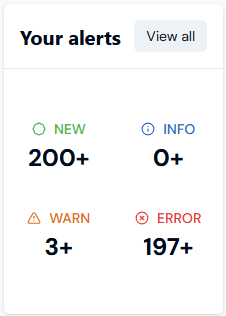
The **Your Alerts** panel on the Console Dashboard shows new Alerts generated for your Organization. You can quickly view the full listing, open an Alert, and view details to follow up.
**To view, open, and follow up Alerts:**
1. Open your **Dashboard**. The **Your Alerts** panel lists the number and types of Alerts triggered for your Organization:
 2. Select **View all**. Alternatively, select **Alerts and Notifications**. The **System alerts** page opens:
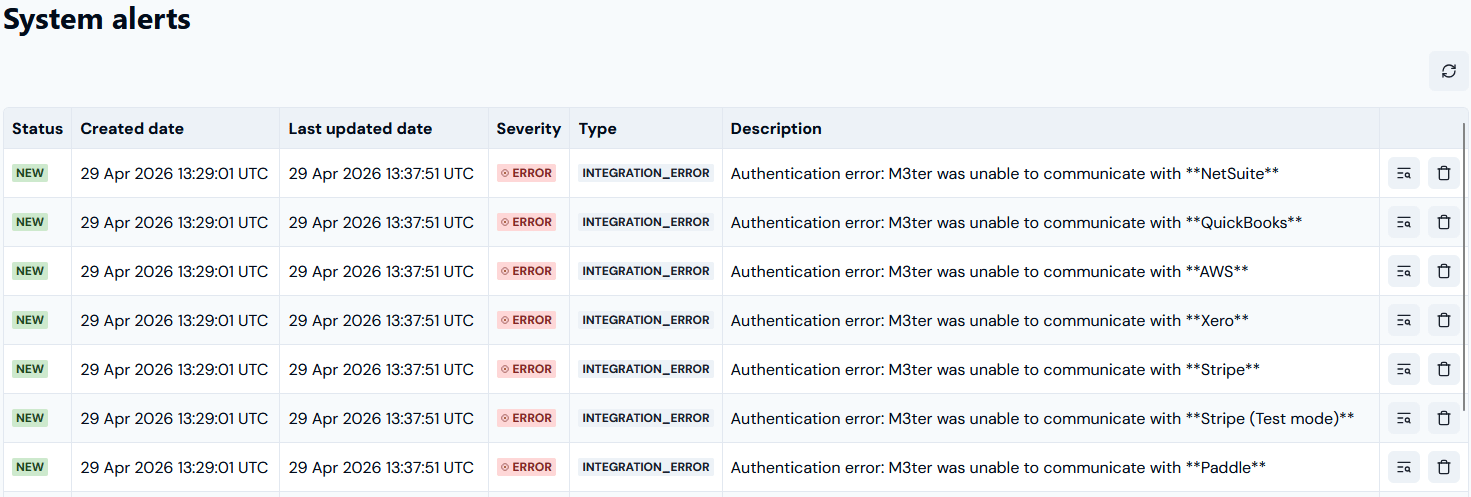 You can read off information about an Alert:
* **Status**. Shows if the Alert is **NEW** or **IN PROGRESS**.
* **Dates**. When the Alert was created and last updated.
* **Severity**. Whether the Alert is **INFO**, **WARN**, or **ERROR** severity level.
* **Type**. The type of event which is the source of the Alert.
* **Description**. A short description of the Alert.
3. To open an Alert for more details, select the **Details** button at the right side of the row:
You can read off information about an Alert:
* **Status**. Shows if the Alert is **NEW** or **IN PROGRESS**.
* **Dates**. When the Alert was created and last updated.
* **Severity**. Whether the Alert is **INFO**, **WARN**, or **ERROR** severity level.
* **Type**. The type of event which is the source of the Alert.
* **Description**. A short description of the Alert.
3. To open an Alert for more details, select the **Details** button at the right side of the row:
 An **Alert Details** dialog opens:
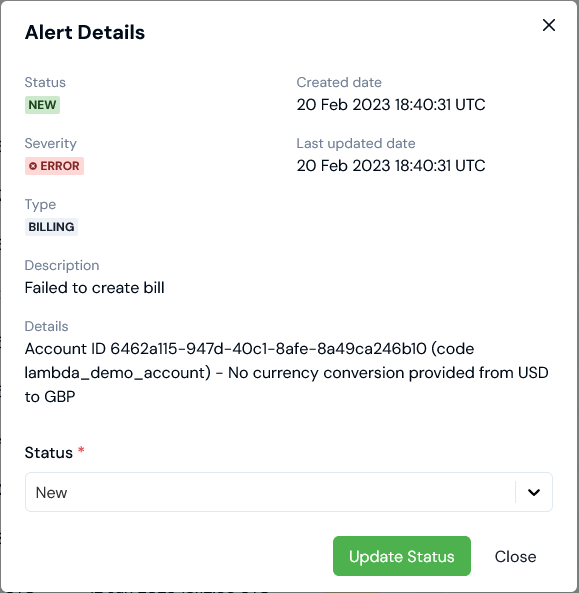 In this example, we've opened an **ERROR** Alert for **BILLING** where a Bill has failed to create. Under **Details**, the Account for which a Bill failed and the cause of failure are given - in this case a required currency conversion rate between pricing currency for the Account and the configured billing currency was not found. Where possible, Alerts will provide **Details** that help you to follow up and investigate the Alert to resolve and close it.
**Tip: Following up on failed Bill Alerts?** For more details on following up and resolving failed Bill Alerts, see [Troubleshooting Bills](/guides/billing-and-usage-data/running-viewing-and-managing-bills/troubleshooting-bills).
4. Select **Close** to return to the main **Alerts** page.
## Managing System Alerts
When you open to view an Alert and follow up on it, you can manage your workflow as you investigate and resolve it.
**To view, open, and follow up Alerts:**
1. Open the new Alert you want to view and follow up - see the [previous section](/guides/alerts-events-and-notifications/viewing-and-managing-alerts#viewing-opening-and-following-up-alerts). On the **Alert Details** dialog you can review the **Details** given about the cause of the Alert and decide whether or not you want to follow up the Alert to resolve it.
2. If you do, take note of the information given about the cause of the Alert and then use the **Status** drop-down to change the Alert's status from **New** to **In progress** and select **Update Status**:
In this example, we've opened an **ERROR** Alert for **BILLING** where a Bill has failed to create. Under **Details**, the Account for which a Bill failed and the cause of failure are given - in this case a required currency conversion rate between pricing currency for the Account and the configured billing currency was not found. Where possible, Alerts will provide **Details** that help you to follow up and investigate the Alert to resolve and close it.
**Tip: Following up on failed Bill Alerts?** For more details on following up and resolving failed Bill Alerts, see [Troubleshooting Bills](/guides/billing-and-usage-data/running-viewing-and-managing-bills/troubleshooting-bills).
4. Select **Close** to return to the main **Alerts** page.
## Managing System Alerts
When you open to view an Alert and follow up on it, you can manage your workflow as you investigate and resolve it.
**To view, open, and follow up Alerts:**
1. Open the new Alert you want to view and follow up - see the [previous section](/guides/alerts-events-and-notifications/viewing-and-managing-alerts#viewing-opening-and-following-up-alerts). On the **Alert Details** dialog you can review the **Details** given about the cause of the Alert and decide whether or not you want to follow up the Alert to resolve it.
2. If you do, take note of the information given about the cause of the Alert and then use the **Status** drop-down to change the Alert's status from **New** to **In progress** and select **Update Status**:
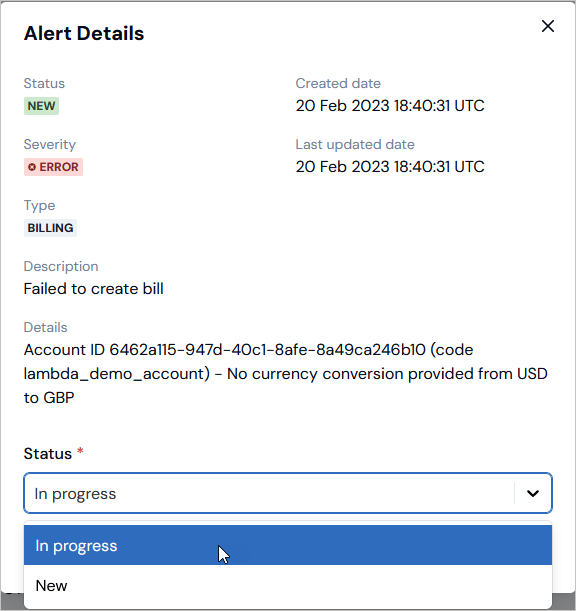 3. Select **Close**. The **Alert Details** dialog closes and on the **Alerts** page the Alert now shows a **STATUS** of **IN PROGRESS**.
4. When you have completed your follow up on the Alert and resolved it, on the **Alerts** page, you can select **Delete**:
3. Select **Close**. The **Alert Details** dialog closes and on the **Alerts** page the Alert now shows a **STATUS** of **IN PROGRESS**.
4. When you have completed your follow up on the Alert and resolved it, on the **Alerts** page, you can select **Delete**:
 A confirmation dialog appears.
5. Select **Yes** to confirm that you want to delete the Alert.
A confirmation dialog appears.
5. Select **Yes** to confirm that you want to delete the Alert.