> ## Documentation Index
> Fetch the complete documentation index at: https://docs.m3ter.com/llms.txt
> Use this file to discover all available pages before exploring further.
# Scheduling Billing
If you want Bills for your Accounts to be updated on a regular basis, you can:
* Define this as part of your Organization configuration in the Console.
* Use the *Update OrganizationConfig* API call.
## Understanding the Scheduled Billing Process
If you implement scheduled billing for your Organization to have Bills for end customer Accounts updated at regular intervals, it's important to be clear about how the process works:
* **What is included at Bill update?** The Bill for each Account is calculated at the time the scheduled update is due. The calculation will only include charges from *active* Account Plans on the Account at the time of the update. If an Account Plan becomes inactive before the scheduled update, only charges accumulated under that Account Plan up to its deactivation date will be included in the Bill.
* **What about late-arriving data?** We accommodate usage data received up to 24 hours after the scheduled Bill update. Late-arriving data refers to usage data with a timestamp before the scheduled update, but which is ingested into the m3ter platform after the Bill has been updated. If any late-arriving data is recorded for an Account within this 24-hour window, the Bill will be recalculated to include the associated charges.
* **Important qualification**: The 24 hour inclusion period following scheduled Bill update for late-arriving data is not always timed from the scheduled Bill update time. For cases where an Account Plan used to charge an Account ends before the scheduled time of Bill update, the 24 hour inclusion period for late-arriving data is timed from the time the Account Plan ends. For example,
* If, on a monthly billing frequency, an Account has a single Account Plan which is active for all of October, we'll continue to recalculate the Bill to catch any late-arriving data through to end of November 1st.
* If, however, the single Account Plan ceases to be active for the Account at midnight on the 14th October, we'll continue to recalculate the Bill to catch any late-arriving data only up to midnight on the 15th October.
**Warnings!**
* **Possible Conflict between Auto-Approval of Bills and Scheduled Bill Interval!** If a Bill is recalculated because of late-arriving data after being auto-approved, and the bill auto-approval interval is less than 24 hours, then the Bill will revert to a pending, unapproved state.
* We recommend setting the auto-approval interval to 24 hours or longer when using scheduled bill updates.
* **Deleting and recreating Account using same Code in late-arriving window**. If you delete an Account and recreate it using the same Code within the 24 hour late-arriving window, then usage data with an earlier timestamp will not be caught. For this and other reasons we strongly recommend *not reusing Account Codes* - see [Managing Accounts - Best Practices](/guides/end-customer-accounts/managing-accounts-best-practices) for more details.
## Scheduling Billing from Console
**To schedule Billing in the Console:**
1. Select **Settings**:
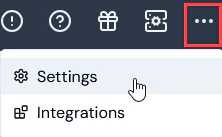 The **Settings** section opens at the **Organization** page with the **Configuration** tab selected.
2. On the **Organization configuration details** panel, select **Edit** The **Organization configuration** page opens.
3. Use the **Scheduled bill interval** drop-down to select the required interval in minutes or hours - ten options: **15 minutes, 30 minutes,** **1 hour**, **2 hours**, **3 hours**, **4 hours**, **6 hours**, **8 hours**, **12 hours**, or **24 hours**:
* If, and only if, you select **24 hours** to implement daily Bill updates, then optionally you can also select a **Scheduled bill offset** and specify the hour in the day - **1** to **23** - when the scheduled daily Bill update will run.
* The default is **Disabled**, which means no Billing is scheduled.
4. Select **Update Organization configuration**. You are returned to the **Configuration** tab where the **Scheduled bill interval** now shows on the **Organization configuration details** panel.
## Scheduling Billing Using API Call
**To schedule Billing using API call:**
1. Review the API Documentation at [https://m3ter.com/docs](https://m3ter.com/docs).
2. Open the **OrganizationConfig** section. You can use the [Update OrganizationConfig](/api/organizationconfig/update-organizationconfig) API call to define a schedule interval for updating Bills:
> **PUT** `/organizations/{orgid}/organizationconfig`
3. Enter the required parameters for this call and use the optional `scheduledBillInterval` request schema parameter to set the required interval:
* **For portions of an hour (minutes).** Two options: **0.25** (15 minutes) and **0.5** (30 minutes).
* **For full hours.** Enter **1** for every hour, **2** for every two hours, and so on. Eight options: **1**, **2**, **3**, **4**, **6**, **8**, **12**, or **24**.
* If, and only if, you use **24** to implement daily Bill updates, then you can also use the optional `scheduledBillOffset` request schema parameter to specify the hour in the day - **1** to **23** - when the scheduled daily Bill update will run.
* **Default.** The default is **0**, which disables scheduling.
4. Submit the API call.
The **Settings** section opens at the **Organization** page with the **Configuration** tab selected.
2. On the **Organization configuration details** panel, select **Edit** The **Organization configuration** page opens.
3. Use the **Scheduled bill interval** drop-down to select the required interval in minutes or hours - ten options: **15 minutes, 30 minutes,** **1 hour**, **2 hours**, **3 hours**, **4 hours**, **6 hours**, **8 hours**, **12 hours**, or **24 hours**:
* If, and only if, you select **24 hours** to implement daily Bill updates, then optionally you can also select a **Scheduled bill offset** and specify the hour in the day - **1** to **23** - when the scheduled daily Bill update will run.
* The default is **Disabled**, which means no Billing is scheduled.
4. Select **Update Organization configuration**. You are returned to the **Configuration** tab where the **Scheduled bill interval** now shows on the **Organization configuration details** panel.
## Scheduling Billing Using API Call
**To schedule Billing using API call:**
1. Review the API Documentation at [https://m3ter.com/docs](https://m3ter.com/docs).
2. Open the **OrganizationConfig** section. You can use the [Update OrganizationConfig](/api/organizationconfig/update-organizationconfig) API call to define a schedule interval for updating Bills:
> **PUT** `/organizations/{orgid}/organizationconfig`
3. Enter the required parameters for this call and use the optional `scheduledBillInterval` request schema parameter to set the required interval:
* **For portions of an hour (minutes).** Two options: **0.25** (15 minutes) and **0.5** (30 minutes).
* **For full hours.** Enter **1** for every hour, **2** for every two hours, and so on. Eight options: **1**, **2**, **3**, **4**, **6**, **8**, **12**, or **24**.
* If, and only if, you use **24** to implement daily Bill updates, then you can also use the optional `scheduledBillOffset` request schema parameter to specify the hour in the day - **1** to **23** - when the scheduled daily Bill update will run.
* **Default.** The default is **0**, which disables scheduling.
4. Submit the API call.