> ## Documentation Index
> Fetch the complete documentation index at: https://docs.m3ter.com/llms.txt
> Use this file to discover all available pages before exploring further.
# Data Explorers: Saving, Updating, and Re-Using Queries
If you have set up a query in either the *Usage Data Explorer*, *Billing Data Explorer*, or *Prepayments Data Explorer* and expect to use the query again, you can:
* Save the query for re-use.
* Update a saved query with the details of the current query.
* Re-load a saved query into a query builder.
This topic explains how to save, update, and re-use queries in the context of the original version Usage Data Explorer. You can follow a similar procedure when working in the Prepayment Data Explorer or the Billing Data Explorer.
**Notes and Warnings:**
* **Standard Queries.** For some query builders, pre-configured *Standard Queries* are available, such as the **Month-on-month report** Billing Query. You can use the Standard Queries button in the same way as the Saved Queries button to load these pre-configured Queries.
* **Usage Date Explorer (v2)**. When working in Usage Data Explorer (v2), you can save and re-use queries, but you *cannot update saved queries*.
## Saving Queries
**To save a query:**
1. Select **Metering>Usage Data Explorer**.
2. Use the **Usage query builder** to configure a query, perform the query, and review the returned data.
3. If you expect to want to perform the same query at a later date, select **Save Query**. A popup appears and the default action selected is to **Save a new query**:
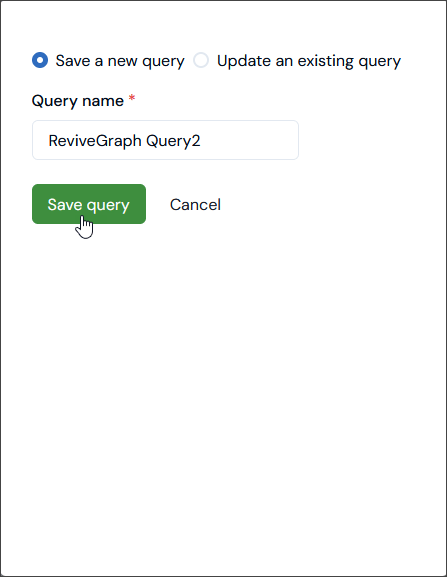 4. Enter a **Query name** and select **Save query**. The popup closes and your query is saved.
## Updating Saved Queries
**To update a saved query:**
1. Select **Metering>Usage Data Explorer**.
2. Use the **Usage query builder** to configure a query, perform the query, and review the returned data.
3. If you expect to want to perform the query at a later date, and want to update a query you've previously saved with the details of the current query, select **Save query**. A popup appears and the default action selected on the popup is to **Save a new query**.
4. Select **Update an existing query**. The popup adjusts:
4. Enter a **Query name** and select **Save query**. The popup closes and your query is saved.
## Updating Saved Queries
**To update a saved query:**
1. Select **Metering>Usage Data Explorer**.
2. Use the **Usage query builder** to configure a query, perform the query, and review the returned data.
3. If you expect to want to perform the query at a later date, and want to update a query you've previously saved with the details of the current query, select **Save query**. A popup appears and the default action selected on the popup is to **Save a new query**.
4. Select **Update an existing query**. The popup adjusts:
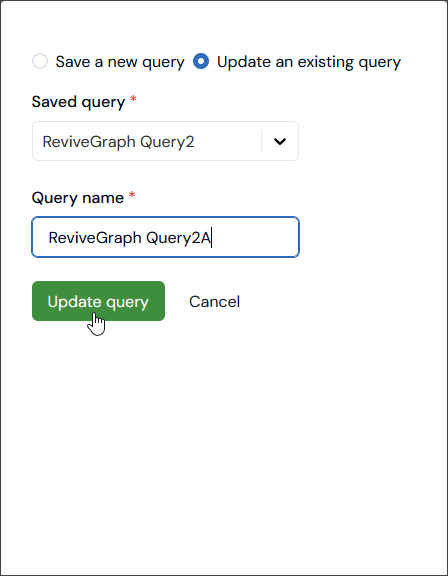 5. Select a previously **Saved query** to update. The **Query name** field adjusts to show the selected saved query to be updated and to be saved under the same **Query name**.
* If you want use the same name when updating, select **Update Query**. The popup closes and the updated query is saved under the same name.
* If you want to update the saved query under a different name, enter a new **Query name** and select **Update Query**. The popup closes and the updated query is saved under the new name.
## Re-Loading Saved Queries
**To re-load a saved query into Query Builder:**
1. Select **Metering>Usage Data Explorer**.
2. In the **Usage query builder**, select **Saved queries**. A popup appears and lists saved Usage queries.
3. Select **Load query** for the query you want to load into **Usage query builder**. The query is loaded and the query is automatically performed to return data for review.
5. Select a previously **Saved query** to update. The **Query name** field adjusts to show the selected saved query to be updated and to be saved under the same **Query name**.
* If you want use the same name when updating, select **Update Query**. The popup closes and the updated query is saved under the same name.
* If you want to update the saved query under a different name, enter a new **Query name** and select **Update Query**. The popup closes and the updated query is saved under the new name.
## Re-Loading Saved Queries
**To re-load a saved query into Query Builder:**
1. Select **Metering>Usage Data Explorer**.
2. In the **Usage query builder**, select **Saved queries**. A popup appears and lists saved Usage queries.
3. Select **Load query** for the query you want to load into **Usage query builder**. The query is loaded and the query is automatically performed to return data for review.