> ## Documentation Index
> Fetch the complete documentation index at: https://docs.m3ter.com/llms.txt
> Use this file to discover all available pages before exploring further.
# Reviewing and Managing Export Schedules
From the Data export page you can manage your Export Schedules to review or edit a schedule's details and delete a schedule if you no longer want to use it to export data.
**To view details, edit, or delete an Export schedule:**
1. Select **Data exports**:
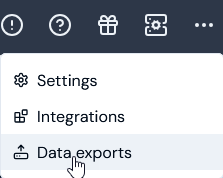 The **Data exports** page opens and lists any existing **Export schedules**.
2. If you want to review details of an **Operational data** Export schedule, on the **Export schedules** panel select the **Name** hotlink text:
The **Data exports** page opens and lists any existing **Export schedules**.
2. If you want to review details of an **Operational data** Export schedule, on the **Export schedules** panel select the **Name** hotlink text:
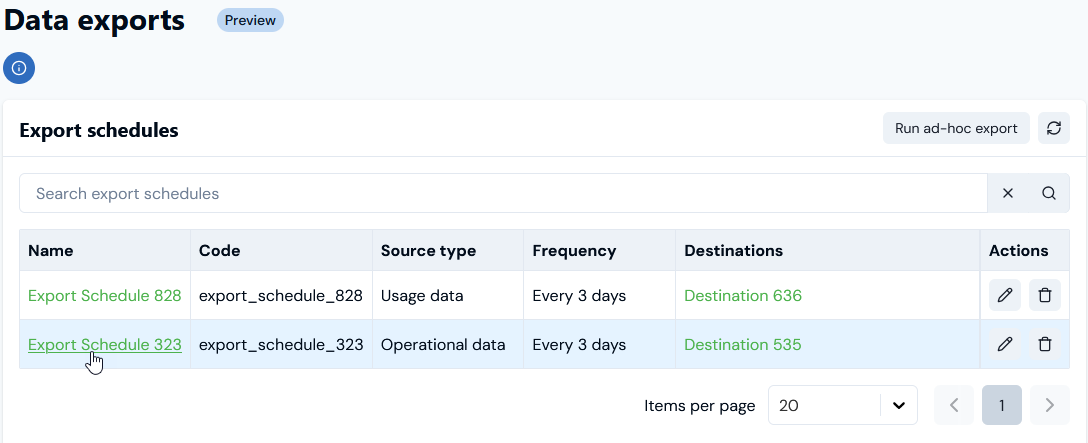 The **Export schedule details** page opens:
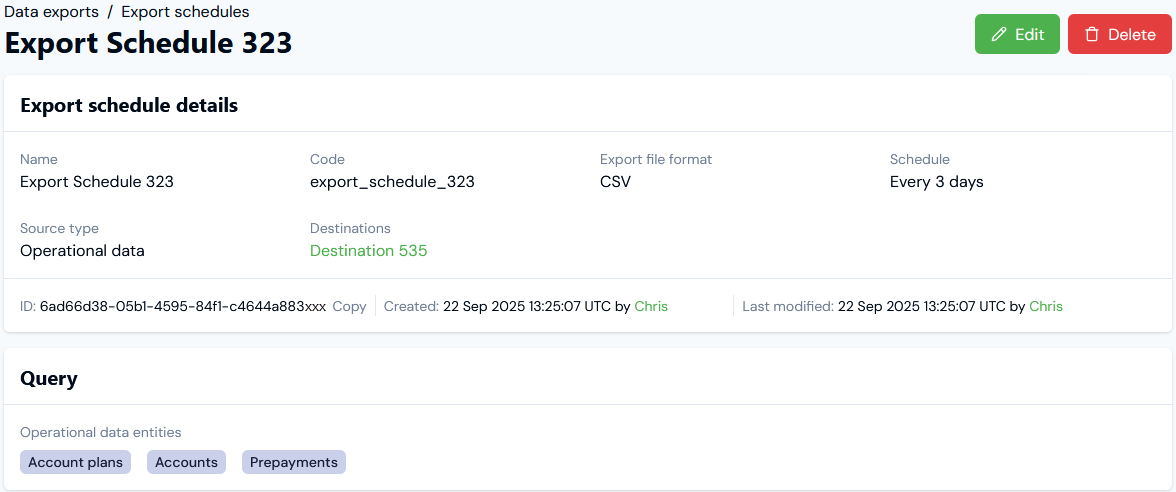 * For an **Operational data** Export schedule, you can review the details and:
* Check the **Export file format**.
* Copy the schedule **ID** directly to your clipboard.
* Select the hotlink text of any **Destinations** configured for the schedule and review the Destination details.
* Under **Query**, read-off the entities whose operational data the export will contain.
3. If you want to review details of an **Usage data** Export schedule, on the **Export schedules** panel select the **Name** hotlink text. The **Export schedule details** page opens:
* For an **Operational data** Export schedule, you can review the details and:
* Check the **Export file format**.
* Copy the schedule **ID** directly to your clipboard.
* Select the hotlink text of any **Destinations** configured for the schedule and review the Destination details.
* Under **Query**, read-off the entities whose operational data the export will contain.
3. If you want to review details of an **Usage data** Export schedule, on the **Export schedules** panel select the **Name** hotlink text. The **Export schedule details** page opens:
 * For a **Usage data** Export schedule, you can review the details and:
* Check the **Export file format**.
* Copy the schedule **ID** directly to your clipboard.
* Select the hotlink text of any **Destinations** configured for the schedule and review the Destination details.
* Under **Query**:
* Read-off the **Accounts** and **Meters** the export will contain usage data for.
* Check any **Dimension filters** that will be applied to the usage data.
* Check any **Aggregations** that will be applied to the usage data.
* If Aggregations are applied, check how the aggregated usage data is **Grouped by**.
* If you want to check what usage data will be exported for the **Query** you've built, select **View in Data Explorer**. The **Usage Data Explorer** opens where the **Query** is loaded and performed. You can review what usage data is returned in the **Results row** table.
4. If you want edit an Export schedule, on the **Data export** page select the **Edit** icon:
* For a **Usage data** Export schedule, you can review the details and:
* Check the **Export file format**.
* Copy the schedule **ID** directly to your clipboard.
* Select the hotlink text of any **Destinations** configured for the schedule and review the Destination details.
* Under **Query**:
* Read-off the **Accounts** and **Meters** the export will contain usage data for.
* Check any **Dimension filters** that will be applied to the usage data.
* Check any **Aggregations** that will be applied to the usage data.
* If Aggregations are applied, check how the aggregated usage data is **Grouped by**.
* If you want to check what usage data will be exported for the **Query** you've built, select **View in Data Explorer**. The **Usage Data Explorer** opens where the **Query** is loaded and performed. You can review what usage data is returned in the **Results row** table.
4. If you want edit an Export schedule, on the **Data export** page select the **Edit** icon:
 * Alternatively, if you've opened the **Export schedule details** page, you can **Edit** the schedule directly from there.
The **Edit** page opens and you can update the **Export schedule details**.
5. When you've completed your editing changes, select **Update Export schedule**.
6. If you want to delete a schedule, select the **Delete** icon:
* Alternatively, if you've opened the **Export schedule details** page, you can **Edit** the schedule directly from there.
The **Edit** page opens and you can update the **Export schedule details**.
5. When you've completed your editing changes, select **Update Export schedule**.
6. If you want to delete a schedule, select the **Delete** icon:
 A confirmation dialog appears.
7. Select **Yes** to confirm the delete action.
**Tip**: Alternatively, you can use the **Edit** or **Delete** buttons at top right of the **Export schedule details** page.
A confirmation dialog appears.
7. Select **Yes** to confirm the delete action.
**Tip**: Alternatively, you can use the **Edit** or **Delete** buttons at top right of the **Export schedule details** page.