> ## Documentation Index
> Fetch the complete documentation index at: https://docs.m3ter.com/llms.txt
> Use this file to discover all available pages before exploring further.
# Running Ad-Hoc Operational Data Exports
You can quickly set up and run a one-off, ad-hoc data export containing operational data of selected entities in your Organization - such as Bills, Prepayments/Commitments, Accounts, and Balances. The data export will contain the operational data for the selected entities at the time the export runs.
**Important!**
* **Reviewing Operational Data Export Options**. Before attempting to run and ad-hoc operational data export, please review the options available for controlling the data the export will contain - see [Working with Operational Data Export Schedules](/guides/data-exports/creating-operational-data-export-schedules#working-with-operational-data-export-schedules).
* **Data Export Entity Schema!** You can review the details of export schema for each entity available for operational data export - see [Data Export - Entity Schema and Relationship Diagram](/guides/data-exports/data-export-object-relationship-diagram).
## Creating and Running an Ad-Hoc Operational Data Export
**To create and run an ad-hoc Operational Data export:**
1. Select **Data exports**:
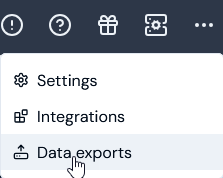 The **Data exports** page opens.
2. On the **Export schedules** panel, select **Run ad-hoc export**. The **Run ad-hoc export** page opens.
3. Enter the **Ad-hoc export details**:
* **Destinations**. Use the drop-down to select the Export destinations to be used for the ad-hoc data export:
* Select a destination.
* If *No options* shows in the drop-down, you must first create at least one destination before you can set up an ad-hoc data export - see [Creating and Managing Export Destinations](/guides/data-exports/creating-data-export-destinations).
* Alternatively, if you simply want to download the data export file locally, *do not select* a Destination. See [Downloading Data Export Files Locally](/guides/data-exports/downloading-data-export-files-locally) for more details.
* **Export file format**. Select the format you require for the data export files:
* **CSV**. (*Default*).
* **JSONL**.
4. Under **Ad-hoc export data**:
* **Source type**. Select the **Operational data** option. The page adjusts to allow you to select a **Time period** for the export and the **Operational data entities** you want the export to contain.
5. **Time period**. Define a time period using an *inclusive start date/time* to define the period you want the ad-hoc data export to cover and control the range of operational data that the export will contain. Only data created or modified from the specified start date/time until *now* - where this means *the date/time the Export runs* - will be included. As well as allowing you to set a custom start, several preset options are available:
* **Custom**. Use the calendar selector to specify a start date/time.
* **Today**. Data for the current day up until now.
* **Week**, **Month**, or **Year to date**. Data for the period covering the current week, month, or year up until now.
* **Last 12 hours**. Data collected for the twelve hour period prior to when you make the selection up to now.
* **Last 7**, **30**, **35**, **90**, or **120 days**. Data for the selected number of days prior to when you make the selection up until now.
* **Last year**. Data for the full year prior to when you make the selection up until now.
* **All Time**. Unrestricted and the export contains all the operational data available for selected entities up until now. (*Default setting*)
When you select the **Time period**, the inclusive start date is shown in brackets. For example, if **Today** is selected on June 9th 2025:
The **Data exports** page opens.
2. On the **Export schedules** panel, select **Run ad-hoc export**. The **Run ad-hoc export** page opens.
3. Enter the **Ad-hoc export details**:
* **Destinations**. Use the drop-down to select the Export destinations to be used for the ad-hoc data export:
* Select a destination.
* If *No options* shows in the drop-down, you must first create at least one destination before you can set up an ad-hoc data export - see [Creating and Managing Export Destinations](/guides/data-exports/creating-data-export-destinations).
* Alternatively, if you simply want to download the data export file locally, *do not select* a Destination. See [Downloading Data Export Files Locally](/guides/data-exports/downloading-data-export-files-locally) for more details.
* **Export file format**. Select the format you require for the data export files:
* **CSV**. (*Default*).
* **JSONL**.
4. Under **Ad-hoc export data**:
* **Source type**. Select the **Operational data** option. The page adjusts to allow you to select a **Time period** for the export and the **Operational data entities** you want the export to contain.
5. **Time period**. Define a time period using an *inclusive start date/time* to define the period you want the ad-hoc data export to cover and control the range of operational data that the export will contain. Only data created or modified from the specified start date/time until *now* - where this means *the date/time the Export runs* - will be included. As well as allowing you to set a custom start, several preset options are available:
* **Custom**. Use the calendar selector to specify a start date/time.
* **Today**. Data for the current day up until now.
* **Week**, **Month**, or **Year to date**. Data for the period covering the current week, month, or year up until now.
* **Last 12 hours**. Data collected for the twelve hour period prior to when you make the selection up to now.
* **Last 7**, **30**, **35**, **90**, or **120 days**. Data for the selected number of days prior to when you make the selection up until now.
* **Last year**. Data for the full year prior to when you make the selection up until now.
* **All Time**. Unrestricted and the export contains all the operational data available for selected entities up until now. (*Default setting*)
When you select the **Time period**, the inclusive start date is shown in brackets. For example, if **Today** is selected on June 9th 2025:
 6. Under **Operational data entities**, select the plus icon and use the pop-up to select the entities whose data you want to include in the ad-hoc export:
* **Accounts**
* **Account Plans**
* **Aggregations**
* **Balances**
* **Balance Transactions**
* **Bills**
* **Bill line items**
* **Charges**
* **Prepayments/Commitments**
* **Compound Aggregations**
* **Contracts**
* **Meters**
* **Plans**
* **Plan Groups**
* **Plan Group Links**
* **Plan Templates**
* **Pricing**
* **Pricing Bands**
* **Products**
* **Transaction Types**
6. Under **Operational data entities**, select the plus icon and use the pop-up to select the entities whose data you want to include in the ad-hoc export:
* **Accounts**
* **Account Plans**
* **Aggregations**
* **Balances**
* **Balance Transactions**
* **Bills**
* **Bill line items**
* **Charges**
* **Prepayments/Commitments**
* **Compound Aggregations**
* **Contracts**
* **Meters**
* **Plans**
* **Plan Groups**
* **Plan Group Links**
* **Plan Templates**
* **Pricing**
* **Pricing Bands**
* **Products**
* **Transaction Types**
 **Tip: Exporting data for all entities?** If you want to export the operational data for all entities, use **Select all**.
7. Select **Add**. The selected entities are added to the **Ad-hoc export details**.
8. When you have entered all details for the ad-hoc data export, select **Run ad-hoc export**:
**Tip: Exporting data for all entities?** If you want to export the operational data for all entities, use **Select all**.
7. Select **Add**. The selected entities are added to the **Ad-hoc export details**.
8. When you have entered all details for the ad-hoc data export, select **Run ad-hoc export**:
 * In this example for an ad-hoc export to run on May 15th 2025, we've selected to include the operational data for any **Accounts** and **Bills** created or modified in the previous week to be included.
An Export job is scheduled for the ad-hoc operational data export and you can check if the job succeeded on the **Export jobs** page - see [Reviewing Export Jobs](/guides/data-exports/reviewing-export-jobs).
* In this example for an ad-hoc export to run on May 15th 2025, we've selected to include the operational data for any **Accounts** and **Bills** created or modified in the previous week to be included.
An Export job is scheduled for the ad-hoc operational data export and you can check if the job succeeded on the **Export jobs** page - see [Reviewing Export Jobs](/guides/data-exports/reviewing-export-jobs).