> ## Documentation Index
> Fetch the complete documentation index at: https://docs.m3ter.com/llms.txt
> Use this file to discover all available pages before exploring further.
# Reviewing Account Balances Summary
An Account's *Balances* tab offers a helpful summary of the Balances created for the Account over time where you can quickly review key details for each Balance and their timelines.
**To review Account Balances Summary:**
1. Select **Accounts**. The **Accounts** page opens.
2. Select the **Name** text hotlink of the Account you want to review the Balances summary for. The **Account details** page opens.
3. Select the **Balances** tab:
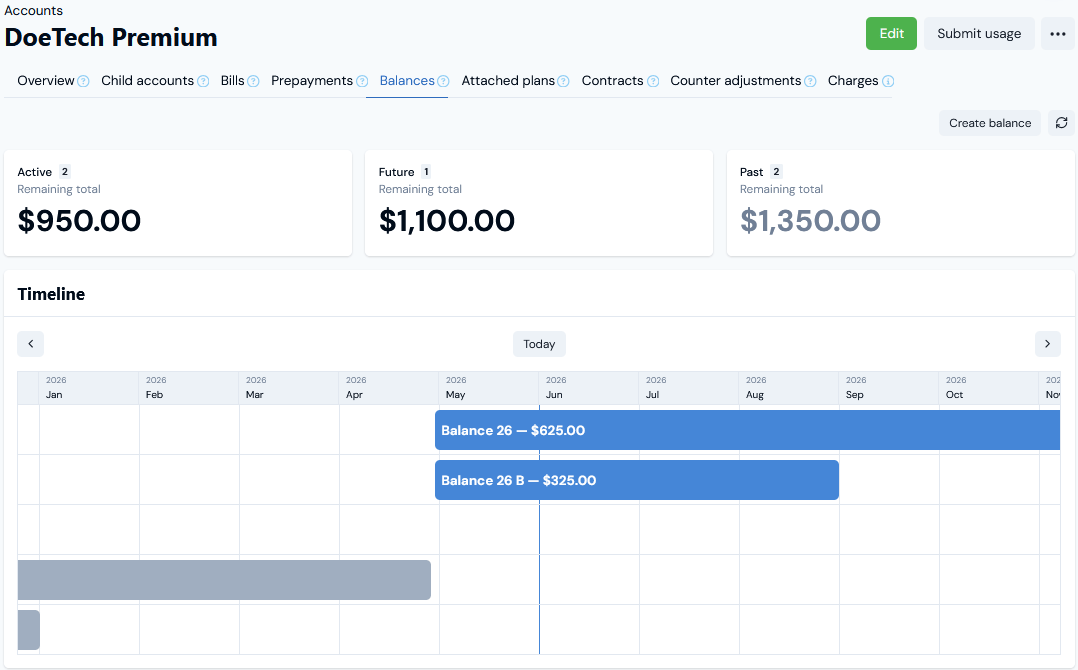 On review for this example:
* The Account has two currently **Active** Balances, two **Past** Balances, and one **Future** Balance.
* The **Remaining total** is given for the currently **Active**, **Future**, and **Past** Balances.
4. On the **Timeline** chart, you can use the paging arrows to move backwards or forwards in time to review **Past** Balances:
On review for this example:
* The Account has two currently **Active** Balances, two **Past** Balances, and one **Future** Balance.
* The **Remaining total** is given for the currently **Active**, **Future**, and **Past** Balances.
4. On the **Timeline** chart, you can use the paging arrows to move backwards or forwards in time to review **Past** Balances:
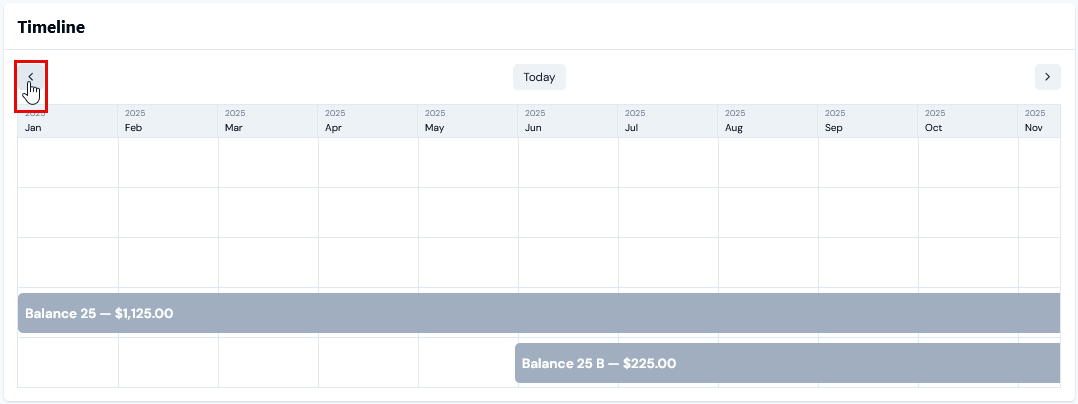 or **Future** Balances:
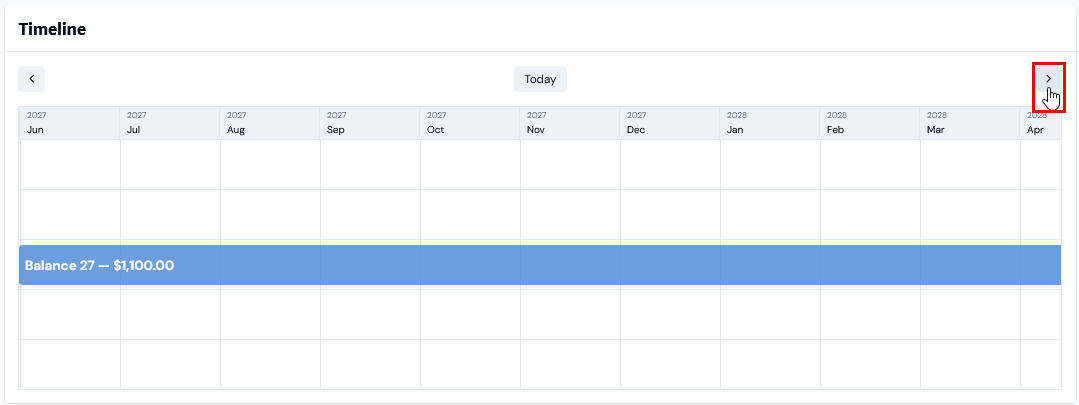 * Note that you can also scroll the **Timeline** chart for Balances on an Account.
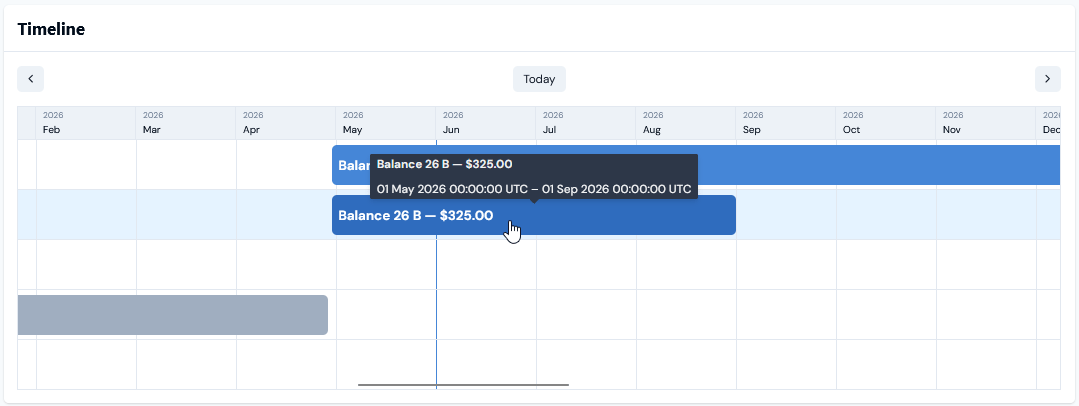
5. If you want to review further details of a Balance select it in the **Timeline** chart to open the **Balance details** page:
* Note that you can also scroll the **Timeline** chart for Balances on an Account.
5. If you want to review further details of a Balance select it in the **Timeline** chart to open the **Balance details** page:
 6. Also provided is a detailed view of the **Active**, **Future**, and **Past** Balances for an Account. In the current example, the **Active**:
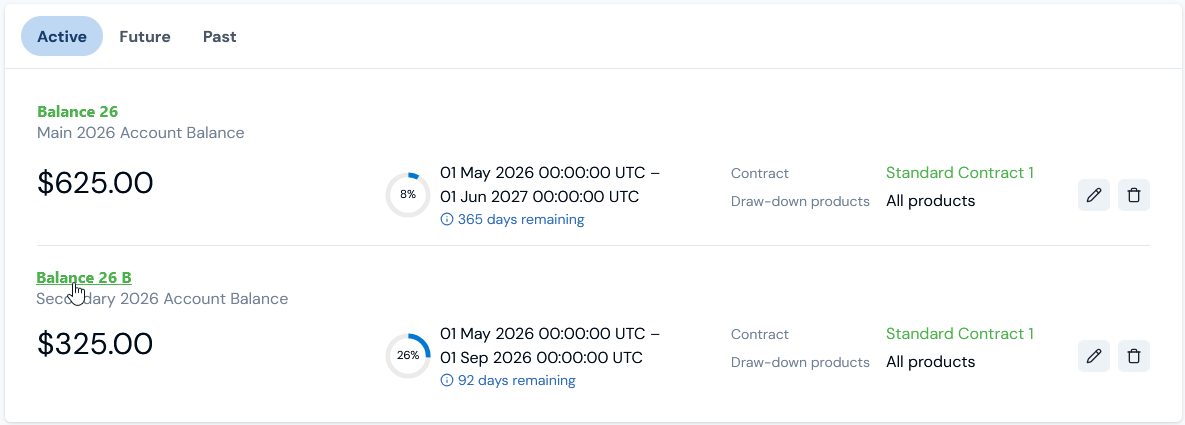 You can quickly check:
* The period configured for a Balance:
* For **Active** Balances, the percentage of the period to date, and the number of days remaining.
* For **Future** Balances, that the period sits at zero percentage and the number of days before the period starts.
* For **Past** Balances, that the period is has reached 100% and the number of days elapsed since the period ended.
* Any **Contract** the Balance has been linked to.
* The **Draw-down products** configured for the Balance.
7. If you want to review further details of a Balance, select the name hotlink text to open the **Balance details** page.
You can quickly check:
* The period configured for a Balance:
* For **Active** Balances, the percentage of the period to date, and the number of days remaining.
* For **Future** Balances, that the period sits at zero percentage and the number of days before the period starts.
* For **Past** Balances, that the period is has reached 100% and the number of days elapsed since the period ended.
* Any **Contract** the Balance has been linked to.
* The **Draw-down products** configured for the Balance.
7. If you want to review further details of a Balance, select the name hotlink text to open the **Balance details** page.