> ## Documentation Index
> Fetch the complete documentation index at: https://docs.m3ter.com/llms.txt
> Use this file to discover all available pages before exploring further.
# Setting Up Charge Schedules for Balances
You can set up a *Charge Schedule* for a Balance on an Account. This allows you to generate Charges for billing a Balance at regular daily, weekly, monthly, or yearly intervals over a specified time period.
This topic explains how to set up and manage Charge Schedules for your Account Balances:
* [Creating Balance Charge Schedules](/guides/end-customer-accounts/creating-balances-for-accounts/setting-charge-schedules-for-balances#creating-balance-charge-schedules)
* [Reviewing Balance Charge Schedules](/guides/end-customer-accounts/creating-balances-for-accounts/setting-charge-schedules-for-balances#reviewing-balance-charge-schedules)
* [Viewing and Managing Scheduled Charges for Balances](/guides/end-customer-accounts/creating-balances-for-accounts/setting-charge-schedules-for-balances#viewing-and-managing-scheduled-charges-for-balances)
**Note: Balance Charge Schedules in Beta Release!** Please note that the Balance Charge Schedules feature is currently available only in Beta release version. See [Feature Release Stages](/guides/getting-started/feature-release-stages) for Beta release definition.
**Notes:**
* **One-Off Charges!** You can create one-off Charges for a Balance on an Account. See [Creating Charges for Balances](/guides/end-customer-accounts/creating-balances-for-accounts/creating-charges-for-balances) for more details on creating one-off Charges and on using Balance Charges.
* **Running and Viewing Bills for Balance Charges?** You can run billing for an Account that has a Balance with a Charge on it and check the billed amount and date. See [Running and Viewing Bills for Balance Charges](/guides/end-customer-accounts/creating-balances-for-accounts/runnning-viewing-bill-for-balance-charges) for more details.
## Creating Balance Charge Schedules
**To create a Charge Schedule for a Balance:**
1. Select **Accounts**. The **Accounts** page opens.
2. Select the **Name** text of the Account with the Balance you want to set up a Charge Schedule for. The **Account** details page opens with the **Overview** tab selected.
3. Select the **Balances** tab.
4. Select the **Name** text of the Balance. The **Balance details** page opens.
5. On the **Balance charges** panel, select **Create charge schedule**.
* Alternatively, scroll down the page and on the **Active and pending balance schedules** panel select **Create charge schedule**.
The **Create** page opens.
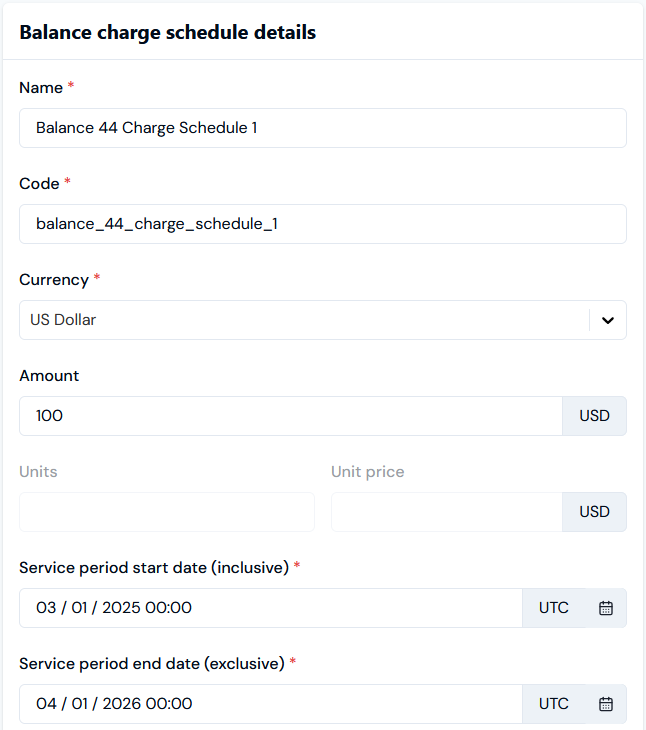
6. Enter the **Balance charge schedule details**:
* **Name**. *(Required)*
* **Code**. *(Required)*
* **Currency**. Use the drop-down list to select the currency you want to use for the Charge Schedule. *(Required)*
* **Amount**. Enter the amount for Charges generated for the Schedule. *(Required if Units/Unit price not provided)*
* **Units** and **Unit price**. **Units** and **Unit price**. Enter if you haven't entered an **Amount**. At billing, the Charge amount will be calculated as the number of **Units** multiplied by the **Unit price**. *(Required if Amount not provided)*
* Note that you cannot *provide both* an **Amount** and **Units/Unit price**.
* **Service period start date (inclusive)** and **Service period end date (exclusive)**. Use the calendar pop-ups to define a service period for the Charge Schedule. *(Required)*
 7. Enter billing options:
* **Bill frequency**. Specify the daily, weekly, monthly, or yearly intervals for when Bills for Charges against the Balance under the Schedule are generated for the Account. Default setting is every month. *(Required)*
* **Billing cycle date**. Optional setting, which sets the date when the first Bill is created for Balance Charges under the Schedule, and also acts as a reference for when in the Schedule period subsequent bills are created:
* For example, suppose the Charge Schedule is configured for monthly billing frequency and a time period of a calendar year of February 1st to February 1st. You then set a **Billing cycle date** of February 15th. The first Bill will be created for the Balance Charge under the Schedule Account on February 15th, and subsequent Bills created on the 15th of the months following for the remainder of the period - March 15th, April 15th, and so on.
* If you leave this blank, then Epoch dates from your Organization's configuration will be used as the **Billing cycle date** instead.
* **Charge billing**. Select to have Charges billed in arrears or in advance. *(Required)*
* **Bill in arrears (end of each billing period)** Default setting.
* **Bill in advance (start of each billing period)**
* **Charge description**. Enter a description used for Bill line items for Charges billed against the Balance under the Schedule. (*Required*)
7. Enter billing options:
* **Bill frequency**. Specify the daily, weekly, monthly, or yearly intervals for when Bills for Charges against the Balance under the Schedule are generated for the Account. Default setting is every month. *(Required)*
* **Billing cycle date**. Optional setting, which sets the date when the first Bill is created for Balance Charges under the Schedule, and also acts as a reference for when in the Schedule period subsequent bills are created:
* For example, suppose the Charge Schedule is configured for monthly billing frequency and a time period of a calendar year of February 1st to February 1st. You then set a **Billing cycle date** of February 15th. The first Bill will be created for the Balance Charge under the Schedule Account on February 15th, and subsequent Bills created on the 15th of the months following for the remainder of the period - March 15th, April 15th, and so on.
* If you leave this blank, then Epoch dates from your Organization's configuration will be used as the **Billing cycle date** instead.
* **Charge billing**. Select to have Charges billed in arrears or in advance. *(Required)*
* **Bill in arrears (end of each billing period)** Default setting.
* **Bill in advance (start of each billing period)**
* **Charge description**. Enter a description used for Bill line items for Charges billed against the Balance under the Schedule. (*Required*)
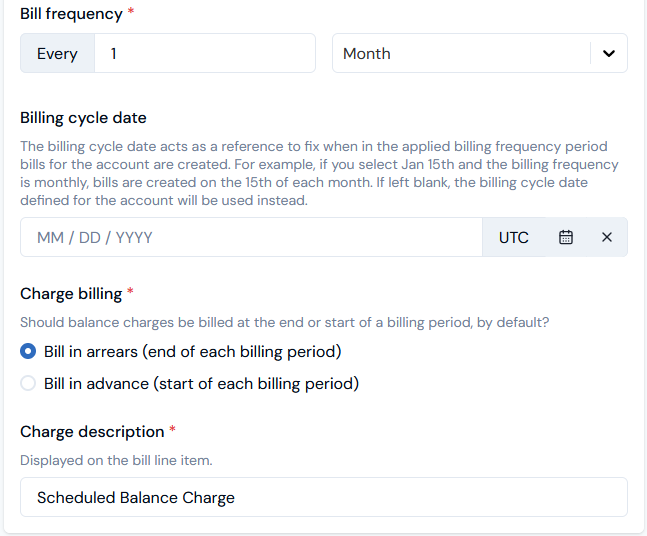 In this example, a Charge Schedule for a Balance is set up for generating Charges of \$100 against the Balance for billing at monthly intervals in arrears throughout the defined time period for the schedule:
* The first Charge will be generated for the Balance on April 1st 2025, and then on the 1st of every month following throughout the defined Charge Schedule time period.
8. If you want to check the Charges that will be created for the Balance under the Charge Schedule configuration, expand the **Balance charge schedule preview**.
9. If required, add any **Custom fields** to the Charge Schedule:
* Currently, you cannot create Custom Fields for Charge Schedules at the Organization-level, and therefore you cannot reference the Custom Fields values you create for an individual Charge Schedule in your calculations.
* For more on Custom Fields, see [Adding and Editing Custom Fields](/guides/organization-and-access-management/viewing-and-editing-organization/adding-and-editing-custom-fields). We strongly recommend reviewing [Working with Custom Fields](/guides/creating-and-managing-products/working-with-custom-fields) before you create and use Custom Fields.
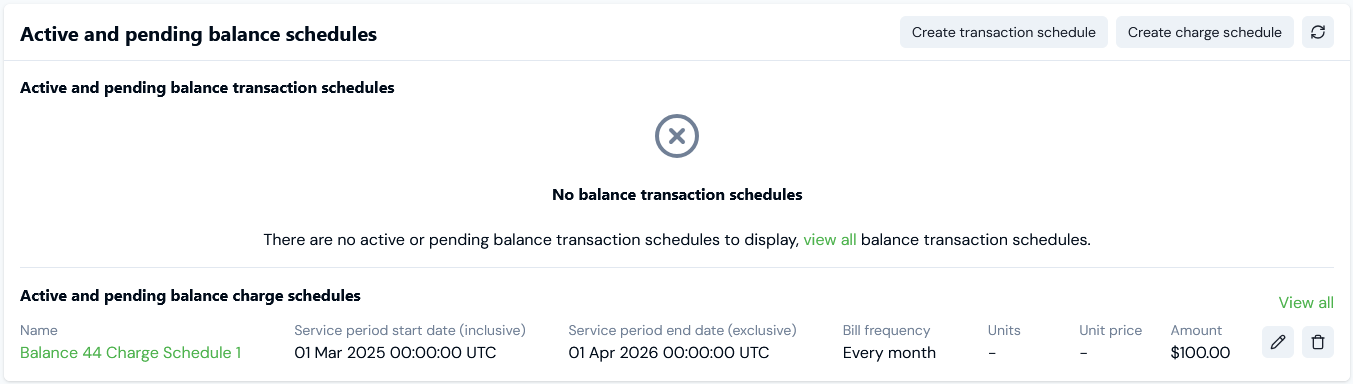
10. Select **Create balance charge schedule**. You are returned to the **Balance details** page where the new Charge Schedule is listed on the **Active and pending balance schedules** panel under **Active and pending balance charge schedules**:
In this example, a Charge Schedule for a Balance is set up for generating Charges of \$100 against the Balance for billing at monthly intervals in arrears throughout the defined time period for the schedule:
* The first Charge will be generated for the Balance on April 1st 2025, and then on the 1st of every month following throughout the defined Charge Schedule time period.
8. If you want to check the Charges that will be created for the Balance under the Charge Schedule configuration, expand the **Balance charge schedule preview**.
9. If required, add any **Custom fields** to the Charge Schedule:
* Currently, you cannot create Custom Fields for Charge Schedules at the Organization-level, and therefore you cannot reference the Custom Fields values you create for an individual Charge Schedule in your calculations.
* For more on Custom Fields, see [Adding and Editing Custom Fields](/guides/organization-and-access-management/viewing-and-editing-organization/adding-and-editing-custom-fields). We strongly recommend reviewing [Working with Custom Fields](/guides/creating-and-managing-products/working-with-custom-fields) before you create and use Custom Fields.
10. Select **Create balance charge schedule**. You are returned to the **Balance details** page where the new Charge Schedule is listed on the **Active and pending balance schedules** panel under **Active and pending balance charge schedules**:
 11. If you want to edit the Charge Schedule, select the **Edit** button:
 12. Make your changes, and click **Update balance charge schedule** and return to the **Active and pending balance schedules** panel.
13. If you want to remove a Charge Schedule, select the **Delete** button:
12. Make your changes, and click **Update balance charge schedule** and return to the **Active and pending balance schedules** panel.
13. If you want to remove a Charge Schedule, select the **Delete** button:
 A confirmation popup opens.
14. Select **Delete** to confirm.
## Reviewing Balance Charge Schedules
You can review the Charge Schedules you've set up for a Balance.
**To review Charge Schedules for a Balance:**
1. Select **Accounts**. The **Accounts** page opens.
2. Select the **Name** text of the Account with the Balance you want to review Charge Schedules for. The **Account** details page opens with the **Overview** tab selected.
3. Select the **Balances** tab.
4. Select the **Name** text of the Balance. The **Balance details** page opens.
5. Scroll down the page and on the **Active and pending balance schedules** panel any Charge Schedules set up for the Balance will be listed under **Active and pending balance charge schedules**.
6. Select the **Name** hotlink text of the Charge Schedule you want to review. The **Balance charge schedule details** page opens:
A confirmation popup opens.
14. Select **Delete** to confirm.
## Reviewing Balance Charge Schedules
You can review the Charge Schedules you've set up for a Balance.
**To review Charge Schedules for a Balance:**
1. Select **Accounts**. The **Accounts** page opens.
2. Select the **Name** text of the Account with the Balance you want to review Charge Schedules for. The **Account** details page opens with the **Overview** tab selected.
3. Select the **Balances** tab.
4. Select the **Name** text of the Balance. The **Balance details** page opens.
5. Scroll down the page and on the **Active and pending balance schedules** panel any Charge Schedules set up for the Balance will be listed under **Active and pending balance charge schedules**.
6. Select the **Name** hotlink text of the Charge Schedule you want to review. The **Balance charge schedule details** page opens:
 On the **Balance charge schedule details** card, you can:
* Read-off the Charge Schedule **ID**, and copy it directly to your clipboard.
* Check at-a-glance the **Next/Previous charge generation dates** under the schedule.
7. Use the **Scheduled balance charges** card to review a list of the Charges already generated for the Balance to date:
On the **Balance charge schedule details** card, you can:
* Read-off the Charge Schedule **ID**, and copy it directly to your clipboard.
* Check at-a-glance the **Next/Previous charge generation dates** under the schedule.
7. Use the **Scheduled balance charges** card to review a list of the Charges already generated for the Balance to date:
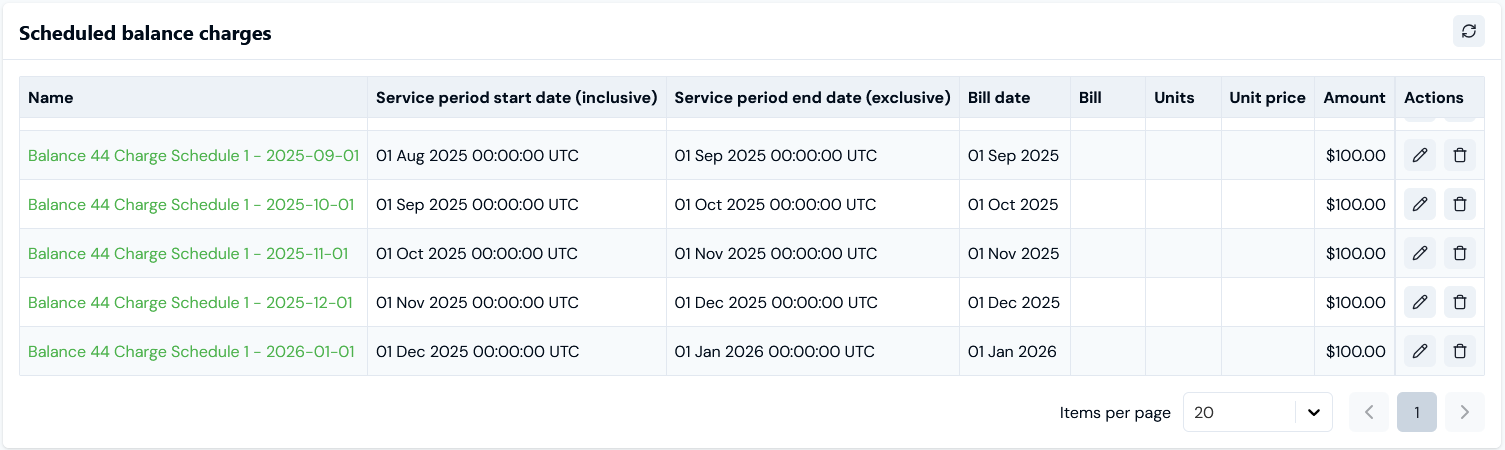 * Note that the Charge for the current billing service period - in this example for the January 1st Bill - is generated in advance to allow for scheduling billing.
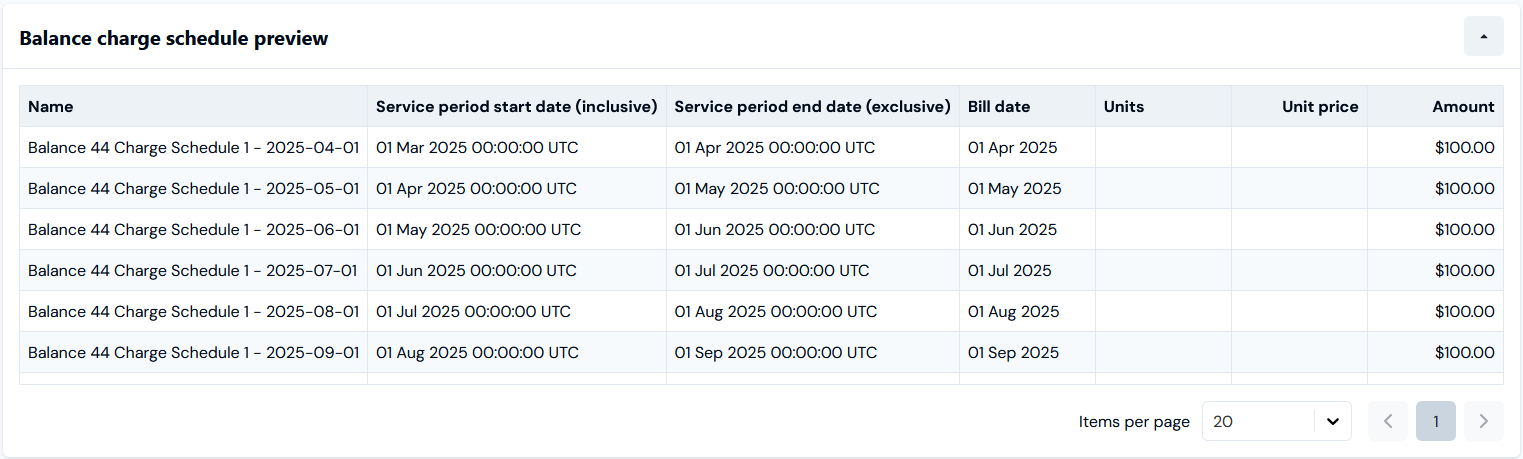
8. Scroll down the page and expand the **Balance charge schedule preview** card. Note that you can scroll and page the list to review the entire series:
* Note that the Charge for the current billing service period - in this example for the January 1st Bill - is generated in advance to allow for scheduling billing.
8. Scroll down the page and expand the **Balance charge schedule preview** card. Note that you can scroll and page the list to review the entire series:
 **Note: Viewing Recently Created Balance Charge Schedule Details!** The Scheduler service runs every hour, approximately a few minutes after the hour. If you have only very recently - within the past hour - created a Balance Charge Schedule with a start date in the past:
* The **Scheduled balance charge** card *might remain empty*. When the Scheduler service next runs, the **Scheduled balance charge** card will refresh automatically and show any Charges generated for past dates under the Schedule.
* The **Balance schedule charge preview** card *might show* *all Charges*, including past ones. When the Scheduler service next runs, the **Balance schedule charge preview** card will refresh automatically and show only future Charges due under the Schedule.
9. Scroll further down the page and you can review **Balance charge schedule metadata**:
* **Custom Fields**. Any Custom Fields created for the Charge Schedule are listed:
**Note: Viewing Recently Created Balance Charge Schedule Details!** The Scheduler service runs every hour, approximately a few minutes after the hour. If you have only very recently - within the past hour - created a Balance Charge Schedule with a start date in the past:
* The **Scheduled balance charge** card *might remain empty*. When the Scheduler service next runs, the **Scheduled balance charge** card will refresh automatically and show any Charges generated for past dates under the Schedule.
* The **Balance schedule charge preview** card *might show* *all Charges*, including past ones. When the Scheduler service next runs, the **Balance schedule charge preview** card will refresh automatically and show only future Charges due under the Schedule.
9. Scroll further down the page and you can review **Balance charge schedule metadata**:
* **Custom Fields**. Any Custom Fields created for the Charge Schedule are listed:
 * You can **Copy** the *String* or *Number* value of a field to your clipboard. See [Working with Custom Fields](/guides/creating-and-managing-products/working-with-custom-fields) for more details.
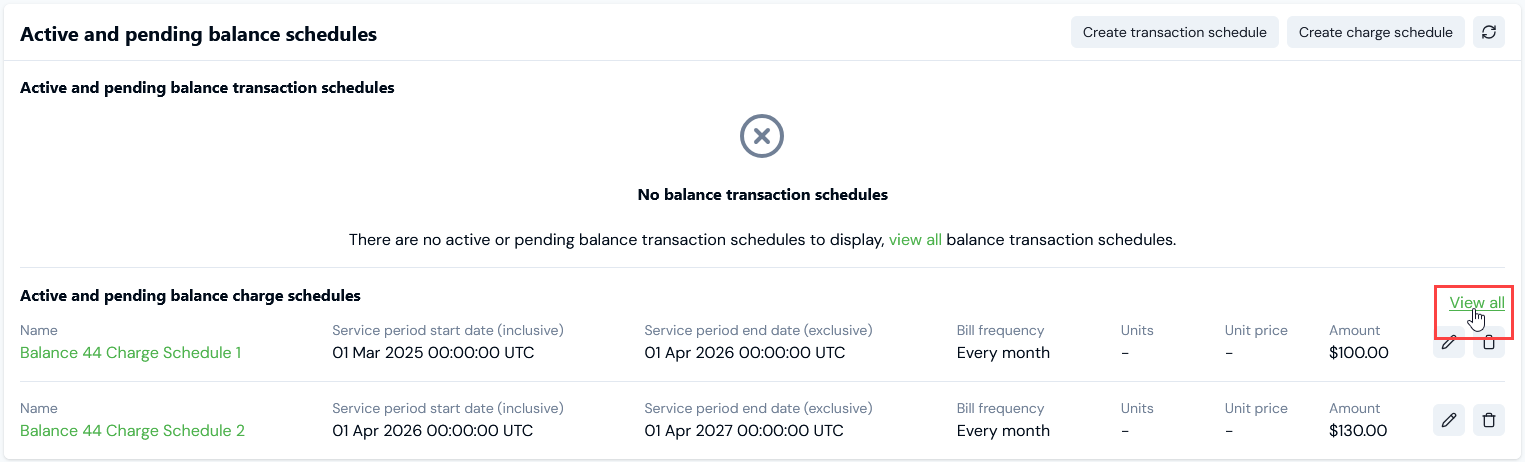
10. Return to the **Balance details** page. If a Balance has multiple Charge Schedules set up, from the **Active and pending transaction schedules** panel you can select to **View all**:
* You can **Copy** the *String* or *Number* value of a field to your clipboard. See [Working with Custom Fields](/guides/creating-and-managing-products/working-with-custom-fields) for more details.
10. Return to the **Balance details** page. If a Balance has multiple Charge Schedules set up, from the **Active and pending transaction schedules** panel you can select to **View all**:
 The **Balance charge schedules** page opens:
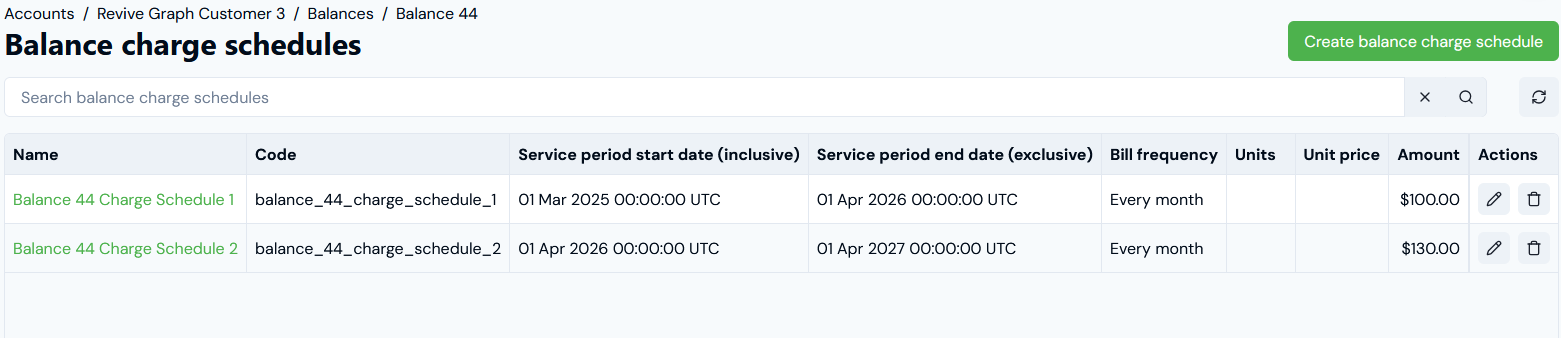 From this page, you can review all Charge Schedules set up for a Balance and:
* Create a new Charge Schedule for the Balance.
* Select the **Name** hotlink text to open an existing Charge Schedule and review its details.
## Viewing and Managing Scheduled Charges for Balances
When you have set up a Charge Schedule for a Balance and Charges have been generated for the Schedule, you can review specific Charge details and manage these Charges:
* [Reviewing Scheduled Charge Details](/guides/end-customer-accounts/creating-balances-for-accounts/setting-charge-schedules-for-balances#reviewing-scheduled-charge-details)
* [Editing and Deleting Scheduled Charges](/guides/end-customer-accounts/creating-balances-for-accounts/setting-charge-schedules-for-balances#editing-and-deleting-scheduled-charges)
### Reviewing Scheduled Charge Details
**To review Scheduled Charge details:**
1. Select **Accounts**. The **Accounts** page opens.
2. Select the **Name** text of the Account with the Balance you want to review Scheduled Charges for. The **Account** details page opens with the **Overview** tab selected.
3. Select the **Balances** tab.
4. Select the **Name** text of the Balance. The **Balance details** page opens.
5. Scroll down the page and on the **Balance charges** card, any Charges created for the Balance - either one-off Charges or Scheduled Charges are listed:
From this page, you can review all Charge Schedules set up for a Balance and:
* Create a new Charge Schedule for the Balance.
* Select the **Name** hotlink text to open an existing Charge Schedule and review its details.
## Viewing and Managing Scheduled Charges for Balances
When you have set up a Charge Schedule for a Balance and Charges have been generated for the Schedule, you can review specific Charge details and manage these Charges:
* [Reviewing Scheduled Charge Details](/guides/end-customer-accounts/creating-balances-for-accounts/setting-charge-schedules-for-balances#reviewing-scheduled-charge-details)
* [Editing and Deleting Scheduled Charges](/guides/end-customer-accounts/creating-balances-for-accounts/setting-charge-schedules-for-balances#editing-and-deleting-scheduled-charges)
### Reviewing Scheduled Charge Details
**To review Scheduled Charge details:**
1. Select **Accounts**. The **Accounts** page opens.
2. Select the **Name** text of the Account with the Balance you want to review Scheduled Charges for. The **Account** details page opens with the **Overview** tab selected.
3. Select the **Balances** tab.
4. Select the **Name** text of the Balance. The **Balance details** page opens.
5. Scroll down the page and on the **Balance charges** card, any Charges created for the Balance - either one-off Charges or Scheduled Charges are listed:
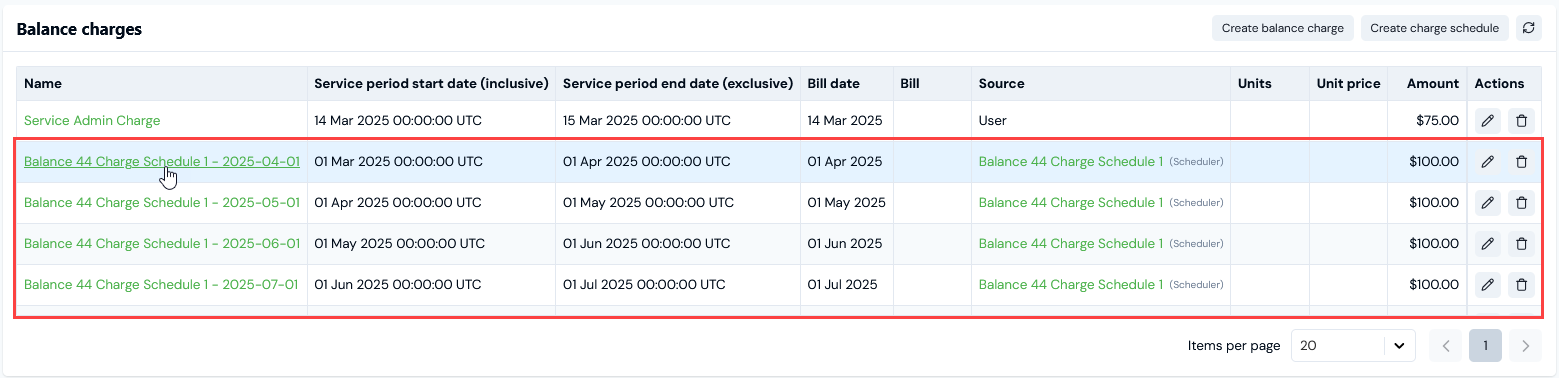 In this example of a Balance we set up a Charge Schedule for in the [previous section](/guides/end-customer-accounts/creating-balances-for-accounts/setting-charge-schedules-for-balances#creating-charge-schedules-for-balances), we can see:
* There is a single one-off Charge.
* To date, four scheduled Charges have been generated. Note that:
* The **Name** for a scheduled Charge is the name of the Charge Schedule with the date of the Charge appended.
* The **Source** for each Charge is clearly identified as **(Scheduler)** with a hotlink text for the Charge Schedule also provided.
6. Select the **Name** hotlink text of the scheduled Charge you want to review details for.
* Alternatively, on the **Balance details** page scroll down to the **Active and pending balance schedules** card and under **Active and pending balance charge schedules**, select the **Name** hotlink text of the Charge Schedule you want to reviewing Charges for. The **Charge schedule details** page opens.
* On the **Scheduled balance charges** card select the scheduled Charge **Name** hotlink text:
In this example of a Balance we set up a Charge Schedule for in the [previous section](/guides/end-customer-accounts/creating-balances-for-accounts/setting-charge-schedules-for-balances#creating-charge-schedules-for-balances), we can see:
* There is a single one-off Charge.
* To date, four scheduled Charges have been generated. Note that:
* The **Name** for a scheduled Charge is the name of the Charge Schedule with the date of the Charge appended.
* The **Source** for each Charge is clearly identified as **(Scheduler)** with a hotlink text for the Charge Schedule also provided.
6. Select the **Name** hotlink text of the scheduled Charge you want to review details for.
* Alternatively, on the **Balance details** page scroll down to the **Active and pending balance schedules** card and under **Active and pending balance charge schedules**, select the **Name** hotlink text of the Charge Schedule you want to reviewing Charges for. The **Charge schedule details** page opens.
* On the **Scheduled balance charges** card select the scheduled Charge **Name** hotlink text:
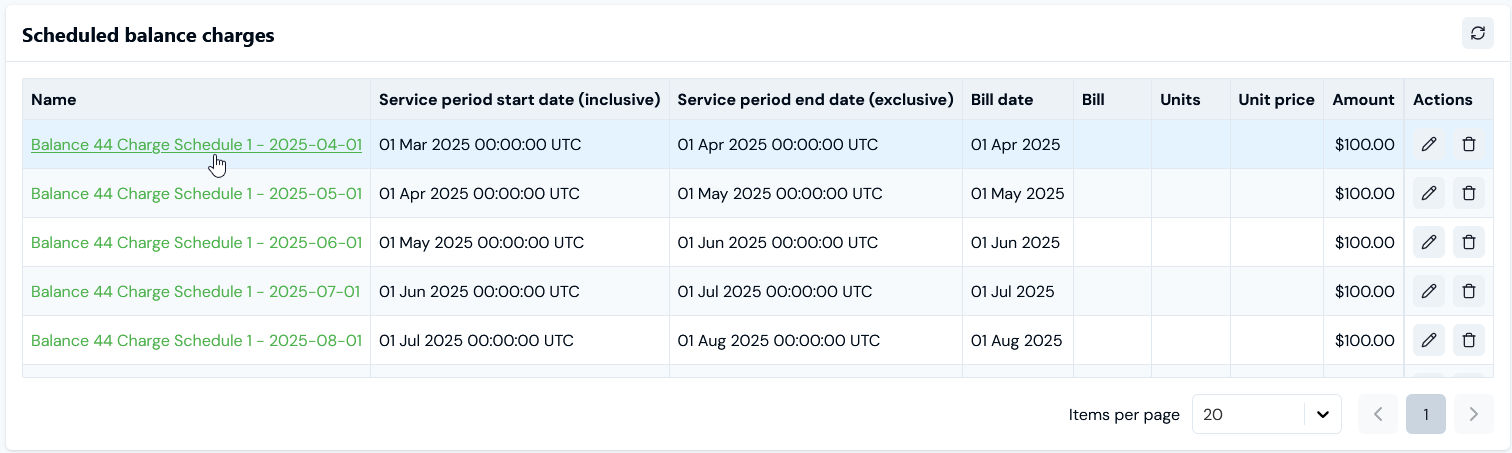 The **Balance charge details** page opens:
 You can review and check the details scheduled Charge generated for the Balance:
* Read-off the **Service period** and **Bill date**.
* If a Bill for the scheduled Charge has been generated, use a text hotlink to open the **Bill**.
* Use a text hotlink to open the **Balance** the scheduled Charge is for.
* Use a text hotlink to open the **Balance charge schedule** for the Charge.
* Copy the **ID** of the scheduled Charge directly to your clipboard.
### Editing and Deleting Scheduled Charges
**To edit or delete a Scheduled Charge for a Balance:**
1. Select **Accounts**. The **Accounts** page opens.
2. Select the **Name** text hotlink of the Account that the Balance belongs to. The **Account details** page opens.
3. Select the **Balances** tab.
4. Select the **Name** text hotlink of the Balance. The **Balance details** page opens.
5. If you want to edit a scheduled Charge, on the **Balance charges** panel select the edit icon:
The **Edit** page opens.
6. Make the required editing changes and select **Update balance charge**. Your updates are saved and you are returned to the **Balance charges** tab.
7. If you want to delete a scheduled Charge, select the **Delete** icon:
A confirmation popup appears
8. Select **Delete** to confirm.
You can review and check the details scheduled Charge generated for the Balance:
* Read-off the **Service period** and **Bill date**.
* If a Bill for the scheduled Charge has been generated, use a text hotlink to open the **Bill**.
* Use a text hotlink to open the **Balance** the scheduled Charge is for.
* Use a text hotlink to open the **Balance charge schedule** for the Charge.
* Copy the **ID** of the scheduled Charge directly to your clipboard.
### Editing and Deleting Scheduled Charges
**To edit or delete a Scheduled Charge for a Balance:**
1. Select **Accounts**. The **Accounts** page opens.
2. Select the **Name** text hotlink of the Account that the Balance belongs to. The **Account details** page opens.
3. Select the **Balances** tab.
4. Select the **Name** text hotlink of the Balance. The **Balance details** page opens.
5. If you want to edit a scheduled Charge, on the **Balance charges** panel select the edit icon:
The **Edit** page opens.
6. Make the required editing changes and select **Update balance charge**. Your updates are saved and you are returned to the **Balance charges** tab.
7. If you want to delete a scheduled Charge, select the **Delete** icon:
A confirmation popup appears
8. Select **Delete** to confirm.