> ## Documentation Index
> Fetch the complete documentation index at: https://docs.m3ter.com/llms.txt
> Use this file to discover all available pages before exploring further.
# Reviewing Organization Contracts
A *Contracts* page is available which lists the Contracts you have created for your Organization where you can review and manage them. You can search for individual Contracts or for those belonging to a specific Account, check a Contract's period, and quickly read-off a Contract's percentage completion.
This topic explains how to access the Contract's page for your Organization and review your Account Contracts.
**To access the Contracts page and review Account Contracts:**
1. In the Console top navigation, select **Accounts**:
 The **Accounts** page opens.
2. Select **Contracts**:
The **Accounts** page opens.
2. Select **Contracts**:
 3. The **Contracts** page opens:
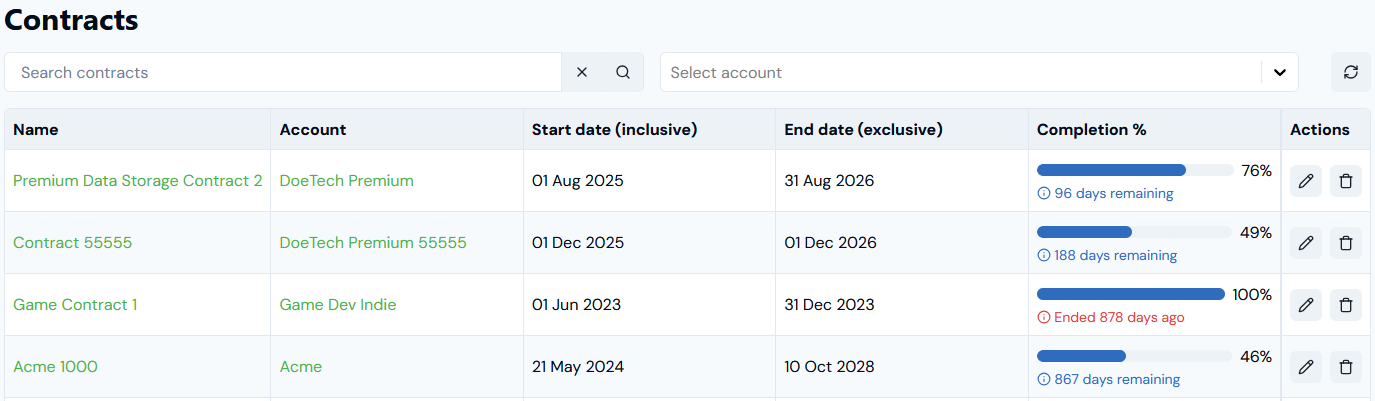 From here, you can:
* Use the **Name** hotlink text to open a Contract's details page.
* Use the **Account** hotlink text to open the page of the Account the Contract belongs to.
* Check the **Start date(inclusive)** and **End date(exclusive)** configured for a Contract.
* Under **Completion %** read-off the timeline percentage completion to date of the Contract's period:
* If the Contract is still active, the number of days remaining to completion is given.
* If the Contract has ended, the number of days since it ended is given.
4. Use **Search contracts** to search for individual Contracts:
From here, you can:
* Use the **Name** hotlink text to open a Contract's details page.
* Use the **Account** hotlink text to open the page of the Account the Contract belongs to.
* Check the **Start date(inclusive)** and **End date(exclusive)** configured for a Contract.
* Under **Completion %** read-off the timeline percentage completion to date of the Contract's period:
* If the Contract is still active, the number of days remaining to completion is given.
* If the Contract has ended, the number of days since it ended is given.
4. Use **Search contracts** to search for individual Contracts:
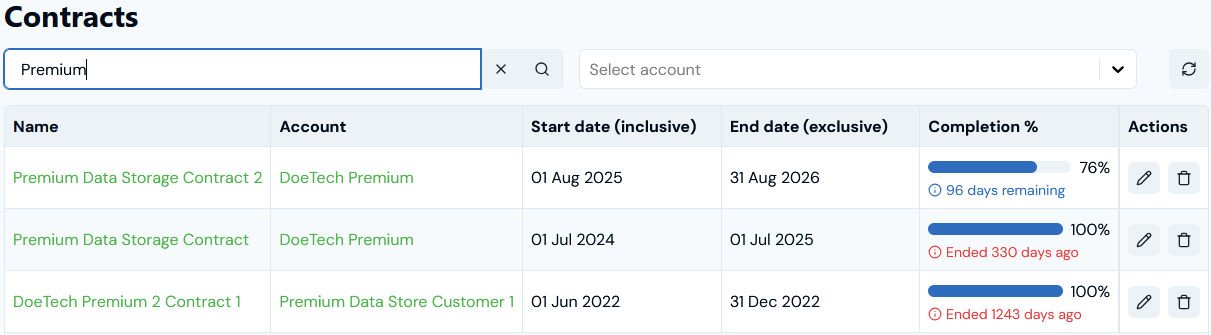 5. Use the **Select account** drop-down list to filter the list by Account:
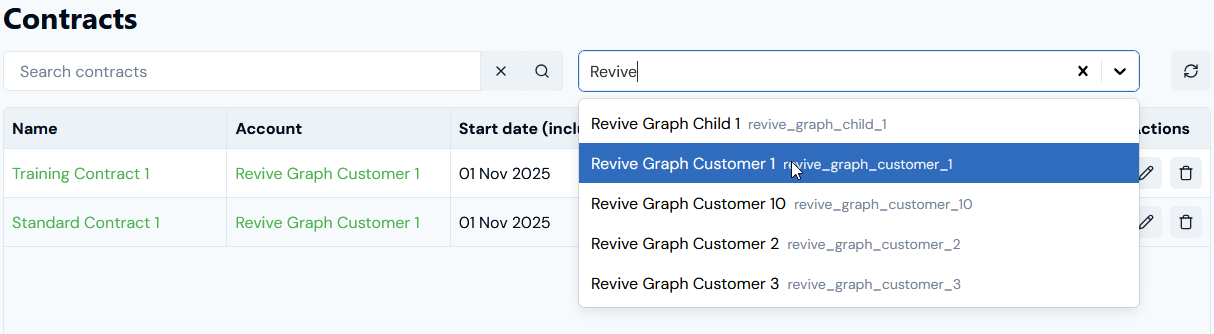 6. If you want to manage a Contract directly, under **Actions** you can **Edit** or **Delete** a Contract. See [Creating and Managing Contracts](/guides/end-customer-accounts/creating-contracts-for-accounts/creating-and-managing-contracts).