> ## Documentation Index
> Fetch the complete documentation index at: https://docs.m3ter.com/llms.txt
> Use this file to discover all available pages before exploring further.
# Creating and Managing Integrations
Setting up an Integration in m3ter consists of two stages:
* Configuration to control how m3ter data will be synchronized with your external system.
* Configuration of a Credential, which will allow the Integration to authenticate and connect with an external system.
You can perform both stages of this overall set up in the Console for either *Integrations* or *Notification* *Webhook Integrations*:
* An *Integration* typically allows you to send billing data for end-customer Accounts in m3ter into your Accounts Receivables systems. For some external systems, you can also send operational data for entities in your m3ter Organization.
* A *Notification Webhook Integration* allows you to send out notifications triggered by m3ter system Events to webhooks.
This topic provides general guidance on how to create, review, and manage your Integrations:
* [Creating and Managing Integrations](/guides/integrations/setting-up-integrations/creating-and-managing-integration-configurations#creating-and-managing-native-integrations)
* [Creating and Managing Notification Webhook Integrations](/guides/integrations/setting-up-integrations/creating-and-managing-integration-configurations#creating-and-managing-notification-webhook-integrations)
* [Reviewing Integration Runs](/guides/integrations/setting-up-integrations/creating-and-managing-integration-configurations#reviewing-integration-runs)
* [Integration Run Error Handling and Alerts](/guides/integrations/setting-up-integrations/creating-and-managing-integration-configurations#integration-run-error-handling-and-alerts)
**Important! Auto-Disabling and Auto-Failure of Integrations:** When Integrations or Notification Webhook Integrations are deployed to production, checks are applied from the m3ter side to both ensure some resilience for integrations runs and to prevent runaway errors. *Please review* the [Integration Run Error Handling and Alerts](/guides/integrations/setting-up-integrations/creating-and-managing-integration-configurations#integration-run-error-handling-and-alerts) section below before you deploy your Integrations to your production environment.
## Creating and Managing Integrations
* [Creating Integrations](/guides/integrations/setting-up-integrations/creating-and-managing-integration-configurations#creating-integrations)
* [Reviewing and Managing Integrations](/guides/integrations/setting-up-integrations/creating-and-managing-integration-configurations#reviewing-and-managing-integrations)
### Creating Integrations
You can create Integrations for a billing data flow into external systems. For some external systems, you can also choose to set up Integrations to sync operational entity data in m3ter with the external system. For detailed guidance on creating Integrations, please see the relevant topic in this section:
* [Configuring Stripe Integrations](/guides/integrations/setting-up-integrations/creating-and-managing-integration-configurations#creating-and-managing-integrations)
* [Configuring Netsuite Integrations](/guides/integrations/setting-up-integrations/configuring-netsuite-integrations)
* [Configuring Paddle Integrations](/guides/integrations/setting-up-integrations/configuring-paddle-integrations)
* [Configuring Chargebee Integrations](/guides/integrations/setting-up-integrations/configuring-chargebee-integrations)
* [Configuring QuickBooks Integrations](/guides/integrations/setting-up-integrations/configuring-quickbooks-integrations)
* [Configuring Xero Integrations](/guides/integrations/setting-up-integrations/configuring-xero-integrations)
* [Configuring Salesforce Entity Data Sync Integrations](/guides/integrations/setting-up-integrations/configuring-sf-entity-data-integrations)
* [Configuring AWS Marketplace Integrations](/guides/integrations/setting-up-integrations/configuring-aws-integrations)
### Reviewing and Managing Integrations
When you have set up some Integrations, you can use the Integrations section in the Console to review and manage them.
**To review and manage Integrations:**
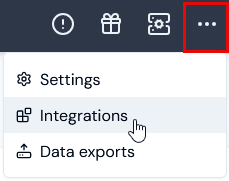
1. Select **Integrations**:
 The **Integrations** page opens with **All** selected by default:
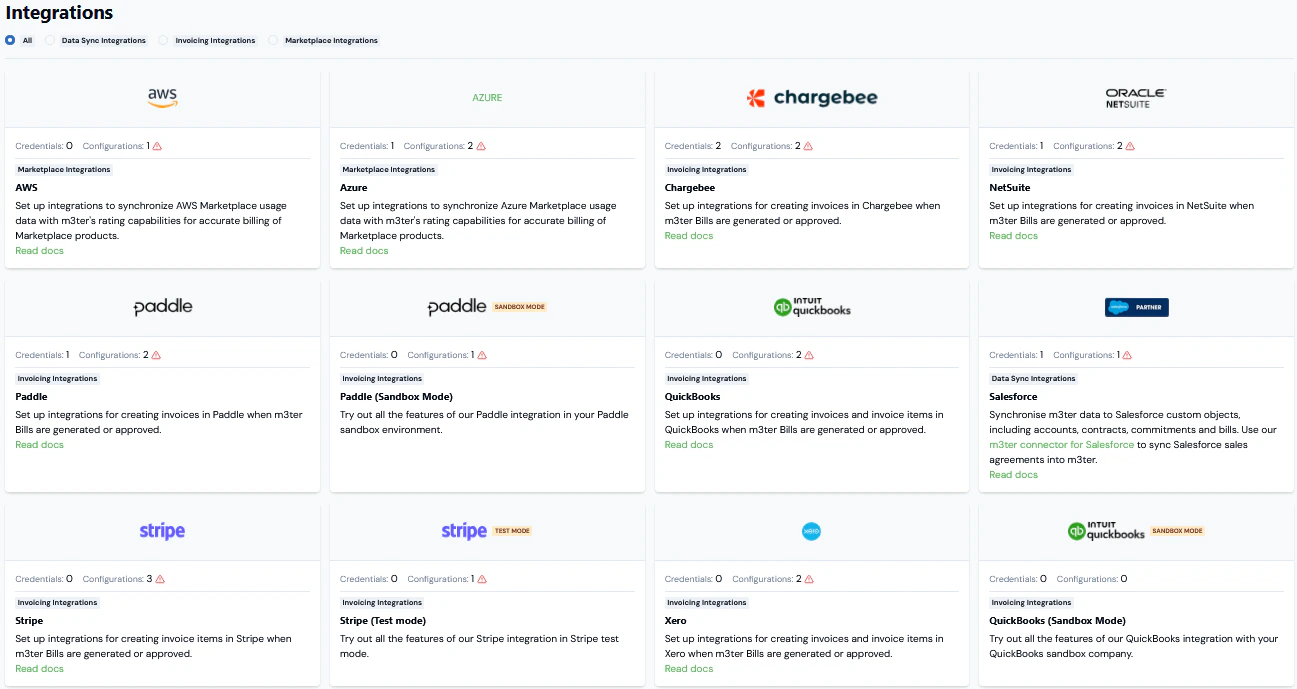 * You can filter the page by selecting to show only **Data Sync Integrations**, **Invoicing Integrations**, or **Marketplace Integrations**.
On the **Integrations** page you can quickly identify for an external system:
* The number of **Credentials** and **Configurations** set up in your Organization for the system.
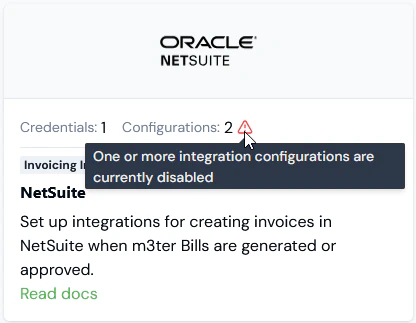
* If either a Credential is disconnected or a Configuration is disabled, then a warning will show and you'll need to open the Integrations page for the system and investigate:
* You can filter the page by selecting to show only **Data Sync Integrations**, **Invoicing Integrations**, or **Marketplace Integrations**.
On the **Integrations** page you can quickly identify for an external system:
* The number of **Credentials** and **Configurations** set up in your Organization for the system.
* If either a Credential is disconnected or a Configuration is disabled, then a warning will show and you'll need to open the Integrations page for the system and investigate:
 If you're planning to set up an Integration for a specific external system:
* Use a **Read docs** hotlink to open the topic explaining how to configure an integration for that system.
2. If you want to create a new Integration or review and edit the details of an existing Integration, select the tile for the system:
If you're planning to set up an Integration for a specific external system:
* Use a **Read docs** hotlink to open the topic explaining how to configure an integration for that system.
2. If you want to create a new Integration or review and edit the details of an existing Integration, select the tile for the system:
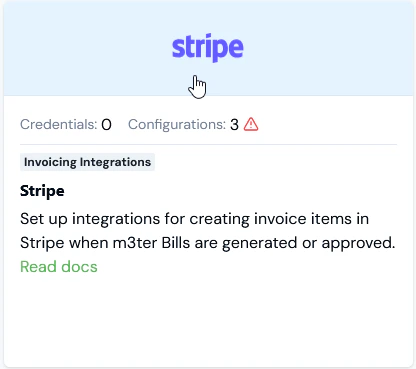 The **Integrations** page for the external system opens:
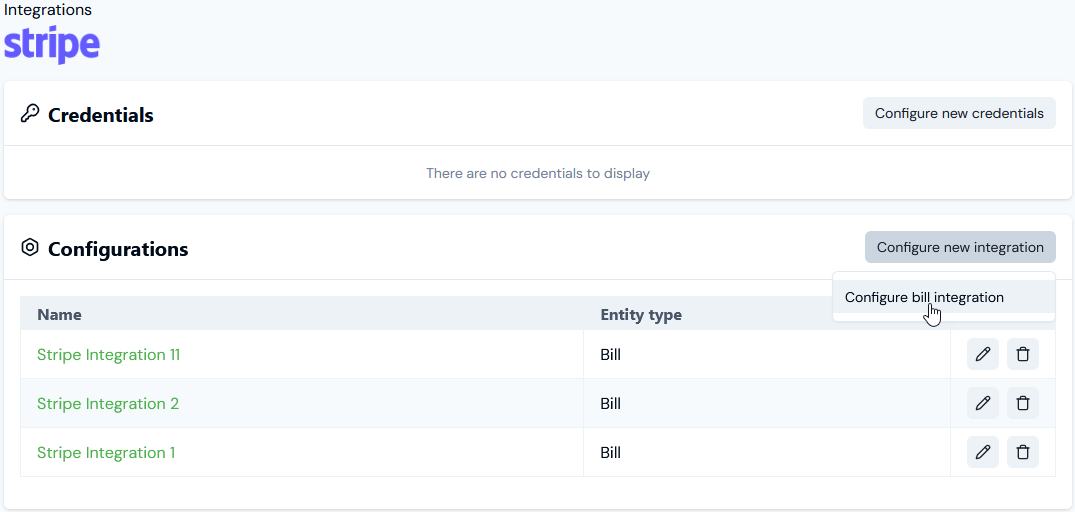 3. If you want to create a new Integration for the external system, select **Configure new integration** and commence your workflow - see the relevant specific topic in this section of the documentation.
4. If you want to review or edit an existing Integration for the system, on the **Configurations** panel select the **Name** hotlink text. The **Integration details** page opens:
3. If you want to create a new Integration for the external system, select **Configure new integration** and commence your workflow - see the relevant specific topic in this section of the documentation.
4. If you want to review or edit an existing Integration for the system, on the **Configurations** panel select the **Name** hotlink text. The **Integration details** page opens:
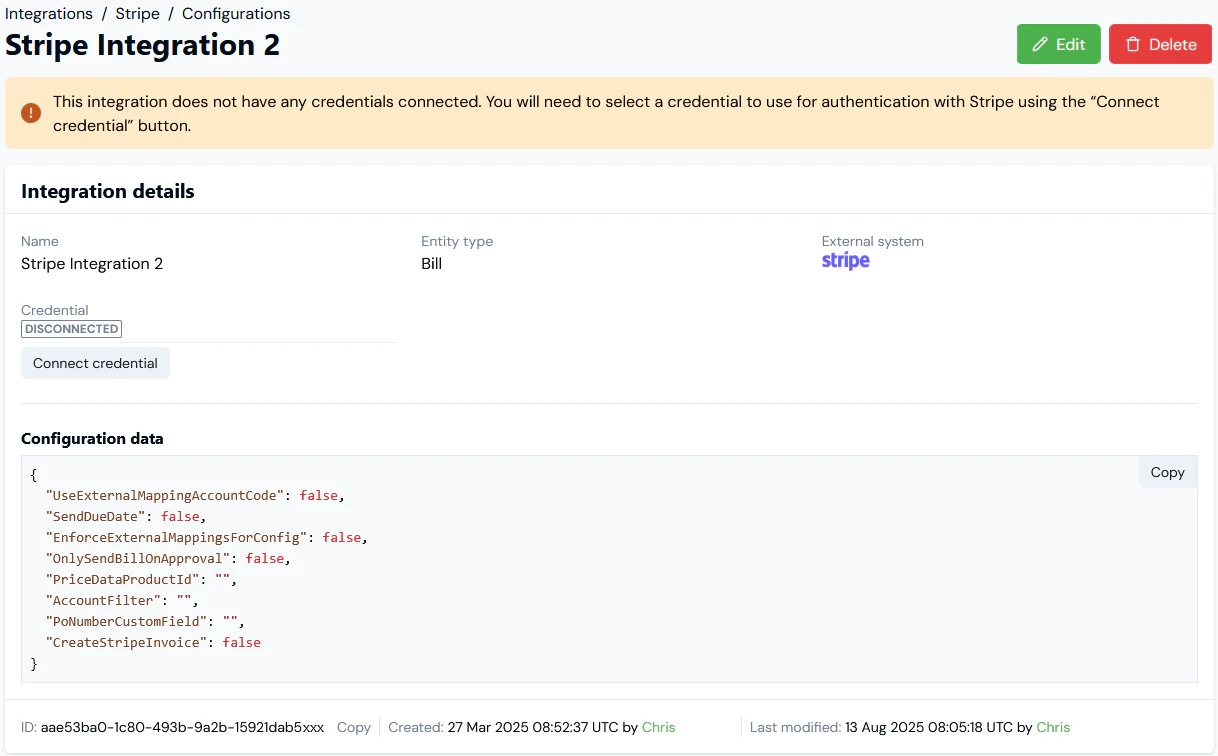 This example shows the details for a **Bill - Stripe** Integration. Note that:
* We can see that the Integration is currently **DISCONNECTED** from the **Stripe** system:
* If you want to connect the Integration, select **Connect credential**. A **Select Credential** dialog appears, which you can use to select the Credential you want to use to connect the integration. See [Creating Stripe Integration Credentials](/guides/integrations/setting-up-integrations/managing-integration-credentials/creating-stripe-integration-credentials).
* The **Configuration data** is given in JSON format. You can copy this directly to your clipboard.
5. Scroll down the **Integration details** page to the **Linked external mappings** panel. If you intend to set up multiple Integrations in m3ter with a single external system, you can create separate external mappings for use with each separate integration. See [Creating Linked External Mappings](/guides/integrations/setting-up-integrations/creating-and-managing-external-mappings#creating-linked-external-mappings) for more details.
6. If you want to edit an existing Integration, select the **Edit** button. The **Edit** page opens and shows the **Entity type** and **External system** at the top of the page.
7. Make the required editing changes and select **Update integration**. You are returned to the **Integration details** page.
8. If you want to remove an existing Integration, go back to the **Integrations** page for the external system and on the **Configurations** panel select **delete**:
This example shows the details for a **Bill - Stripe** Integration. Note that:
* We can see that the Integration is currently **DISCONNECTED** from the **Stripe** system:
* If you want to connect the Integration, select **Connect credential**. A **Select Credential** dialog appears, which you can use to select the Credential you want to use to connect the integration. See [Creating Stripe Integration Credentials](/guides/integrations/setting-up-integrations/managing-integration-credentials/creating-stripe-integration-credentials).
* The **Configuration data** is given in JSON format. You can copy this directly to your clipboard.
5. Scroll down the **Integration details** page to the **Linked external mappings** panel. If you intend to set up multiple Integrations in m3ter with a single external system, you can create separate external mappings for use with each separate integration. See [Creating Linked External Mappings](/guides/integrations/setting-up-integrations/creating-and-managing-external-mappings#creating-linked-external-mappings) for more details.
6. If you want to edit an existing Integration, select the **Edit** button. The **Edit** page opens and shows the **Entity type** and **External system** at the top of the page.
7. Make the required editing changes and select **Update integration**. You are returned to the **Integration details** page.
8. If you want to remove an existing Integration, go back to the **Integrations** page for the external system and on the **Configurations** panel select **delete**:
 A confirmation popup appears.
9. Select **Yes** to confirm the delete action.
**Tip: Reviewing Integration runs once operational?** When you have deployed an Integration to production, you can review the details of integration runs - for details, see [Reviewing Integration Run Details](/guides/integrations/setting-up-integrations/reviewing-integration-run-details).
## Creating and Managing Notification Webhook Integrations
### Creating Notification Webhook Integrations
To create a Notification Webhook Integration, you must first create a Notification rule based on a system Event. You can then link this Notification Rule to an Outgoing Webhook. When you make this link, it creates a Notification Webhook Integration:
* For details on how to create Notification Rules based on system Events and link them to Outgoing Webhooks, see [Creating, Managing, and Reviewing Notifications](/guides/alerts-events-and-notifications/utilizing-events-and-notifications/creating-managing-and-reviewing-notifications).
* For details on how to create Outgoing Webhooks, see [Creating and Managing Outgoing Webhooks](/guides/integrations/setting-up-integrations/creating-and-managing-destinations).
## Reviewing Integration Runs
When you have set up Integrations or Notification Webhook Integrations and deployed them to your production environment, you can use links to open integrations runs to review them.
### Accessing Runs for Integrations
For Integrations set up for sending Bills out to your invoicing systems, links are provided on the **Bill details** pages of end-customer Accounts configured for the integration:
A confirmation popup appears.
9. Select **Yes** to confirm the delete action.
**Tip: Reviewing Integration runs once operational?** When you have deployed an Integration to production, you can review the details of integration runs - for details, see [Reviewing Integration Run Details](/guides/integrations/setting-up-integrations/reviewing-integration-run-details).
## Creating and Managing Notification Webhook Integrations
### Creating Notification Webhook Integrations
To create a Notification Webhook Integration, you must first create a Notification rule based on a system Event. You can then link this Notification Rule to an Outgoing Webhook. When you make this link, it creates a Notification Webhook Integration:
* For details on how to create Notification Rules based on system Events and link them to Outgoing Webhooks, see [Creating, Managing, and Reviewing Notifications](/guides/alerts-events-and-notifications/utilizing-events-and-notifications/creating-managing-and-reviewing-notifications).
* For details on how to create Outgoing Webhooks, see [Creating and Managing Outgoing Webhooks](/guides/integrations/setting-up-integrations/creating-and-managing-destinations).
## Reviewing Integration Runs
When you have set up Integrations or Notification Webhook Integrations and deployed them to your production environment, you can use links to open integrations runs to review them.
### Accessing Runs for Integrations
For Integrations set up for sending Bills out to your invoicing systems, links are provided on the **Bill details** pages of end-customer Accounts configured for the integration:
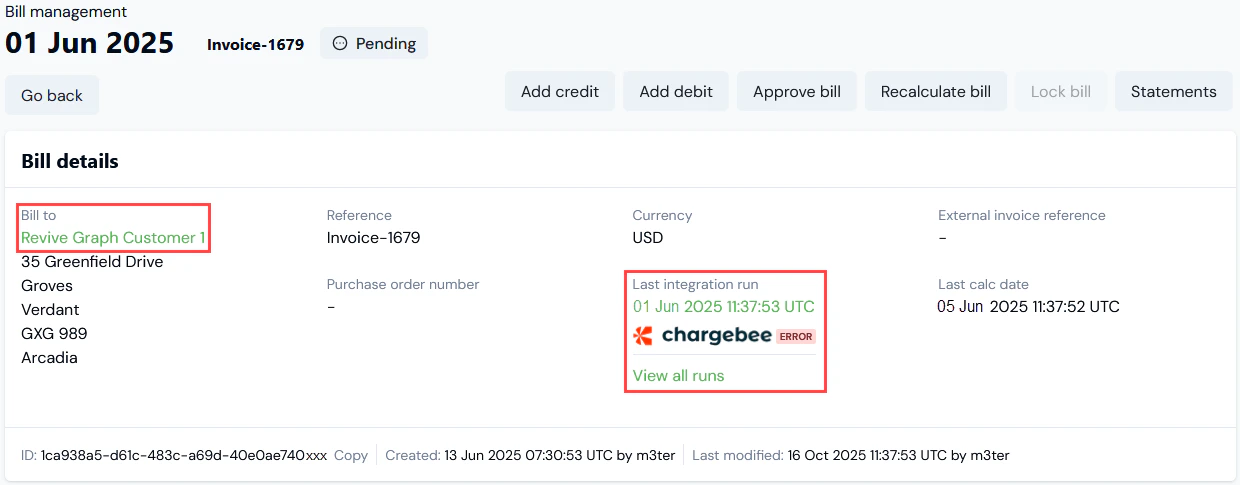 You can choose to **View all runs** or the **Last integration run** for the Account Bill. When you open an Integration run, you can then drill into a **Run log** to review the tasks performed for the run. If runs errors occurs this can be very helpful for troubleshooting. See [Reviewing Bill Integration Runs](/guides/integrations/setting-up-integrations/reviewing-integration-run-details#reviewing-bill-integration-runs) for more details.
### Accessing Runs for Notification Webhook Integrations
For Notification Webhook Integrations sending a payload out to a webhook when an Event occurs and triggers the Notification, links are provided on the **Notification rule details** page:
You can choose to **View all runs** or the **Last integration run** for the Account Bill. When you open an Integration run, you can then drill into a **Run log** to review the tasks performed for the run. If runs errors occurs this can be very helpful for troubleshooting. See [Reviewing Bill Integration Runs](/guides/integrations/setting-up-integrations/reviewing-integration-run-details#reviewing-bill-integration-runs) for more details.
### Accessing Runs for Notification Webhook Integrations
For Notification Webhook Integrations sending a payload out to a webhook when an Event occurs and triggers the Notification, links are provided on the **Notification rule details** page:
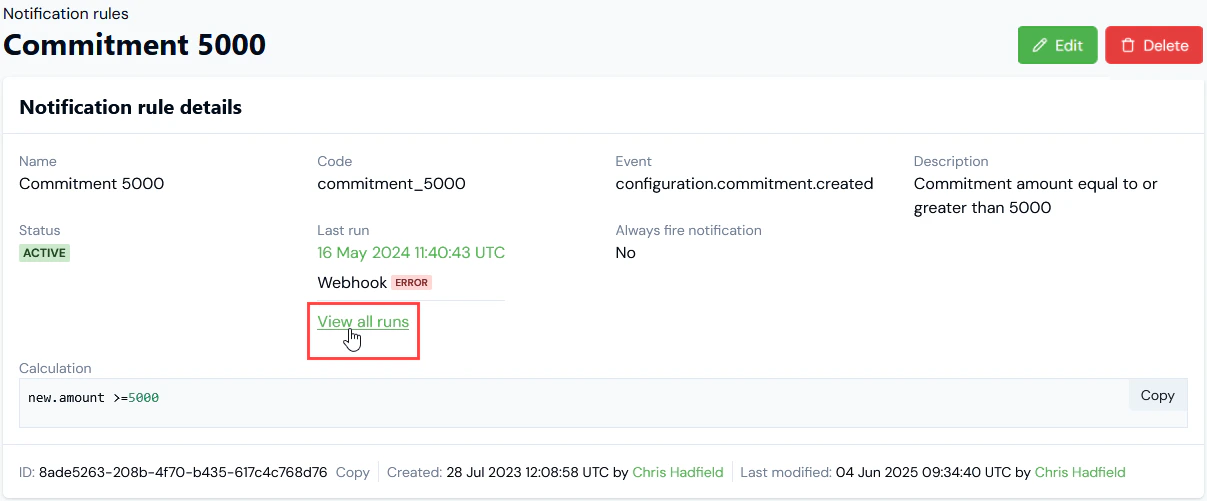 You can choose to **View all runs** or the **Last run** for the Notification. When you open an Integration run, you can then drill into a **Run log** to review the tasks performed for the run. If runs errors occurs this can be very helpful for troubleshooting. See [Reviewing Notification Integration Runs](/guides/integrations/setting-up-integrations/reviewing-integration-run-details#reviewing-notification-integration-runs) for more details.
## Integration Run Error Handling and Alerts
Once an Integration or Notification Webhook Integration is operational, checks are in place from the m3ter side to ensure some resilience for integration runs and to prevent runaway errors.
### Integrations - Auto-Disabling
* **Auto-Disabling**. If there have been 20 successive previous error Event responses to earlier attempts to run an integration, then the Integration is automatically disabled and a **Re-enable** button will show for the **Integration details**. Please check the earlier error Events to resolve any issues preventing the Integration from running before you re-enable the integration.
### Notification Webhook Integrations - Auto-Failure and Auto-Disabling
* **Auto-Failure**. When a system Event occurs on which a Notification rule is based and triggers the Notification, four successive attempts are made to send the Notification payload out to the configured webhook. Note that there's an exponential back-off built into this process - a wait of 2 seconds after the first failure before retry, then a wait of 4 seconds before retry, and so on. If all four attempts fail, then the Integration is put into a failed state.
* **Auto-Disabling**. As with other Integrations, if there are 20 successive failures, the Notification Webhook Integration is then auto-disabled.
### Troubleshooting Disabled and Failed Integrations
Alerts and error Events are generated when an Integration run fails and you can quickly check these to help with troubleshooting. Please check:
* The **Integration Events** page. See [Reviewing and Resolving Integration Events](/guides/integrations/setting-up-integrations/reviewing-and-resolving-integration-events) for more details.
* The **Alerts** page. See [Viewing and Managing System Alerts](/guides/alerts-events-and-notifications/viewing-and-managing-alerts).
* The **Run log** for disabled or failed integrations runs. See [Reviewing Integration Run Details](/guides/integrations/setting-up-integrations/reviewing-integration-run-details).
You can choose to **View all runs** or the **Last run** for the Notification. When you open an Integration run, you can then drill into a **Run log** to review the tasks performed for the run. If runs errors occurs this can be very helpful for troubleshooting. See [Reviewing Notification Integration Runs](/guides/integrations/setting-up-integrations/reviewing-integration-run-details#reviewing-notification-integration-runs) for more details.
## Integration Run Error Handling and Alerts
Once an Integration or Notification Webhook Integration is operational, checks are in place from the m3ter side to ensure some resilience for integration runs and to prevent runaway errors.
### Integrations - Auto-Disabling
* **Auto-Disabling**. If there have been 20 successive previous error Event responses to earlier attempts to run an integration, then the Integration is automatically disabled and a **Re-enable** button will show for the **Integration details**. Please check the earlier error Events to resolve any issues preventing the Integration from running before you re-enable the integration.
### Notification Webhook Integrations - Auto-Failure and Auto-Disabling
* **Auto-Failure**. When a system Event occurs on which a Notification rule is based and triggers the Notification, four successive attempts are made to send the Notification payload out to the configured webhook. Note that there's an exponential back-off built into this process - a wait of 2 seconds after the first failure before retry, then a wait of 4 seconds before retry, and so on. If all four attempts fail, then the Integration is put into a failed state.
* **Auto-Disabling**. As with other Integrations, if there are 20 successive failures, the Notification Webhook Integration is then auto-disabled.
### Troubleshooting Disabled and Failed Integrations
Alerts and error Events are generated when an Integration run fails and you can quickly check these to help with troubleshooting. Please check:
* The **Integration Events** page. See [Reviewing and Resolving Integration Events](/guides/integrations/setting-up-integrations/reviewing-and-resolving-integration-events) for more details.
* The **Alerts** page. See [Viewing and Managing System Alerts](/guides/alerts-events-and-notifications/viewing-and-managing-alerts).
* The **Run log** for disabled or failed integrations runs. See [Reviewing Integration Run Details](/guides/integrations/setting-up-integrations/reviewing-integration-run-details).