> ## Documentation Index
> Fetch the complete documentation index at: https://docs.m3ter.com/llms.txt
> Use this file to discover all available pages before exploring further.
# Creating Xero Integration Credentials
This topic explains how to create Integration Credentials which you can then use to connect your Xero Integrations with your Xero system. See [Configuring Xero Integrations](/guides/integrations/setting-up-integrations/configuring-xero-integrations).
**To create Xero integration Credentials:**
1. Select **Integrations**:
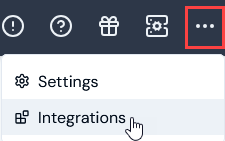 The **Integrations** page opens.
2. Select **Xero**. The **Xero Integrations** page opens.
3. On the **Credentials** panel, select **Configure new credentials**:
The **Integrations** page opens.
2. Select **Xero**. The **Xero Integrations** page opens.
3. On the **Credentials** panel, select **Configure new credentials**:
 The **Create** pages opens.
4. Under **Credential details** enter:
* **Name**. Descriptive name for the Credential.
* **Destination**. This will be pre-selected for **Xero**.
When you enter a name, the form adjusts to show an information panel under **Destination**, which advises you that you'll need to provide authentication details on the Xero website.
5. Select **Go to Xero**. You are redirected to the **Log in to Xero** page:
The **Create** pages opens.
4. Under **Credential details** enter:
* **Name**. Descriptive name for the Credential.
* **Destination**. This will be pre-selected for **Xero**.
When you enter a name, the form adjusts to show an information panel under **Destination**, which advises you that you'll need to provide authentication details on the Xero website.
5. Select **Go to Xero**. You are redirected to the **Log in to Xero** page:
 6. Log into your Xero Account.
**Important!** Ensure that the Xero org you are logged into to is the one you need to create the Credential for and which you'll use to connect your Integration to Xero.
7. Grant access to your Xero organisation for the m3ter integration Credential:
* If you have multiple Xero organisations set up, select the one you want the m3ter integration Credential to access and then select **Continue**:
* If you have a single Xero organisation set up, select **Allow access** for the m3ter integration Credential:
> You are redirected back to m3ter.
8. Select **Create credential**. You are returned to the **Xero Integrations** page where the new Credential is listed on the **Credentials** panel.
* The Credential is now available for connecting your Integrations with Xero. See [Configuring Xero Integrations>Setting Up Authentication for the Integration](/guides/integrations/setting-up-integrations/configuring-xero-integrations#setting-up-authentication-for-the-integration).
**Warning: Authentication with Xero not completed!** If you fail to complete authentication with your Xero instance promptly, a time-to-live (TTL) of ten minutes is imposed after which the Credential is removed and you'll have to start again. If you return to the **Xero Integrations** page within that TTL, any **Credentials** waiting for authentication completion will have a suffix of "Incomplete" attached, such as: **Xero Credential 1 (Incomplete)**.
6. Log into your Xero Account.
**Important!** Ensure that the Xero org you are logged into to is the one you need to create the Credential for and which you'll use to connect your Integration to Xero.
7. Grant access to your Xero organisation for the m3ter integration Credential:
* If you have multiple Xero organisations set up, select the one you want the m3ter integration Credential to access and then select **Continue**:
* If you have a single Xero organisation set up, select **Allow access** for the m3ter integration Credential:
> You are redirected back to m3ter.
8. Select **Create credential**. You are returned to the **Xero Integrations** page where the new Credential is listed on the **Credentials** panel.
* The Credential is now available for connecting your Integrations with Xero. See [Configuring Xero Integrations>Setting Up Authentication for the Integration](/guides/integrations/setting-up-integrations/configuring-xero-integrations#setting-up-authentication-for-the-integration).
**Warning: Authentication with Xero not completed!** If you fail to complete authentication with your Xero instance promptly, a time-to-live (TTL) of ten minutes is imposed after which the Credential is removed and you'll have to start again. If you return to the **Xero Integrations** page within that TTL, any **Credentials** waiting for authentication completion will have a suffix of "Incomplete" attached, such as: **Xero Credential 1 (Incomplete)**.