> ## Documentation Index
> Fetch the complete documentation index at: https://docs.m3ter.com/llms.txt
> Use this file to discover all available pages before exploring further.
# Reviewing and Resolving Integration Events
Five system Events are generated for errors that might occur with your integrations:
* **integration.validation.error**
* **integration.missingaccountmapping.error**
* **integration.authentication.error**
* **integration.perform.error**
* **integration.disabled.error**
In the *Integrations* section of the Console on the *Integration events* page, you can review and follow up on these integrations error Events to troubleshoot and resolve them. When you have followed-up on an error Event and resolved it, you can select *mark as actioned* and remove it from the Events list:
* [Reviewing and Resolving Events](/guides/integrations/setting-up-integrations/reviewing-and-resolving-integration-events#reviewing-and-resolving-events)
* [Marking Events as Actioned](/guides/integrations/setting-up-integrations/reviewing-and-resolving-integration-events#marking-events-as-actioned)
## Reviewing and Resolving Events
**To review and resolve integration error Events:**
1. Select **Integrations**:
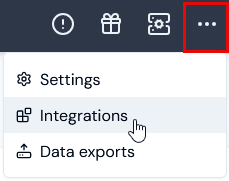 The **Integrations** page opens.
2. Select **Integration events**:
The **Integrations** page opens.
2. Select **Integration events**:
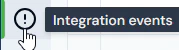 The **Integration events** page opens and lists any existing error Events that have occurred for your integrations:
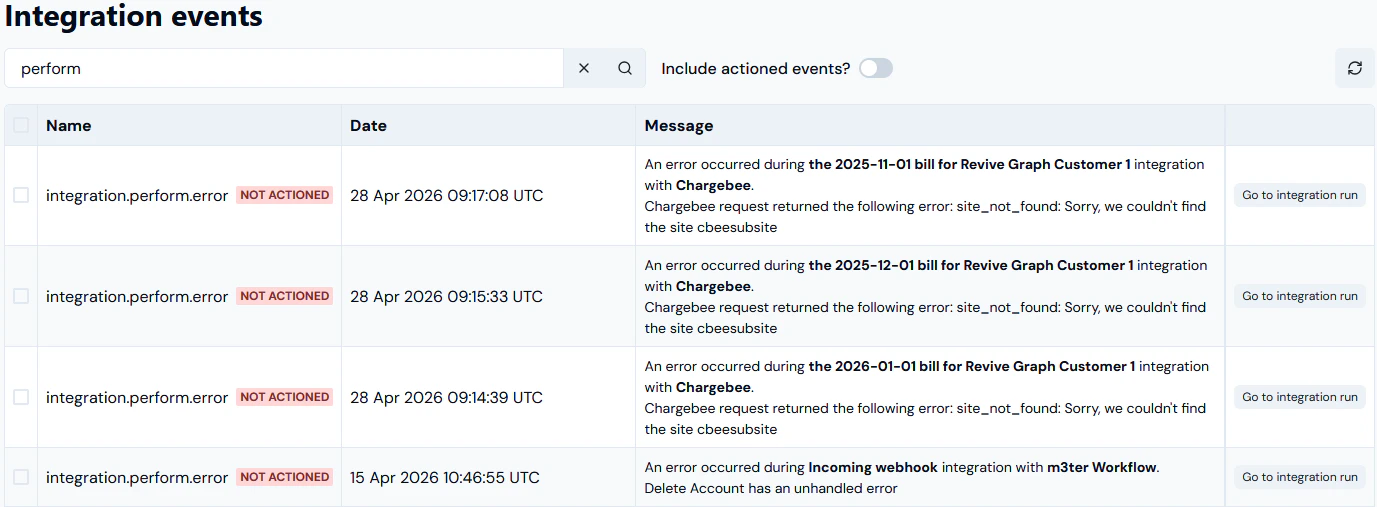 In this example:
* Three`integration.perform.error` Event is listed for a **Chargebee** integration.
* An`integration.perform.error` Event is listed for an **incoming webhook** integration with a **m3sh Workflow**.
You can read off the details of the Event:
* **NAME**. The Event type.
* **DATE**. A timestamp of when the Event occurred.
* **MESSAGE**. Details of the cause of the Event and suggested remedial action you can take.
* **ACTIONED/NOT ACTIONED**. All of the Events are shown as **NOT ACTIONED**.
Depending on the type of error Event, an appropriate button is also provided and which allows you to follow-up and resolve the error.
3. If you want to follow-up and resolve the error, click the follow-up and resolve button:
* **integration.validation.error**. Select **Go to integration run**:
* The relevant **Integrations run details** page opens and you can troubleshoot the perform error Event. For more details, see [Reviewing Integration Run Details](/guides/integrations/setting-up-integrations/reviewing-integration-run-details).
* **integration.missingaccountmapping.error**. Select **Create external mapping**:
* The **External mappings>Create** page opens. The **m3ter entity** and **m3ter entity type** fields are automatically populated and you can proceed to create the required mapping. For more details, see [Creating and Managing External Mappings](/guides/integrations/setting-up-integrations/creating-and-managing-external-mappings).
* **integration.authentication.error**. Select **Go to integration**:
* The relevant **Integration configuration details** page opens and you can proceed to configure the correct authentication for the integration's connection to the 3rd-party system. For more details, see the relevant *Integrations* topic in this [section](/guides/integrations/setting-up-integrations).
* **integration.perform.error**. Select **Go to integration run**:
* The relevant **Integrations run details** page opens and you can troubleshoot the perform error Event. For more details, see [Reviewing Integration Run Details](/guides/integrations/setting-up-integrations/reviewing-integration-run-details).
* **integration.disabled.error**. Select **Go to integration**:
* The relevant **Integration configuration details** page opens where you can select to re-enable the Integration or fix any Credential issues.
* **Note**. An integration is automatically disabled if there have been 20 successive previous error Event responses to earlier attempts to run the integration. Please check the earlier error Events to resolve any issues preventing the integration from running before you re-enable the integration.
4. For example, if we select **Go to integration run** for the `integration.perform.error` Event listed for a Chargebee integration, the **Integration run details** page opens:
In this example:
* Three`integration.perform.error` Event is listed for a **Chargebee** integration.
* An`integration.perform.error` Event is listed for an **incoming webhook** integration with a **m3sh Workflow**.
You can read off the details of the Event:
* **NAME**. The Event type.
* **DATE**. A timestamp of when the Event occurred.
* **MESSAGE**. Details of the cause of the Event and suggested remedial action you can take.
* **ACTIONED/NOT ACTIONED**. All of the Events are shown as **NOT ACTIONED**.
Depending on the type of error Event, an appropriate button is also provided and which allows you to follow-up and resolve the error.
3. If you want to follow-up and resolve the error, click the follow-up and resolve button:
* **integration.validation.error**. Select **Go to integration run**:
* The relevant **Integrations run details** page opens and you can troubleshoot the perform error Event. For more details, see [Reviewing Integration Run Details](/guides/integrations/setting-up-integrations/reviewing-integration-run-details).
* **integration.missingaccountmapping.error**. Select **Create external mapping**:
* The **External mappings>Create** page opens. The **m3ter entity** and **m3ter entity type** fields are automatically populated and you can proceed to create the required mapping. For more details, see [Creating and Managing External Mappings](/guides/integrations/setting-up-integrations/creating-and-managing-external-mappings).
* **integration.authentication.error**. Select **Go to integration**:
* The relevant **Integration configuration details** page opens and you can proceed to configure the correct authentication for the integration's connection to the 3rd-party system. For more details, see the relevant *Integrations* topic in this [section](/guides/integrations/setting-up-integrations).
* **integration.perform.error**. Select **Go to integration run**:
* The relevant **Integrations run details** page opens and you can troubleshoot the perform error Event. For more details, see [Reviewing Integration Run Details](/guides/integrations/setting-up-integrations/reviewing-integration-run-details).
* **integration.disabled.error**. Select **Go to integration**:
* The relevant **Integration configuration details** page opens where you can select to re-enable the Integration or fix any Credential issues.
* **Note**. An integration is automatically disabled if there have been 20 successive previous error Event responses to earlier attempts to run the integration. Please check the earlier error Events to resolve any issues preventing the integration from running before you re-enable the integration.
4. For example, if we select **Go to integration run** for the `integration.perform.error` Event listed for a Chargebee integration, the **Integration run details** page opens:
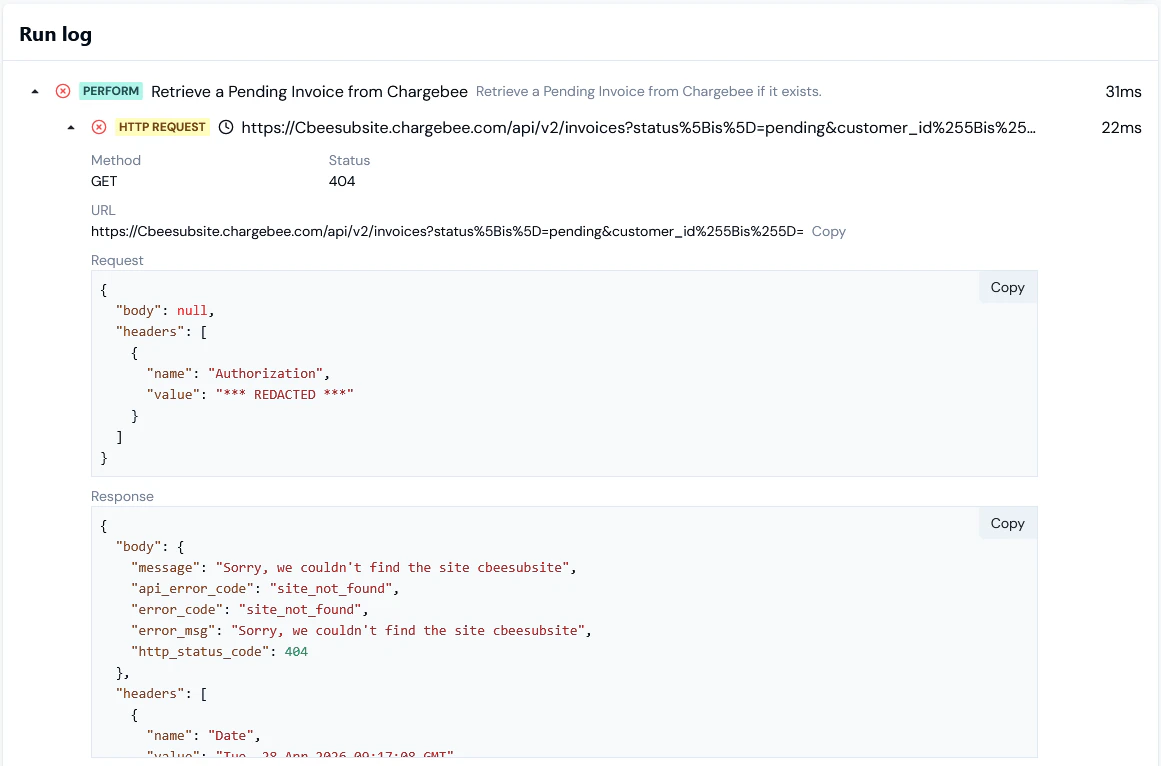
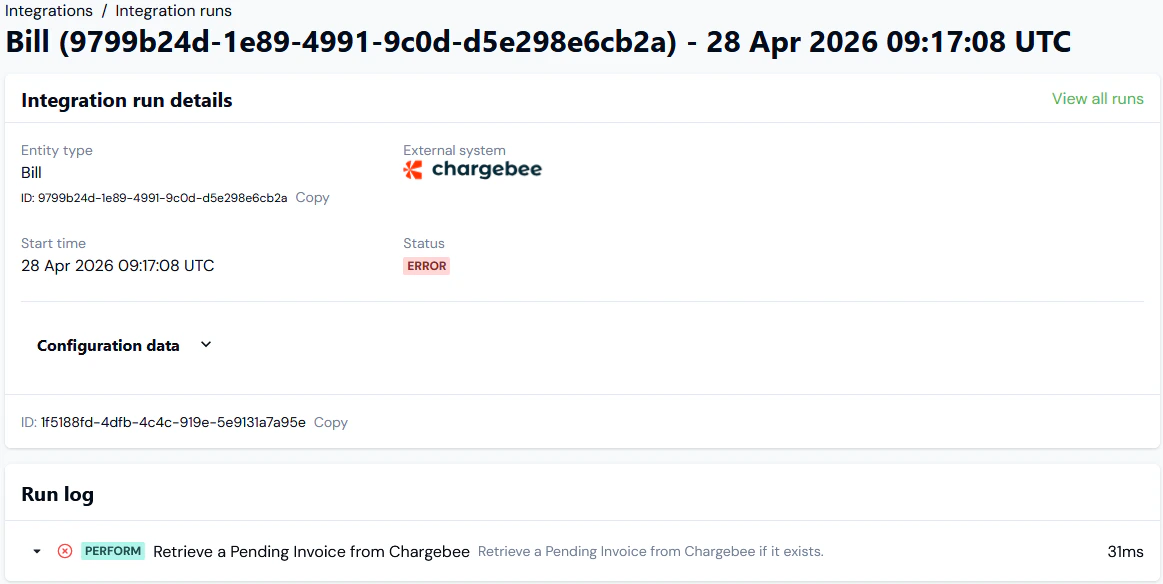 5. On the **Run log** panel, drill into the **PERFORM** error and read-off the reason:
 6. You can expand the **HTTP REQUEST** and inspect the details of the request and response:
 ## Marking Events as Actioned
When you have followed-up and resolved an error Event, you can mark it as actioned to remove it from the Integration events list
**To mark an Event as actioned and remove it from the Events list:**
1. Select the checkbox of the Event you want to mark as actioned.
2. Select the **Mark as actioned** button. A confirmation popup appears:
## Marking Events as Actioned
When you have followed-up and resolved an error Event, you can mark it as actioned to remove it from the Integration events list
**To mark an Event as actioned and remove it from the Events list:**
1. Select the checkbox of the Event you want to mark as actioned.
2. Select the **Mark as actioned** button. A confirmation popup appears:
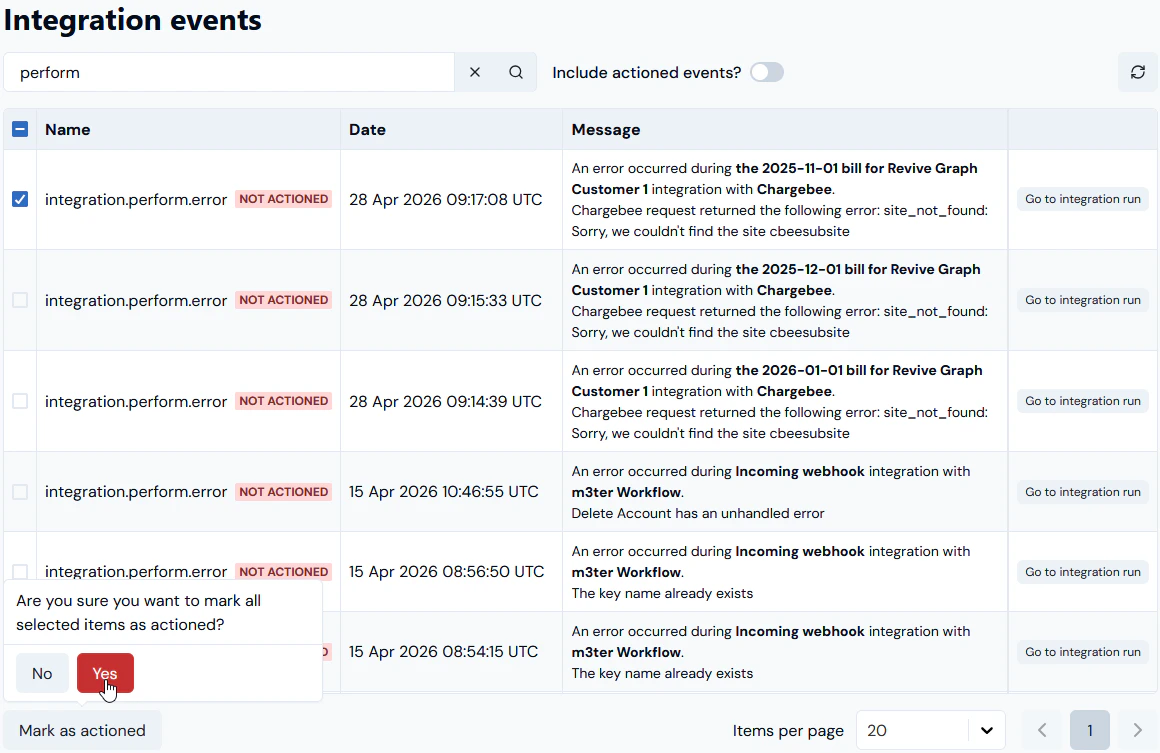 3. Select **Yes** to confirm. The page refreshes and the checked Event is removed from the **Integration events** list.
**Tip: Mark multiple Events as actioned?** You can check-off multiple Events to mark them all as actioned at the same time.
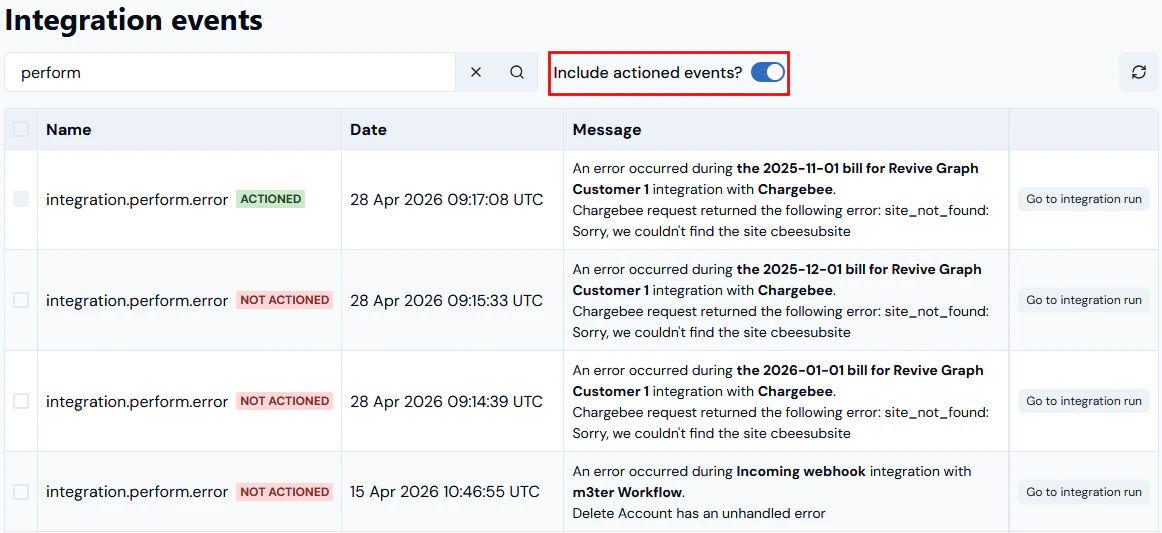
4. If you want to check again on Events that you've already actioned, enable the **Include actioned events?** switch. The page refreshes and any actioned Events are added back into the **Integration events** list, and are clearly marked as **ACTIONED**:
3. Select **Yes** to confirm. The page refreshes and the checked Event is removed from the **Integration events** list.
**Tip: Mark multiple Events as actioned?** You can check-off multiple Events to mark them all as actioned at the same time.
4. If you want to check again on Events that you've already actioned, enable the **Include actioned events?** switch. The page refreshes and any actioned Events are added back into the **Integration events** list, and are clearly marked as **ACTIONED**: