> ## Documentation Index
> Fetch the complete documentation index at: https://docs.m3ter.com/llms.txt
> Use this file to discover all available pages before exploring further.
# Reviewing Integration Run Details
If you've set up an integration with a 3rd-party system for your Organization, you can review details of the integration runs that have been performed for the integration, such as:
* A Bill integration set up to send approved Bills outbound to a 3rd-party invoicing system.
* A Notification set up to send a notification call to a webhook:
* For more details on how to link Notification rules to outgoing webhooks, see [Creating, Managing, and Reviewing Notifications.](/guides/alerts-events-and-notifications/utilizing-events-and-notifications/creating-managing-and-reviewing-notifications#linking-notification-rules-to-destinations-to-create-notification-integration-configurations)
When you review an integration run, you can:
* Review the integration configuration as it stood at the time the integration ran.
* Read off the tasks performed in the integration run.
* Drill into the details of each task.
Having access to the details of an integration run can be very helpful when troubleshooting integration runs that fail:
* For example, suppose you've set up an integration for Bill approval in m3ter outbound into your 3rd-party invoicing system, and you're using a monthly billing frequency. For the first three months the integration runs work correctly but on the fourth month some charge line items are missing from the invoice generated in your 3rd-party system by the integration run. To help with troubleshooting, you can review the details of the logs for the successful first three integration runs and compare and contrast them with the logs for the failed integration run at month four. This can help you to identify any changes to the integration configuration or the tasks performed in the run and therefore help to resolve the problem.
This topic gives explains how to review integration runs:
* [Reviewing Bill Integration Runs](/guides/integrations/setting-up-integrations/reviewing-integration-run-details#reviewing-bill-integration-runs)
* [Reviewing Notification Integration Runs](/guides/integrations/setting-up-integrations/reviewing-integration-run-details#reviewing-notification-integration-runs)
## Reviewing Bill Integration Runs
**To review latest integrations runs for a Bill integration:**
1. Open the Bill you want to review integration runs for. See [Running Bills and Viewing Bill Details](https://docs.m3ter.com/guides/billing-and-usage-data/running-viewing-and-managing-bills/running-bills-and-viewing-bill-details).
2. On the **Bill details** panel under **Last integration run**, select the **View all Runs** hotlink text. The **Integration runs** page opens listing all integration runs for the Bill:
 * In this example, a single run has taken place for the integration.
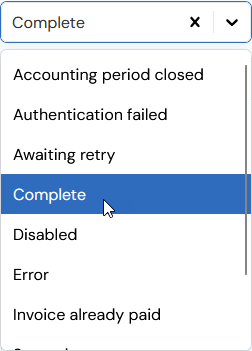
* Note that if the **Integration runs** page lists a large number of runs, you can filter by run **Status**:
* In this example, a single run has taken place for the integration.
* Note that if the **Integration runs** page lists a large number of runs, you can filter by run **Status**:
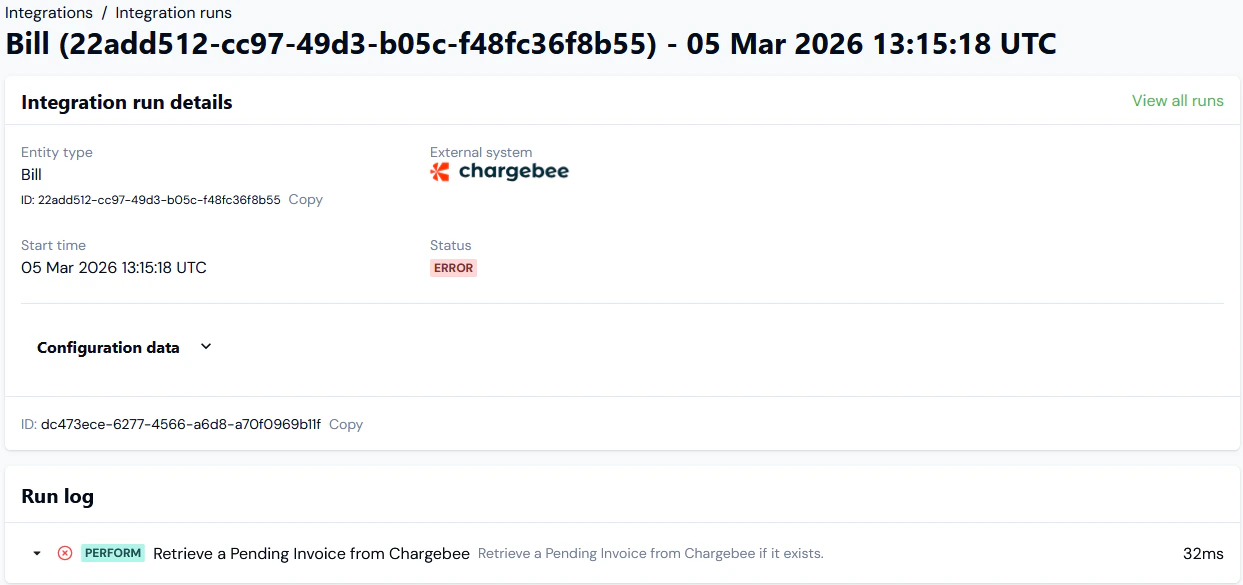
 3. Select the **Start time** hotlink text for the run you want to review. The **Integration run details** page opens:
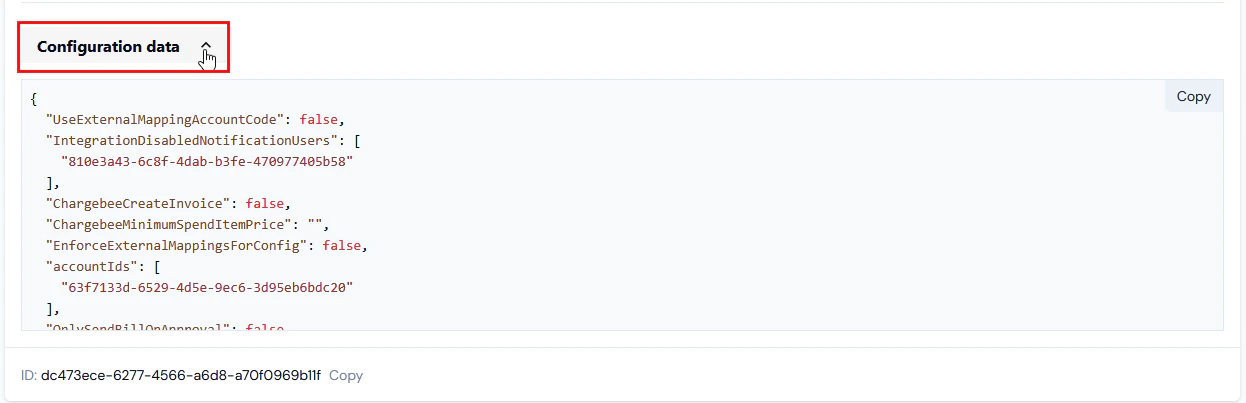
 4. Select to expand **Configuration data** and show the JSON. Note that this is the configuration as it stood at the time the integration run took place:
 5. You can expand to view the details of tasks listed under **Run log**:
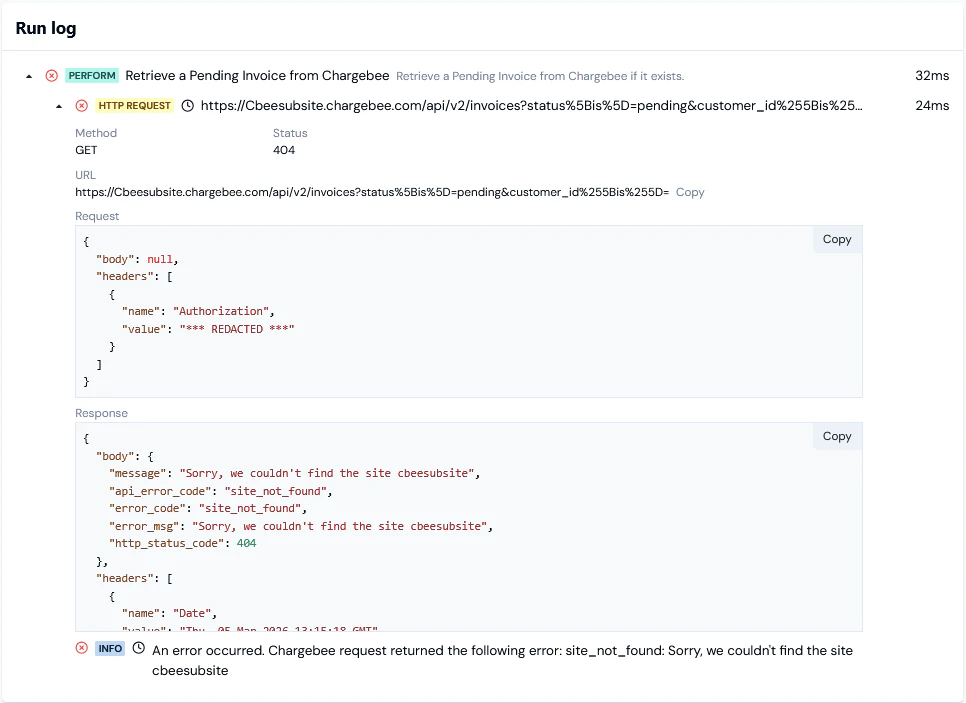 * Note that if you are reviewing a failed integration run and troubleshooting, you can **Copy** the JSON for the requests/reponses performed for tasks performed by the run directly to your clipboard.
## Reviewing Notification Integration Runs
**To review latest integrations runs for a Notification:**
1. Select **Alerts and notifications**:
* Note that if you are reviewing a failed integration run and troubleshooting, you can **Copy** the JSON for the requests/reponses performed for tasks performed by the run directly to your clipboard.
## Reviewing Notification Integration Runs
**To review latest integrations runs for a Notification:**
1. Select **Alerts and notifications**:
 The **Alerts** page opens.
2. Select **Notification rules**:
The **Alerts** page opens.
2. Select **Notification rules**:
 The **Notification rules** page opens.
3. Select the **Name** hotlink text of the Notification you want to review the integration runs for. The **Notification rule details** page opens:
The **Notification rules** page opens.
3. Select the **Name** hotlink text of the Notification you want to review the integration runs for. The **Notification rule details** page opens:
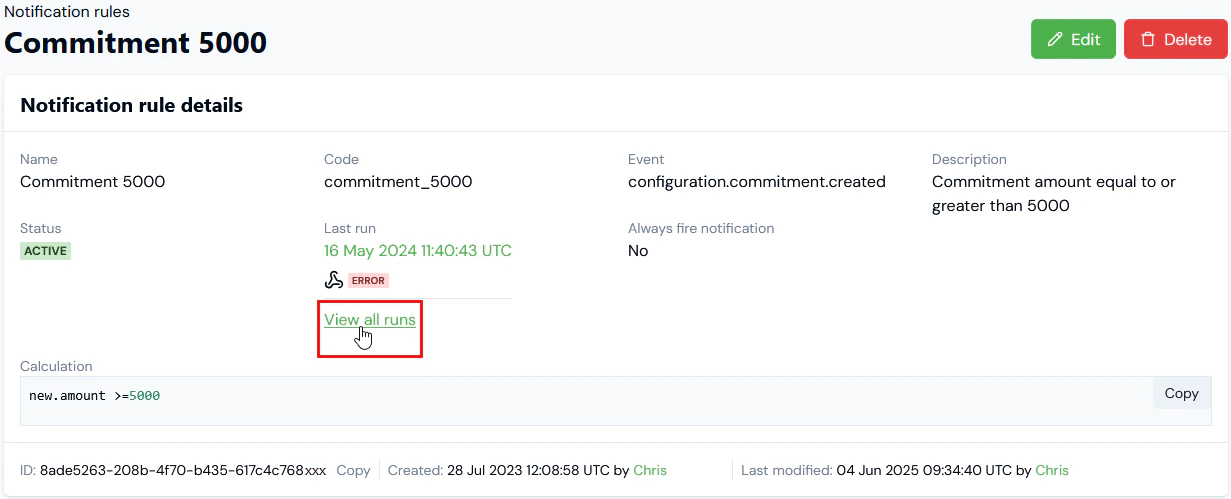 * Note that if you want to review details of the most recent run performed for the Notification, under **Last run** select the **Start time** hotlink text for the run to open it directly.
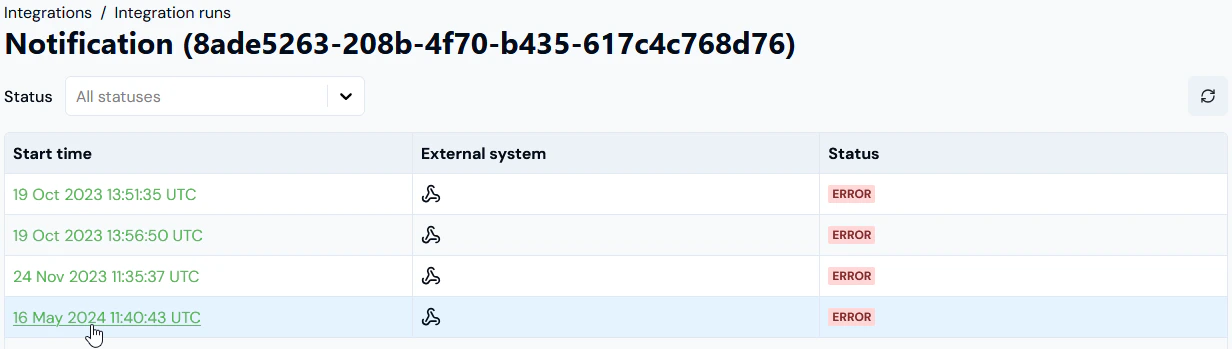
4. Select the **View all runs** hotlink text. The **Integration runs** page opens and lists all runs for the Notification.
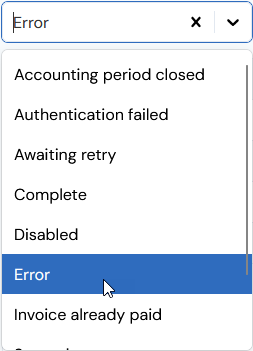
* Note that if the **Integration runs** page lists a large number of runs, you can filter by run **Status**:
* Note that if you want to review details of the most recent run performed for the Notification, under **Last run** select the **Start time** hotlink text for the run to open it directly.
4. Select the **View all runs** hotlink text. The **Integration runs** page opens and lists all runs for the Notification.
* Note that if the **Integration runs** page lists a large number of runs, you can filter by run **Status**:
 5. Select the **Start time** hotlink text for the run you want to review:
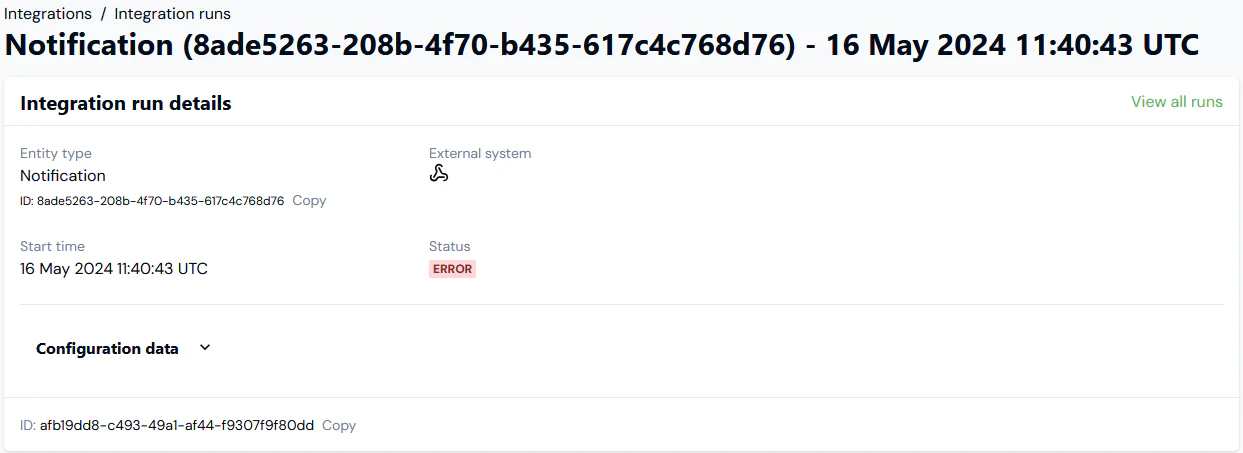
 The **Integration run details** page for the Notification opens:
 6. You can expand the **Run log** and drill into the details of the integration run:
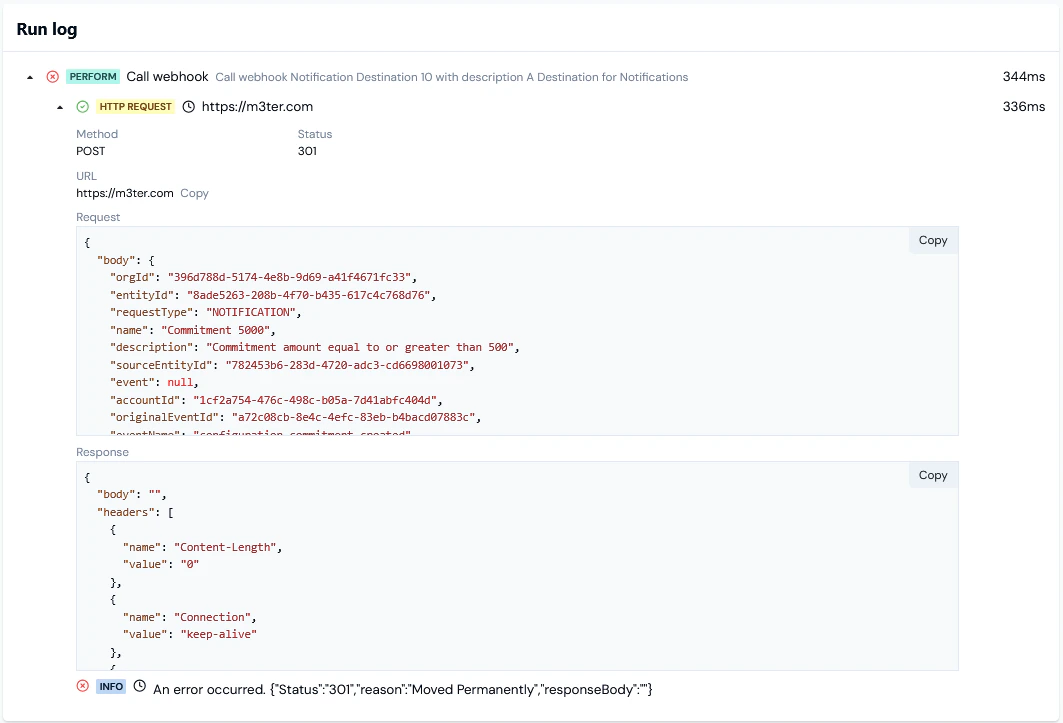 * Note that if you are reviewing a failed integration run and troubleshooting, you can **Copy** the JSON for the requests/reponses performed for the run directly to your clipboard.