> ## Documentation Index
> Fetch the complete documentation index at: https://docs.m3ter.com/llms.txt
> Use this file to discover all available pages before exploring further.
# Creating and Managing Lookup Tables
This topic introduces a variable discounting use case example to explain how to create a Lookup Table, add a Table Revision, and set up a data field schema for a Revision:
* [Example Use Case](/guides/lookup-tables/creating-and-managing-lookup-tables#example-use-case)
* [Creating a Lookup Table](/guides/lookup-tables/creating-and-managing-lookup-tables#creating-a-lookup-table)
* [Creating Lookup Table Revisions](/guides/lookup-tables/creating-and-managing-lookup-tables#creating-lookup-table-revisions)
## Example Use Case
Suppose you run an online data storage service and bill end customers monthly in arrears by volume of data uploaded to your platform. You have customers in two countries - the US and UK. You want to offer your customers a running discount on their usage of your service and vary the discount rate on a month-by-month basis. At the end of each month, your Sales team will review customer Accounts and determine a discount rate for uploaded volume for the following month by country. To fulfill this kind of variable discounting use case, we can:
* Create a Lookup Table and publish a new Table Revision for the required discounted usage volume rates by country each month.
* Apply a calculation to a Meter Derived Field which uses a Lookup function to reference the Lookup Table and pull the relevant discount rates by country to be applied to uploaded data volume measures.
* For pricing Account Plans, use an Aggregation that targets the Meter Derived Field and therefore at billing only charges your customers for appropriately discounted upload volume measures.
## Creating a Lookup Table
You can quickly create a new Lookup Table from the **Settings** section of the Console.
**To create a Lookup Table:**
1. Select **Settings>Lookup tables**:
 The **Lookup tables** page opens.
2. Select **Create lookup table**. The **Create** page opens.
3. Under **Lookup table details**, enter a **Name** and **Code**.
4. Select **Create lookup table**. The **Lookup table details** page opens:
The **Lookup tables** page opens.
2. Select **Create lookup table**. The **Create** page opens.
3. Under **Lookup table details**, enter a **Name** and **Code**.
4. Select **Create lookup table**. The **Lookup table details** page opens:
 * Note that you can **Copy** the Lookup Table **ID** directly to your clipboard.
## Creating Lookup Table Revisions
When you create a Lookup Table Revision, you can define a schema for the data fields and types the Revision contains:
* String and number data field types are supported.
* A maximum of ten fields is allowed for a Revision data schema.
**To create a Lookup Table Revision:**
1. Select **Settings>Lookup tables**. The **Lookup tables** page opens.
2. Select the **Name** hotlink text of the Lookup Table you want to create a Revision for. The **Lookup table details** page opens.
3. On the **Revisions** panel, select **Create revision**. The **Create** page opens.
4. Under **Revision details** enter a **Name** for the Revision. (*Required*)
5. Under **Revision fields**, add the fields for the Revision:
* Note that you can **Copy** the Lookup Table **ID** directly to your clipboard.
## Creating Lookup Table Revisions
When you create a Lookup Table Revision, you can define a schema for the data fields and types the Revision contains:
* String and number data field types are supported.
* A maximum of ten fields is allowed for a Revision data schema.
**To create a Lookup Table Revision:**
1. Select **Settings>Lookup tables**. The **Lookup tables** page opens.
2. Select the **Name** hotlink text of the Lookup Table you want to create a Revision for. The **Lookup table details** page opens.
3. On the **Revisions** panel, select **Create revision**. The **Create** page opens.
4. Under **Revision details** enter a **Name** for the Revision. (*Required*)
5. Under **Revision fields**, add the fields for the Revision:
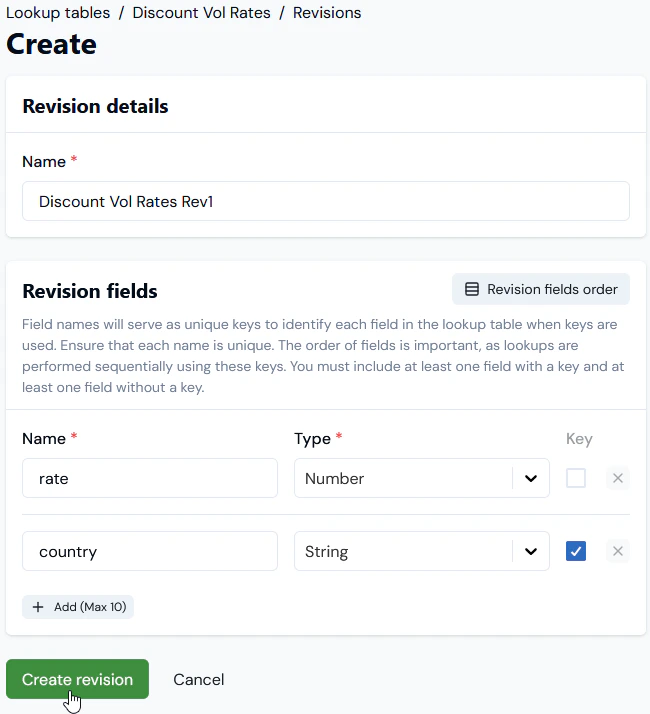 * Enter a **Name** and **Type** for each field and use *unique names* for each field.
* For the current example, we've created a Revision that contains a **rate** number field and a **country** string field and used the checkbox to define **country** as a **Key** field.
* There must be at least one key field and one non-key field in a Revision.
* A maximum of **10** fields can be added for a Revision.
**Important: Using Multiple key fields!** When using multiple key fields, the order is important because lookups will be performed sequentially. You can change the **Revision fields order** after adding them. See [Using Multiple Key Fields - Checking Revision Schema Field Order](/guides/lookup-tables/adding-data-to-and-publishing-table-revisions#using-multiple-key-fields-checking-revision-schema-field-order).
* Enter a **Name** and **Type** for each field and use *unique names* for each field.
* For the current example, we've created a Revision that contains a **rate** number field and a **country** string field and used the checkbox to define **country** as a **Key** field.
* There must be at least one key field and one non-key field in a Revision.
* A maximum of **10** fields can be added for a Revision.
**Important: Using Multiple key fields!** When using multiple key fields, the order is important because lookups will be performed sequentially. You can change the **Revision fields order** after adding them. See [Using Multiple Key Fields - Checking Revision Schema Field Order](/guides/lookup-tables/adding-data-to-and-publishing-table-revisions#using-multiple-key-fields-checking-revision-schema-field-order).
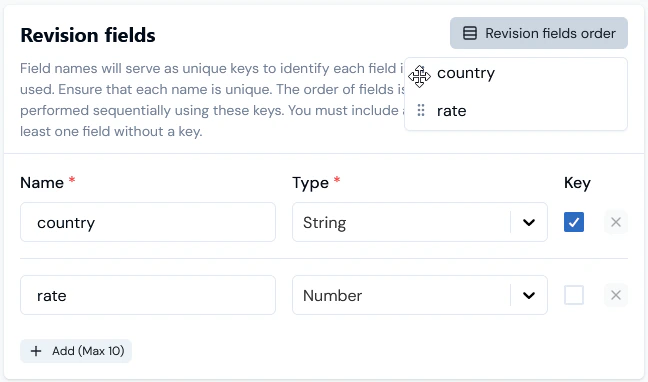 * You can open the **Revision field order list** and drag-and-drop fields to achieve the required order. The **Revision fields** card will adjust as you do this.
6. Select **Create revision**. You are returned to the **Lookup table details** page and the new Revision is listed:
* You can open the **Revision field order list** and drag-and-drop fields to achieve the required order. The **Revision fields** card will adjust as you do this.
6. Select **Create revision**. You are returned to the **Lookup table details** page and the new Revision is listed:
 Note that:
* The **Status** of a Revision when first created is **DRAFT**.
* You can expand a Revision and read-off its **Fields**.
We've now defined the data field schema for a Lookup Table Revision to serve our variable discount rate example. Next, we'll need to add some data values for that schema and publish the Revision. Publishing a Lookup Table Revision makes the data values configured for the Revision available for any Lookup functions used in calculations that reference the Lookup Table - see the [following topic](/guides/lookup-tables/adding-data-to-and-publishing-table-revisions).
Note that:
* The **Status** of a Revision when first created is **DRAFT**.
* You can expand a Revision and read-off its **Fields**.
We've now defined the data field schema for a Lookup Table Revision to serve our variable discount rate example. Next, we'll need to add some data values for that schema and publish the Revision. Publishing a Lookup Table Revision makes the data values configured for the Revision available for any Lookup functions used in calculations that reference the Lookup Table - see the [following topic](/guides/lookup-tables/adding-data-to-and-publishing-table-revisions).