> ## Documentation Index
> Fetch the complete documentation index at: https://docs.m3ter.com/llms.txt
> Use this file to discover all available pages before exploring further.
# Reviewing m3sh Workflow Runs
m3sh Workflow runs are logged by date and time and listed in the m3ter Console. This topic explains how to view all runs performed for a m3sh Workflow and how to open individual Workflows and review run log details:
* [Viewing Workflow Runs](/guides/m3sh-automation/reviewing-m3sh-workflow-runs#viewing-workflow-runs)
* [Reviewing Workflow Run Logs](/guides/m3sh-automation/reviewing-m3sh-workflow-runs#reviewing-workflow-run-logs)
## Viewing Workflow Runs
From the *Workflow details* page, you can view the ten most recent runs for a Workflow or open the *Runs* page and view all runs.
**To view m3sh Workflow runs:**
1. Select **Integrations**. The **Integrations** page opens.
2. Select **Workflows**:
 The **Workflows** page opens.
3. Select the **Name** hotlink text of the Workflow whose runs you want to view. The **Workflow details** page opens.
4. Scroll down the page to the **Latest workflow runs** panel:
The **Workflows** page opens.
3. Select the **Name** hotlink text of the Workflow whose runs you want to view. The **Workflow details** page opens.
4. Scroll down the page to the **Latest workflow runs** panel:
 Workflow runs are designated and tracked using the UTC date/time the run was started. The **Latest workflow runs** panel lists the ten most recent runs in descending order of start time, and for each run listed you can:
* Read-off the **Start time**, **Trigger**, and **Status**.
* You can select the **Start time** hotlink text to open the details page for an individual run - see the [following section](#reviewing-workflow-run-logs).
5. Select **View all**. The **Runs** page for the Workflow opens:
Workflow runs are designated and tracked using the UTC date/time the run was started. The **Latest workflow runs** panel lists the ten most recent runs in descending order of start time, and for each run listed you can:
* Read-off the **Start time**, **Trigger**, and **Status**.
* You can select the **Start time** hotlink text to open the details page for an individual run - see the [following section](#reviewing-workflow-run-logs).
5. Select **View all**. The **Runs** page for the Workflow opens:
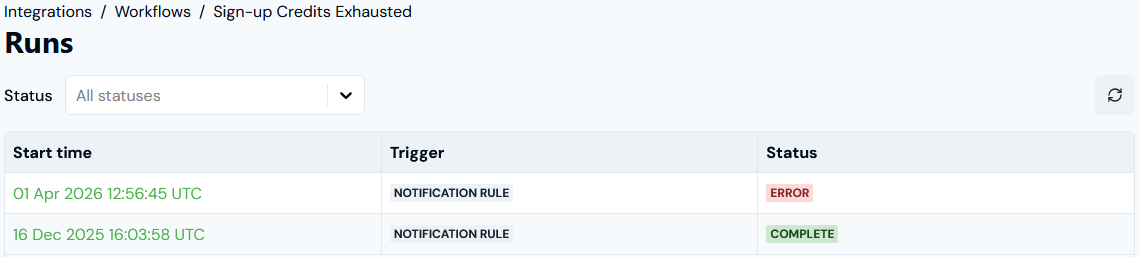 * Note that you can filter the **Runs** list by **Status**, and by default **All statuses** are shown.
**Tip: Accessing Workflow runs?** Depending on the Workflow set up, there can be other ways to access and review Workflow runs:
* If a Workflow uses a Notification rule as its trigger, you'll be able to open runs from the **Notification rule details** page.
* If a Workflow is associated with another m3ter entity - such as a Bill or an Account - then you'll be able to access runs from the entity details page - such as **Bill details**. The metadata card for an entity will also show hotlink texts you can use to open runs.
## Reviewing Workflow Run Logs
From the *Workflow details* page, you can quickly open an individual m3sh Workflow run and review detailed run logs on a step-by-step basis.
**To review individual m3sh Workflow run logs:**
1. Select **Integrations**. The **Integrations** page opens.
2. Select **Workflows**
3. Select the **Name** hotlink text of the Workflow whose run you want open and review logs for. The **Workflow details** page opens.
4. Scroll down the page to the **Latest workflow runs** panel. The ten most recent Workflow runs are listed:
* If the Workflow run you want to review run logs for is listed, select the **Start time** hotlink text of the run. The Workflow **Run details** page opens.
* If the Workflow run you want to review run logs for is not listed, select **View all**. The **Runs** page opens listing all Workflow runs. Select the **Start time** hotlink text of the run you want to open and review. The Workflow **Runs** page opens:
* Note that you can filter the **Runs** list by **Status**, and by default **All statuses** are shown.
**Tip: Accessing Workflow runs?** Depending on the Workflow set up, there can be other ways to access and review Workflow runs:
* If a Workflow uses a Notification rule as its trigger, you'll be able to open runs from the **Notification rule details** page.
* If a Workflow is associated with another m3ter entity - such as a Bill or an Account - then you'll be able to access runs from the entity details page - such as **Bill details**. The metadata card for an entity will also show hotlink texts you can use to open runs.
## Reviewing Workflow Run Logs
From the *Workflow details* page, you can quickly open an individual m3sh Workflow run and review detailed run logs on a step-by-step basis.
**To review individual m3sh Workflow run logs:**
1. Select **Integrations**. The **Integrations** page opens.
2. Select **Workflows**
3. Select the **Name** hotlink text of the Workflow whose run you want open and review logs for. The **Workflow details** page opens.
4. Scroll down the page to the **Latest workflow runs** panel. The ten most recent Workflow runs are listed:
* If the Workflow run you want to review run logs for is listed, select the **Start time** hotlink text of the run. The Workflow **Run details** page opens.
* If the Workflow run you want to review run logs for is not listed, select **View all**. The **Runs** page opens listing all Workflow runs. Select the **Start time** hotlink text of the run you want to open and review. The Workflow **Runs** page opens:
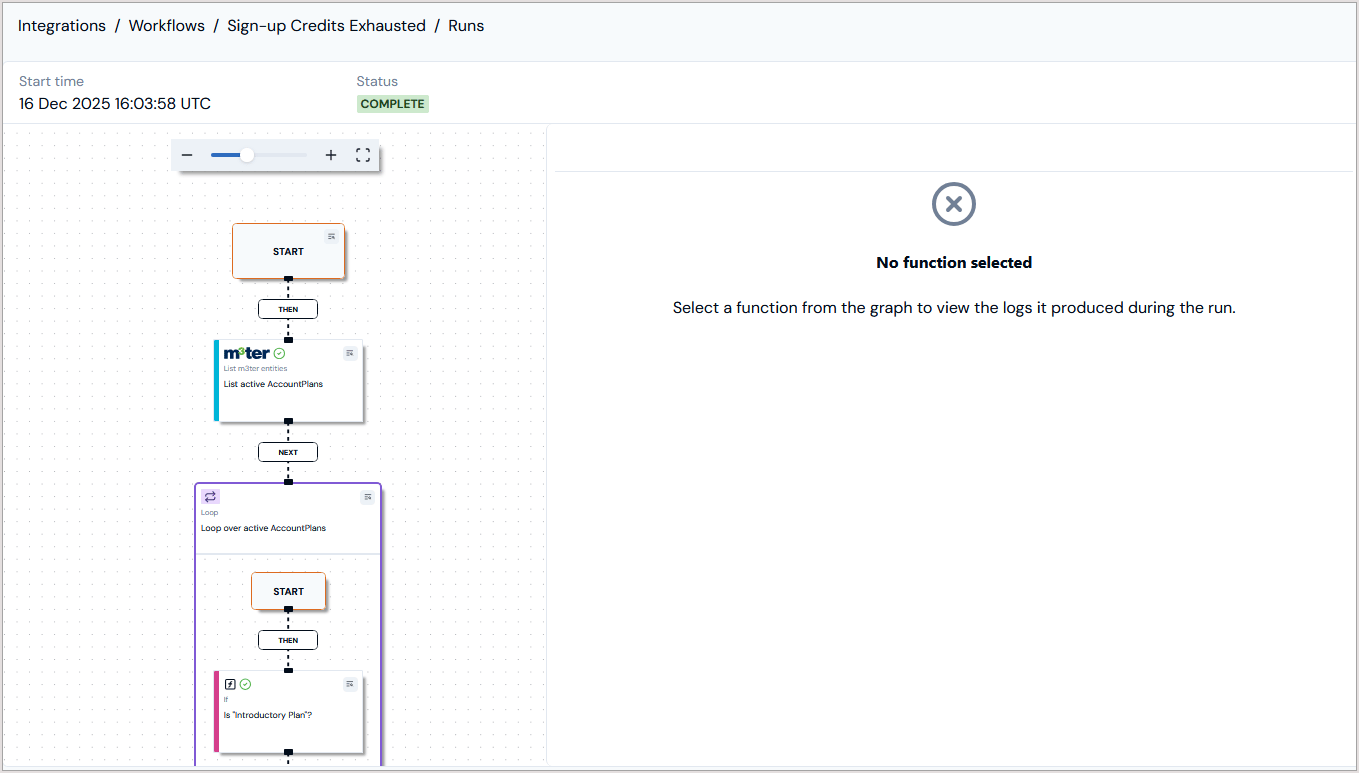 * The **Start time** and **Status** of the run are shown.
* You can use the controls to zoom in/out or fit to view.
5. If you want to inspect the log details for a specific step, select the details icon for the step. For example, for the Workflow **Start**:
* The **Start time** and **Status** of the run are shown.
* You can use the controls to zoom in/out or fit to view.
5. If you want to inspect the log details for a specific step, select the details icon for the step. For example, for the Workflow **Start**:
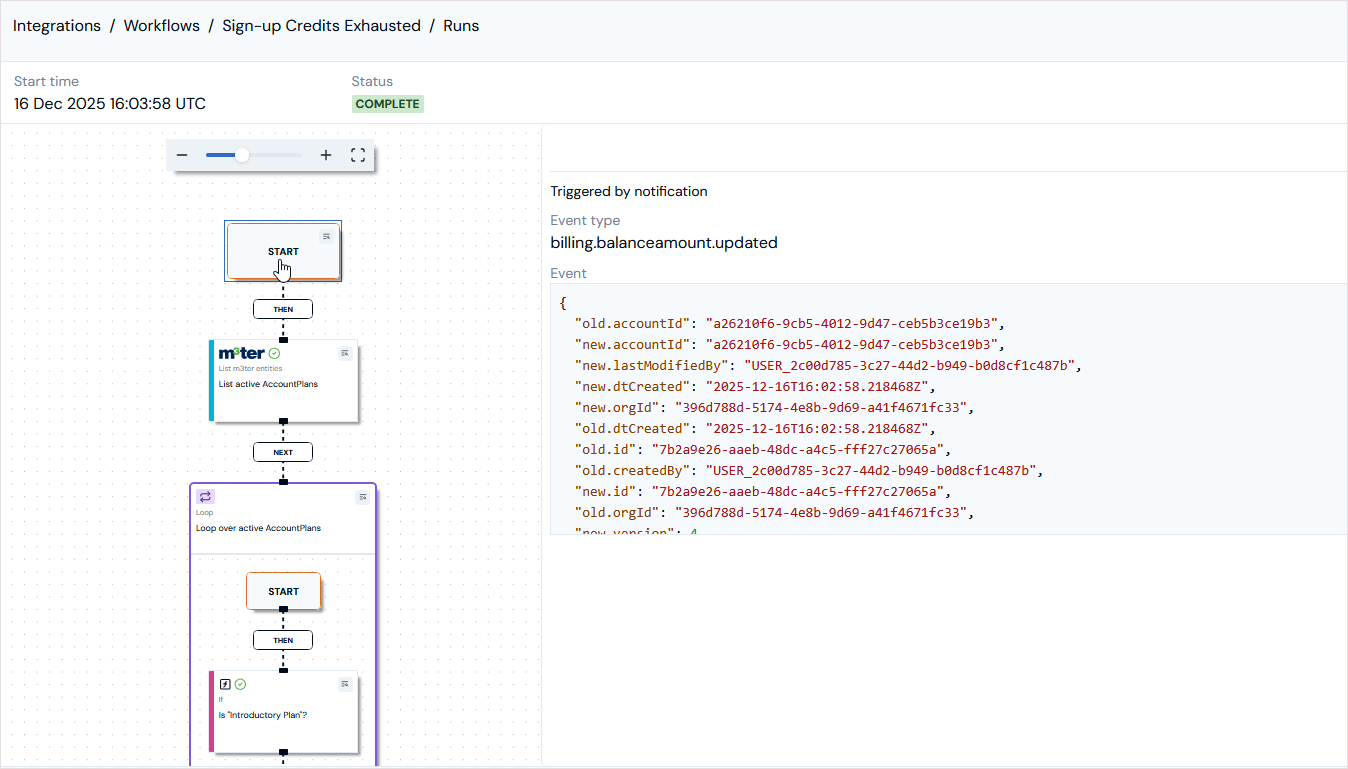 The log details for the selected step that was performed in the Workflow run are loaded into the right-hand side of the **Run log** panel:
* In this case, the JSON returned for the `billing.balanceamount.updated` Event that triggered the Workflow run is loaded.
* Similarly, you can review the log details for a functional step performed in the Workflow run:
The log details for the selected step that was performed in the Workflow run are loaded into the right-hand side of the **Run log** panel:
* In this case, the JSON returned for the `billing.balanceamount.updated` Event that triggered the Workflow run is loaded.
* Similarly, you can review the log details for a functional step performed in the Workflow run:
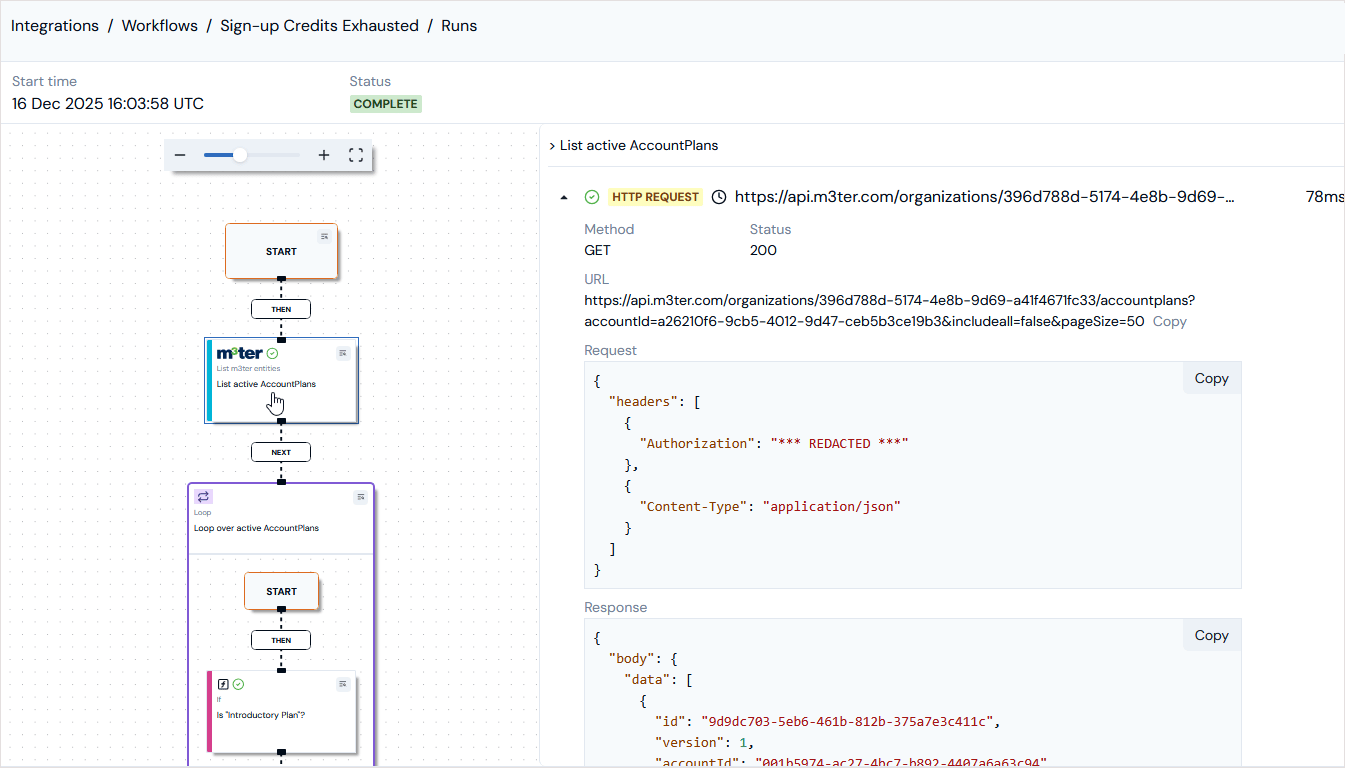 * In this case, the **HTTP REQUEST** performed by a **m3ter API** function is shown and you can expand the call to inspect the **Request** and **Response** JSON.