> ## Documentation Index
> Fetch the complete documentation index at: https://docs.m3ter.com/llms.txt
> Use this file to discover all available pages before exploring further.
# Working with Global Parameters
You can set up four types of *Global parameters* to use in your Workflows when adding and configuring functions:
* **Credentials**
* **Transformation**
* **Workflow**
* **Outgoing webhook**
Using Global parameters can save you much effort when managing and maintaining your Workflows over time. For example:
* **Credentials**. If you have a Workflow that uses several m3ter API functions each of which requires a m3ter Service User Credentials parameter, you can set up a Credentials Global parameter and use this for each function. When the time comes to rotate Service User Credentials and move to using new ones, you can simply update the Credentials Global parameter and assign the new Service User Credentials to it saving you the effort of opening every function and updating each one separately.
When you create Global parameters, their scope is restricted to the Workflow you've created them for - you cannot use a Global parameter across multiple different Workflows.
This topic explains how to add, use, and manage Global parameters for your Workflow using the example of a Credentials Global parameter.
**Other Global parameter types?** You can follow a similar procedure to create, use, and manage other Global parameter types - **Transformation**, **Workflow**, or **Outgoing webhook**.
**To create and use Global parameters for m3sh Workflows:**
1. Select **m3sh**:
 * The **Workflows** page opens.
2. Open a Workflow and select **Global parameters**:
* The **Workflows** page opens.
2. Open a Workflow and select **Global parameters**:
 * The **Global parameters** panel opens:
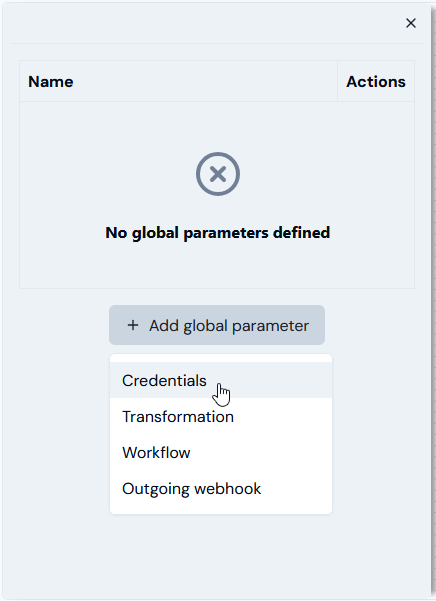 3. Select **Add global parameter>Credentials**. The panel adjusts.
4. Enter a **Name** for the Credentials Global parameter and use the **Credentials** drop-down to select the existing Service User Credentials you want assign to the Global parameter:
3. Select **Add global parameter>Credentials**. The panel adjusts.
4. Enter a **Name** for the Credentials Global parameter and use the **Credentials** drop-down to select the existing Service User Credentials you want assign to the Global parameter:
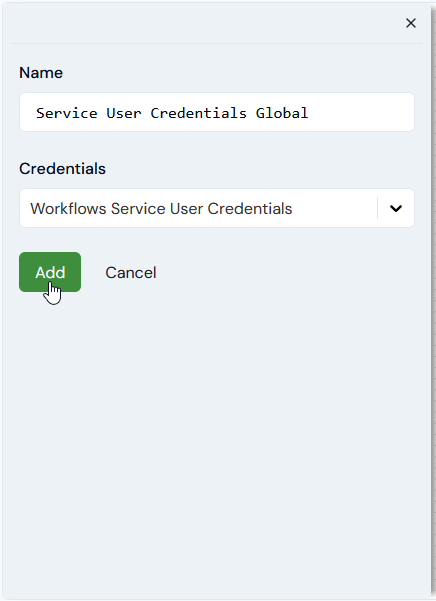 5. Select **Add**. The new Global parameter is listed on the panel:
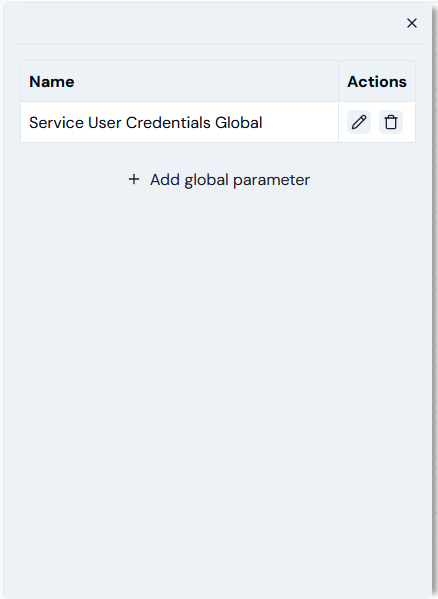 * The **Service User Credentials Global** parameter is now available when configuring m3ter API functions that require Service User Credentials.
* You can open the panel at any time and edit or delete a Global parameter.
* As you add Global parameters a count is shown in the main Workflow Builder:
* The **Service User Credentials Global** parameter is now available when configuring m3ter API functions that require Service User Credentials.
* You can open the panel at any time and edit or delete a Global parameter.
* As you add Global parameters a count is shown in the main Workflow Builder:
 **Important!** When your create a Global parameter, its scope is restricted to the Workflow you created it in and it is not available for use in other Workflows.
6. Suppose you've added a **Get m3ter Entity** API function to your Workflow. When you open the **Edit** panel to configure the function, the **Service User Credentials Global** will be available for selection for **Credentials** under **GLOBAL PARAMETERS**:
**Important!** When your create a Global parameter, its scope is restricted to the Workflow you created it in and it is not available for use in other Workflows.
6. Suppose you've added a **Get m3ter Entity** API function to your Workflow. When you open the **Edit** panel to configure the function, the **Service User Credentials Global** will be available for selection for **Credentials** under **GLOBAL PARAMETERS**:
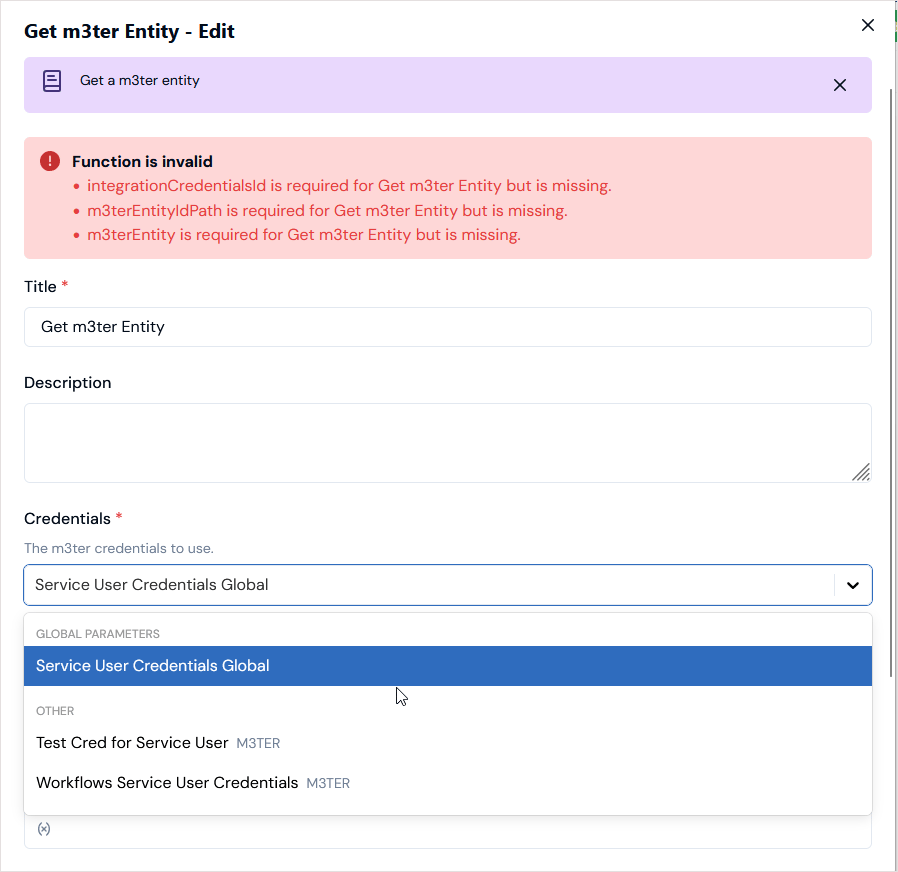 7. When the date arrives for rotating credentials under your security safeguarding policy, you can open the **Global parameters** panel and edit the **Service User Credentials Global** parameter to update it by assigning a new Service User Credentials to it:
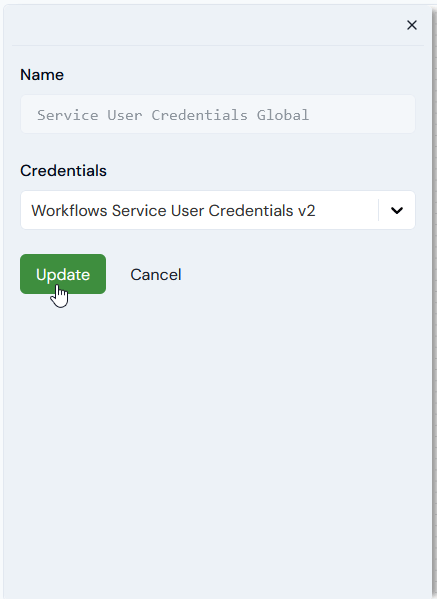 * All functions you've configured in your Workflows to use the **Service User Credentials Global** will now use the updated Credentials assigned to the Global parameter for authentication.