> ## Documentation Index
> Fetch the complete documentation index at: https://docs.m3ter.com/llms.txt
> Use this file to discover all available pages before exploring further.
# Enabling Two-Way Automated Sync for m3ter Objects
If you have set up entity data sync native integrations from m3ter into your Salesforce system for either *Accounts* or *Balances*, you can enable two-way auto-syncing of these objects between m3ter and your Salesforce Org.
This topic explains how to switch on the auto-sync feature and enable it for Account or Balance objects:
* [Switching on Two-Way Auto-Sync and Enabling for Objects](/guides/m3ter-connector-for-salesforce/enabling-two-way-automated-sync-for-m3ter-objects#switching-on-two-way-auto-sync-and-enabling-for-objects)
* [How Two-Way Auto-Sync Works](/guides/m3ter-connector-for-salesforce/enabling-two-way-automated-sync-for-m3ter-objects#how-two-way-auto-sync-works)
* [Monitoring and Troubleshooting](/guides/m3ter-connector-for-salesforce/enabling-two-way-automated-sync-for-m3ter-objects#monitoring-and-troubleshooting)
* [Technical Details](/guides/m3ter-connector-for-salesforce/enabling-two-way-automated-sync-for-m3ter-objects#technical-details)
* [Additional Notes](/guides/m3ter-connector-for-salesforce/enabling-two-way-automated-sync-for-m3ter-objects#additional-notes)
* [Recommended Next Steps](/guides/m3ter-connector-for-salesforce/enabling-two-way-automated-sync-for-m3ter-objects#recommended-next-steps)
**Important!**
**Check Version**. The two-way auto sync for m3ter objects feature is only available in version **0.6** and above of the m3ter Connector for Salesforce managed package. See [m3ter Connector for Salesforce - Changelog](/guides/m3ter-connector-for-salesforce/m3ter-connector-for-salesforce-changelog) for details on how to check your current installed version.
## Switching on Two-Way Auto-Sync and Enabling for Objects
Before you can use this feature, *you must ensure* that you've set up an Entity Data Sync native integration with your Salesforce system for the m3ter objects you want to enable two-way auto-sync for. See [Configuring Salesforce Entity Data Sync Integrations](/guides/integrations/setting-up-integrations/configuring-sf-entity-data-integrations) for more details.
**To switch on auto-sync and enable for objects:**
1. In your Salesforce Org, navigate to the **m3ter Admin** app.
2. Under **Setup**, select the **Auto-Sync Settings** tab:
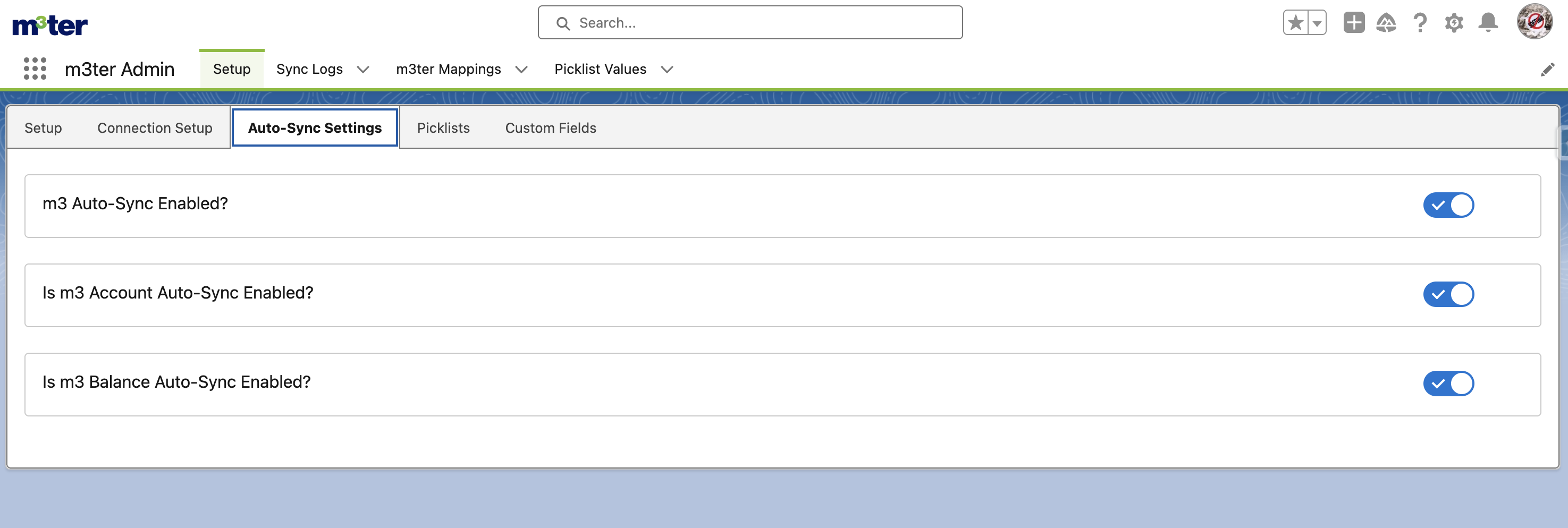 3. Use **m3 Auto-Sync Enabled?** switch to turn the feature on. This is the master switch and controls all two-way auto-sync settings for objects.
4. If you want to enable the feature for *m3 Account* objects, switch on **Is m3 Account Auto-Sync Enabled?**
5. If you want to enable the feature for *m3 Balance* and *m3 Balance Transaction* objects, switch on **Is m3 Balance Auto-Sync Enabled?**
## How Two-Way Auto-Sync Works
When enabled, the two-way auto-sync functionality:
1. Tracks any changes made to records in both systems.
2. Uses the `lastSystemToUpdate__c` field to identify which system made the most recent change.
3. Propagates changes:
* From SFDC to m3ter using Platform Events.
* From m3ter to SFDC via the m3ter Native Integration - see [Configuring Salesforce Entity Data Sync Integrations](/guides/integrations/setting-up-integrations/configuring-sf-entity-data-integrations).
## Monitoring and Troubleshooting
If you encounter any issues with the two-way auto-sync feature, you can view *Sync Logs* to troubleshoot issues.
### Viewing Sync Logs
To monitor the synchronization activity:
1. In the **m3ter Admin** app, navigate to the **Sync Logs** tab.
2. Review the logs to check sync operations, timestamps, and status.
### Common Issues and How to Resolve
Here are some common issues, their possible cause, and how to resolve them:
| Issue | Possible Cause | Resolution |
| ----------------------------- | ------------------------------------- | ---------------------------------------------------- |
| Objects not syncing. | Master switch is turned OFF. | Ensure "m3 Auto-Sync Enabled?" is switched ON. |
| Specific objects not syncing. | Object-specific setting is OFF. | Verify the Object-specific setting is switched ON. |
| Sync errors. | API Connection issues. | Check integration settings and network connectivity. |
| Data conflicts. | Simultaneous updates in both systems. | Review sync logs to identify and resolve conflicts. |
## Technical Details
### Architecture Components
The two-way auto-sync feature leverages several components:
* **Custom Settings**: `m3AutoSyncSettings__c` controls feature enablement.
* **Custom Fields**: `lastSystemToUpdate__c` tracks which system last modified a record.
* **Apex Triggers**: Monitor record changes and initiate sync processes.
* **Platform Events**: `m3 Object Change Event` communicates changes between systems.
* **Flow**: `Handle m3ter Object Change Event` processes the platform events.
### Data Flow
1. When a record is created or updated in Salesforce:
* The `lastSystemToUpdate__c` field is set to 'sfdc'.
* A Platform Event is fired with the record ID.
* The flow processes the event and invokes the "Sync To M3ter" action.
2. When a record is created or updated in m3ter:
* The native integration updates the record in Salesforce.
* The `lastSystemToUpdate__c` field is set to 'm3'.
* No platform event is fired (to prevent circular updates).
## Additional Notes
Please note:
* Currently, only **INSERT** and **UPDATE** operations are supported for two-way auto-sync.
* **DELETE** and **UNDELETE** operations are not yet supported in the current implementation.
## Recommended Next Steps
After enabling two-way auto-sync, we recommend:
* Testing the sync by making sample changes in both systems.
* Review sync logs to ensure proper functionality.
3. Use **m3 Auto-Sync Enabled?** switch to turn the feature on. This is the master switch and controls all two-way auto-sync settings for objects.
4. If you want to enable the feature for *m3 Account* objects, switch on **Is m3 Account Auto-Sync Enabled?**
5. If you want to enable the feature for *m3 Balance* and *m3 Balance Transaction* objects, switch on **Is m3 Balance Auto-Sync Enabled?**
## How Two-Way Auto-Sync Works
When enabled, the two-way auto-sync functionality:
1. Tracks any changes made to records in both systems.
2. Uses the `lastSystemToUpdate__c` field to identify which system made the most recent change.
3. Propagates changes:
* From SFDC to m3ter using Platform Events.
* From m3ter to SFDC via the m3ter Native Integration - see [Configuring Salesforce Entity Data Sync Integrations](/guides/integrations/setting-up-integrations/configuring-sf-entity-data-integrations).
## Monitoring and Troubleshooting
If you encounter any issues with the two-way auto-sync feature, you can view *Sync Logs* to troubleshoot issues.
### Viewing Sync Logs
To monitor the synchronization activity:
1. In the **m3ter Admin** app, navigate to the **Sync Logs** tab.
2. Review the logs to check sync operations, timestamps, and status.
### Common Issues and How to Resolve
Here are some common issues, their possible cause, and how to resolve them:
| Issue | Possible Cause | Resolution |
| ----------------------------- | ------------------------------------- | ---------------------------------------------------- |
| Objects not syncing. | Master switch is turned OFF. | Ensure "m3 Auto-Sync Enabled?" is switched ON. |
| Specific objects not syncing. | Object-specific setting is OFF. | Verify the Object-specific setting is switched ON. |
| Sync errors. | API Connection issues. | Check integration settings and network connectivity. |
| Data conflicts. | Simultaneous updates in both systems. | Review sync logs to identify and resolve conflicts. |
## Technical Details
### Architecture Components
The two-way auto-sync feature leverages several components:
* **Custom Settings**: `m3AutoSyncSettings__c` controls feature enablement.
* **Custom Fields**: `lastSystemToUpdate__c` tracks which system last modified a record.
* **Apex Triggers**: Monitor record changes and initiate sync processes.
* **Platform Events**: `m3 Object Change Event` communicates changes between systems.
* **Flow**: `Handle m3ter Object Change Event` processes the platform events.
### Data Flow
1. When a record is created or updated in Salesforce:
* The `lastSystemToUpdate__c` field is set to 'sfdc'.
* A Platform Event is fired with the record ID.
* The flow processes the event and invokes the "Sync To M3ter" action.
2. When a record is created or updated in m3ter:
* The native integration updates the record in Salesforce.
* The `lastSystemToUpdate__c` field is set to 'm3'.
* No platform event is fired (to prevent circular updates).
## Additional Notes
Please note:
* Currently, only **INSERT** and **UPDATE** operations are supported for two-way auto-sync.
* **DELETE** and **UNDELETE** operations are not yet supported in the current implementation.
## Recommended Next Steps
After enabling two-way auto-sync, we recommend:
* Testing the sync by making sample changes in both systems.
* Review sync logs to ensure proper functionality.