> ## Documentation Index
> Fetch the complete documentation index at: https://docs.m3ter.com/llms.txt
> Use this file to discover all available pages before exploring further.
# Creating and Managing User Groups
You can create User Groups and add Permission Policies to them. User Groups are very useful for controlling access to your Organization when you want to set up a number of people with the same Permission Policies assigned to them. For example, you might have a Billing Operations team and you want to restrict the access of all members of this team to performing certain billing operations when working in your Organization. You can then:
* Create a Permission Policy which allows the required range of Billing resource access.
* Create a new **Billing User Group** and add this Permission Policy to it.
* Add each team member to the **Billing User Group**.
* Do not assign any Permission Policies to any Billing Operations team member.
This topic explains how to create User Groups and add Permission Policies to the them, how to add Users to Users Groups, and how to manage your User Groups:
* [Creating User Groups and Adding Permission Policies](/guides/organization-and-access-management/managing-users/creating-and-managing-user-groups#creating-user-groups-and-adding-permission-policies)
* [Adding Users to User Groups](/guides/organization-and-access-management/managing-users/creating-and-managing-user-groups#adding-users-to-user-groups)
* [Managing User Groups](/guides/organization-and-access-management/managing-users/creating-and-managing-user-groups#managing-user-groups)
## Creating User Groups and Adding Permission Policies
**To create a User Group and add Permission Policies to the Group:**
1. Select **Settings>Access settings**. The **Access settings** page opens with the **Users** tab selected.
2. Select the **User groups** tab.
3. Select **Create user group**. The **Create** page opens.
4. Enter a **Name** for the new User Group.
5. Use the **Permission policies** drop-down list to select the Policies you want to apply to the Group:
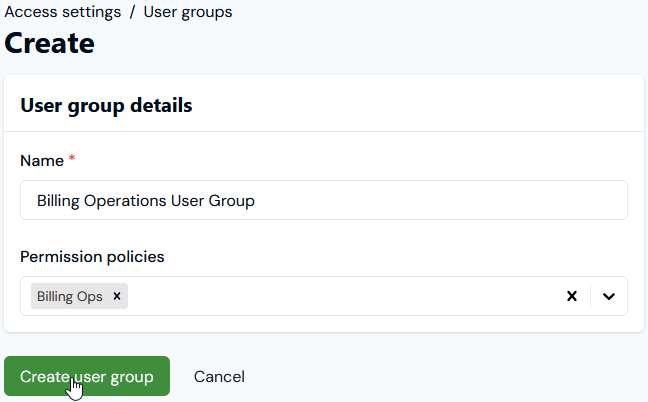 6. Select **Create user group**. The **User group details** page for the new User Group opens and the **Permissions policies** panel lists the Policies you've applied to the Group:
 You can manage the Permission Policies for the User Group from here:
* Select **Add permission policies** to add another Permission Policy to the User Group.
* To remove a Permission Policy from the User Group, select it on the **Permission policies** panel and then click **Remove selected**.
**Important!** To avoid any problems for users when attempting to access the Console, please ensure you include a Permission Policy assigned to their User Group that includes for a `config:retrieve` action for the `billing:config` and `config:organizationConfig` resources. See [Understanding, Creating, and Managing Permission Policies](/guides/organization-and-access-management/creating-and-managing-permissions).
## Adding Users to User Groups
**To add Users to a User Group:**
1. Select **Settings>Access settings**. The **Access settings** page opens with the **Users** tab selected.
2. Select the **Name** hotlink text of the User you want to add to a User Group. The **User details** page opens.
3. On the **User groups** panel, select **Add to user group**. A **Select user groups** dialog appears.
4. On the **Select user groups** dialog, select the User Group you want to add the user to and then select **Confirm**. The dialog closes and you are returned to the **User details** page and the User Group you've added the User to is listed on the **User groups** panel.
**Tip**: Alternatively, open the details page of the User group you want to add Users to, and on the **Users** panel you can use **Add user**.
## Managing User Groups
1. Select the **Access settings>User groups** tab. From there, you can manage your User Groups:
* Select the **Name** hotlink text to open the **User group details** page for a User Group and from there:
* Add and manage the **Permission policies** applied to the Group.
* Add and manage the **Users** belonging to the Group.
2. If you want to edit the User Group, from the **User groups** tab, select **Edit**:
You can manage the Permission Policies for the User Group from here:
* Select **Add permission policies** to add another Permission Policy to the User Group.
* To remove a Permission Policy from the User Group, select it on the **Permission policies** panel and then click **Remove selected**.
**Important!** To avoid any problems for users when attempting to access the Console, please ensure you include a Permission Policy assigned to their User Group that includes for a `config:retrieve` action for the `billing:config` and `config:organizationConfig` resources. See [Understanding, Creating, and Managing Permission Policies](/guides/organization-and-access-management/creating-and-managing-permissions).
## Adding Users to User Groups
**To add Users to a User Group:**
1. Select **Settings>Access settings**. The **Access settings** page opens with the **Users** tab selected.
2. Select the **Name** hotlink text of the User you want to add to a User Group. The **User details** page opens.
3. On the **User groups** panel, select **Add to user group**. A **Select user groups** dialog appears.
4. On the **Select user groups** dialog, select the User Group you want to add the user to and then select **Confirm**. The dialog closes and you are returned to the **User details** page and the User Group you've added the User to is listed on the **User groups** panel.
**Tip**: Alternatively, open the details page of the User group you want to add Users to, and on the **Users** panel you can use **Add user**.
## Managing User Groups
1. Select the **Access settings>User groups** tab. From there, you can manage your User Groups:
* Select the **Name** hotlink text to open the **User group details** page for a User Group and from there:
* Add and manage the **Permission policies** applied to the Group.
* Add and manage the **Users** belonging to the Group.
2. If you want to edit the User Group, from the **User groups** tab, select **Edit**:
 * Make your editing changes and select **Update User Group**.
3. If you want to delete a User Group, from the **User groups** tab, select the **Delete** icon:
* Make your editing changes and select **Update User Group**.
3. If you want to delete a User Group, from the **User groups** tab, select the **Delete** icon:
 A confirmation dialog appears.
4. Select **Yes** to continue and delete the User Group.
**Tip**: Alternatively, you can use the **Edit** and **Delete** buttons at top right on the **User group details** page.
A confirmation dialog appears.
4. Select **Yes** to continue and delete the User Group.
**Tip**: Alternatively, you can use the **Edit** and **Delete** buttons at top right on the **User group details** page.