> ## Documentation Index
> Fetch the complete documentation index at: https://docs.m3ter.com/llms.txt
> Use this file to discover all available pages before exploring further.
# Inviting Users to Organization
From the **Access settings** page, you can invite people to join your Organization as users. They will receive an e-mail invite and will then be able to access your Organization with the permission level you've assigned to them.
**Important - User Invite Permission Required!**
* You can issue an invite to a user to join your Organization only if you have the required permissions. The invite user permission can be conferred either with the **Administrator** *Managed Permission Policy* or a *Custom Permission Policy* that includes a `config:create` action for the `orgUserInvitation` resource.
* If you attempt to invite a User to your Organization but you don't have the required permissions, you'll receive an error.
**To invite a User to join your Organization:**
1. Select **Settings>Access settings**. The **Access settings** page opens with the **Users** tab selected.
2. Select the **Invitations** tab. Any invitations previously issued for your Organization are listed.
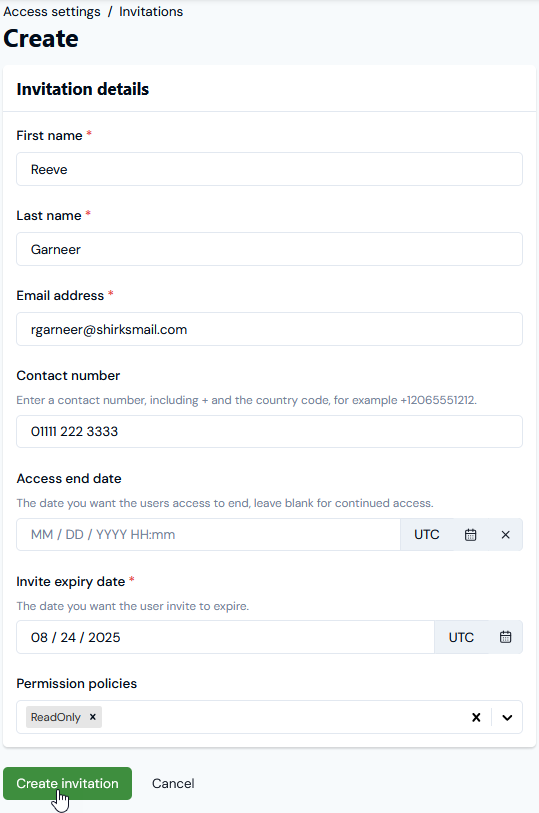
3. Select **Create invitation**. The **Create** page opens.
4. Enter the **Invitation details** for the User:
* **First name**. (*Required*)
* **Last name**. (*Required*)
* **Email address**. (*Required*)
* **Contact Number**. (*Optional*)
5. If you want to make the invited User's access to your Organization time-bound, use the pop-up calendar to enter the date and time you want their access to cease in the **Access end date** field. Optional - if you don't set this date, then the invited user will have continued access to your Organization.
6. Use the pop-up calendar for the **Invite expiry date** to enter the date you want the invitation to expire. Note that this is required and by default the invitation expiry date will be pre-set at 30 days in the future.
7. Use the **Permission policies** drop-down selection list to select the Permission you want to assign to the invited User:
* The drop-down selection list will include any Custom Permission Policies you've created and the two Managed Permission Policies - **Administrator** and **ReadOnly**.
* When the invited User has joined your Organization, you'll be able to edit the Permission Policies assigned to them.
 8. Select **Create invitation**. The **Invitations details** page opens for the invited User and the User will receive an e-mail inviting them to join your Organization:
* If the User is already a m3ter User and has a m3ter account, they can click a link and use their credentials to log into your Organization.
* If the User is not already a m3ter User and does not already have a m3ter account, they will be invited to create a m3ter account before logging into your Organization.
9. On the **Access settings>Invitations** tab, your Invitations are listed:
* **Name.**
* **Email address**. The invited User's email address.
* **Access end date**. The date you set for the invited User's access to your Organization to end.
* **Invite expiry date**. The date on which the invite expires - after that date the invited User will no longer be able to accept the invite. By default, any invite is valid for **30 days** from the date you sent the invite.
* **Accepted**. Whether or not the invitation has been accepted.
* **Permission policies**. The Permission Policies assigned to the invited User.
* **Invited by**.
10. When an invited User has joined your Organization, they appear in the **Users** tab on the **Access settings** page:
* If you entered an **Access end date** for the invited User's access, this will be shown.
* Their **Status** is shown as **ACTIVE**.
See: [Managing Users and Assigning Permission Policies](/guides/organization-and-access-management/managing-users/managing-users-and-assigning-permission-policies).
11. At any time, you can open the **Access settings>Invitations** tab and select the **Name** hotlink text of an invited User to open the **Invitation details** page for the User. This shows the details of the invitation including the **Permission policies** assigned to the invited user.
8. Select **Create invitation**. The **Invitations details** page opens for the invited User and the User will receive an e-mail inviting them to join your Organization:
* If the User is already a m3ter User and has a m3ter account, they can click a link and use their credentials to log into your Organization.
* If the User is not already a m3ter User and does not already have a m3ter account, they will be invited to create a m3ter account before logging into your Organization.
9. On the **Access settings>Invitations** tab, your Invitations are listed:
* **Name.**
* **Email address**. The invited User's email address.
* **Access end date**. The date you set for the invited User's access to your Organization to end.
* **Invite expiry date**. The date on which the invite expires - after that date the invited User will no longer be able to accept the invite. By default, any invite is valid for **30 days** from the date you sent the invite.
* **Accepted**. Whether or not the invitation has been accepted.
* **Permission policies**. The Permission Policies assigned to the invited User.
* **Invited by**.
10. When an invited User has joined your Organization, they appear in the **Users** tab on the **Access settings** page:
* If you entered an **Access end date** for the invited User's access, this will be shown.
* Their **Status** is shown as **ACTIVE**.
See: [Managing Users and Assigning Permission Policies](/guides/organization-and-access-management/managing-users/managing-users-and-assigning-permission-policies).
11. At any time, you can open the **Access settings>Invitations** tab and select the **Name** hotlink text of an invited User to open the **Invitation details** page for the User. This shows the details of the invitation including the **Permission policies** assigned to the invited user.