> ## Documentation Index
> Fetch the complete documentation index at: https://docs.m3ter.com/llms.txt
> Use this file to discover all available pages before exploring further.
# Viewing and Managing Permission Policies
At **Settings>Access settings** in the Console, you can view and manage Permission Policies created for your Organization.
**Tip: Understanding Permission Policies?** For details on the m3ter Permission Policies framework and how to create the custom Permission Policies you need, please review the [Understanding, Creating, and Managing Permission Policies](/guides/organization-and-access-management/creating-and-managing-permissions) topic.
**To view and manage Permissions Policies in your Organization:**
1. Select **Settings>Access settings**. The **Users** page opens.
2. Select the **Permission policies** tab. Any existing **Managed** or **Custom** Permission Policies are listed:
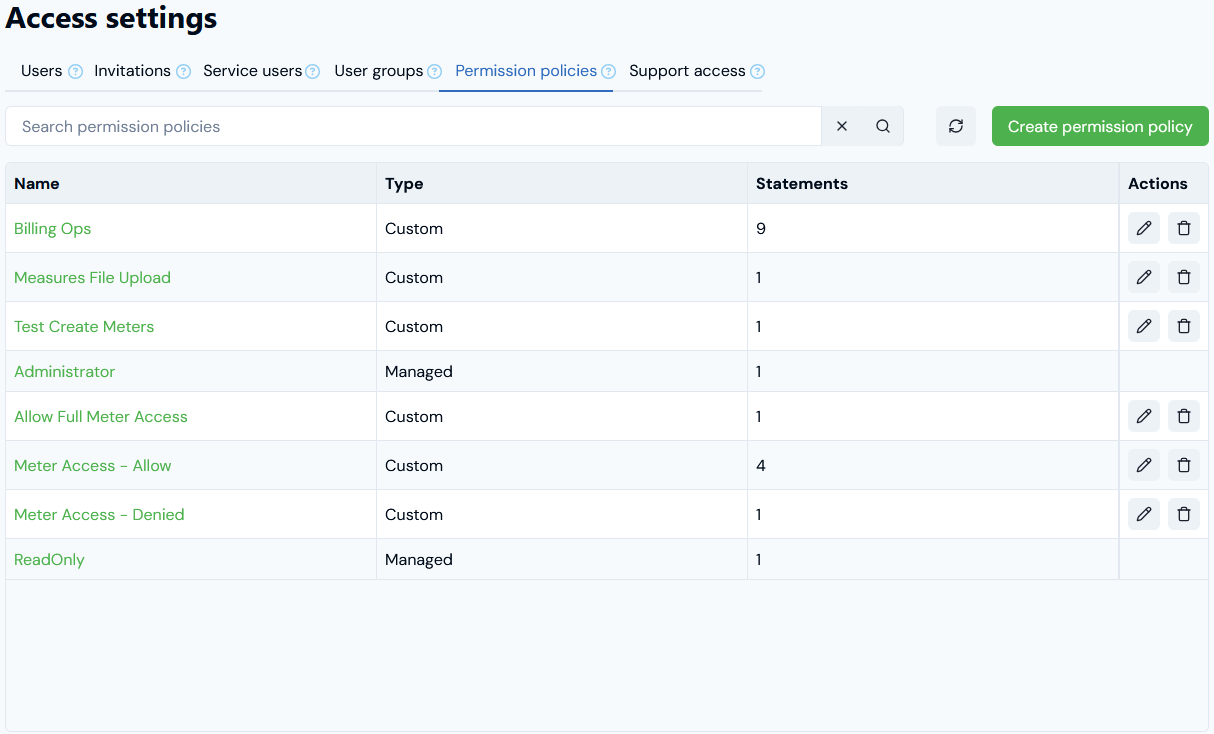 From the listing, you can read off:
* The **Type** of Permission Policy - either **Managed** or **Custom**.
* The number of **Statements** configured for a Permission Policy, which control what a User assigned the Policy can and cannot do in your Organization.
3. If you want to view the details of a Permission Policy, select the **Name** text hotlink. The **Permission policy details** page opens:
From the listing, you can read off:
* The **Type** of Permission Policy - either **Managed** or **Custom**.
* The number of **Statements** configured for a Permission Policy, which control what a User assigned the Policy can and cannot do in your Organization.
3. If you want to view the details of a Permission Policy, select the **Name** text hotlink. The **Permission policy details** page opens:
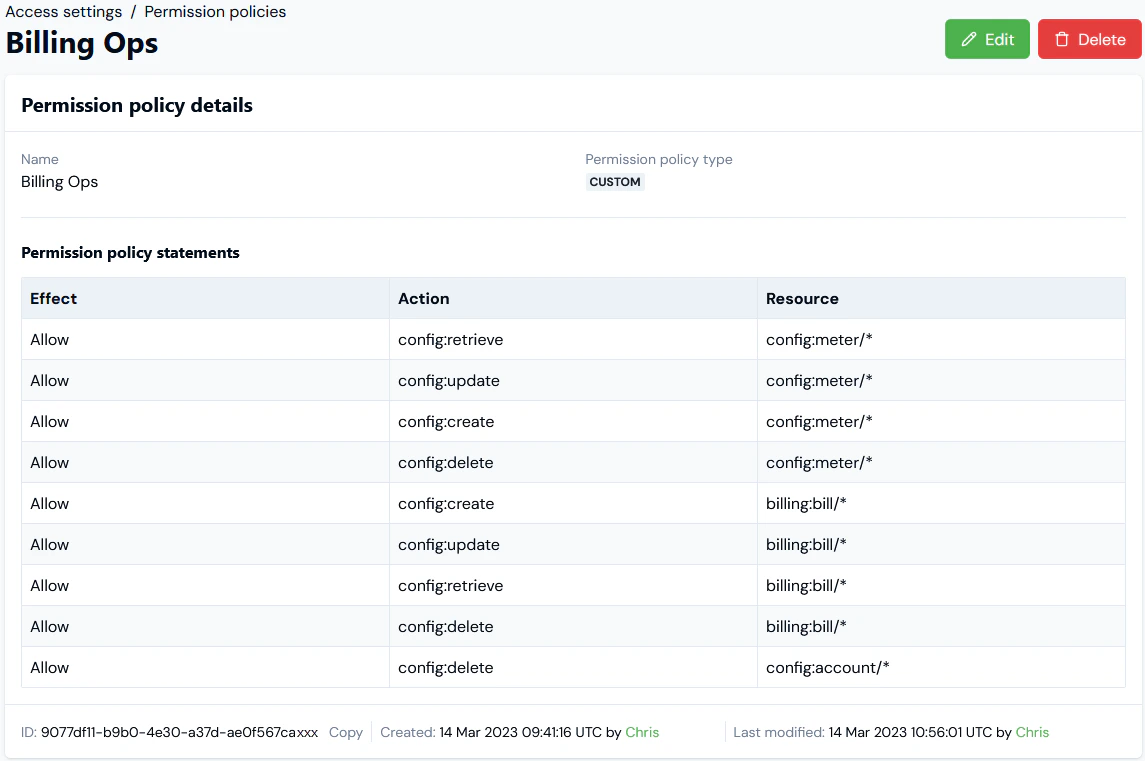 In this example, the details of a **CUSTOM** Permission Policy reveal that it has been set up using nine Statements and we can read-off what each of the Statements allows or denies a User assigned the Policy to do.
4. If you want to edit a Permission Policy, return to the **Permission policies** tab and select the **Edit** icon:
In this example, the details of a **CUSTOM** Permission Policy reveal that it has been set up using nine Statements and we can read-off what each of the Statements allows or denies a User assigned the Policy to do.
4. If you want to edit a Permission Policy, return to the **Permission policies** tab and select the **Edit** icon:
 5. Make your editing changes and select **Update permission policy**.
**Tip: Working with Permission Policies?** See the [Understanding, Creating, and Managing Permission Policies](/guides/organization-and-access-management/creating-and-managing-permissions) for details on how to create and update Permission Policies.
6. If you want to delete a Permission Policy, on the **Permission policies** tab select the **Delete** icon:
5. Make your editing changes and select **Update permission policy**.
**Tip: Working with Permission Policies?** See the [Understanding, Creating, and Managing Permission Policies](/guides/organization-and-access-management/creating-and-managing-permissions) for details on how to create and update Permission Policies.
6. If you want to delete a Permission Policy, on the **Permission policies** tab select the **Delete** icon:
 A confirmation dialog appears.
7. Select **Yes** to continue and delete the Permission Policy.
**Note: Editing or deleting Managed Permission Policies?** Managed Permission Policies are system generated and *you cannot edit or delete them*.
A confirmation dialog appears.
7. Select **Yes** to continue and delete the Permission Policy.
**Note: Editing or deleting Managed Permission Policies?** Managed Permission Policies are system generated and *you cannot edit or delete them*.