> ## Documentation Index
> Fetch the complete documentation index at: https://docs.m3ter.com/llms.txt
> Use this file to discover all available pages before exploring further.
# Pricing Plans Using Segmented Aggregations
If you want to use a Segmented Aggregation to price up one of your Product Plans, the Pricing Editor is designed to help you quickly price the segments you've defined for the Aggregation. This topic explains how to use the Segmented Aggregation described in the [Segmented Aggregations](/guides/usage-data-aggregations/segmented-aggregations) topic to price a Plan:
* [Creating Segmented Pricings for Plans in the Console](/guides/plans-and-pricing/pricing-plans/pricing-plans-using-segmented-aggregations#creating-segmented-pricings-for-plans-in-the-console)
* [Reviewing Segmented Priced Plan Details](#reviewing-segmented-priced-plan-details)
* [Using an API call to Create a Segmented Pricing](/guides/plans-and-pricing/pricing-plans/pricing-plans-using-segmented-aggregations#using-api-call-to-create-a-segmented-pricing)
If you've set up a Compound Aggregation that references Segmented Aggregations, you can also use this to Price Plans:
* [Pricing with Compound Aggregations Based on Segmented Aggregations](/guides/plans-and-pricing/pricing-plans/pricing-plans-using-segmented-aggregations#pricing-with-compound-aggregations-based-on-segmented-aggregations)
**Notes & Warnings:**
* **Preparing to price Plans and Plan Templates using Segmented Aggregations!** We *strongly recommend* that before you attempt to price up Product Plans or Plan Templates using a Segmented Aggregation, you first review the [Pricing Plans and Plan Templates](/guides/plans-and-pricing/pricing-plans/pricing-plans) topic.
* **Pricing Plans in conjunction with tiered pricing!** Caution is required when using Segmented Aggregations in conjunction with a tiered pricing structure:
* Suppose you offer a service to perform background checks for companies on job application candidates. You want to offer 50 free background checks to your customers per billing period and then charge \$50 per 100 checks made after the first 50 free per billing period. If you had priced using a non-segmented Aggregation and a customer consumes 150 checks in total during a billing period, then the bill would amount to \$50. If however you use a Segmented Aggregation and your customer again consumes a total of 150 checks but across 3 segmented values and at 50 checks for each value, then the 50 free tier is applied separately to each segment and the bill amount will be \$0.
## Creating Segmented Pricings for Plans in the Console
When you use a Segmented Aggregation to price one of your Product Plans, you must create a separate pricing for each segment value you've defined. You can do this using the Console's Pricing Editor.
**To price a Plan using a Segmented Aggregation:**
1. Select **Pricing>Pricing editor**. The **Pricing editor** opens.
2. In the **Product** drop-down, select the Product for which you want to add a Plan to price up.
3. Select **Add Plans**. A **Select Plans** popup appears and lists the Plans created for the Product.
4. Select the Plan or Plans you want to price and select **Confirm**. You are returned to the **Pricing** page where the selected **Plan** is shown. A warning states that no pricing has yet been configured for the Plan.
5. Select **Add aggregations**. A **Select Aggregations** popup appears listing the Aggregations created for the Product.
**Notes: Selecting Aggregations for Pricing.**
* **Available Aggregations:** Only those Aggregations belonging to the same Product as the Plan and any Global Aggregations in your Organization are shown for selection in the popup.
* **Duplicating Aggregations:** You cannot add the same Aggregation more than once for pricing a Plan and any Aggregations you've already added will no longer be available for selection in the popup.
6. Select the Segmented Aggregation you want to use to price the Plan and select **Confirm**. The popup closes, you are returned to the Pricing Editor where the Segmented Aggregation is shown ready for pricing. A warning states that no active pricing is yet configured.
7. Select **Edit segmented pricing**. The **Pricing>Segments** page opens:
* An **Aggregation details** and **Plan Details** panel are shown.
* A **Segmented pricing** grid allows you to create the pricing for each segment value you have configured for the Segmented Aggregation.
**Tip: Filter Grid?** You can use the filter fields at the head of each segment field column to filter the grid.
8. To configure a price for a segment value, select **Create plan pricing**. A **Pricing** page opens for the segment value, which mimics the Pricing page for a simple Aggregation that is not segmented - you can use either a **Pricing Wizard** workflow or choose to use the **Advanced Pricing** configuration options. See [Creating a Pricing for a Plan](/guides/plans-and-pricing/pricing-plans/pricing-plans#creating-a-pricing-for-a-plan) for more guidance.
9. Use the **Pricing** page to configure the precise pricing you want to apply to the segment value and select **Create Pricing**:
 * Above shows the first two for China location under **Segmented pricing**.
* Repeat Steps 8 and 9 to create the pricing for all segment values:
10. When you return to the **Pricing Editor**, you'll see the pricing you've configured using the Segmented Aggregation has been saved - in this example **6/6** (6 of 6) segments are now priced:
* Above shows the first two for China location under **Segmented pricing**.
* Repeat Steps 8 and 9 to create the pricing for all segment values:
10. When you return to the **Pricing Editor**, you'll see the pricing you've configured using the Segmented Aggregation has been saved - in this example **6/6** (6 of 6) segments are now priced:
 ## Reviewing Segmented Priced Plan Details
If you open the **Plan details** page of a Plan you've priced using a Segmented Aggregation, under **Pricing** you can review and manage the each segment's pricing. For the current example:
## Reviewing Segmented Priced Plan Details
If you open the **Plan details** page of a Plan you've priced using a Segmented Aggregation, under **Pricing** you can review and manage the each segment's pricing. For the current example:
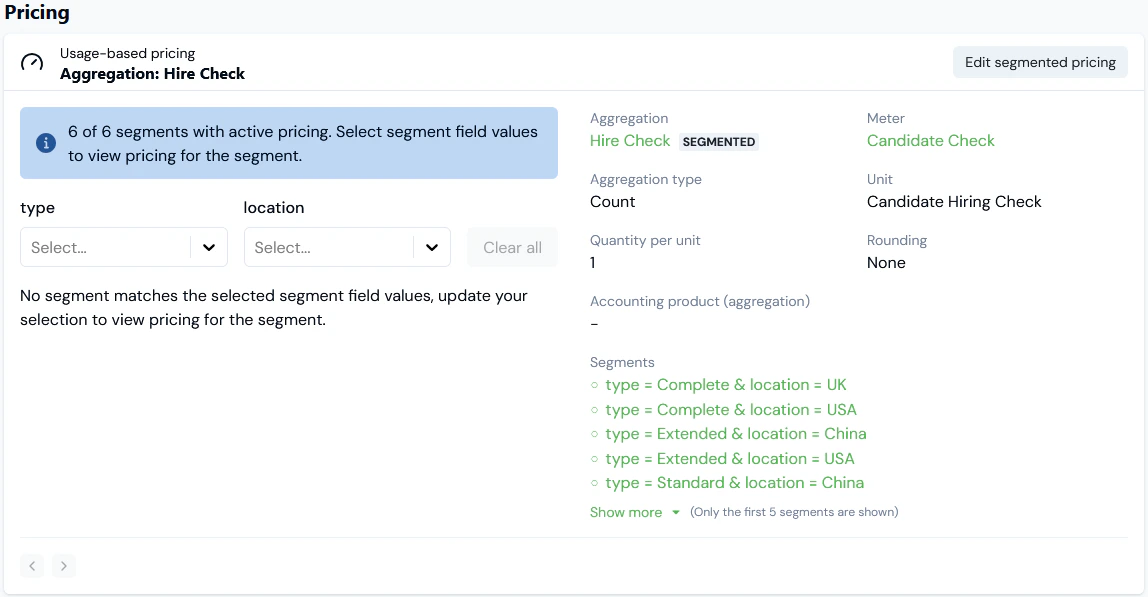 * For the current example, we'll select the **type** and **location** for the segment pricing to review:
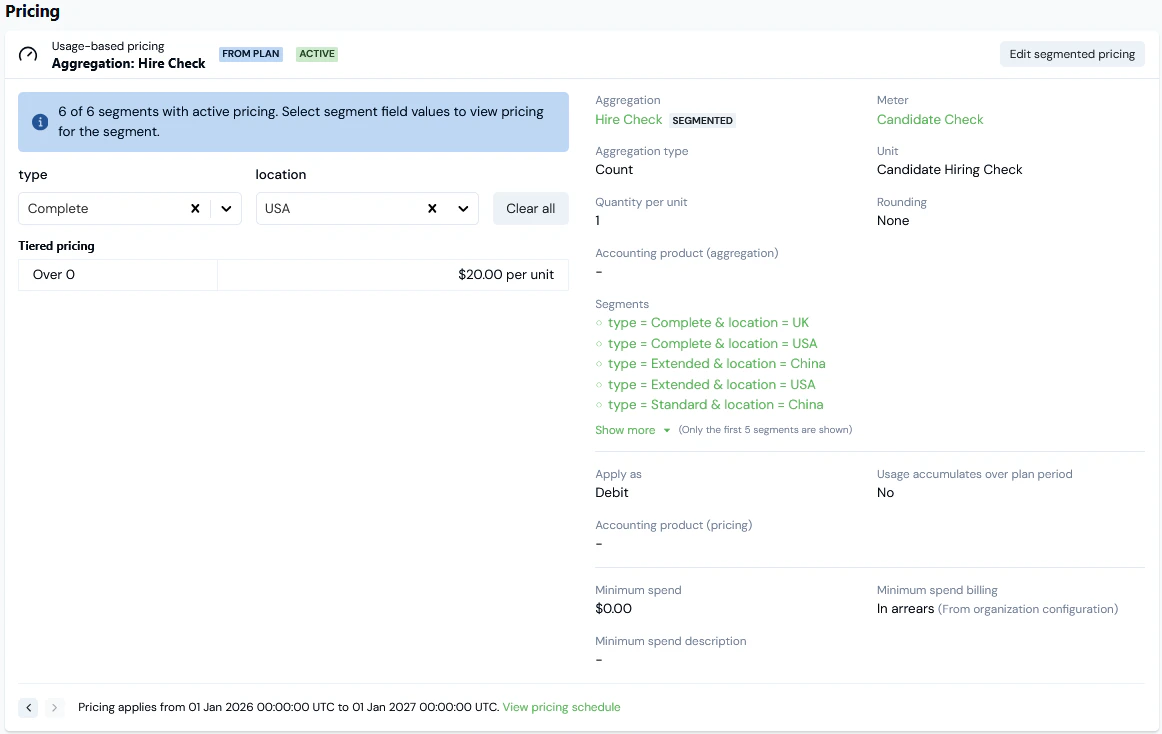 * Note that you can **Edit segmented pricing** from this panel.
* When you've selected a specific segment pricing, you can then view any historic or future pricing for that segment applied to the Plan using the paging arrows at the bottom of the **Pricing** card:
* Note that you can **Edit segmented pricing** from this panel.
* When you've selected a specific segment pricing, you can then view any historic or future pricing for that segment applied to the Plan using the paging arrows at the bottom of the **Pricing** card:
 * Lastly, you can select the **View pricing schedule** hotlink to open the **Pricing schedule** for the selected segment pricing applied to the Plan:
 * See [Viewing Pricing Schedule](https://docs.m3ter.com/guides/plans-and-pricing/pricing-plans/managing-and-editing-priced-plans-or-plan-templates#viewing-pricing-schedule) for more details.
## Using API Call to Create a Segmented Pricing
Instead of using the Console Pricing Editor, you can use the [Create Pricing](/api/pricing/create-pricing) API call to create a pricing on a Plan using a Segmented Aggregation. When you do this, you can create a separate pricing for each of the segment values defined for the Segmented Aggregation. You can also create a pricing using wildcards to satisfy cases where you only want a specific pricing to apply to some of the segment values and apply a common pricing to any of the other segment values.
This section uses the example of a Segmented Aggregation defined in the main [Segmented Aggregations](/guides/usage-data-aggregations/segmented-aggregations) topic to show how to:
* [Create a pricing for a specific segment value](/guides/plans-and-pricing/pricing-plans/pricing-plans-using-segmented-aggregations#api-call-creating-a-pricing-for-a-segment).
* [Create wildcard pricings](/guides/plans-and-pricing/pricing-plans/pricing-plans-using-segmented-aggregations#api-call-creating-wildcard-pricings-for-segments) to apply to segment values for which no specific pricing has been created
### API Call - Creating a Pricing for a Segment
We'll adapt the previous example to imagine we want to price a Plan using a Segmented Aggregation called **Hiring Check 4**:
* See [Viewing Pricing Schedule](https://docs.m3ter.com/guides/plans-and-pricing/pricing-plans/managing-and-editing-priced-plans-or-plan-templates#viewing-pricing-schedule) for more details.
## Using API Call to Create a Segmented Pricing
Instead of using the Console Pricing Editor, you can use the [Create Pricing](/api/pricing/create-pricing) API call to create a pricing on a Plan using a Segmented Aggregation. When you do this, you can create a separate pricing for each of the segment values defined for the Segmented Aggregation. You can also create a pricing using wildcards to satisfy cases where you only want a specific pricing to apply to some of the segment values and apply a common pricing to any of the other segment values.
This section uses the example of a Segmented Aggregation defined in the main [Segmented Aggregations](/guides/usage-data-aggregations/segmented-aggregations) topic to show how to:
* [Create a pricing for a specific segment value](/guides/plans-and-pricing/pricing-plans/pricing-plans-using-segmented-aggregations#api-call-creating-a-pricing-for-a-segment).
* [Create wildcard pricings](/guides/plans-and-pricing/pricing-plans/pricing-plans-using-segmented-aggregations#api-call-creating-wildcard-pricings-for-segments) to apply to segment values for which no specific pricing has been created
### API Call - Creating a Pricing for a Segment
We'll adapt the previous example to imagine we want to price a Plan using a Segmented Aggregation called **Hiring Check 4**:
 The **Hiring Check 4** Segmented Aggregation defines three segment values using **Location** and **Type** fields:
 If we select to **Edit segmented pricing**, **Pricing>Segments** page opens. Under **Segmented pricing**, the Pricing Grid shows that no active pricings have been configured for any of the three segment values:
 **To create a segment value pricing:**
1. Make a `POST` [Create Pricing](/api/pricing/create-pricing) call to create a pricing for the *Location = China/Type = Standard* segment value:
**To create a segment value pricing:**
1. Make a `POST` [Create Pricing](/api/pricing/create-pricing) call to create a pricing for the *Location = China/Type = Standard* segment value:
 Here's the request body JSON:
```json theme={null}
{
"planId": "12f2e595-d758-4d68-a492-d923bbxxxxxx",
"aggregationId": "2a6db6df-26de-481e-8974-e1a43fxxxxxx",
"segment": {
"location": "China",
"type": "Standard"
},
"cumulative": true,
"tiersSpanPlan": false,
"pricingBands": [
{
"lowerLimit": 0,
"fixedPrice": 0,
"unitPrice": 0.25
}
],
"startDate": "2023-11-01T14:15:22Z",
"endDate": "2024-11-01T14:15:22Z",
"minimumSpend": 0,
"minimumSpendDescription": ""
}
```
Note that:
* The `planId` parameter is required.
* The `aggregationId` of the Segmented Aggregation is a required request parameter for each segment pricing you create.
* Use the `segment` request parameter to specify which segment defined for the Segmented Aggregation you want the pricing to apply to.
* Use the `pricingBands` request parameter to define the pricing - in this example, a single tier pricing has been defined.
If the segment pricing has been created successfully, you'll receive a 200 response and a response body similar to this:
Here's the request body JSON:
```json theme={null}
{
"planId": "12f2e595-d758-4d68-a492-d923bbxxxxxx",
"aggregationId": "2a6db6df-26de-481e-8974-e1a43fxxxxxx",
"segment": {
"location": "China",
"type": "Standard"
},
"cumulative": true,
"tiersSpanPlan": false,
"pricingBands": [
{
"lowerLimit": 0,
"fixedPrice": 0,
"unitPrice": 0.25
}
],
"startDate": "2023-11-01T14:15:22Z",
"endDate": "2024-11-01T14:15:22Z",
"minimumSpend": 0,
"minimumSpendDescription": ""
}
```
Note that:
* The `planId` parameter is required.
* The `aggregationId` of the Segmented Aggregation is a required request parameter for each segment pricing you create.
* Use the `segment` request parameter to specify which segment defined for the Segmented Aggregation you want the pricing to apply to.
* Use the `pricingBands` request parameter to define the pricing - in this example, a single tier pricing has been defined.
If the segment pricing has been created successfully, you'll receive a 200 response and a response body similar to this:
 Note that:
* The pricing `id` is given.
* Each pricing band `id` is given.
2. If we return to **Pricing>Segments** and refresh the page, we can check that the **Segmented pricing** grid is now showing for the specified segment value:
Note that:
* The pricing `id` is given.
* Each pricing band `id` is given.
2. If we return to **Pricing>Segments** and refresh the page, we can check that the **Segmented pricing** grid is now showing for the specified segment value:
 ### API Call - Creating Wildcard Pricings for Segments
If you've created a Segmented Aggregation and defined multiple segment values, you might have a pricing use case that requires only some of those segment values to have their own specific pricing defined and for the remainder of the segments to be priced together using a common or default pricing. You can do this by using wildcard values for some or all of the fields used to define segments. This section illustrates with two example how to create such wildcard pricings for your Segmented Aggregations using the [Create Pricing](/api/pricing/create-pricing) API call.
#### Creating Double-Wildcard Default Segment Pricing
Suppose the pricing requirements for the current example of a three-value Segmented Aggregation is that for one segment value - *Location = China/Type = Standard* - a specific pricing will apply but for the remaining two segment values - *Location = USA/Type = Complete* and *Location = UK/Type = Extended* - a common pricing will apply.
To implement this, you'll first have to define a wildcard segment value for the Segmented Aggregation:
* In the Console, open the **Edit** page for the **Hiring Check 4** Aggregation and select **Add default segment**:
### API Call - Creating Wildcard Pricings for Segments
If you've created a Segmented Aggregation and defined multiple segment values, you might have a pricing use case that requires only some of those segment values to have their own specific pricing defined and for the remainder of the segments to be priced together using a common or default pricing. You can do this by using wildcard values for some or all of the fields used to define segments. This section illustrates with two example how to create such wildcard pricings for your Segmented Aggregations using the [Create Pricing](/api/pricing/create-pricing) API call.
#### Creating Double-Wildcard Default Segment Pricing
Suppose the pricing requirements for the current example of a three-value Segmented Aggregation is that for one segment value - *Location = China/Type = Standard* - a specific pricing will apply but for the remaining two segment values - *Location = USA/Type = Complete* and *Location = UK/Type = Extended* - a common pricing will apply.
To implement this, you'll first have to define a wildcard segment value for the Segmented Aggregation:
* In the Console, open the **Edit** page for the **Hiring Check 4** Aggregation and select **Add default segment**:
 * Select **Update Aggregation**.
* Return to the **Segmented pricing** grid for the Segmented Aggregation - we can see that this double-wildcard default segment value has no pricing yet created for it:
* Select **Update Aggregation**.
* Return to the **Segmented pricing** grid for the Segmented Aggregation - we can see that this double-wildcard default segment value has no pricing yet created for it:
 We can now create a pricing for this double-wildcard default segment. This pricing will then be applied to any usage data submitted for any undefined segment values.
**To create a double-wildcard segment value pricing:**
1. Make a `POST` [Create Pricing](/api/pricing/create-pricing) call:
We can now create a pricing for this double-wildcard default segment. This pricing will then be applied to any usage data submitted for any undefined segment values.
**To create a double-wildcard segment value pricing:**
1. Make a `POST` [Create Pricing](/api/pricing/create-pricing) call:
 Here's the request body JSON:
```json theme={null}
{
"planId": "12f2e595-d758-4d68-a492-d923bb1xxxxx",
"aggregationId": "2a6db6df-26de-481e-8974-e1a43f12xxxx",
"segment": {},
"cumulative": true,
"tiersSpanPlan": false,
"pricingBands": [
{
"lowerLimit": 0,
"fixedPrice": 0,
"unitPrice": 0.50
}
],
"startDate": "2023-11-01T14:15:22Z",
"endDate": "2024-11-01T14:15:22Z",
"minimumSpend": 0,
"minimumSpendDescription": ""
}
```
* Note that for the `segment` request parameter we leave this empty and omit any use of a `"location"` value or `"type"` value to create a double-wildcard pricing.
2. If we return to **Pricing>Segments** and refresh the page, we can check that the **Segmented pricing** grid is now showing for the wildcard segment value:
Here's the request body JSON:
```json theme={null}
{
"planId": "12f2e595-d758-4d68-a492-d923bb1xxxxx",
"aggregationId": "2a6db6df-26de-481e-8974-e1a43f12xxxx",
"segment": {},
"cumulative": true,
"tiersSpanPlan": false,
"pricingBands": [
{
"lowerLimit": 0,
"fixedPrice": 0,
"unitPrice": 0.50
}
],
"startDate": "2023-11-01T14:15:22Z",
"endDate": "2024-11-01T14:15:22Z",
"minimumSpend": 0,
"minimumSpendDescription": ""
}
```
* Note that for the `segment` request parameter we leave this empty and omit any use of a `"location"` value or `"type"` value to create a double-wildcard pricing.
2. If we return to **Pricing>Segments** and refresh the page, we can check that the **Segmented pricing** grid is now showing for the wildcard segment value:
 * With this double-wildcard default pricing created, any usage submitted for *Location/Type* Data Fields on our usage Meter and which do not have a corresponding segment defined for the **Hire Check 4** Segmented Aggregation will have this pricing applied for billing purposes.
**Important! Segments added to the Aggregation and which do not have Pricing created for them yet,** ***DO NOT*** **have the default segment pricing applied**. In the current example, if we now want the default segment pricing to be applied to usage data submitted for either *Location = USA/Type = Complete* or *Location = UK/Type = Extended*, we first have to update the **Hire Check 4** Segmented Aggregation and delete them from the Aggregation.
* With this double-wildcard default pricing created, any usage submitted for *Location/Type* Data Fields on our usage Meter and which do not have a corresponding segment defined for the **Hire Check 4** Segmented Aggregation will have this pricing applied for billing purposes.
**Important! Segments added to the Aggregation and which do not have Pricing created for them yet,** ***DO NOT*** **have the default segment pricing applied**. In the current example, if we now want the default segment pricing to be applied to usage data submitted for either *Location = USA/Type = Complete* or *Location = UK/Type = Extended*, we first have to update the **Hire Check 4** Segmented Aggregation and delete them from the Aggregation.
 #### Creating Single-Wildcard Segment Pricing
Lastly, you might want to create a pricing for a Segmented Aggregation that uses a single wildcard. In the current Example, suppose we define a segment value on **Hiring Check 4** for *Location = Germany/Type = Any*, since we want to apply the same pricing to any checks made for candidates located in Germany and regardless of the Type of check performed:
#### Creating Single-Wildcard Segment Pricing
Lastly, you might want to create a pricing for a Segmented Aggregation that uses a single wildcard. In the current Example, suppose we define a segment value on **Hiring Check 4** for *Location = Germany/Type = Any*, since we want to apply the same pricing to any checks made for candidates located in Germany and regardless of the Type of check performed:
 * Select **Update Aggregation**.
* Return to the **Segmented Pricing** grid for the Segmented Aggregation - we can see that this single-wildcard segment value has no pricing yet created for it:
* Select **Update Aggregation**.
* Return to the **Segmented Pricing** grid for the Segmented Aggregation - we can see that this single-wildcard segment value has no pricing yet created for it:
 We can now create a pricing for this single-wildcard pricing.
**To create a single-wildcard segment value pricing:**
1. Make a `POST` [Create Pricing](/api/pricing/create-pricing) call:
We can now create a pricing for this single-wildcard pricing.
**To create a single-wildcard segment value pricing:**
1. Make a `POST` [Create Pricing](/api/pricing/create-pricing) call:
 Here's the request body JSON:
```json theme={null}
{
"planId": "12f2e595-d758-4d68-a492-d923bb174981",
"aggregationId": "2a6db6df-26de-481e-8974-e1a43f121719",
"segment": {
"location": "Germany"
},
"cumulative": true,
"tiersSpanPlan": false,
"pricingBands": [
{
"lowerLimit": 0,
"fixedPrice": 0,
"unitPrice": 0.75
}
],
"startDate": "2023-11-01T14:15:22Z",
"endDate": "2024-11-01T14:15:22Z",
"minimumSpend": 0,
"minimumSpendDescription": ""
}
```
* Note that for the `segment` request parameter, we use a "location" value and omit any `"type"` to create a single-wildcard pricing.
2. If we return to **Pricing>Segments** and refresh the page, we can check that the **Segmented pricing** grid is now showing for the wildcard segment value:
Here's the request body JSON:
```json theme={null}
{
"planId": "12f2e595-d758-4d68-a492-d923bb174981",
"aggregationId": "2a6db6df-26de-481e-8974-e1a43f121719",
"segment": {
"location": "Germany"
},
"cumulative": true,
"tiersSpanPlan": false,
"pricingBands": [
{
"lowerLimit": 0,
"fixedPrice": 0,
"unitPrice": 0.75
}
],
"startDate": "2023-11-01T14:15:22Z",
"endDate": "2024-11-01T14:15:22Z",
"minimumSpend": 0,
"minimumSpendDescription": ""
}
```
* Note that for the `segment` request parameter, we use a "location" value and omit any `"type"` to create a single-wildcard pricing.
2. If we return to **Pricing>Segments** and refresh the page, we can check that the **Segmented pricing** grid is now showing for the wildcard segment value:
 * With this single-wildcard pricing created, any usage for *Location = Germany*, whether of *Type = Standard*, *Type = Complete*, or *Type = Extended*, will be charged according to this pricing.
**Tip: Using Wildcards for Segment Values - Evaluation Order?** If you use a mix of specific segment values and wildcard segment values, you might be wondering in what order evaluation occurs when usage data is ingested for different segment values. For details, see [Using Wildcards - Order of Evaluation](/guides/usage-data-aggregations/segmented-aggregations#using-wildcards-order-of-evaluation).
## Pricing with Compound Aggregations Based on Segmented Aggregations
You cannot define segments directly for a Compound Aggregation. However, if you've created a Compound Aggregation that references one or more Segmented Aggregations, you can also use the Compound Aggregation to price a Plan by segments defined for the Segmented Aggregations:
* The Compound Aggregation *does not inherit* any of the pricings for segments you might have configured when using the referenced Segmented Aggregations to price Plans.
* The segments set up on the referenced Segmented Aggregations are available to the Compound Aggregation to price a Plan by:
* If *only one* Segmented Aggregation is referenced, then all of the segments are available for pricing using the Compound Aggregation.
* If *two or more* Segmented Aggregations are referenced, then the segments available for pricing are restricted to those segments that are defined in common or intersect across any of the referenced Segmented Aggregations - see below [Compound Aggregations - Segments Available](/guides/plans-and-pricing/pricing-plans/pricing-plans-using-segmented-aggregations#compound-aggregations-segments-available).
**To price with Compound Aggregation based on Segmented Aggregations:**
1. Select **Pricing>Pricing Editor**. The **Pricing** page opens.
2. In the **Product** drop-down, select the Product for which you want to add a Plan to price up.
3. Select **Add Plans**. A **Select Plans** popup appears and lists the Plans created for the Product.
4. Select the Plan or Plans you want to price and select **Confirm**. You are returned to the **Pricing** page where the selected **Plan** is shown. A warning states that no pricing has yet been configured for the Plan.
5. Select **Add compound aggregations**. A **Select Compound Aggregations** popup appears listing the Aggregations created for the Product.
6. Select the Compound Aggregation based on Segmented Aggregations you want to use to price the Plan and select **Confirm**. The popup closes, you are returned to the Pricing Editor, and the Segmented Aggregation is shown ready for pricing. A warning states that no active pricing is yet configured for any of the available segments:
* With this single-wildcard pricing created, any usage for *Location = Germany*, whether of *Type = Standard*, *Type = Complete*, or *Type = Extended*, will be charged according to this pricing.
**Tip: Using Wildcards for Segment Values - Evaluation Order?** If you use a mix of specific segment values and wildcard segment values, you might be wondering in what order evaluation occurs when usage data is ingested for different segment values. For details, see [Using Wildcards - Order of Evaluation](/guides/usage-data-aggregations/segmented-aggregations#using-wildcards-order-of-evaluation).
## Pricing with Compound Aggregations Based on Segmented Aggregations
You cannot define segments directly for a Compound Aggregation. However, if you've created a Compound Aggregation that references one or more Segmented Aggregations, you can also use the Compound Aggregation to price a Plan by segments defined for the Segmented Aggregations:
* The Compound Aggregation *does not inherit* any of the pricings for segments you might have configured when using the referenced Segmented Aggregations to price Plans.
* The segments set up on the referenced Segmented Aggregations are available to the Compound Aggregation to price a Plan by:
* If *only one* Segmented Aggregation is referenced, then all of the segments are available for pricing using the Compound Aggregation.
* If *two or more* Segmented Aggregations are referenced, then the segments available for pricing are restricted to those segments that are defined in common or intersect across any of the referenced Segmented Aggregations - see below [Compound Aggregations - Segments Available](/guides/plans-and-pricing/pricing-plans/pricing-plans-using-segmented-aggregations#compound-aggregations-segments-available).
**To price with Compound Aggregation based on Segmented Aggregations:**
1. Select **Pricing>Pricing Editor**. The **Pricing** page opens.
2. In the **Product** drop-down, select the Product for which you want to add a Plan to price up.
3. Select **Add Plans**. A **Select Plans** popup appears and lists the Plans created for the Product.
4. Select the Plan or Plans you want to price and select **Confirm**. You are returned to the **Pricing** page where the selected **Plan** is shown. A warning states that no pricing has yet been configured for the Plan.
5. Select **Add compound aggregations**. A **Select Compound Aggregations** popup appears listing the Aggregations created for the Product.
6. Select the Compound Aggregation based on Segmented Aggregations you want to use to price the Plan and select **Confirm**. The popup closes, you are returned to the Pricing Editor, and the Segmented Aggregation is shown ready for pricing. A warning states that no active pricing is yet configured for any of the available segments:
 7. Select **Edit segmented pricing**. The **Pricing>Segments** page opens:
* An **Aggregation details** and **Plan Details** panel are shown.
* Under **Segmented pricing**, a grid allows you to create the pricing for each available segment configured for the referenced Segmented Aggregations:
7. Select **Edit segmented pricing**. The **Pricing>Segments** page opens:
* An **Aggregation details** and **Plan Details** panel are shown.
* Under **Segmented pricing**, a grid allows you to create the pricing for each available segment configured for the referenced Segmented Aggregations:
 In this example, **Hiring Check Compound1** references a *single* Segmented Aggregation - **Hiring Check** - which has six segments defined and therefore there are 6 segments available to price, but we've chosen to price only **4/6** (4 of 6) segments:
 ### Compound Aggregations - Segments Available
The Segments available for pricing using a Compound Aggregation depends on how many Segmented Aggregations are referenced:
* If a *single* Segmented Aggregation is referenced, then all segments defined are available.
* If *two or more* are referenced, then only those segments defined in common or which intersect across the referenced Segmented Aggregations are available.
For example, suppose we've set up **Hiring Check 1** Aggregation and defined the following segments on it for `"location"` and `"type"` fields:
```json theme={null}
{"location" : "China", "type" : "Extended"}
{"location" : "China", "type" : "Complete"}
{"location" : "USA", "type" : "Extended"}
{"location" : "USA", "type" : "Standard"}
{"location" : "UK", "type" : "Standard"}
{"location" : "UK", "type" : "Complete"}
```
We've then set up a second **Hiring Check 2** Aggregation and defined the following segments on it for `"location"` and `"type"` fields:
```json theme={null}
{"location" : "China", "type" : "Standard"}
{"location" : "China", "type" : "Complete"}
{"location" : "USA", "type" : "Complete"}
{"location" : "USA", "type" : "Standard"}
{"location" : "UK", "type" : "Extended"}
{"location" : "UK", "type" : "Complete"}
```
If we now create a Compound Aggregation - **Hiring Check Compound** - that references both **Hiring Check 1** and **Hiring Check 2**, then only the following three segments will be available to **Hiring Check Compound**:
```json theme={null}
{"location" : "China", "type" : "Complete"}
{"location" : "USA", "type" : "Standard"}
{"location" : "UK", "type" : "Complete"}
```
### Compound Aggregations - Segments Available
The Segments available for pricing using a Compound Aggregation depends on how many Segmented Aggregations are referenced:
* If a *single* Segmented Aggregation is referenced, then all segments defined are available.
* If *two or more* are referenced, then only those segments defined in common or which intersect across the referenced Segmented Aggregations are available.
For example, suppose we've set up **Hiring Check 1** Aggregation and defined the following segments on it for `"location"` and `"type"` fields:
```json theme={null}
{"location" : "China", "type" : "Extended"}
{"location" : "China", "type" : "Complete"}
{"location" : "USA", "type" : "Extended"}
{"location" : "USA", "type" : "Standard"}
{"location" : "UK", "type" : "Standard"}
{"location" : "UK", "type" : "Complete"}
```
We've then set up a second **Hiring Check 2** Aggregation and defined the following segments on it for `"location"` and `"type"` fields:
```json theme={null}
{"location" : "China", "type" : "Standard"}
{"location" : "China", "type" : "Complete"}
{"location" : "USA", "type" : "Complete"}
{"location" : "USA", "type" : "Standard"}
{"location" : "UK", "type" : "Extended"}
{"location" : "UK", "type" : "Complete"}
```
If we now create a Compound Aggregation - **Hiring Check Compound** - that references both **Hiring Check 1** and **Hiring Check 2**, then only the following three segments will be available to **Hiring Check Compound**:
```json theme={null}
{"location" : "China", "type" : "Complete"}
{"location" : "USA", "type" : "Standard"}
{"location" : "UK", "type" : "Complete"}
```