> ## Documentation Index
> Fetch the complete documentation index at: https://docs.m3ter.com/llms.txt
> Use this file to discover all available pages before exploring further.
# Custom SQL Aggregations
*Custom SQL Aggregations* are a powerful new feature that offer you more flexibility than traditional simple Aggregations such as SUM, MAX, and COUNT when defining your billing metrics.
As an additional option in the existing Aggregation layer, Custom SQL Aggregations can be used in combination with Segmentation and any existing pricing model.
This topic explains how to create Custom SQL Aggregations and provides some examples:
* [Creating Custom SQL Aggregations](/guides/usage-data-aggregations/custom-sql-aggregations#creating-custom-sql-aggregations)
* [Creating Custom SQL Queries](/guides/usage-data-aggregations/custom-sql-aggregations#creating-custom-sql-queries)
* [Custom SQL Aggregations - Examples](#custom-sql-aggregations-examples)
* [Example 1 - Monthly Billing, Daily Rating](/guides/usage-data-aggregations/custom-sql-aggregations#example-1-monthly-billing-daily-rating)
* [Example 2 - Group by Dimension](/guides/usage-data-aggregations/custom-sql-aggregations#example-2-group-by-dimension)
* [Example 3 - Reserved Instances (RIs) with Overages](/guides/usage-data-aggregations/custom-sql-aggregations#example-3-reserved-instances-ris-with-overages)
* [Example 4 - Custom SQL Descriptions](#example-4-custom-sql-descriptions)
* [Supported SQL Functions](/guides/usage-data-aggregations/custom-sql-aggregations#supported-sql-functions)
**Custom SQL Aggregations in Preview Release.** Please note that the Custom SQL Aggregations feature is currently available in Preview release version:
* See [Feature Release Stages](/guides/getting-started/feature-release-stages) for Preview release definition and guidance.
* If you're interested in previewing Contract Billing, please get in touch with [m3ter Support](/guides/getting-started/contacting-m3ter-support) or your m3ter contact.
## Creating Custom SQL Aggregations
To create Custom SQL Aggregations in the m3ter Console you can follow similar steps as when you create other types of Aggregation using the standard aggregation methods, such as SUM, COUNT, MAXIMUM, and so on.
**To create a Custom SQL Aggregation:**
1. Select **Metering>Aggregations**. The **Aggregations** page opens.
2. In the **Product** drop-down, select the Product for which you want to create the new Custom SQL Aggregation.
3. Select **Create aggregation**. The **Aggregations>Create** page opens.
4. Configure **Aggregation** **details** and enter:
* **Name**. (*Required*)
* **Code**. (*Required*)
* **Accounting product**. Use the drop-down to select a Product. (*Optional*)
* For accounting purposes, you can use this to link to a specific Product any usage line items on Bills that result from pricing a Plan using this Aggregation:
* If you've also defined an Accounting product for a Pricing that uses this Aggregation, then the *Pricing Accounting product* takes precedence and is used.
* If no Accounting product is defined for a Pricing and you omit an Accounting product for the Aggregation, then the *Product the Plan belongs* to is used.
5. Configure **Meter settings**:
* **Meter**. Select the **Meter** whose **Data Field** or **Derived Field** you want to use as the basis for the Aggregation. Note that only those Meters created for the selected Product will be available. If you're creating a Global Aggregation only Global Meters will be available.
* **Target Field**. When you select a **Meter**, the **Target Field** drop-down list automatically populates with the **Codes** of any fields set up on that **Meter**:
* Note that you must select a *measure* target field on the Meter - that is, of type **Measure**, **Income**, or **Cost**.
6. Configure **Aggregation settings**:
* **Aggregation**. Select **Custom SQL** for the aggregation method. The page adjusts to show an **SQL** text entry box where you can enter your SQL query expression. For example:
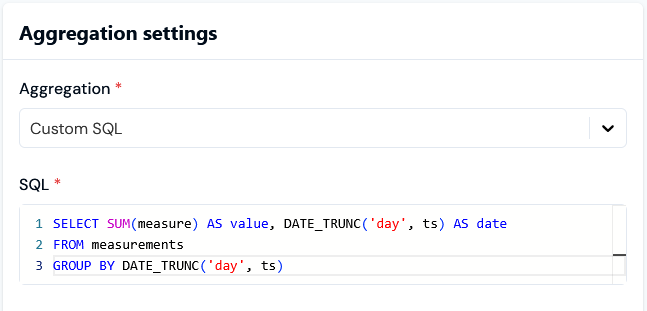 > For details on creating Custom SQL queries for use in your Aggregations, please see the following [Creating Custom SQL Queries](/guides/usage-data-aggregations/custom-sql-aggregations#creating-custom-sql-queries) section.
* **Unit**. This will be used as a label for billing to indicate to your customers what they are being charged for.
* **Quantity per unit**. Enter the quantity by which you want to charge for the measured value.
* **Rounding**. Specifies how you want m3ter to deal with non-integer, that is fractional number, Aggregation values.
7. Select **Create aggregation**. The **Aggregation details** page opens:
> For details on creating Custom SQL queries for use in your Aggregations, please see the following [Creating Custom SQL Queries](/guides/usage-data-aggregations/custom-sql-aggregations#creating-custom-sql-queries) section.
* **Unit**. This will be used as a label for billing to indicate to your customers what they are being charged for.
* **Quantity per unit**. Enter the quantity by which you want to charge for the measured value.
* **Rounding**. Specifies how you want m3ter to deal with non-integer, that is fractional number, Aggregation values.
7. Select **Create aggregation**. The **Aggregation details** page opens:
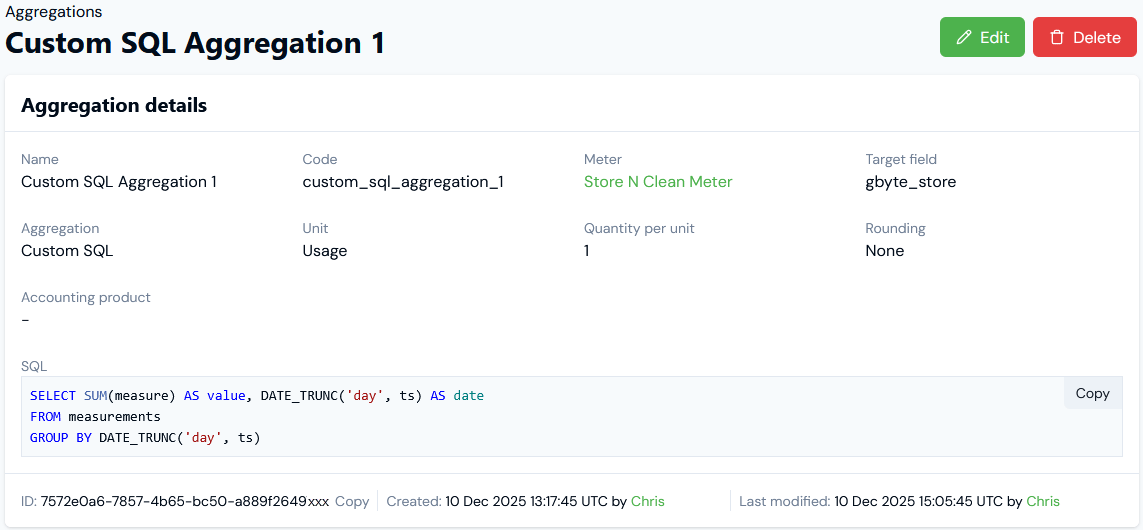 On the **Aggregation details** panel, you can:
* Read-off the Aggregation's **Name** and **Code**.
* Use a hotlink text to open the details page of the **Meter** whose Data Field the Aggregation targets.
* Review the **SQL** and **Copy** this to your clipboard.
* Note that for this example, because the selected Meter **Target field** for the Aggregation is `gbyte_store`, then it is *this field* that is accessible in SQL as a field called `measure`.
* Check the **Unit** configured for the Aggregation, which will be used on Bill line items to indicates what the charge is for.
* Copy the Aggregation's **ID** to your clipboard.
* Check the audit data to see who **Created** and who **Last modified** the Aggregation.
**Tip: More on Creating and Managing Aggregations?** For more details and guidance on how to create and manage Aggregations, please see [Reviewing Aggregation Options](/guides/usage-data-aggregations/reviewing-aggregation-options) and [Creating Product Aggregations](/guides/usage-data-aggregations/creating-aggregations).
## Creating Custom SQL Queries
This section provides details and guidance for creating queries for your Custom SQL Aggregations. Please review this section in preparation for creating Custom SQL queries:
* [Measurements Table](/guides/usage-data-aggregations/custom-sql-aggregations#measurements-table)
* [Key Points](/guides/usage-data-aggregations/custom-sql-aggregations#key-points)
* [Limit on GROUP BY Clause](/guides/usage-data-aggregations/custom-sql-aggregations#limit-on-group-by-clause)
### Measurements Table
Custom SQL queries should be run against the **measurements** table. This table is provided to your SQL query and is already limited to the appropriate Account, time period, and so on that the Aggregation needs to run over, so you don’t need to include anything in your own SQL for these factors.
Several columns of the `measurements` table are made available to your Custom SQL queries:
| Column | Type | Used for |
| ------------ | -------------- | ------------------------------------------------- |
| measure | Float64 | The value of the target field you selected. |
| ts | DateTime64 | The ts value of the measurement in UTC timezone. |
| ets | DateTime64 | The ets value of the measurement in UTC timezone. |
| uid | String | The uid value of the measurement. |
| received\_at | DateTime64 | When the data was received in UTC timezone. |
| account\_id | UUID | |
| dimensions | Map of Strings | String dimension values for the measurement. |
### Key Points
When creating your SQL queries, please note the following key points:
* The **result(s)** of the query must be returned as a numeric column called **value**.
* Queries can return up to 1,000 rows.
* Any additional columns returned (apart from **value**) are treated as “group keys” and are used downstream – this can be useful if the query returns multiple rows to help identify each row.
* If there are multiple rows, each row will be rated independently and appear as separate line items on the Bill.
* Dimensions can be accessed using map notation. For example, to access the value of a dimension called “region”, you would write `dimensions['region']`.
* The group key values can be accessed in line item descriptions using the syntax `{group.columnName}` (where `columnName` is the name of the column you returned from your custom SQL query).
### Limit on GROUP BY Clause
The limit on the use of GROUP BY clauses for a Custom SQL Aggregation depends on whether or not the Aggregation is segmented. This is because the “unique keys” in the operation will implicitly include segments:
* An SQL query on an unsegmented Aggregation could process up to 50,000 unique keys from custom SQL.
* An SQL query on a segmented Aggregation will use some of those keys for the segment values (up to 1,000 depending on the data). In the worst case, if the data actually contained 1,000 different segment values, you’d only have 50 unique values for your own data that you are grouping by. This is because each of your own “keys” would be multiplied by (up to) 1,000 segment values,
* For example, if your data had keys of “a”, “b”, and “c”:
* An unsegmented Aggregation would see these 3 keys.
* However, if you segmented the Aggregation and each of your groups contained data for 3 segments: “1”, “2”, and “3”, then the total number of keys “seen” by the query will be:
* “a”, “1”
* “a”, “2”
* “a”, “3”
* “b”, “1”
* “b”, “2”
* “b”, “3”
* “c”, “1”
* “c”, “2”
* “c”, “3”
Which is 9 keys in total.
## Custom SQL Aggregations - Examples
This section offers some example billing use cases fulfilled using Custom SQL Aggregations:
* [Example 1 - Monthly Billing, Daily Rating](/guides/usage-data-aggregations/custom-sql-aggregations#example-1-monthly-billing-daily-rating)
* [Example 2 - Group by Dimension](/guides/usage-data-aggregations/custom-sql-aggregations#example-2-group-by-dimension)
* [Example 3 - Reserved Instances (RIs) with Overages](/guides/usage-data-aggregations/custom-sql-aggregations#example-3-reserved-instances-ris-with-overages)
* [Example 4 - Custom SQL Descriptions](https://docs.m3ter.com/#example-4-custom-sql-descriptions)
### Example 1 - Monthly Billing, Daily Rating
In this example you have tiered pricing with a usage allowance that resets daily - but you bill monthly. This use case is simple to fulfill with Custom SQL Aggregations - we can group by the day based on the measurement timestamp:
```sql theme={null}
SELECT SUM(measure) AS value, DATE_TRUNC('day', ts) AS date
FROM measurements
GROUP BY DATE_TRUNC('day', ts)
```
### Example 2 - Group by Dimension
Suppose you price based on a simple total of the distance driven by vehicles each month. Each measurement has a dimension of `vehicle_id` on it, indicating which vehicle drove a certain distance.
Currently, we support taking a SUM over the entire dataset, regardless of the value of the `vehicle_id` field. We also support segmentation, but to configure segments you’d need to know and configure the vehicle ids ahead of time, and there’s a per-Organization limit of 1000.
This means that before Custom SQL Aggregations, for non-trivial pricing (such as tiered or volume pricing) the final cost is determined by the total distance driven by *all vehicles combined*.
Instead, we want to rate each vehicle independently, so that the first 100 miles driven by each vehicle is more expensive than subsequent miles. This would be possible by writing custom SQL which groups the total distance traveled by `vehicle_id` as follows:
```sql theme={null}
SELECT SUM(measure) AS value, dimensions[‘vehicle_id’] as vehicle_id
FROM measurements
GROUP BY dimensions[‘vehicle_id’]
```
The Meter definition would (for example) have these fields on it:
* `distance` (a measure field)
* `vehicle_id` (a dimension field)
You would pick `distance` as the target field in the Custom SQL Aggregation configuration, which is then accessible in SQL as a field called `measure`.
### Example 3 - Reserved Instances (RIs) with Overages
You can reference Counter values from Custom SQL using the syntax:
```sql theme={null}
counters ['counterCode']
```
The system will automatically split Custom SQL Aggregations across the billing period when the Counter value changes, so the returned Counter will always represent the value as it was at the timestamp of the measurements being queried. This is particularly useful for billing use cases where you want to calculate things like Reserved Instances (RIs) with Overages.
For example, suppose an end-customer reserves 10 instances for the current month - say 10 CPUs for compute resource allocation. This is charged as a flat fee per CPU for the month. However, if the customer uses more compute resource than their reserved allocation, overages are charged at a higher on-demand (OD) rate for the duration they are being used.
To illustrate how referencing Counter values in Custom SQL Aggregations solve for this kind of billing use case for monthly billing frequency, we can take a concrete example - let's assume:
* The Reserved Instance (RI) rate is \$2.50 per CPU per month.
* The overage on-demand (OD) rate is \$0.005 per CPU-hour, which is more expensive per month than the RI rate, at roughly £3.60 for a 30-day month.
* Usage is monitored, and every hour one measurement is sent to m3ter indicating how many CPUs the end-customer actually using during that hour.
* By around mid-month, the end-customer realizes they are using more compute resource than expected, so they increase their number of Reserved Instances to 20 on the 15th of the month.
We can model this using a Counter with code `ri` for the number of Reserved Instances, which is initially set to 10 and increased to 20 on the 15th. The Counter pricing for the RIs is set to \$2.50, that is, the cost of 1 RI per month.
The Bill for the month is calculated and we get the usual Counter line items, giving us a line item of \$38.71 for the RIs:
* Assuming a 31-day month and because the end-customer increased their RIs from 10 to 20 on the 15th of the month, the costs due under the Counter pricing we've set up is pro-rated for the Bill calculation:
* (14/31)\*10(CPUs) + (17/31)\*20(CPUs) = 15.4838709677 CPUs, which at a rate of \$2.50 per CPU per month costs \$38.71.
We now need to include for any overage charges incurred at the on-demand per CPU-hour rate, and we can do this by creating a Custom SQL Aggregation like the following:
```sql theme={null}
SELECT SUM(
CASE((measure - counters['ri']) > 0) WHEN 1 THEN (measure - counters['ri']) ELSE 0 END
) AS value
FROM measurements
```
Because the usage data is being sent to m3ter every hour, this returns the number of “overages” for each measurement in units of CPU-hours.
For simplicity, let’s assume they used a steady 25 CPUs every hour of the month. That means that between 1st-14th, they used 15 on-demand CPUs each hour, and from 15th-31st, they used 5 on-demand CPUs each hour.
When we re-run the Bill to include overages charges, we get two more line items on the Bill representing the overages:
* 1st-14th : \$25.20 (14\*24\*15\*0.005\$)
* 15th-31st: \$10.20 (17\*24\*5\*0.005)
Note the Aggregation has been automatically “split” to cover the 2 periods separately, because the RI Counter value was increased on the 15th of the month:
* The total bill covering both Reserved Instances and on-demand overages is therefore: \$38.71 + \$25.20 + \$10.20 = \$74.11.
### Example 4 - Custom SQL Descriptions
If you are using Custom SQL Aggregations to price Plans, this feature offers you wide flexibility when setting up Bill line item descriptions.
Suppose you run a vehicle hire business and want to charge your customers for vehicle hire usage and invoice them monthly for vehicle distances recorded on a per-car basis. To do this, we can set up a Meter as follows:
On the **Aggregation details** panel, you can:
* Read-off the Aggregation's **Name** and **Code**.
* Use a hotlink text to open the details page of the **Meter** whose Data Field the Aggregation targets.
* Review the **SQL** and **Copy** this to your clipboard.
* Note that for this example, because the selected Meter **Target field** for the Aggregation is `gbyte_store`, then it is *this field* that is accessible in SQL as a field called `measure`.
* Check the **Unit** configured for the Aggregation, which will be used on Bill line items to indicates what the charge is for.
* Copy the Aggregation's **ID** to your clipboard.
* Check the audit data to see who **Created** and who **Last modified** the Aggregation.
**Tip: More on Creating and Managing Aggregations?** For more details and guidance on how to create and manage Aggregations, please see [Reviewing Aggregation Options](/guides/usage-data-aggregations/reviewing-aggregation-options) and [Creating Product Aggregations](/guides/usage-data-aggregations/creating-aggregations).
## Creating Custom SQL Queries
This section provides details and guidance for creating queries for your Custom SQL Aggregations. Please review this section in preparation for creating Custom SQL queries:
* [Measurements Table](/guides/usage-data-aggregations/custom-sql-aggregations#measurements-table)
* [Key Points](/guides/usage-data-aggregations/custom-sql-aggregations#key-points)
* [Limit on GROUP BY Clause](/guides/usage-data-aggregations/custom-sql-aggregations#limit-on-group-by-clause)
### Measurements Table
Custom SQL queries should be run against the **measurements** table. This table is provided to your SQL query and is already limited to the appropriate Account, time period, and so on that the Aggregation needs to run over, so you don’t need to include anything in your own SQL for these factors.
Several columns of the `measurements` table are made available to your Custom SQL queries:
| Column | Type | Used for |
| ------------ | -------------- | ------------------------------------------------- |
| measure | Float64 | The value of the target field you selected. |
| ts | DateTime64 | The ts value of the measurement in UTC timezone. |
| ets | DateTime64 | The ets value of the measurement in UTC timezone. |
| uid | String | The uid value of the measurement. |
| received\_at | DateTime64 | When the data was received in UTC timezone. |
| account\_id | UUID | |
| dimensions | Map of Strings | String dimension values for the measurement. |
### Key Points
When creating your SQL queries, please note the following key points:
* The **result(s)** of the query must be returned as a numeric column called **value**.
* Queries can return up to 1,000 rows.
* Any additional columns returned (apart from **value**) are treated as “group keys” and are used downstream – this can be useful if the query returns multiple rows to help identify each row.
* If there are multiple rows, each row will be rated independently and appear as separate line items on the Bill.
* Dimensions can be accessed using map notation. For example, to access the value of a dimension called “region”, you would write `dimensions['region']`.
* The group key values can be accessed in line item descriptions using the syntax `{group.columnName}` (where `columnName` is the name of the column you returned from your custom SQL query).
### Limit on GROUP BY Clause
The limit on the use of GROUP BY clauses for a Custom SQL Aggregation depends on whether or not the Aggregation is segmented. This is because the “unique keys” in the operation will implicitly include segments:
* An SQL query on an unsegmented Aggregation could process up to 50,000 unique keys from custom SQL.
* An SQL query on a segmented Aggregation will use some of those keys for the segment values (up to 1,000 depending on the data). In the worst case, if the data actually contained 1,000 different segment values, you’d only have 50 unique values for your own data that you are grouping by. This is because each of your own “keys” would be multiplied by (up to) 1,000 segment values,
* For example, if your data had keys of “a”, “b”, and “c”:
* An unsegmented Aggregation would see these 3 keys.
* However, if you segmented the Aggregation and each of your groups contained data for 3 segments: “1”, “2”, and “3”, then the total number of keys “seen” by the query will be:
* “a”, “1”
* “a”, “2”
* “a”, “3”
* “b”, “1”
* “b”, “2”
* “b”, “3”
* “c”, “1”
* “c”, “2”
* “c”, “3”
Which is 9 keys in total.
## Custom SQL Aggregations - Examples
This section offers some example billing use cases fulfilled using Custom SQL Aggregations:
* [Example 1 - Monthly Billing, Daily Rating](/guides/usage-data-aggregations/custom-sql-aggregations#example-1-monthly-billing-daily-rating)
* [Example 2 - Group by Dimension](/guides/usage-data-aggregations/custom-sql-aggregations#example-2-group-by-dimension)
* [Example 3 - Reserved Instances (RIs) with Overages](/guides/usage-data-aggregations/custom-sql-aggregations#example-3-reserved-instances-ris-with-overages)
* [Example 4 - Custom SQL Descriptions](https://docs.m3ter.com/#example-4-custom-sql-descriptions)
### Example 1 - Monthly Billing, Daily Rating
In this example you have tiered pricing with a usage allowance that resets daily - but you bill monthly. This use case is simple to fulfill with Custom SQL Aggregations - we can group by the day based on the measurement timestamp:
```sql theme={null}
SELECT SUM(measure) AS value, DATE_TRUNC('day', ts) AS date
FROM measurements
GROUP BY DATE_TRUNC('day', ts)
```
### Example 2 - Group by Dimension
Suppose you price based on a simple total of the distance driven by vehicles each month. Each measurement has a dimension of `vehicle_id` on it, indicating which vehicle drove a certain distance.
Currently, we support taking a SUM over the entire dataset, regardless of the value of the `vehicle_id` field. We also support segmentation, but to configure segments you’d need to know and configure the vehicle ids ahead of time, and there’s a per-Organization limit of 1000.
This means that before Custom SQL Aggregations, for non-trivial pricing (such as tiered or volume pricing) the final cost is determined by the total distance driven by *all vehicles combined*.
Instead, we want to rate each vehicle independently, so that the first 100 miles driven by each vehicle is more expensive than subsequent miles. This would be possible by writing custom SQL which groups the total distance traveled by `vehicle_id` as follows:
```sql theme={null}
SELECT SUM(measure) AS value, dimensions[‘vehicle_id’] as vehicle_id
FROM measurements
GROUP BY dimensions[‘vehicle_id’]
```
The Meter definition would (for example) have these fields on it:
* `distance` (a measure field)
* `vehicle_id` (a dimension field)
You would pick `distance` as the target field in the Custom SQL Aggregation configuration, which is then accessible in SQL as a field called `measure`.
### Example 3 - Reserved Instances (RIs) with Overages
You can reference Counter values from Custom SQL using the syntax:
```sql theme={null}
counters ['counterCode']
```
The system will automatically split Custom SQL Aggregations across the billing period when the Counter value changes, so the returned Counter will always represent the value as it was at the timestamp of the measurements being queried. This is particularly useful for billing use cases where you want to calculate things like Reserved Instances (RIs) with Overages.
For example, suppose an end-customer reserves 10 instances for the current month - say 10 CPUs for compute resource allocation. This is charged as a flat fee per CPU for the month. However, if the customer uses more compute resource than their reserved allocation, overages are charged at a higher on-demand (OD) rate for the duration they are being used.
To illustrate how referencing Counter values in Custom SQL Aggregations solve for this kind of billing use case for monthly billing frequency, we can take a concrete example - let's assume:
* The Reserved Instance (RI) rate is \$2.50 per CPU per month.
* The overage on-demand (OD) rate is \$0.005 per CPU-hour, which is more expensive per month than the RI rate, at roughly £3.60 for a 30-day month.
* Usage is monitored, and every hour one measurement is sent to m3ter indicating how many CPUs the end-customer actually using during that hour.
* By around mid-month, the end-customer realizes they are using more compute resource than expected, so they increase their number of Reserved Instances to 20 on the 15th of the month.
We can model this using a Counter with code `ri` for the number of Reserved Instances, which is initially set to 10 and increased to 20 on the 15th. The Counter pricing for the RIs is set to \$2.50, that is, the cost of 1 RI per month.
The Bill for the month is calculated and we get the usual Counter line items, giving us a line item of \$38.71 for the RIs:
* Assuming a 31-day month and because the end-customer increased their RIs from 10 to 20 on the 15th of the month, the costs due under the Counter pricing we've set up is pro-rated for the Bill calculation:
* (14/31)\*10(CPUs) + (17/31)\*20(CPUs) = 15.4838709677 CPUs, which at a rate of \$2.50 per CPU per month costs \$38.71.
We now need to include for any overage charges incurred at the on-demand per CPU-hour rate, and we can do this by creating a Custom SQL Aggregation like the following:
```sql theme={null}
SELECT SUM(
CASE((measure - counters['ri']) > 0) WHEN 1 THEN (measure - counters['ri']) ELSE 0 END
) AS value
FROM measurements
```
Because the usage data is being sent to m3ter every hour, this returns the number of “overages” for each measurement in units of CPU-hours.
For simplicity, let’s assume they used a steady 25 CPUs every hour of the month. That means that between 1st-14th, they used 15 on-demand CPUs each hour, and from 15th-31st, they used 5 on-demand CPUs each hour.
When we re-run the Bill to include overages charges, we get two more line items on the Bill representing the overages:
* 1st-14th : \$25.20 (14\*24\*15\*0.005\$)
* 15th-31st: \$10.20 (17\*24\*5\*0.005)
Note the Aggregation has been automatically “split” to cover the 2 periods separately, because the RI Counter value was increased on the 15th of the month:
* The total bill covering both Reserved Instances and on-demand overages is therefore: \$38.71 + \$25.20 + \$10.20 = \$74.11.
### Example 4 - Custom SQL Descriptions
If you are using Custom SQL Aggregations to price Plans, this feature offers you wide flexibility when setting up Bill line item descriptions.
Suppose you run a vehicle hire business and want to charge your customers for vehicle hire usage and invoice them monthly for vehicle distances recorded on a per-car basis. To do this, we can set up a Meter as follows:
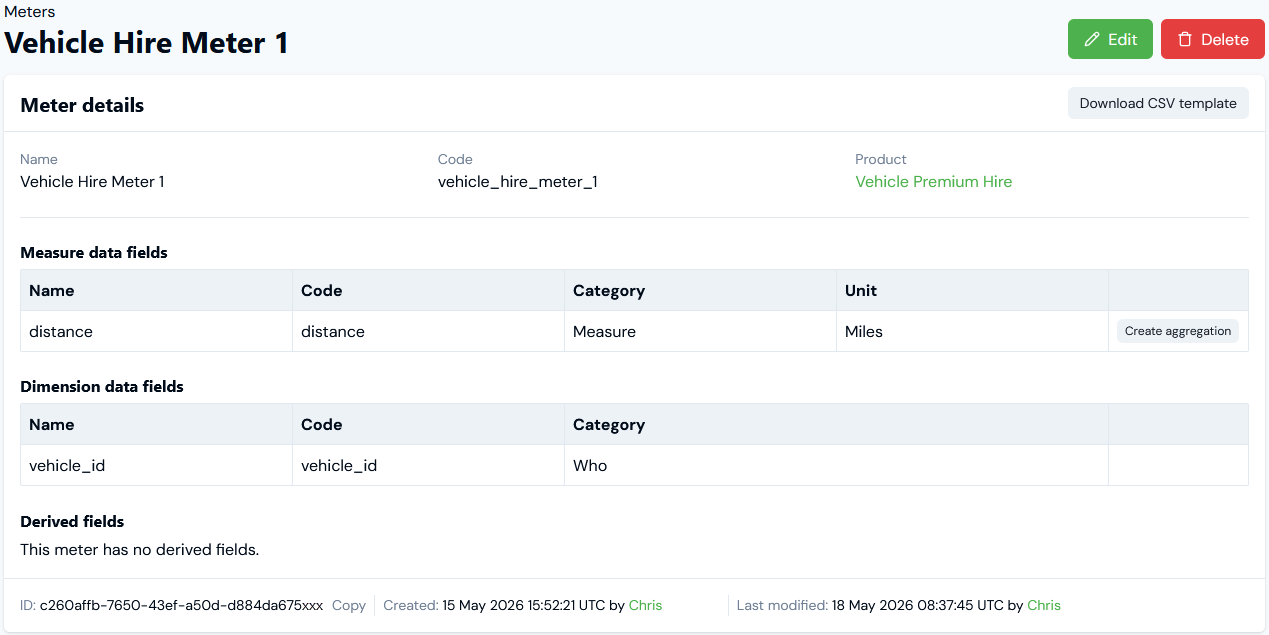 We can then use a Custom SQL Aggregation that targets the `distance` Meter's Measure Data Field and groups by the `vehicle_id` Dimension Data Field:
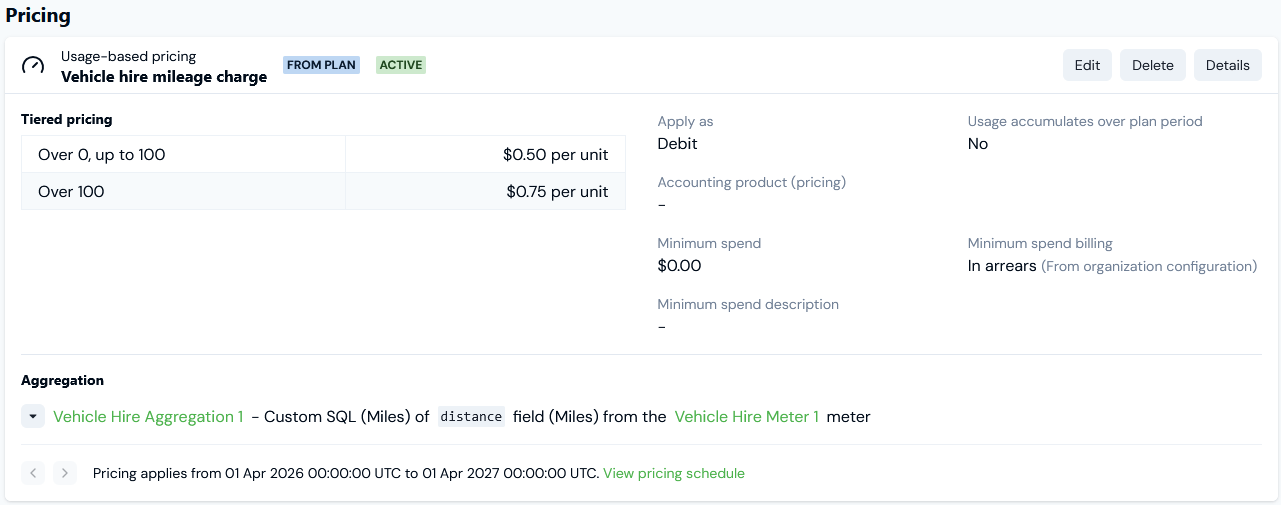
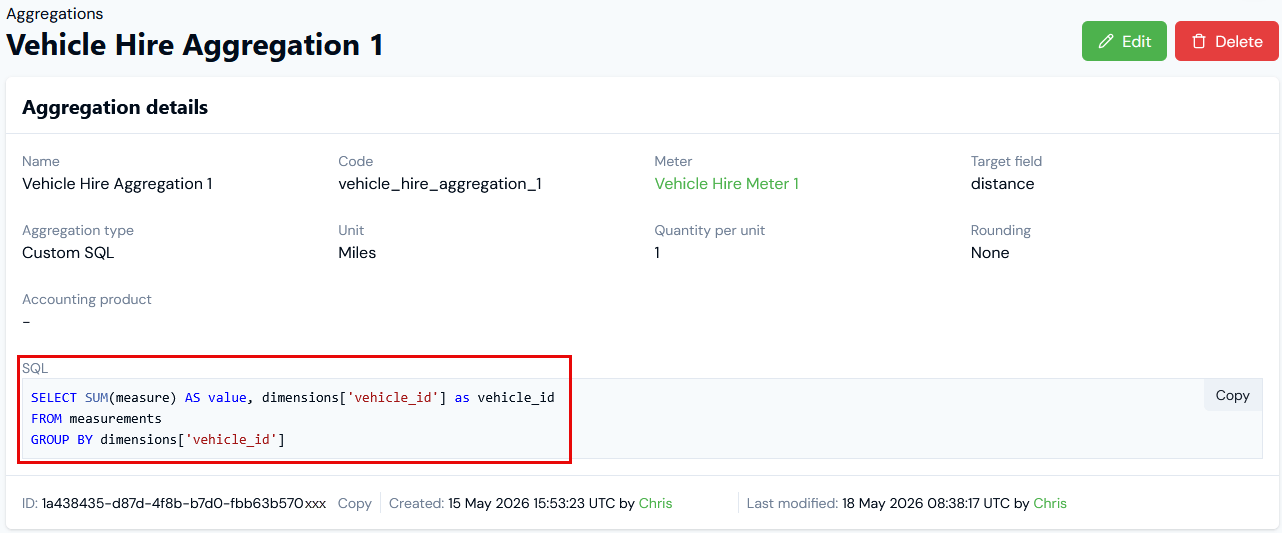 For this setup, we can:
* Use **Vehicle Hire Aggregation 1** to price a Plan we've attached to the customer Account:
* Define a two-tiered pricing.
* Define a generic description: **Vehicle hire mileage charge**.
For this setup, we can:
* Use **Vehicle Hire Aggregation 1** to price a Plan we've attached to the customer Account:
* Define a two-tiered pricing.
* Define a generic description: **Vehicle hire mileage charge**.
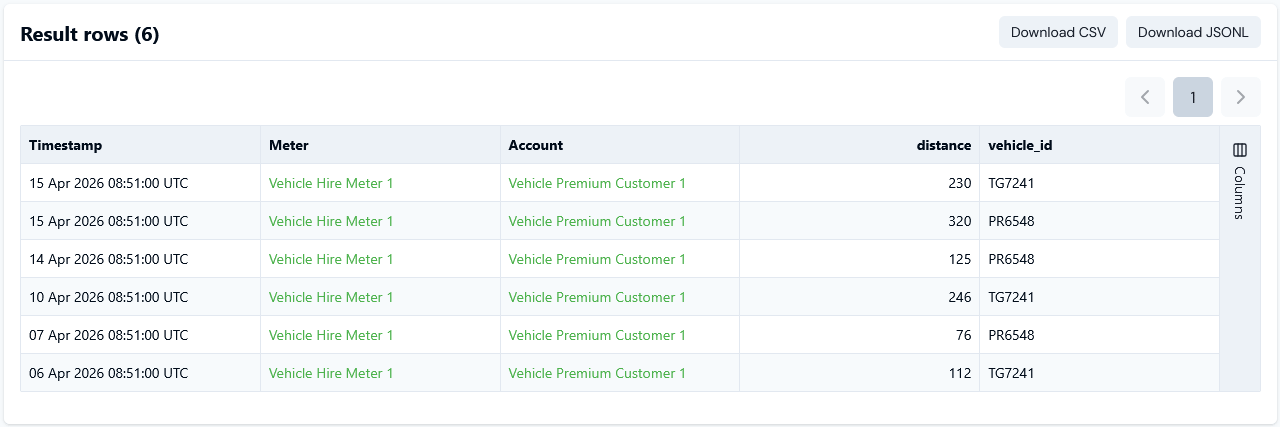
 * If we make some test usage data submissions for a customer Account using **Vehicle Hire Meter 1** for the month of April 2026 and for two vehicles, we can check the submissions in Usage Data Explorer:
 We then run billing for the Account for May 1st Bill:
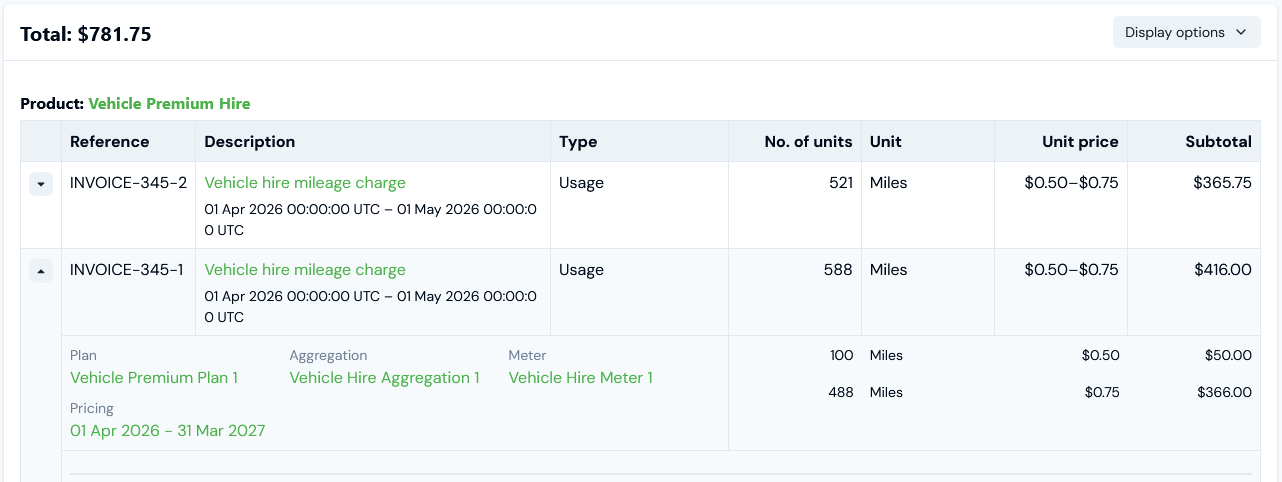 Although the billed charges are in accordance with the test usage data submission amounts and are grouped correctly by the two distinct vehicle IDs, the generic description defined for the pricing fails to show us which particular vehicle each line item applies to.
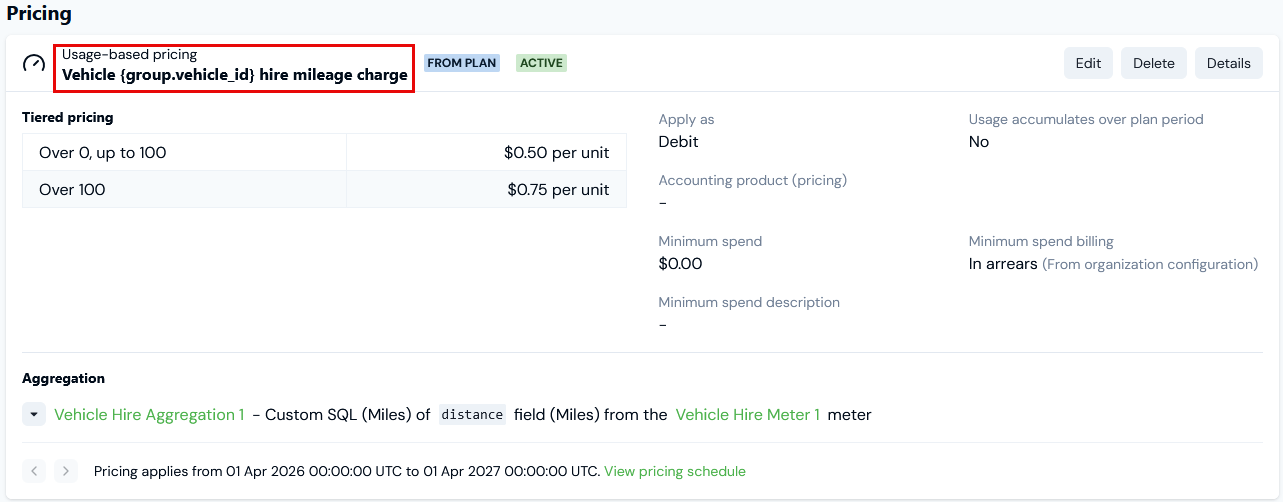
If you want Bill line item descriptions to distinguish clearly in this way when your Custom SQL Aggregations use GROUP BY, you can use handlebar notation to reference group key/values within the pricing description definition. For example:
Although the billed charges are in accordance with the test usage data submission amounts and are grouped correctly by the two distinct vehicle IDs, the generic description defined for the pricing fails to show us which particular vehicle each line item applies to.
If you want Bill line item descriptions to distinguish clearly in this way when your Custom SQL Aggregations use GROUP BY, you can use handlebar notation to reference group key/values within the pricing description definition. For example:
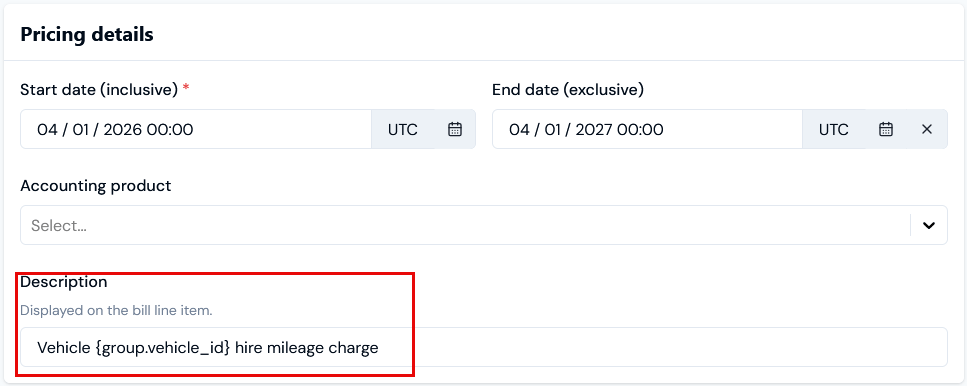
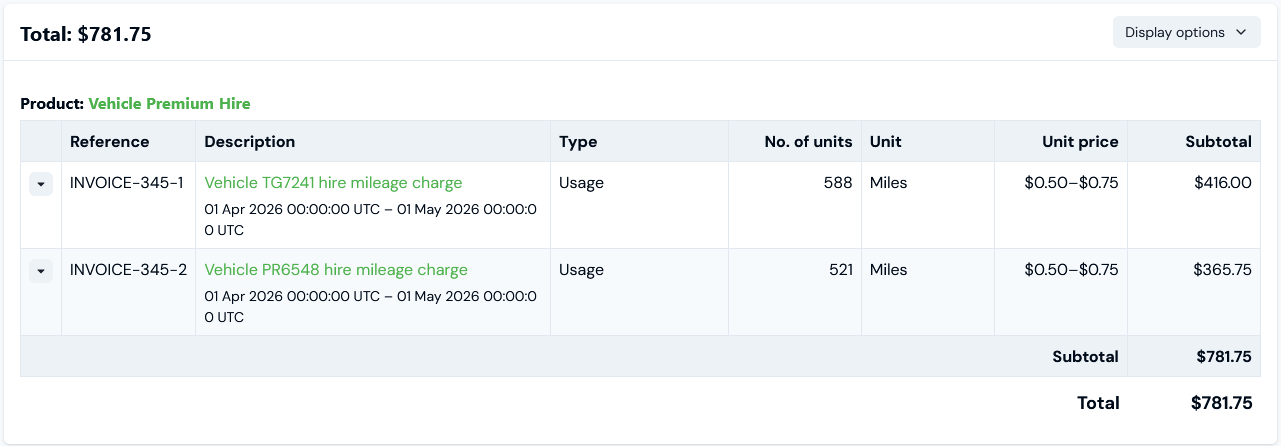
 If we now recalculate the Bill for the current example, we see that the line item descriptions includes the respective values of the `vehicle_id` dimension used in the Custom SQL to GROUP BY:
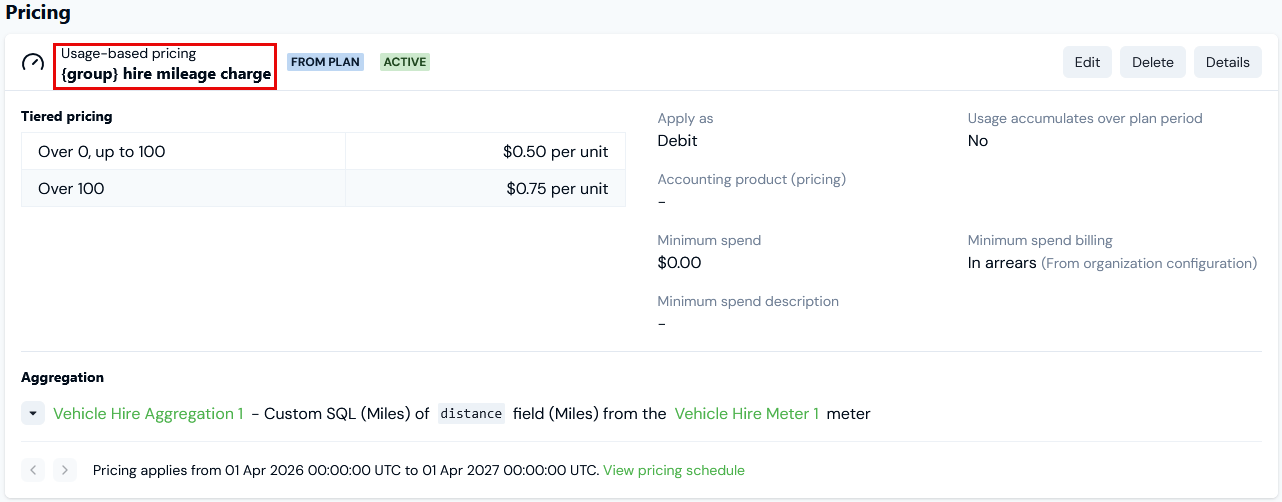
 Alternatively, if required, you can include the entire group for the pricing description:
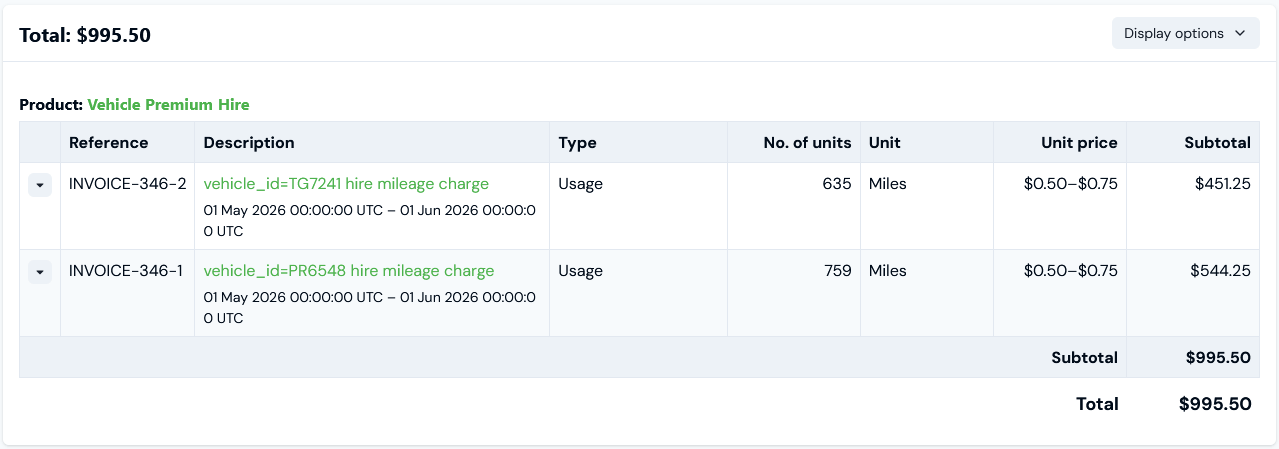
 For the current example, this would resolve to:
 Suppose you also wanted to show the *vehicle make* as well as vehicle ID for line item descriptions. You could update the current example to:
* Add a `vehicle_make` dimension Data Field to the Meter.
* Adjust the Aggregation's SQL to GROUP BY this second dimension:
Suppose you also wanted to show the *vehicle make* as well as vehicle ID for line item descriptions. You could update the current example to:
* Add a `vehicle_make` dimension Data Field to the Meter.
* Adjust the Aggregation's SQL to GROUP BY this second dimension:
 If we then generate a Bill where the usage data measurements included values for the `vehicle_make` Meter Data Field and continue to use the same pricing description for group:
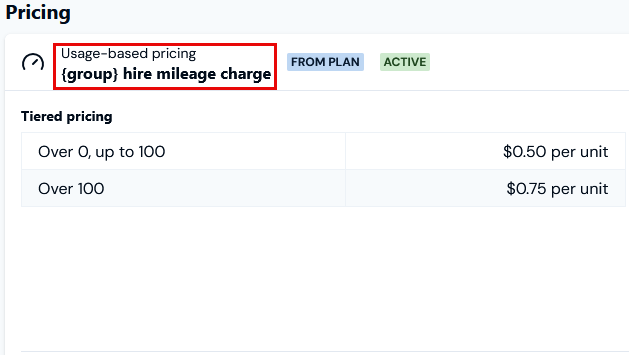 This will resolve on Bills to show:
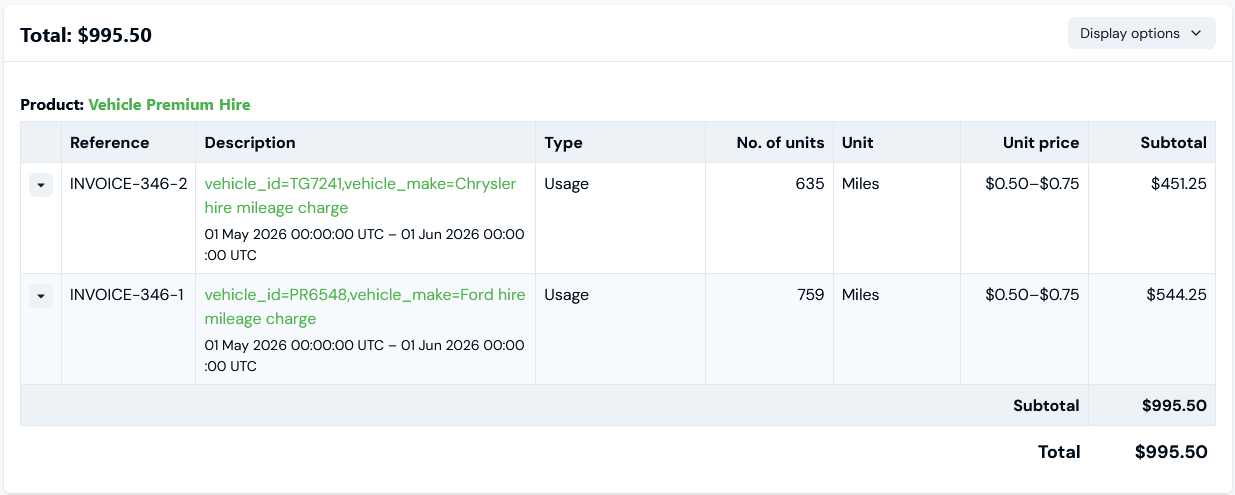 Alternatively, for the pricing description we can use:
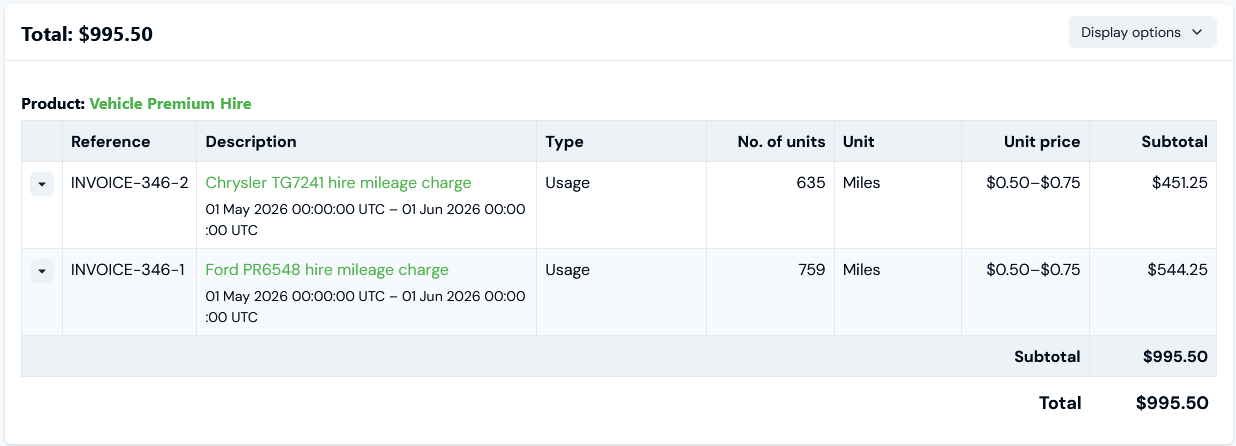
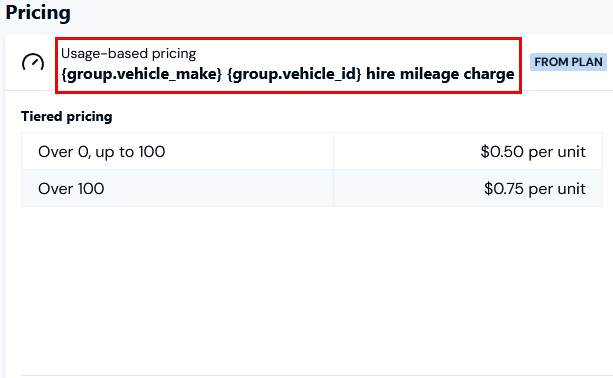 Which will resolve on Bills to show:
 #### Default Custom SQL Descriptions
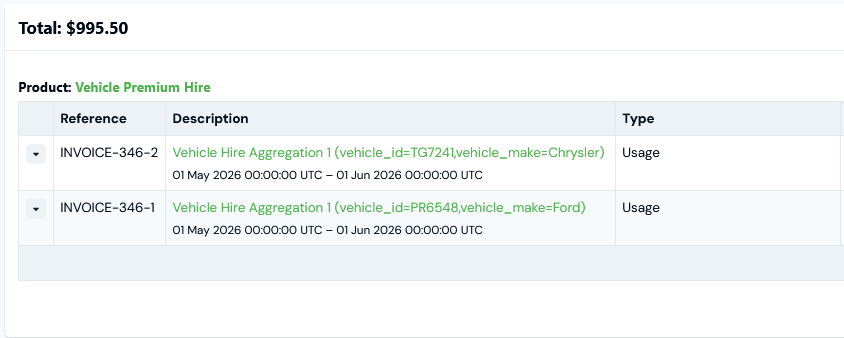
If you *do not* define a description on the pricing you configure for a Plan using a Custom SQL Aggregation, then a default description is used that includes any key/value pairs used in the GROUP BY clause:
*\ (\,\,* \*...)*
For the current example, the default description format resolves to:
#### Default Custom SQL Descriptions
If you *do not* define a description on the pricing you configure for a Plan using a Custom SQL Aggregation, then a default description is used that includes any key/value pairs used in the GROUP BY clause:
*\ (\,\,* \*...)*
For the current example, the default description format resolves to:
 ## Supported SQL Functions
The following functions are supported in Custom SQL Aggregations:
* `AVG`
* `CAST`
* `CEIL`
* `COALESCE`
* `COUNT`
* `DATE_TRUNC`
* `FIRST_VALUE`
* `FLOOR`
* `GREATEST`
* `LAST_VALUE`
* `LEAST`
* `MAX`
* `MIN`
* `ORDER_BY`
* `ROUND`
* `ROW_NUMBER`
* `SUM`
## Supported SQL Functions
The following functions are supported in Custom SQL Aggregations:
* `AVG`
* `CAST`
* `CEIL`
* `COALESCE`
* `COUNT`
* `DATE_TRUNC`
* `FIRST_VALUE`
* `FLOOR`
* `GREATEST`
* `LAST_VALUE`
* `LEAST`
* `MAX`
* `MIN`
* `ORDER_BY`
* `ROUND`
* `ROW_NUMBER`
* `SUM`