

- Select Integrations:
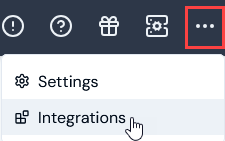
- Select NetSuite. The NetSuite Integrations page opens.
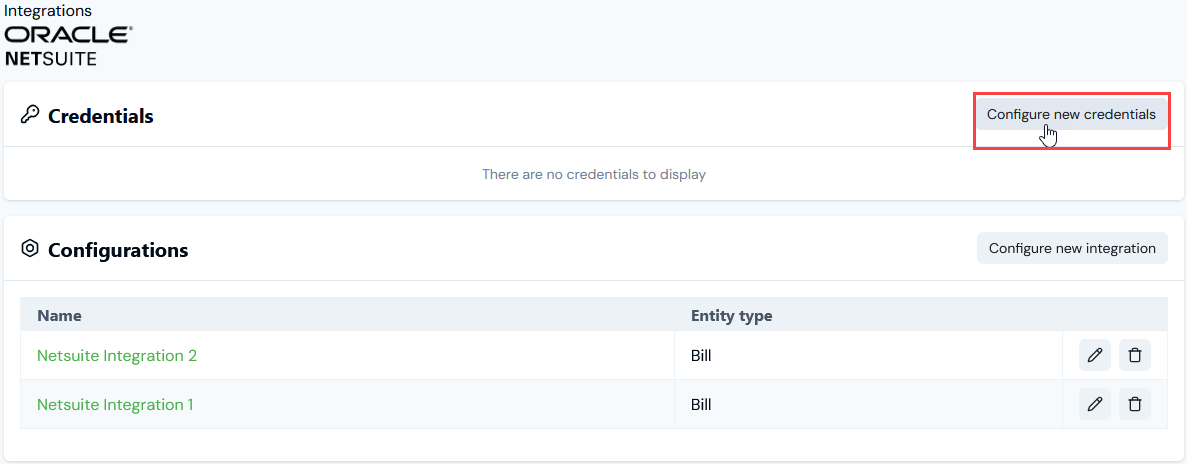
- On the Credentials panel, select Configure new credentials:
- Under Credential details enter:
- External system. This will be pre-populated for NetSuite.
- Name. Descriptive name for the Credential.
- Select Next. The page adjusts to show Stage 1 as checked-off and completed and shifts focus to Stage 2: Configure and create:
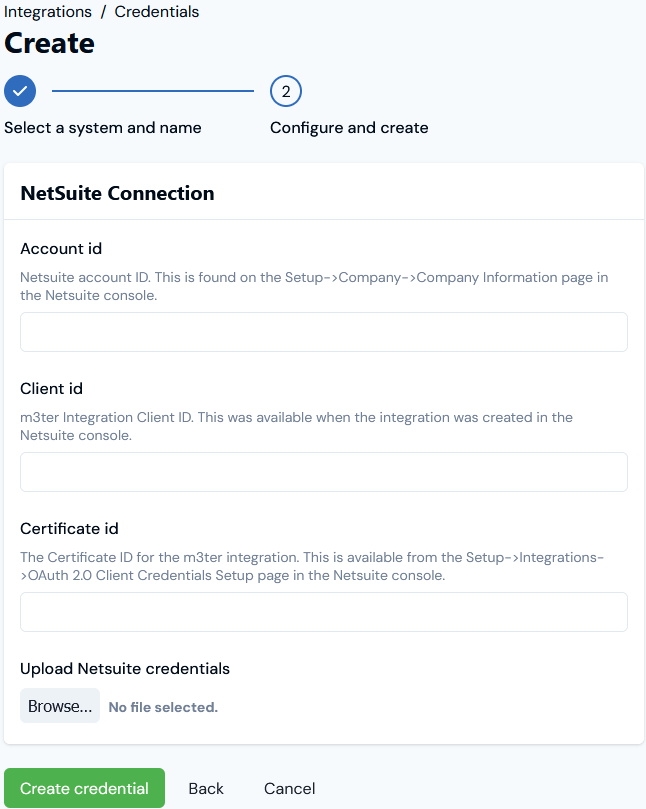
- On the NetSuite Connection panel, enter the settings for authentication:
- Account Id. Enter the NetSuite Account Id. You can find this on the Setup>Company>Company Information page in the NetSuite console.
- Client Id. Enter the m3ter Integration Client ID, which was available when the integration was set up in the NetSuite console.
- Certificate Id. The Certificate ID. You can obtain this from the Setup>Integrations>OAuth 2.0 Client Credentials Setup page in the NetSuite console.
- Upload Netsuite Credentials. Allows you to upload a private key. This should be generated via OpenSSL or other tool providing a comparable encryption level.
- Select Create credential. You are returned to the NetSuite Integrations page where the new Credential is listed on the Credentials panel:
- The Credential is now available for connecting your Netsuite Native Integration with NetSuite. See Configuring Netsuite Integrations>Setting Up Authentication for the Integration.