

- Select Integrations:
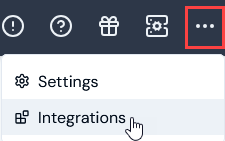
- Select Salesforce. The Salesforce Integrations page opens.
- On the Credentials panel, select Configure new credentials:
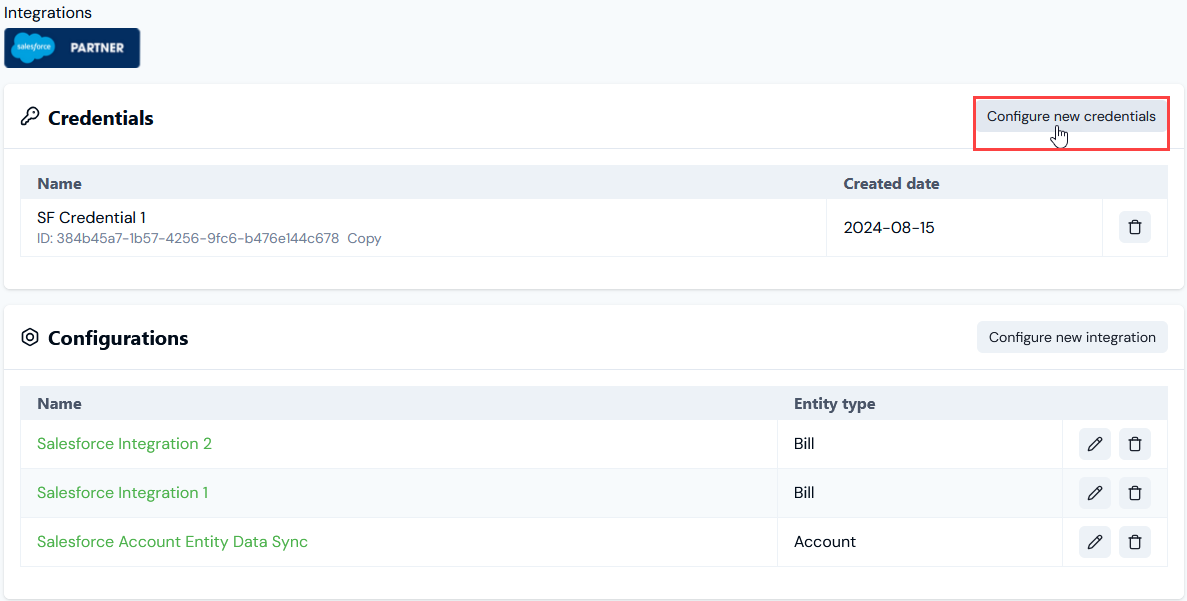
- Under Credential details enter:
- External system. This will be pre-populated for Salesforce.
- Name. Descriptive name for the Credential.
- Select Next. The page adjusts to show Stage 1 as checked-off and completed and shifts focus to Stage 2: Configure and create.
- Under Salesforce Connection, enter the required authentication credentials for connecting to your Salesforce instance:
- Subdomain. The subdomain of your Salesforce Org. For example, if you access Salesforce using MyDomainName.my.salesforce.com, then your subdomain would be MyDomainName.
- Consumer key. The consumer key obtained from the External Client App configured in Salesforce.
- Consumer secret. The consumer secret obtained from the External Client App configured in Salesforce.
- Select Create credential. You are returned to the Salesforce Integrations page where the new Credential is listed on the Credentials panel:
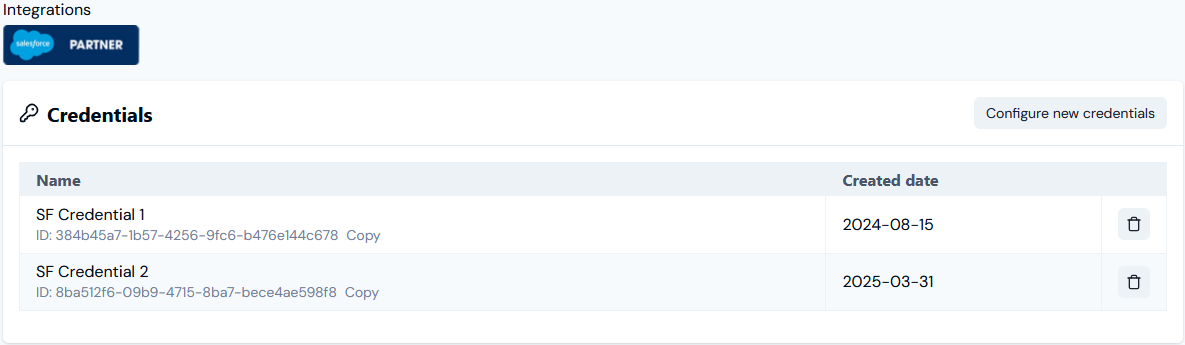
- The Credential is now available for connecting your Native Integration with Salesforce. See Configuring Salesforce Entity Data Sync Integrations>Setting Up Authentication for the Integration.