

- Select Integrations. The Integrations page opens.
- Select Marketplace. The Integrations page adjusts.
- Select AWS. The Integrations>AWS page opens.
- On the Credentials panel, select Configure new credentials. The Create pages opens at Stage 1: Select a system and name.
- Under Credential details enter:
- External system. This will be prepopulated for AWS.
- Name. Descriptive name for the Credential.
- Select Next. The page adjusts to show Stage 1 as checked-off and completed and shifts focus to Stage 2: Configure and create:
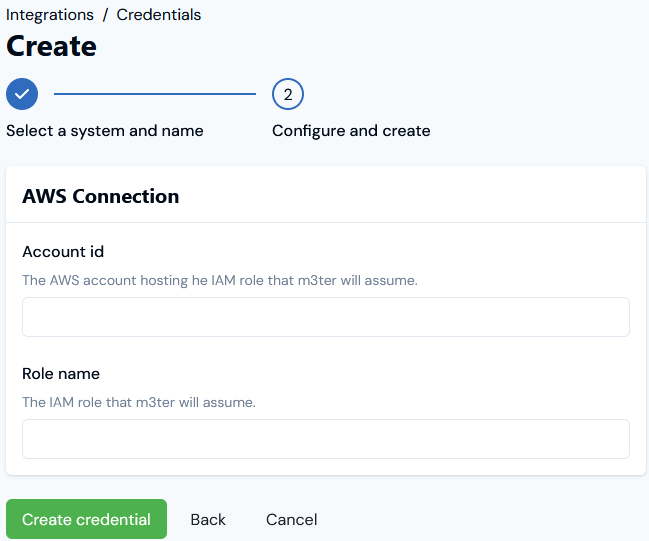
- On the AWS connection panel, enter:
- Account id. The id of the AWS account that hosts the IAM role m3ter will assume when connecting with AWS Marketplace.
-
Role name. The name of the IAM role that m3ter will assume:
-
In AWS, the role requires the following permissions.
- aws-marketplace:DescribeEntity
- aws-marketplace:BatchMeterUsage
- aws-marketplace:ListEntities
- Since the role will be impersonated by m3ter, its trust policy should include an** AssumeRole** action with a filtering condition. See Creating AWS S3 Bucket Export Destinations for details on how to set up the required type of IAM role in your AWS account. Valid examples below:
-
In AWS, the role requires the following permissions.
- Select Create credential. You are returned to the Integrations>AWS page where the new Credential is listed on the Credentials panel:
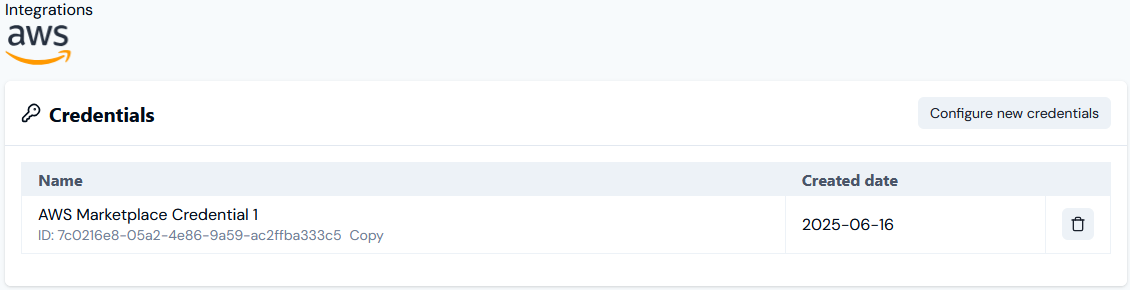
- The Credential is now available for connecting your AWS Marketplace integration to your AWS Marketplace instance. See Configuring AWS Marketplace Integrations>Setting Up Authentication for the Integration.