

- Select Integrations. The Integrations page opens.
- Select Marketplace. The Integrations page adjusts.
- Select AZURE. The Integrations>AZURE page opens.
- On the Credentials panel, select Configure new credentials. The Create pages opens at Stage 1: Select a system and name.
- Under Credential details enter:
- External system. This will be prepopulated for Azure.
- Name. Descriptive name for the Credential.
- Select Next. The page adjusts to show Stage 1 as checked-off and completed and shifts focus to Stage 2: Configure and create:
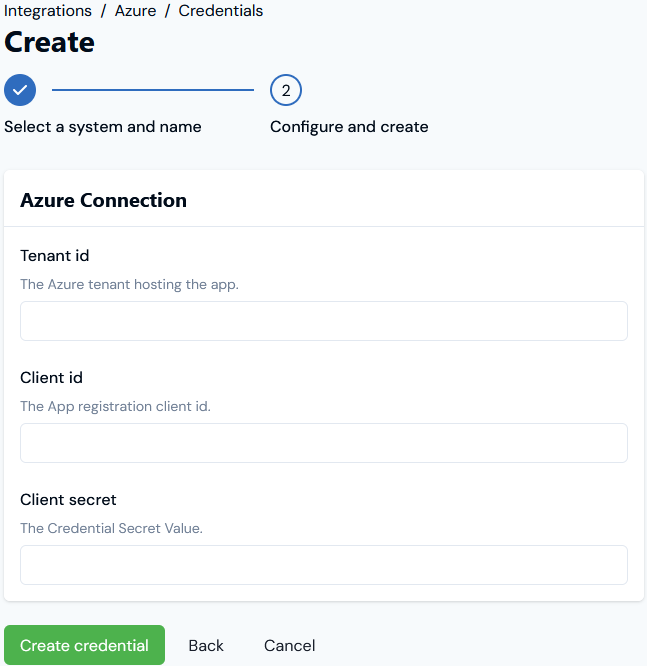
- On the Azure Connection panel, enter:
- Tenant id. The Azure tenant hosting the app. For how to find this, see Tenant ID.
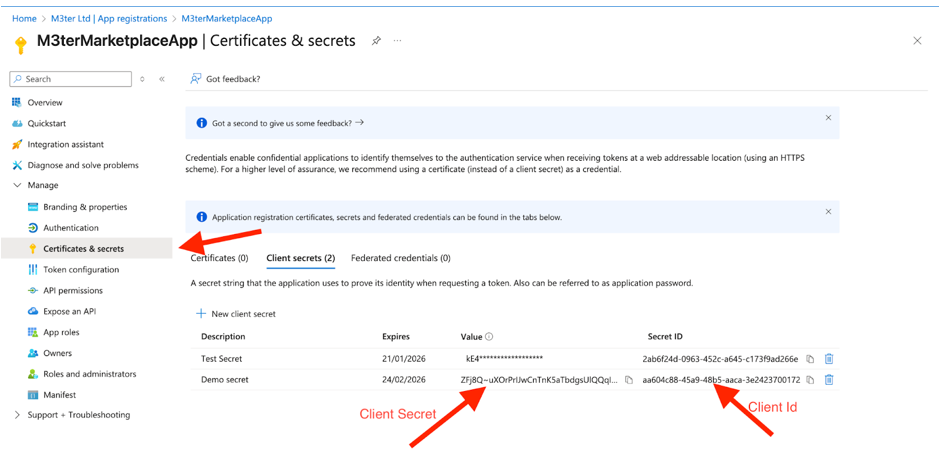
- Client id. The App registration client id.
- Client secret. The Credential Secret Value.
- Select Create credential. You are returned to the Integrations>AZURE page where the new Credential is listed on the Credentials panel:
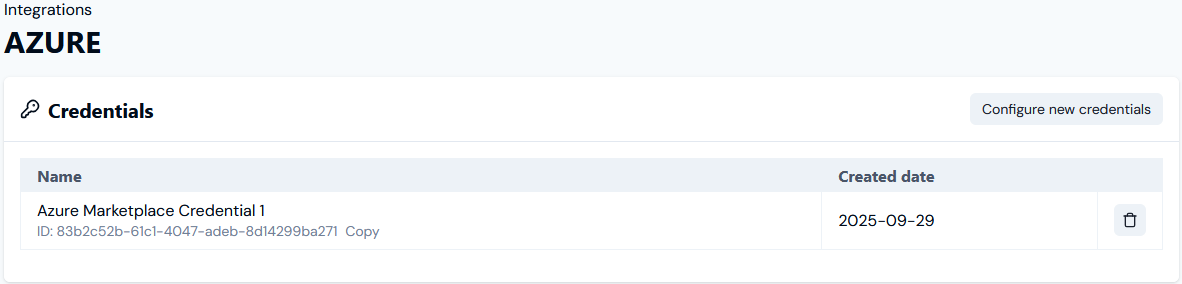
- The Credential is now available for connecting your Azure Marketplace integration to your Azure Marketplace instance. See Configuring Azure Marketplace Integrations>Setting Up Authentication for the Integration.