

- INFO. Information about key events.
- WARN. Warnings about events.
- ERROR. Errors for events with information about cause of error where possible.
Viewing, Opening, and Following Up System Alerts
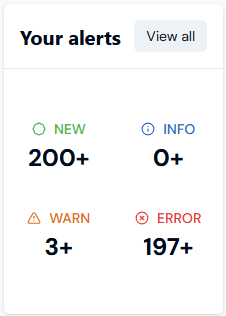
The Your Alerts panel on the Console Dashboard shows new Alerts generated for your Organization. You can quickly view the full listing, open an Alert, and view details to follow up. To view, open, and follow up Alerts:- Open your Dashboard. The Your Alerts panel lists the number and types of Alerts triggered for your Organization:
- Select View all. Alternatively, select Alerts and Notifications. The System alerts page opens:
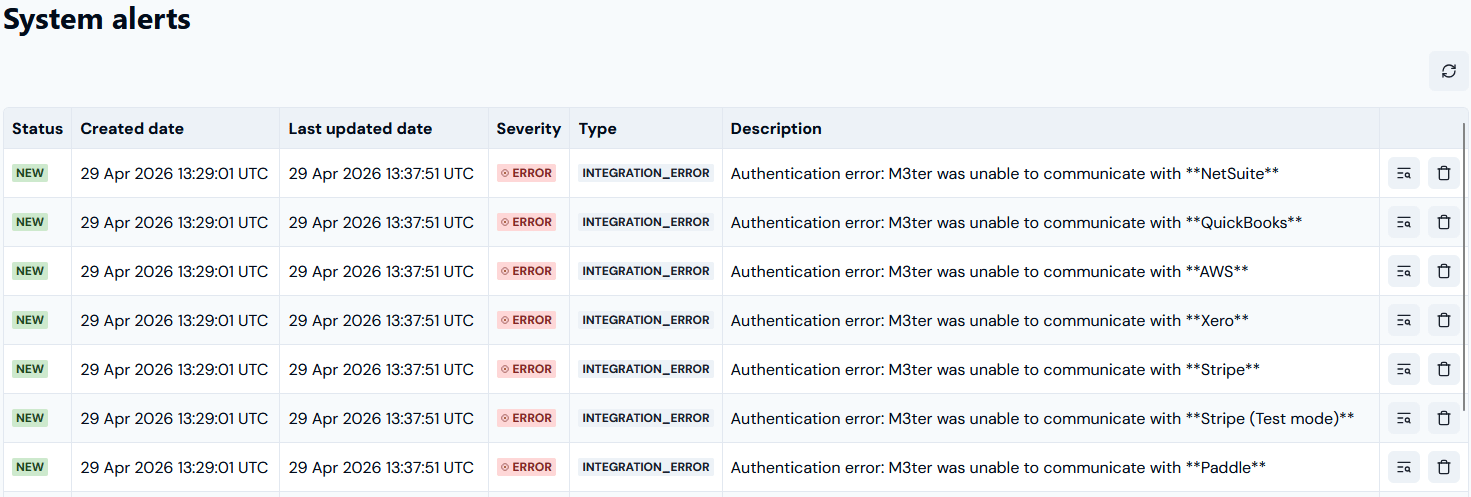
- Status. Shows if the Alert is NEW or IN PROGRESS.
- Dates. When the Alert was created and last updated.
- Severity. Whether the Alert is INFO, WARN, or ERROR severity level.
- Type. The type of event which is the source of the Alert.
- Description. A short description of the Alert.
- To open an Alert for more details, select the Details button at the right side of the row:

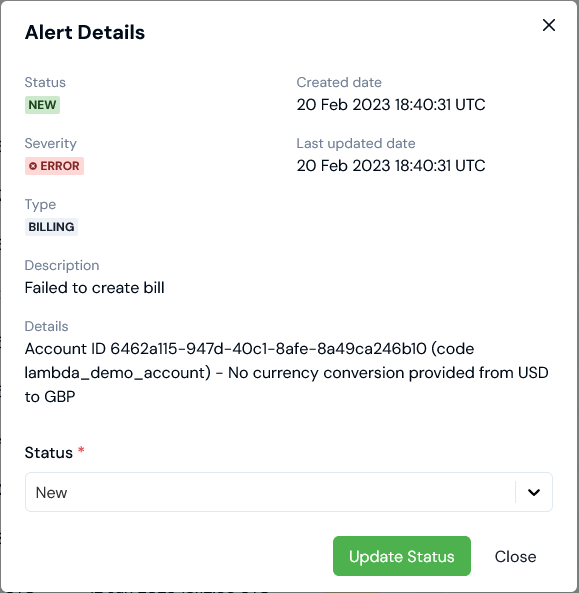
- Select Close to return to the main Alerts page.
Managing System Alerts
When you open to view an Alert and follow up on it, you can manage your workflow as you investigate and resolve it. To view, open, and follow up Alerts:- Open the new Alert you want to view and follow up - see the previous section. On the Alert Details dialog you can review the Details given about the cause of the Alert and decide whether or not you want to follow up the Alert to resolve it.
- If you do, take note of the information given about the cause of the Alert and then use the Status drop-down to change the Alert’s status from New to In progress and select Update Status:
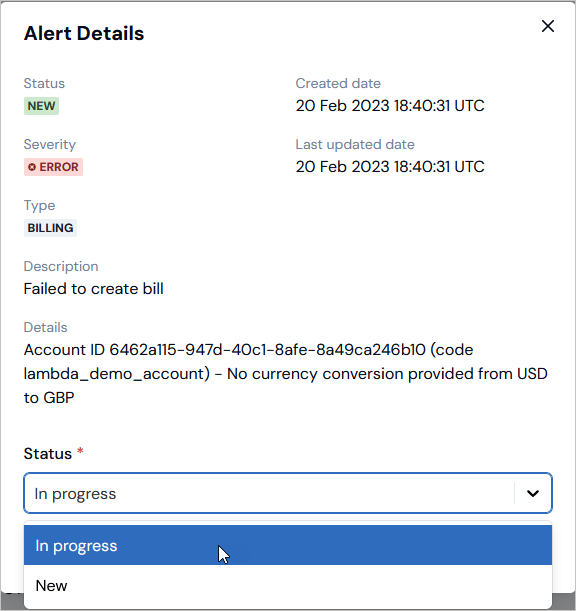
- Select Close. The Alert Details dialog closes and on the Alerts page the Alert now shows a STATUS of IN PROGRESS.
- When you have completed your follow up on the Alert and resolved it, on the Alerts page, you can select Delete:

- Select Yes to confirm that you want to delete the Alert.