

- Select Integrations:
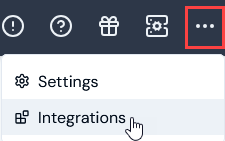
- Select Chargebee. The Chargebee Integrations page opens.
- On the Credentials panel, select Configure new credentials:
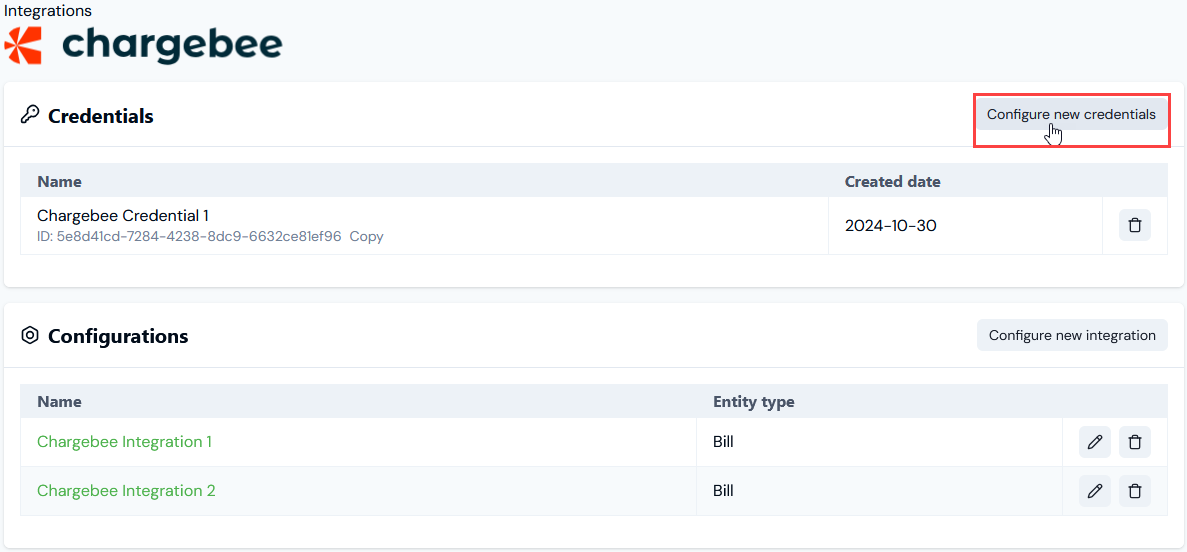
- Under Credential details enter:
- External system. This will be pre-populated for Chargebee.
- Name. Descriptive name for the Credential.
- Select Next. The page adjusts to show Stage 1 as checked-off and completed and shifts focus to Stage 2: Configure and create.
- Under Chargebee Connection, enter:
- An Api key generated in the Chargebee Console.
- The details of the Chargebee Site to be used as the subdomain when making API Requests.
- Select Create credential. You are returned to the Chargebee Integrations page where the new Credential is listed on the Credentials panel:
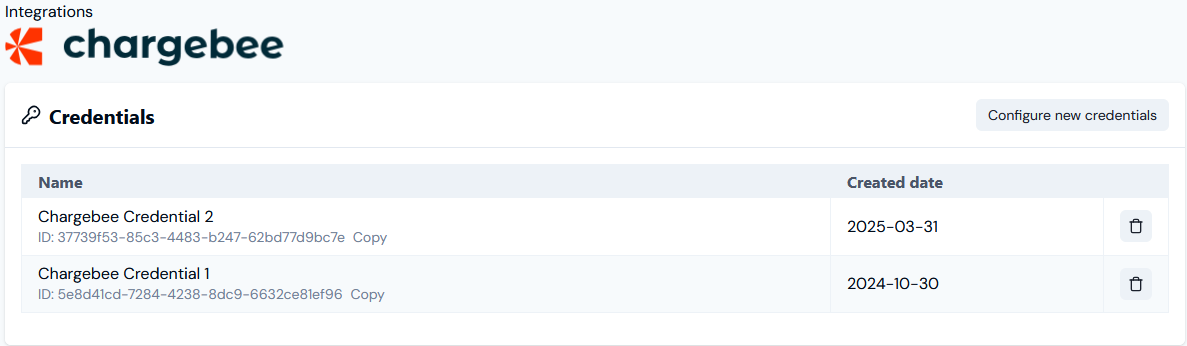
- The Credential is now available for connecting your Native Integration with Chargebee. See Configuring Chargebee Integrations>Setting Up Authentication for the Integration.