

- Save the query for re-use.
- Update a saved query with the details of the current query.
- Re-load a saved query into a query builder.
Saving Queries
To save a query:- Select Metering>Usage Data Explorer.
- Use the Usage query builder to configure a query, perform the query, and review the returned data.
- If you expect to want to perform the same query at a later date, select Save Query. A popup appears and the default action selected is to Save a new query:
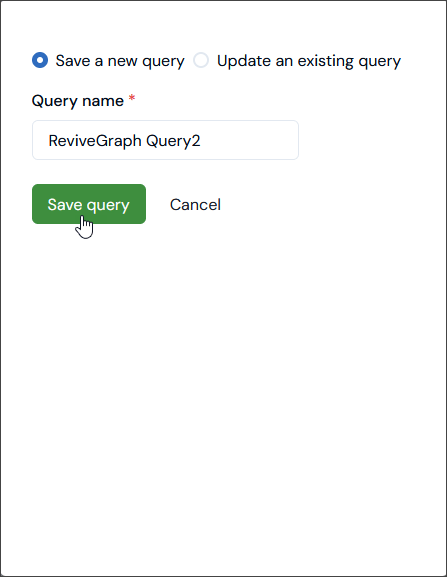
- Enter a Query name and select Save query. The popup closes and your query is saved.
Updating Saved Queries
To update a saved query:- Select Metering>Usage Data Explorer.
- Use the Usage query builder to configure a query, perform the query, and review the returned data.
- If you expect to want to perform the query at a later date, and want to update a query you’ve previously saved with the details of the current query, select Save query. A popup appears and the default action selected on the popup is to Save a new query.
- Select Update an existing query. The popup adjusts:
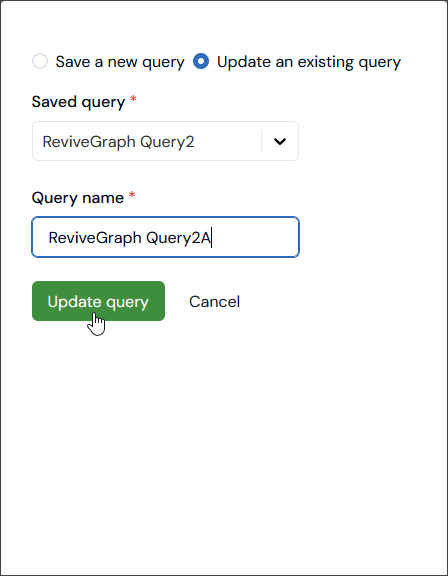
- Select a previously Saved query to update. The Query name field adjusts to show the selected saved query to be updated and to be saved under the same Query name.
- If you want use the same name when updating, select Update Query. The popup closes and the updated query is saved under the same name.
- If you want to update the saved query under a different name, enter a new Query name and select Update Query. The popup closes and the updated query is saved under the new name.
Re-Loading Saved Queries
To re-load a saved query into Query Builder:- Select Metering>Usage Data Explorer.
- In the Usage query builder, select Saved queries. A popup appears and lists saved Usage queries.
- Select Load query for the query you want to load into Usage query builder. The query is loaded and the query is automatically performed to return data for review.