Building and Performing a Billing Data Query
To submit queries for Billing data and review returned data:- Select Billing>Billing Data Explorer:
- In the Select period section, define a period to retrieve billing data for:
- Time period. Use the drop-down list to select a period for which you want to retrieve billing data. Today is the default. If you want to select a specific period, you can use Custom.
- Today. All of today - that is, the 24 hour period from midnight to midnight. This saves you from having to reset the query time period to catch other new billing data that become available later that same day.
- Yesterday. All of yesterday - that is, the 24 hour period from midnight to midnight yesterday.
- Week to date/Month to date. Period covering the current week/month to date. For example, selecting Month to date on April 8th, 2024 means your query returns data for the time period starting April 1st, 2024 and including the entire current day - April 8th - and ending at midnight. This saves you from having to reset the query time period to catch other new billing data that become available later that same day.
- Last 7/30/90/120 days. Period covering the selected number of whole days leading up to today. For example, selecting Last 30 days on April 8th, 2024 means your query returns data for the time period commencing 30 days prior - March 9th, 2024 - and ending midnight on April 7th, 2024.
- Previous week/month/quarter. Period covering the entire previous week/month/quarter. For example, selecting Previous month on April 8th, 2024 means your query returns data for the whole of March 2024.
- Custom. Define the time period for which you want your query to return data.
- Start (inclusive) and End (exclusive). If you have selected Custom for the query Time period, these date/time fields will be enabled. You can use calendar popups to select the start and end dates/times for the period you want to query.
- Start dates are explicitly labeled as inclusive and End dates as exclusive. For example, if you want data returned for the entire month of June 2023, you must set the Start at June 1st 2023 and the End at July 1st 2023. If you set the End at June 30th 2023, the Custom Time period for your query will end at midnight on June 29th 2023.
- In the Apply filters section, enter the details of any filters you want to apply to the billing data returned for your query:
- Line item types. Filter on line item types:
- All Line item types. Data will be returned for all Bill line item types.
- Selected values. Use the drop-down to select the Bill line item types for which you want to return Billing data.
- Accounts. Filter on Accounts:
- All Accounts. Data will be returned for all Accounts for which Bills have been created.
- Selected values. Use the drop-down to select the Account Code of those Accounts for which you want to return Billing data.
- Products. Filter on Products:
- All Products. Data will be returned for all Products for which a Bill has been created.
- Selected values. Use the drop-down to select the Products for which you want to return Billing data.
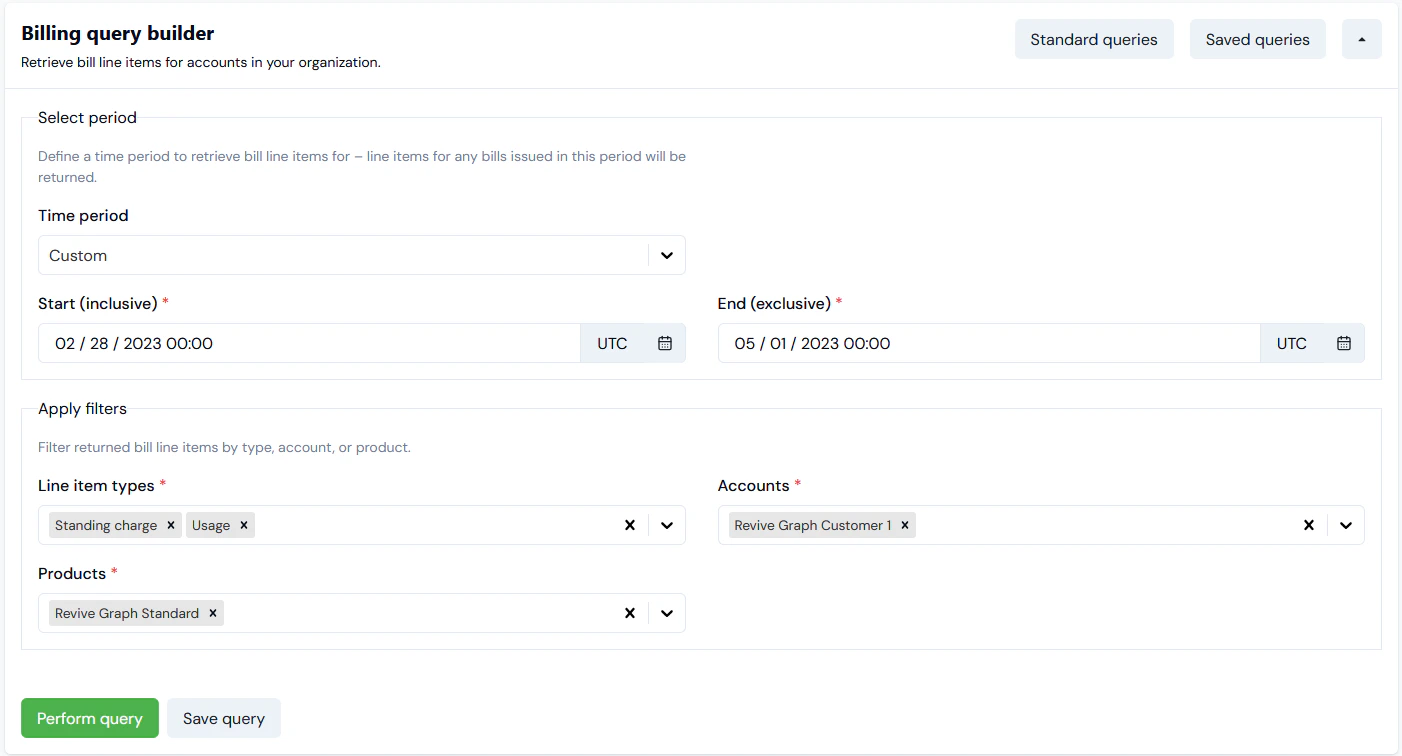
- Defined a Custom time period. The Organization Timezone is set to UTC.
- Selected a single Account and a single Product to return Billing data for.
- Selected for two line item types in the returned Billing data.
- Select Perform query. The query executes and the resultant data is loaded into the data tables.
Reviewing Billing Data Query Results in a Data Table
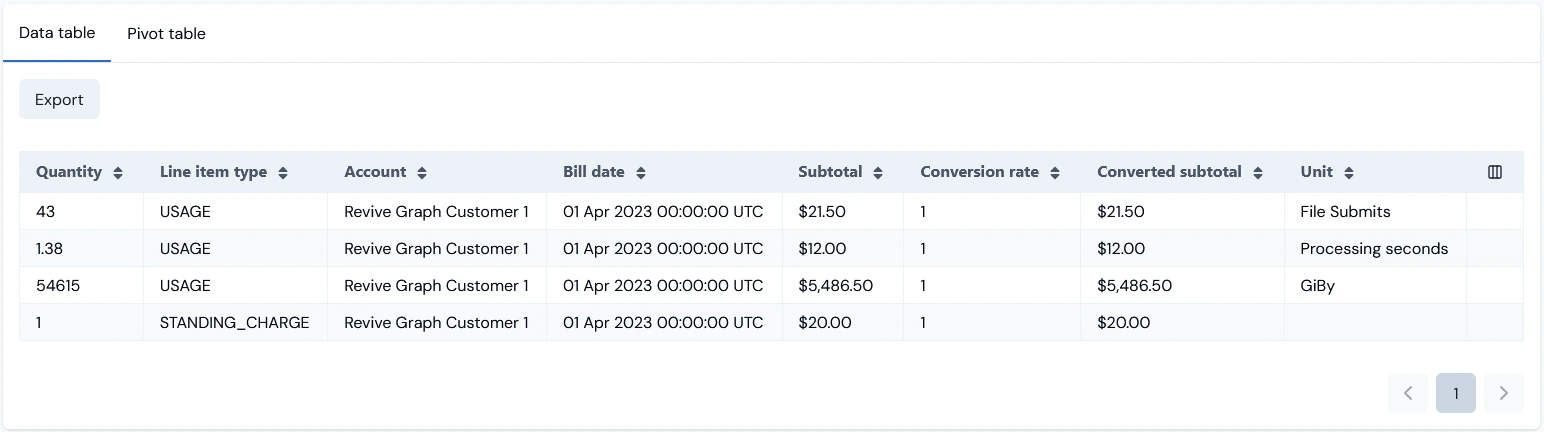
You can review the Billing data returned for your query in a Data table: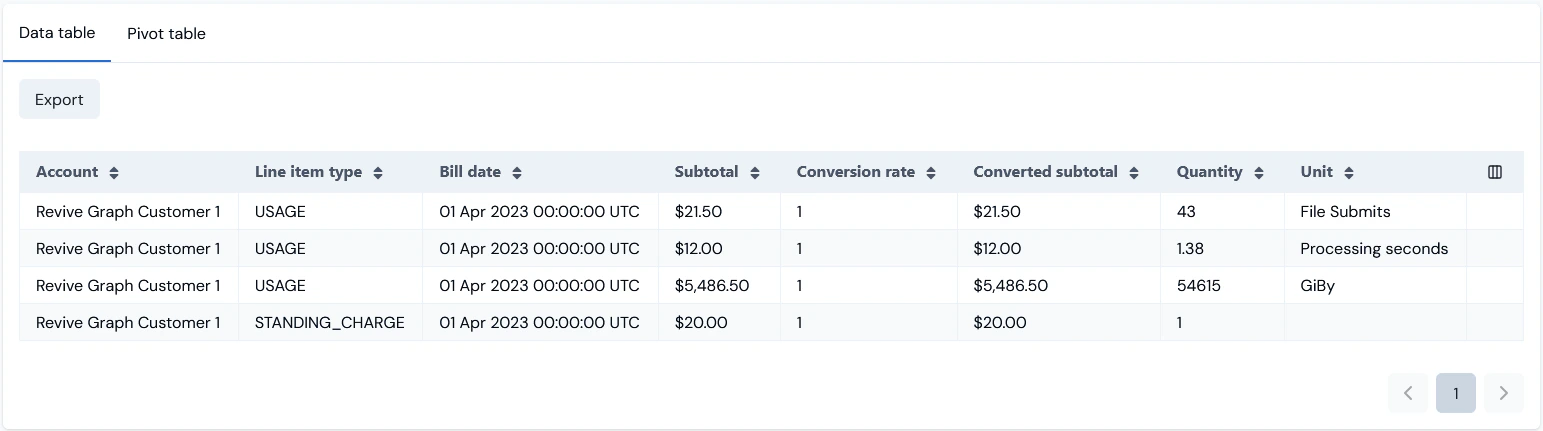
- Show/Hide data element columns.
- Reorder the columns.
- Select the column icon at top-right of the table:

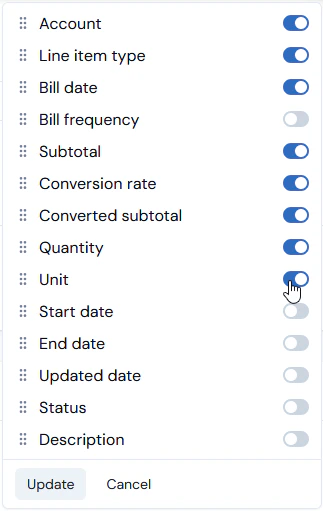
- Select Update - the panel closes and the Data table refreshes for your Show/Hide selections.
- Select the column icon at top-right. A panel appears listing the available table columns.
- Drag-and-drop these into a top-bottom ordering to correspond to the left-right ordering you want for the Data table:
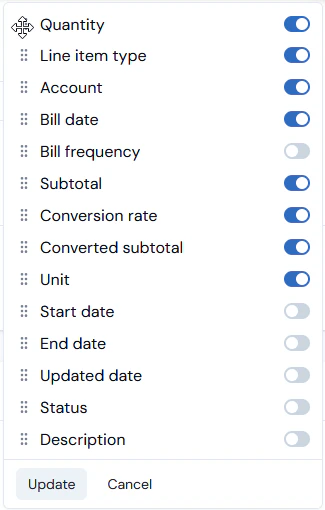
- Select Update. The panel closes and the Data table refreshes for the selected column order:
Reviewing Billing Data Query Results in a Pivot Table
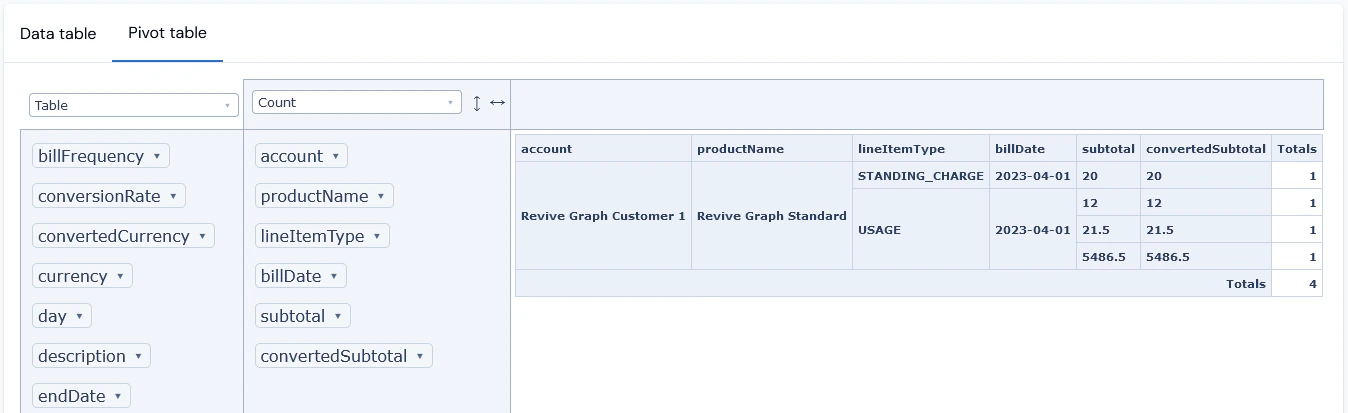
You can review the Billing data returned for your query in a Pivot table: