From the Data export page you can manage your Export Schedules to review or edit a schedule’s details and delete a schedule if you no longer want to use it to export data.To view details, edit, or delete an Export schedule:
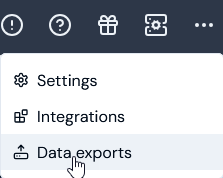
Select Data exports:
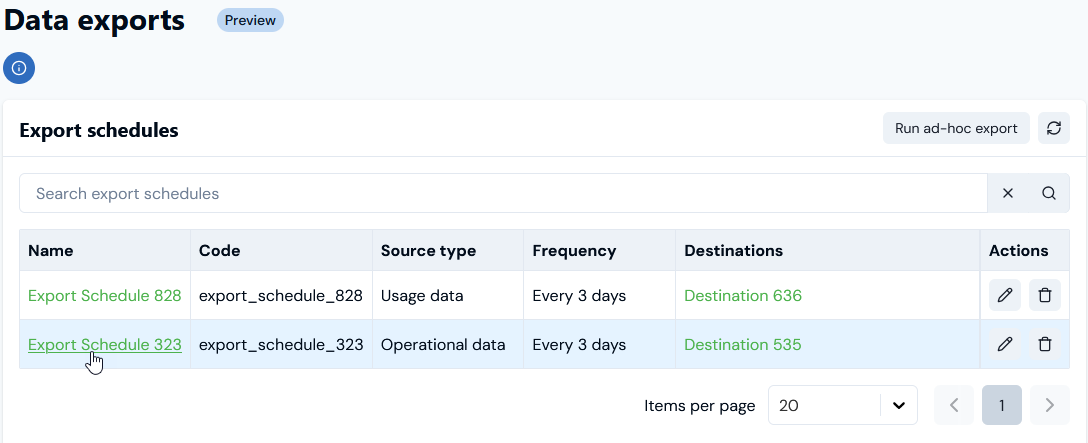
The Data exports page opens and lists any existing Export schedules.
If you want to review details of an Operational data Export schedule, on the Export schedules panel select the Name hotlink text:
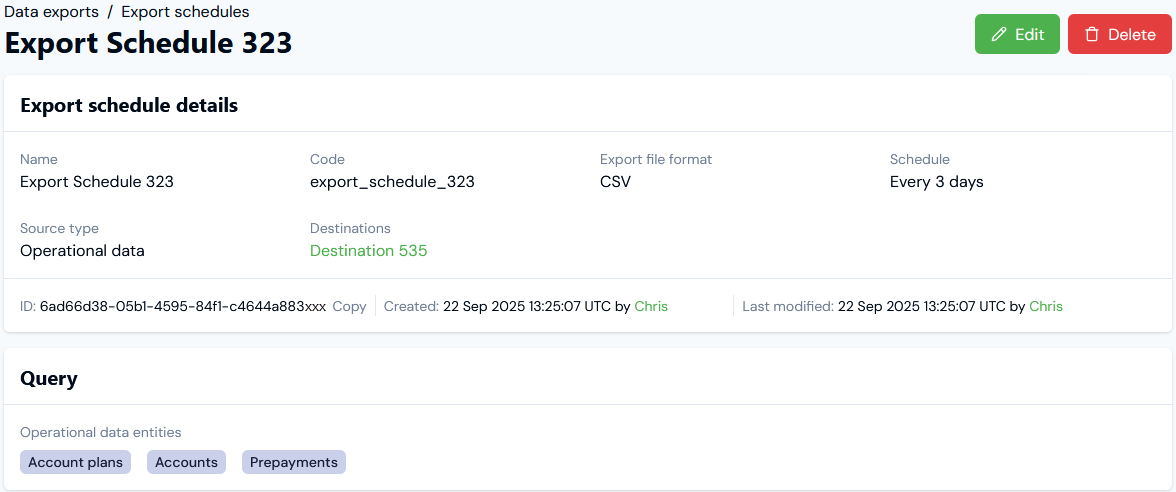
The Export schedule details page opens:
For an Operational data Export schedule, you can review the details and:
Check the Export file format.
Copy the schedule ID directly to your clipboard.
Select the hotlink text of any Destinations configured for the schedule and review the Destination details.
Under Query, read-off the entities whose operational data the export will contain.
If you want to review details of an Usage data Export schedule, on the Export schedules panel select the Name hotlink text. The Export schedule details page opens:
For a Usage data Export schedule, you can review the details and:
Check the Export file format.
Copy the schedule ID directly to your clipboard.
Select the hotlink text of any Destinations configured for the schedule and review the Destination details.
Under Query:
Read-off the Accounts and Meters the export will contain usage data for.
Check any Dimension filters that will be applied to the usage data.
Check any Aggregations that will be applied to the usage data.
If Aggregations are applied, check how the aggregated usage data is Grouped by.
If you want to check what usage data will be exported for the Query you’ve built, select View in Data Explorer. The Usage Data Explorer opens where the Query is loaded and performed. You can review what usage data is returned in the Results row table.
If you want edit an Export schedule, on the Data export page select the Edit icon:
Alternatively, if you’ve opened the Export schedule details page, you can Edit the schedule directly from there.
The Edit page opens and you can update the Export schedule details.
When you’ve completed your editing changes, select Update Export schedule.
If you want to delete a schedule, select the Delete icon:
A confirmation dialog appears.
Select Yes to confirm the delete action.
Tip: Alternatively, you can use the Edit or Delete buttons at top right of the Export schedule details page.
Assistant
Responses are generated using AI and may contain mistakes.