Working with Operational Data Export Schedules
This section explains how the Data Export service will compile and run operational data exports according to the various options available to you when setting up your operational data Export Schedules:- Data Export Service - Timezone Used
- When Export Schedules are Run
- Export File Format and Composition
- Export Size Limit
Data Export Service - Timezone Used
The Data Export service uses UTC and this is not affected by the Timezone you’ve set for your Organization.When Export Schedules are Run
When you’ve completed the configuration for an operational data Export Schedule and select to create it:- An Export job is scheduled to run the data export immediately with the Data Export service.
- Export jobs for the next and subsequent in the series of exports are then scheduled to run with the Data Export Service according to the minutes, hours, or days frequency you’ve configured for the Schedule.
- For example, if you select to create an Export schedule at 10:00 a.m. on June 1st, 2024 UTC and the Export Schedule is configured for a frequency of every 2 days, then:
- An Export job is scheduled to run with the Data Export Service immediately.
- An Export job for the next data export will then be scheduled to run at 10:00 a.m. on June 3rd 2024 UTC; and so on.
- Exported files are retained in m3ter for 24 hours after the Export job completes, after which they are removed.
Export File Format and Composition
The range of data included in an operational data export depends on the operational entities you select when you set up the Export Schedule:Operational Entities
You can select to export the operational data in your m3ter Organization for the following entities:- Accounts
- Account Plans
- Aggregations
- Balances
- Balance Transactions
- Bills
- Bill line items
- Charges
- Prepayments/Commitments
- Compound Aggregations
- Contracts
- Meters
- Plans
- Plan Groups
- Plan Group Links
- Plan Templates
- Pricing
- Pricing Bands
- Products
- Transaction Types
File Format, Composition, and Entity Schema
File Format
The available data export file formats are.CSV or JSONL.
File Composition - Entity Fields
Generally, the fields returned with entities by Data Exports are the same as are returned by the API when retrieving an entity, plus some additional fields only relevant for exports.File Composition - Initial and Subsequent Scheduled Exports
The data included in an Export Job performed for an operational data Export Schedule will depend on where it sits in the sequence of exports:- Initial Export. The operational data for all selected entities are included.
- Subsequent Exports. Only the operational data for any selected entities that have been created or modified since the previous export are included. Note:
- If nothing has changed from one export run to the next in the Schedule - in the period since the previous export was run none of the selected entities have been created or modified - then an empty file is exported.
- If one of the selected entities has been deleted in the period since the previous export was run, then the data for that entity are included in the next run and the
deletedfield for the entity is set totrue. Data for a deleted entity data are only included in the export ran immediately following the period in which the entity was deleted and are not included in any further exports ran for the Schedule. - If you edit the frequency mid-Schedule after some exports have already been run for the original frequency - for example from hourly to daily - then only the data for selected entities that have been created or modified in the period since the last hourly export run to the first daily export ran are included. Importantly, the first export ran for the adjusted frequency does not include the data for all selected entities, and as if a new Schedule has been set up.
Data Export Entity Schema
You can review the details of export schema for each entity available for operational data export - see Data Export - Entity Schema and Relationship Diagram.Export Size Limit
Typically Operational Data exported files are relatively small, but if they do exceed 6GB the exported data is split across multiple files.Creating Operational Data Export Schedules
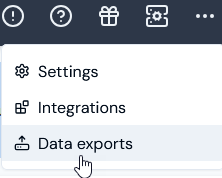
You can quickly set up scheduled exports of operational data such as Accounts, Bills, and Balances. Scheduled exports are incremental and designed to be easily integrated into downstream data tools. To create an Operational Data Export Schedule:- Select Data exports:
- Select Create export schedule. The Create page opens.
- Enter the Export schedule details:
- Name. Descriptive name for the schedule.
- Destinations. Use the drop-down to select the Export destinations to be used each time the data export runs for the schedule:
- Select the Export Destination(s) you want the export to be delivered to.
- If No options shows in the drop-down, you must first create at least one Destination before you can set up an Export Schedule - see Creating and Managing Export Destinations.
- Alternatively, if you simply want to download the data export file locally, do not select a Destination. See Downloading Data Export Files Locally for more details.
- Export file format. Select the format you require for the usage data export files:
- CSV. (Default).
- JSONL.
- Set up the Export schedule:
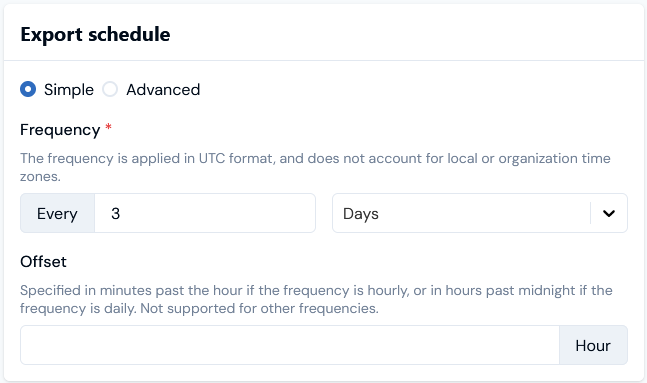
- You can use the default Simple scheduling mode to do this:
- Frequency. Define the frequency for the schedule in Hours, Days, or Minutes.
- Offset. If you use an hourly or daily frequency, then you can define an offset for when the export will run relative to the hour or day:
- For hourly scheduling, an offset in minutes from start of hour.
- For daily scheduling an offset in hours from midnight.
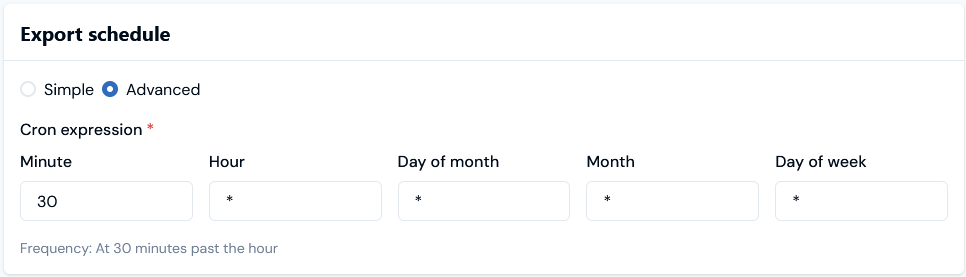
- Alternatively, select the Advanced scheduling mode and define a cron expression for when you want the export to run:
- Enter the Export data:
- Source type. Select the Operational data option. The page adjusts to allow you to select the operational entities whose data you want the export to contain.
- Under Operational data entities, select the plus icon and use the pop-up to select the entities whose data you want to include in the export:
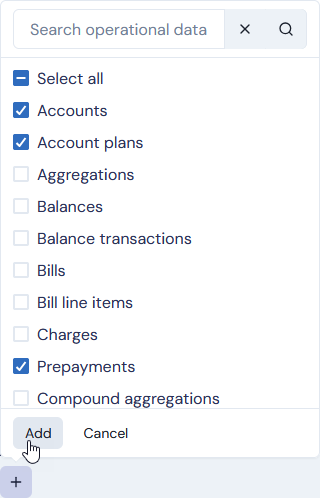
- Select Add. the selected entities are added to Export data:
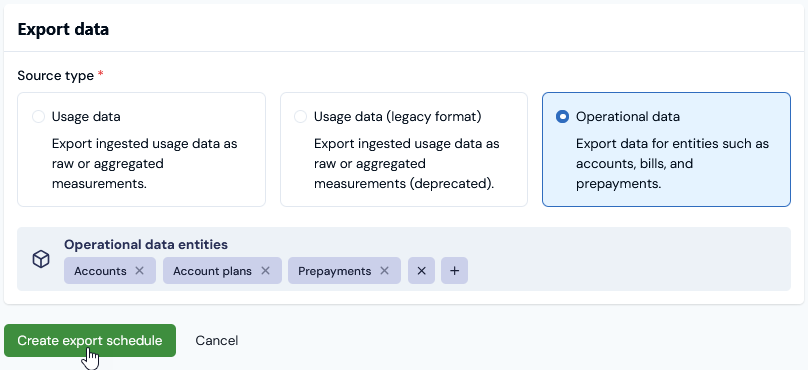
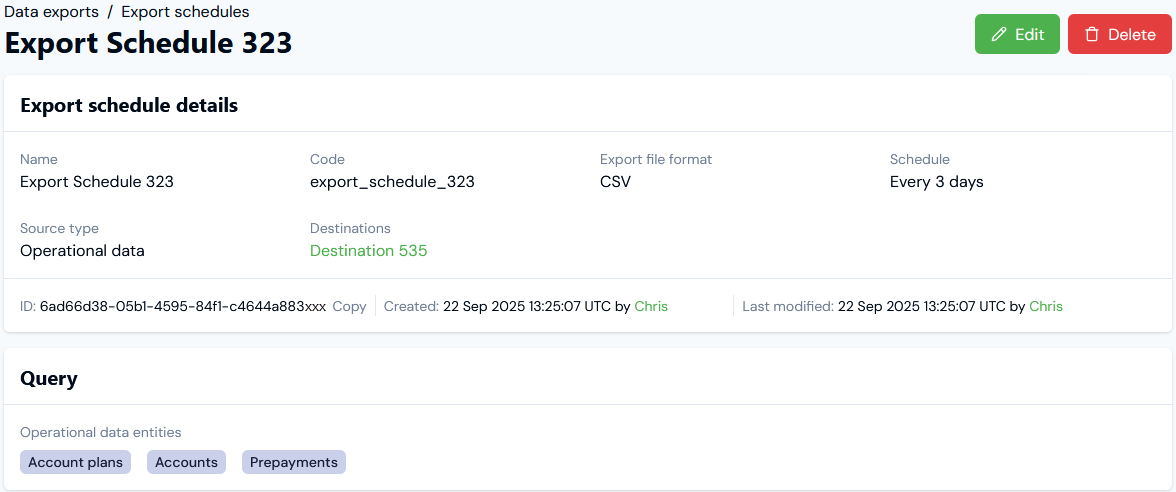
- In this example, we’ve selected to include the operational data for Accounts, Account Plans, and Prepayments/Commitments in data exports ran every three days.
- When you have entered all details, select Create export schedule. The Export schedule details page opens:
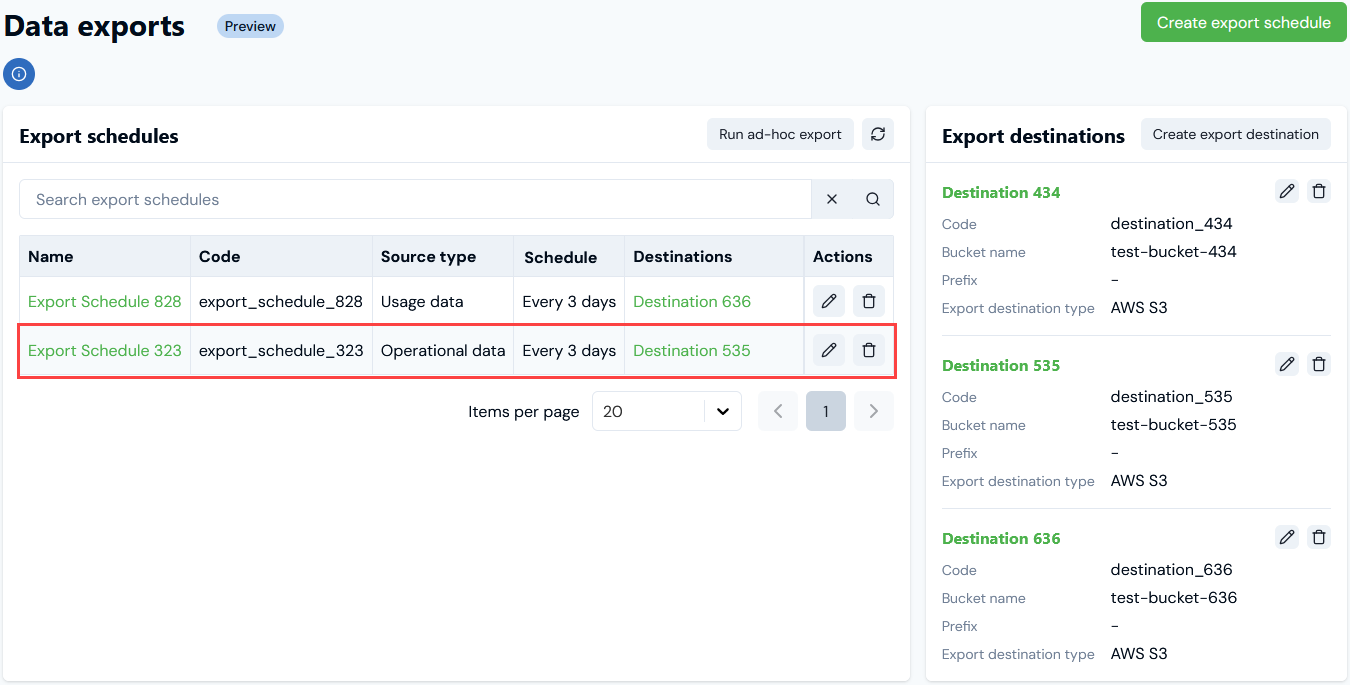
- Return to the Data exports page where the new schedule is listed on the Export schedules panel: