

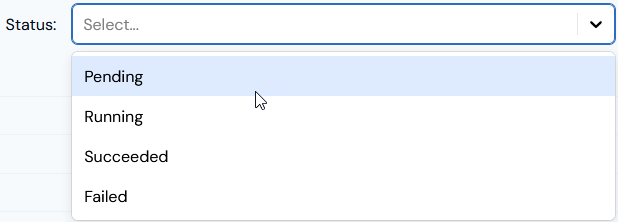
- Read-off job status:
- Pending
- Running
- Succeeded
- Failed
- Filter the list by job status.
- Filter the list by specifying a date range by job start date.
- Download data export files locally.
- Reviewing Export Jobs and Checking Status
- Downloading Data Export Files
- Following-Up on Failed Export Jobs
Reviewing Export Jobs and Checking Status
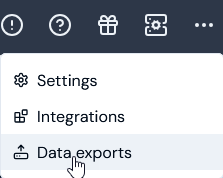
To review Export jobs and check their status:- Select Data exports:
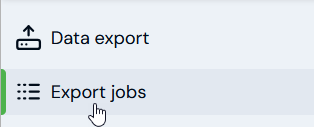
- In the sidebar, select Export jobs:
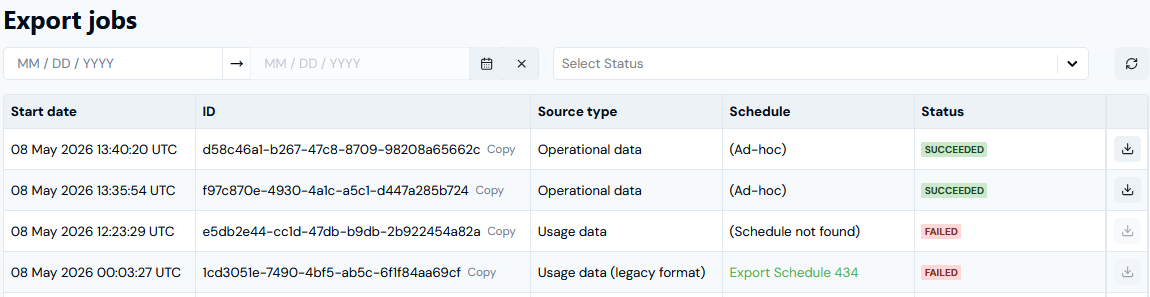
- For each Export job listed, you can read-off:
- The Start date and time the export was scheduled to run.
- The Export job ID, which you can Copy directly to your clipboard.
- The Source type for the Export job.
- Under Schedule, whether the job was created for an Export schedule or for an ad-hoc export.
- The job Status.
- You can open the Details page for an Export schedule using the Schedule hotlink text.
- Export jobs with any Status are listed by default when the page opens. If you want to filter the list, use the Status drop-down:
- Export jobs for any Start date are listed by default when the page opens, and ordered by timestamp with most recent job first. Use the Start date popup calendars to define a date range to filter the list to show only those Export jobs with a start date within the date range.
Downloading Data Export Files
On the Export jobs page, an active download button will be available for downloading the export file locally for an Export job that has succeeded for an Export schedule or ad-hoc Export within the past 24 hours. To download the data export file locally, simply select the active download button: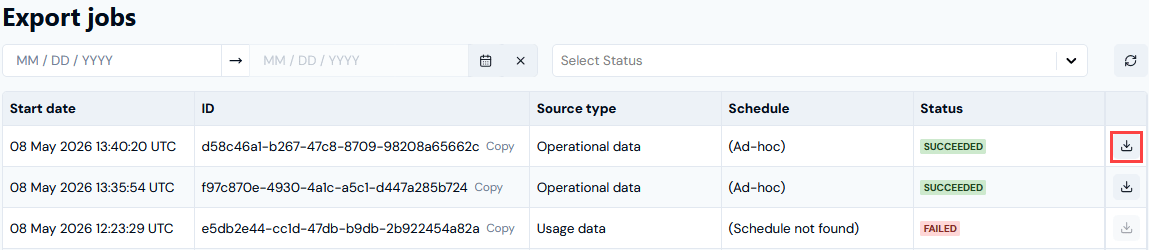
Following-Up on Failed Export Jobs
You can use the List EventResponse API call to query for any events of typedataexport.job.failure.
For example:
GET https://api.m3ter.com/organizations/{orgId}/events?eventName=dataexport.job.failure
The response gives details of the Export job failure event: