

Reviewing Meter Details
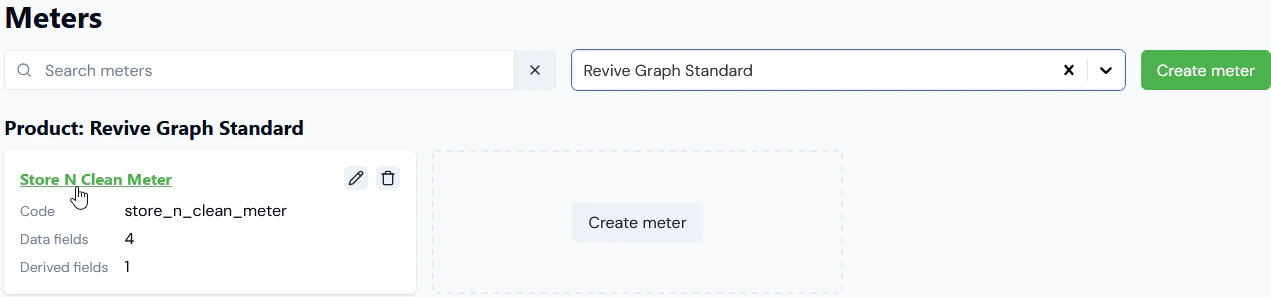
You can use the Meter details page to review and manage the Meter set up. To review Meter details:- Select Metering. The Meters page opens and lists Meters by Product for All products together with any Global Meters.
- If you want to review the details of a Product Meter, search or filter the page by Product.
- Select the hotlink text of the Meter:
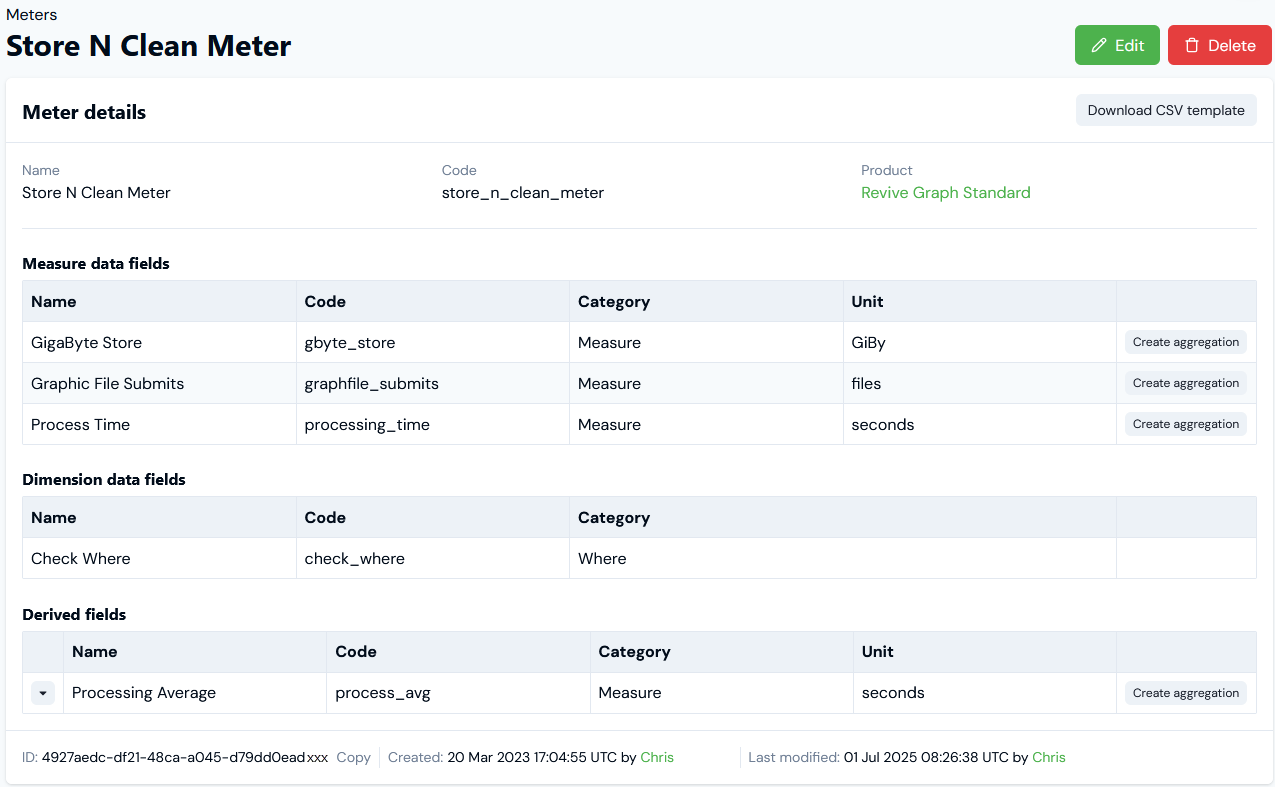
- Read-off the Meter’s Name and Code.
- Use the hotlink text to open directly the details of the Product the Meter belongs to. Note that if you’ve opened the details of a Global Meter, this will be shown under Product.
- Read-off the Meter’s ID and Copy this to your clipboard.
- Check the audit data to see who Created and who Last modified the Meter.
- Review the Data fields that have been added to the Meter. These are listed as two types:
- Measure data fields.
- Dimension data fields.
- Review any Derived fields added to the Meter. Note that you can expand a Derived field to review it’s calculation:

- If you intend to upload a a
CSVformatted file for usage data measurements ingest for the Meter, use the Download CSV template button to obtain a file you can use for this purpose. See the following section for further details.
Submitting and Checking Usage Data Measurements
A Submit measurements panel is made available on Meter details pages. This facilitates the various ways you can submit usage data measurements into the m3ter platform for the specific Meter:Ingest API
The default selection under Submit measurements is Ingest API: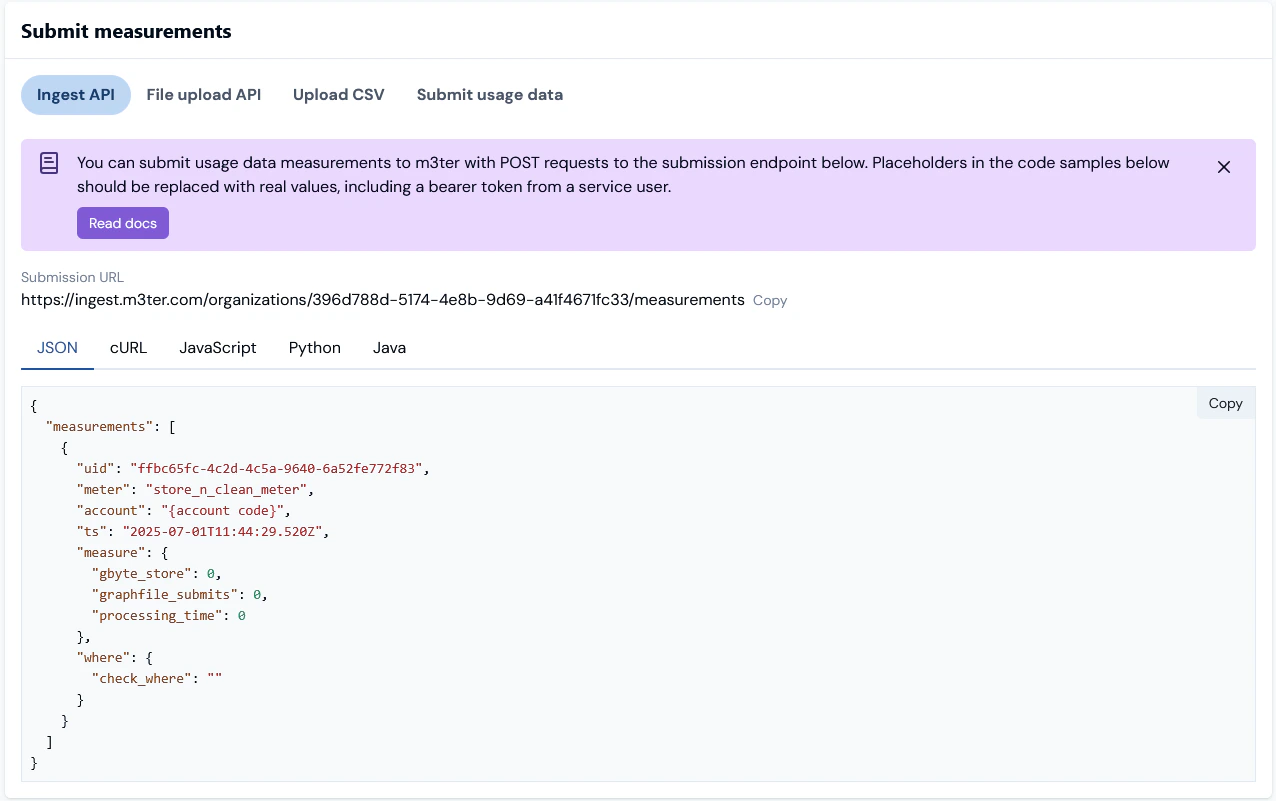
- The Submission URL is shown for the call with your Organization ID used, and you can Copy this to your clipboard.
- Five tabs are available for Meter-specific code samples to use for the call, and you can Copy the version you prefer to use:
- JSON
- cURL
- JavaScript
- Python
- Java
- If you are using this method to submit usage data measurements, please see Getting Started with API Calls for additional guidance.
File Upload API
Under Submit measurements, select File upload API: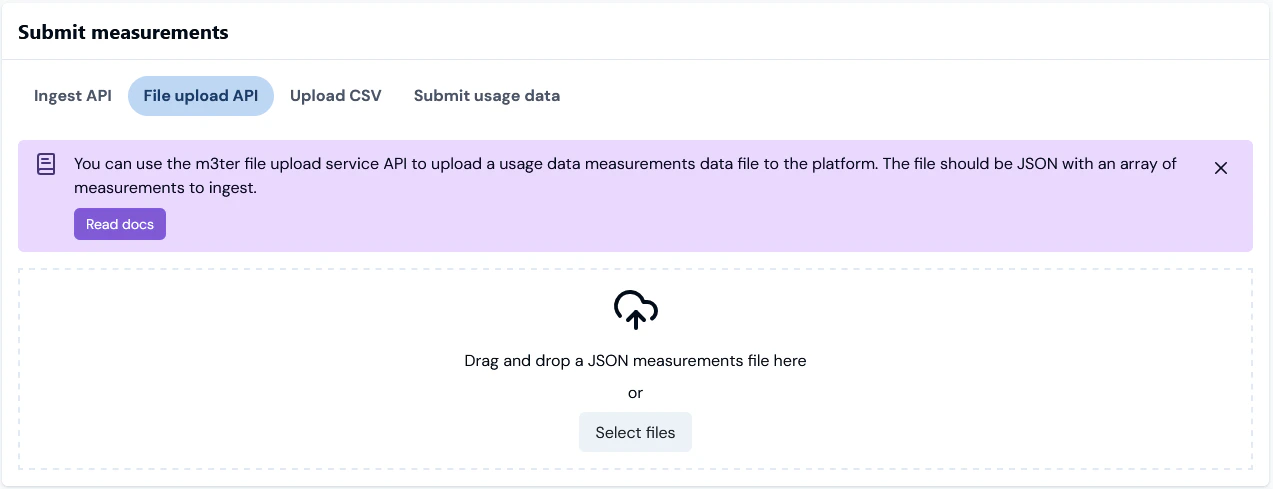
- You can drag and drop a JSON file here containing an array of usage data measurements for ingest.
- Please review the File Upload Service API topic if you want to use this method.
Upload CSV
Under Submit measurements, select Upload CSV: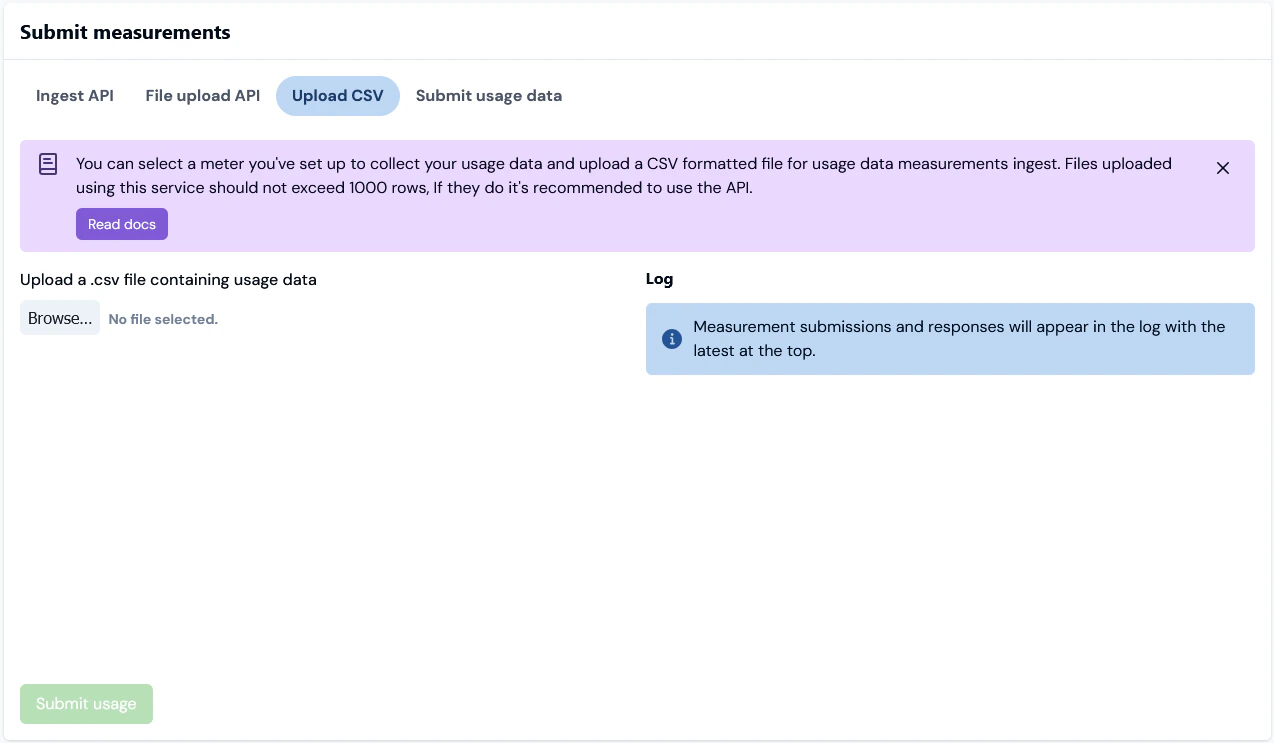
CSV formatted file for Meter usage data measurements ingest:
- Please see the File Uploads for Usage Data by Meter topic if you want to use this method
Submit usage data
Under Submit measurements, select Submit usage data: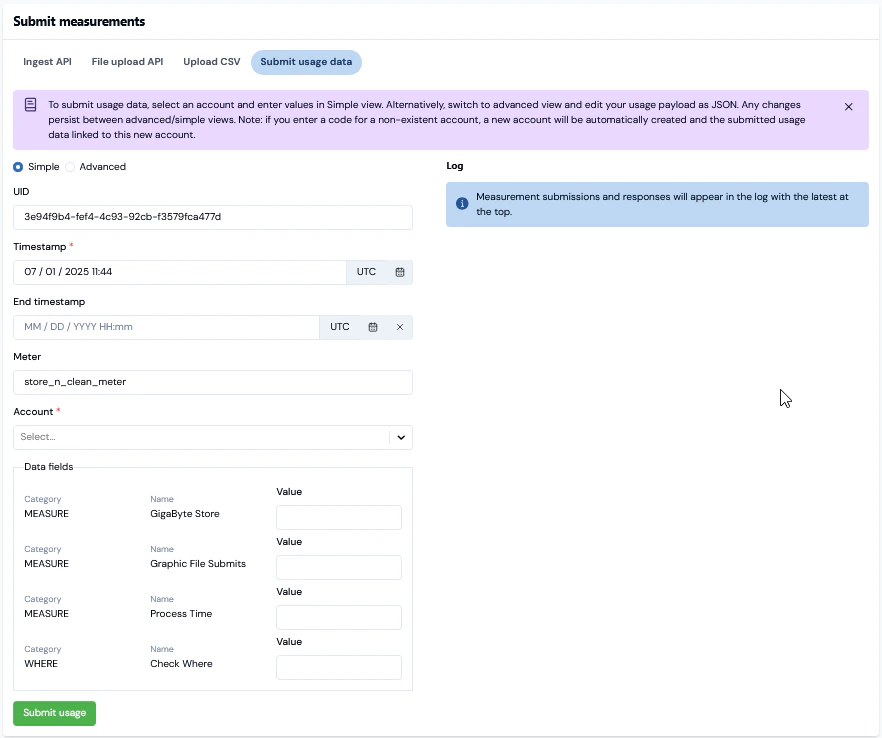
- You can use a default Simple view and enter values for Meter Data fields or switch to an Advanced format and edit the JSON payload of usage measurements.
- Please review Submitting Test Usage Data if you want to use this method.
Checking Usage Data Submissions
If you scroll further down the Meter details page, you can use the Activity panel to check usage data measurement submissions made for the Meter:- A Recent measurements list for the Meter for submissions made in the last hour and which were successfully ingested into the platform:
- Up to a maximum of the ten most recent submissions made in the last hour are listed.
- A Measurement counts chart showing a running count of submissions made for the Meter over the previous 24 hours:
- You can hover your cursor over the chart’s hourly data points to read off actual measurement counts.
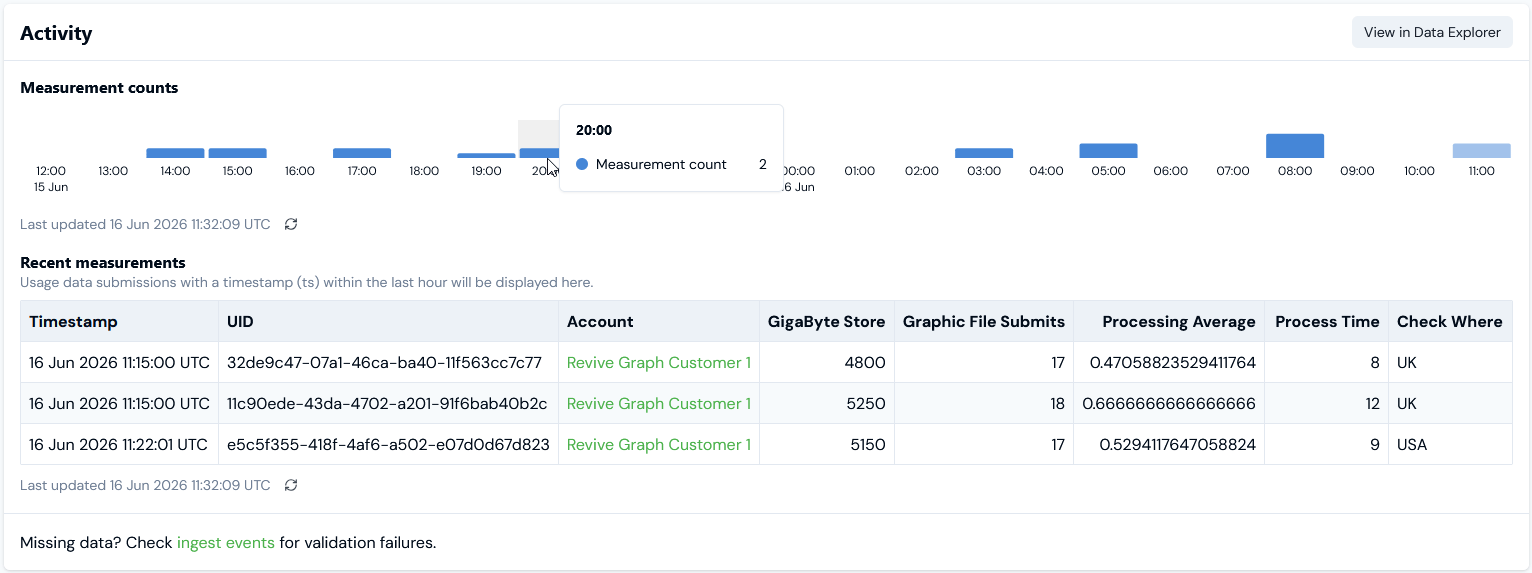
- Please see Checking Usage Data Submissions for more details.
Reviewing Meter Metadata
On the metadata panel on Meter details pages under Meter metadata you can review: Custom fields. Any Custom fields created for the Meter are listed, and you can Copy the String or Number value of a Custom Field to your clipboard:- If the fields have been created only at Organizational-level, then these values will be shown:

- If the fields have also been created for an individual Meter, then the values configured for those created at Organizational-level are struck out indicating clearly that the individual Meter values will be used:


- The External system and External table mapped to are shown - such as NetSuite - Item in the above example. The External entity ID mapped to is also shown.
- If a listed External mapping is linked to an Integration, under Linked integration a hotlink text will be shown which you can use to open the Integration.
- Under Actions, you can edit or delete the External mapping.
- If the Meter has multiple External mappings created for it, you can use Search external mappings to search by External table and External entity ID and filter the list.
- You can commence a workflow to Create external mapping for the Meter directly - see Creating and Managing External Mappings for Accounts for an example.