You can use the m3ter File Upload Service API to upload a usage data measurements data files to the platform in preparation for measurements ingest:
You can upload measurements files in JSON format and you must specify the file content type when you request an upload URL.
An upload job ID is returned with the upload URL and you can use this upload job ID for other file upload service calls to follow up and troubleshoot any issues that arise with a file upload.
Uploaded files are processed sequentially at a rate of 2,000 measurements per second. Multiple files can be uploaded concurrently or while other files are being processed. Higher processing rates are available if required.
Maximum File Size! You can upload JSON files up to 1GB in size using the File Upload service.
This topic explains how to use the file upload service API to upload a usage data measurements file, and explains which API calls you can use to troubleshoot any issues you encounter:
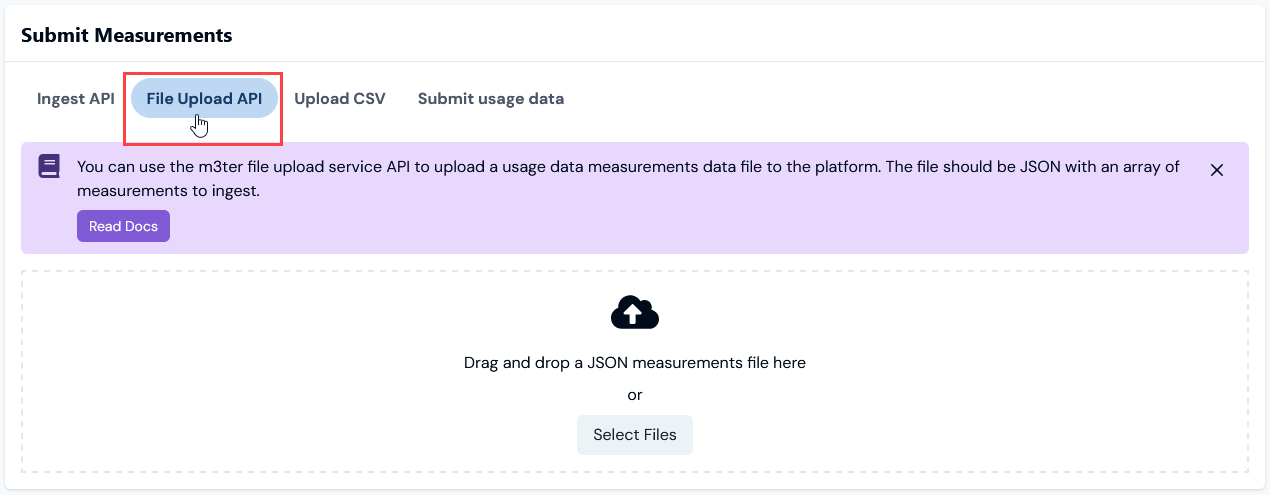
If you have prepared a JSON file for upload using the File Upload Service API, then you can open a Meter Details page in the Console and also upload the file from there:
First, obtain an upload URL from the m3ter platform by making a POST request to this endpoint:
https://api.m3ter.com/organizations/{orgId}/fileuploads/measurements/generateUploadUrlThe request body for this call should have the following structure:
The fileName and contentLength parameter values you use will be specific to the file you intend to upload. In the response, the call will return:
An upload URL, which is time limited - it is valid for one minute.
An upload job ID.
Note: Authentication with Platform. To make the POST generateUploadUrl API call, you’ll have to use a Bearer Token you’ve obtained for authentication with the platform. For more details, see Service Authentication.
Second, when you have received the response to your request for an upload URL, you can upload the data in your file using a PUT request to the returned upload URL. The binary data from the file should form the request body and the file should contain an array of measurements data. For example:
More Details? For more details on how to make the API calls referred to in this section, see the Measurements section of our API Reference documentation.
You can use two calls to obtain details of file upload jobs:
List File Upload Jobs - use this call to return a list of the file upload jobs. You can use two optional query parameters with this call - dateCreatedStart and dateCreatedEnd - to define a date range and filter the list of file upload jobs returned.
Get File Upload Job Response - use this call to get the file upload job response using the file upload job id. This returns useful information about the specific upload job, including it’s status - “notUploaded”, “running”, “failed”, or “succeeded”.
If you have prepared a usage data measurements file in JSON format ready for upload using the File Upload Service, you can perform the upload directly in the Console.
Warning: Using correct JSON format! Please review the section abovebefore you attempt to upload a usage data measurements file through the Console - an example is given of the array format required in your JSON file. If you attempt to upload a file using the incorrect JSON format, then you’ll receive an error and the upload will fail.
To upload a JSON measurements data file in the Console:
Select Metering. The Meters page opens.
Select the name hotlink text of the Meter. The Meter Details page opens.
Scroll down the page to the Submit Measurements panel.
Select the File Upload API tab:
You can perform the measurements data file upload in one of two ways:
Drag-and-drop the file into the panel.
Use Select Files to open a File Upload selection window, locate and select the file where you have it saved, and select Open.
PLEASE NOTE!
Incorrectly formatted file? If the file is incorrectly formatted for the upload, you’ll receive a FAILED error and the upload will not complete. You can check and follow-up on the error under System Alerts.
Measurements for different Meters? The usage data measurements contained in the upload file ARE NOT restricted to the specific Meter whose Meter Details page you’ve opened to perform the upload from the Submit Measurements panel - you can submit a file containing measurements for any Meters in your Organization.
Assistant
Responses are generated using AI and may contain mistakes.