Follow a worked example using a Compound Aggregation for pricing.
Suppose your SaaS company provides a “build-and-host” application service, one which allows customers to develop and run software applications and host these applications on your service:
You’ll charge customers by total number of requests made to all of their applications being hosted with your service in any given billing period.
However, you want to offer customers a sign-up bonus for the first three months of using your service. The first 100 requests made to an application they host with you are free for each billing period - for example, if a customer has 3 applications hosted with you during the first billing period, they are due 300 free requests for the first Bill.
The sign-up bonus will be generous in this sense - if a new customer reaches a maximum of 5 applications hosted in a billing period, but by the end of the billing period has taken down 2 of them, their bonus will be calculated for the maximum number of hosted applications reached in the billing period at 500 free requests.
This topic provides a worked example to illustrate how you can use a Compound Aggregation to provide a suitable metric for pricing Product Plans and easily satisfy this SaaS UBP use case - the pricing metric the Compound Aggregation provides will ensure the sign-up bonus is allowed for when billing is run for Accounts placed on the priced Product Plans.The example goes on to show how to submit some test data against a test Account and then generate a Bill for the test Account and check billed amounts against submitted usage.
Products represent a product or service that you offer to your end customers. A Meter, Aggregation, Plan Template, Plan, or Pricing typically all belong to a Product.To create a Product:
In the Console, select Products. The Products page opens.
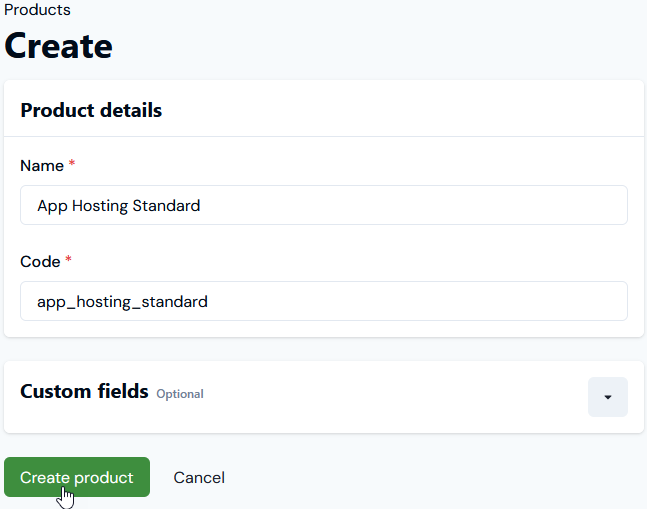
Select Create product. We’ll create a single Product called App Hosting Standard:
Select Create product.
The App Hosting Standard Product can now serve as a container for any Meters, Aggregations, Plan Templates, Plans, or Pricings we’ll need to create and configure for the example.
Meters define the Data Fields that your system will use to submit usage data to the m3ter platform:
As well as simple Data Fields, which collect raw usage data, you can define Derived Fields that reference and apply calculations to simple fields. For this example, we’ll create two Meters each with a single simple Data Field.
You can create Product-specific Meters or Global Meters. For the example, we’ll create two Meters for the App Hosting Standard Product.
To create Meters:
Select Metering. The Meters page opens.
In the Product drop-down, select App Hosting Standard.
Select Create meter.
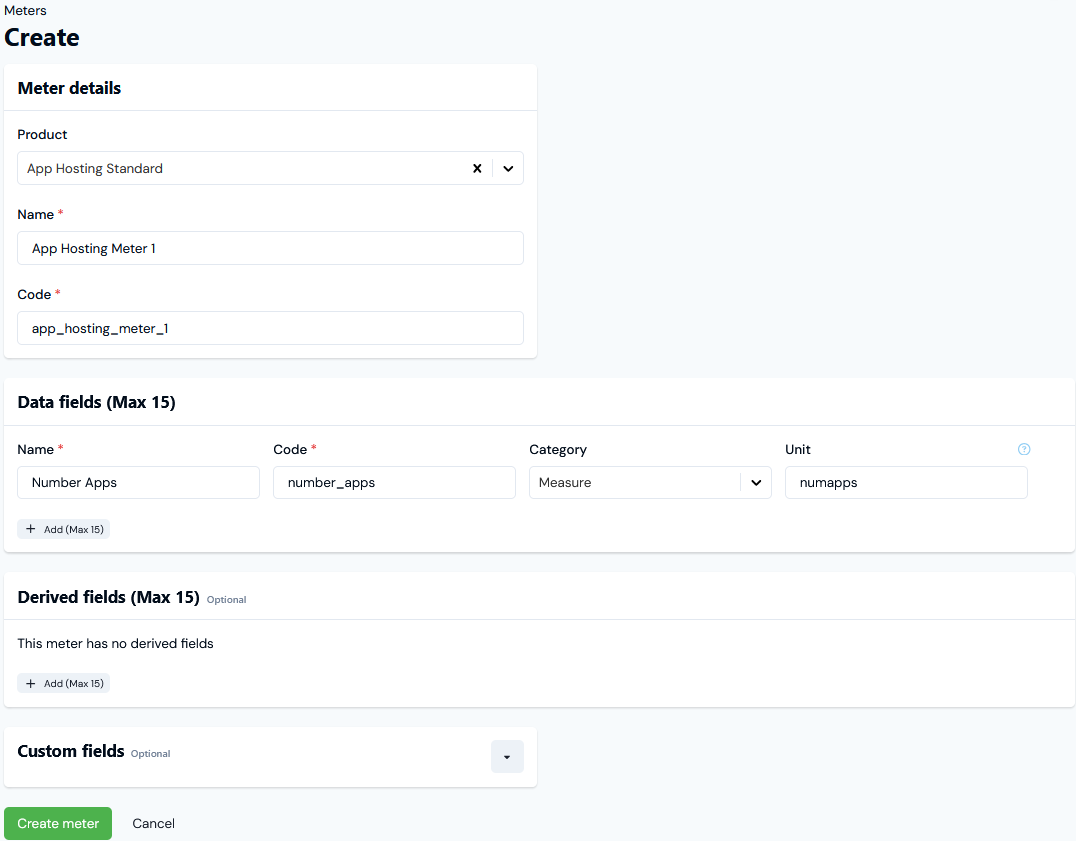
Here’s the set up for the first Meter to support the pricing model we want to use in the example:For the example, we’ve set up App Hosting Meter 1 and added the single Data Field called Number Apps to capture usage data.
Select Create meter.
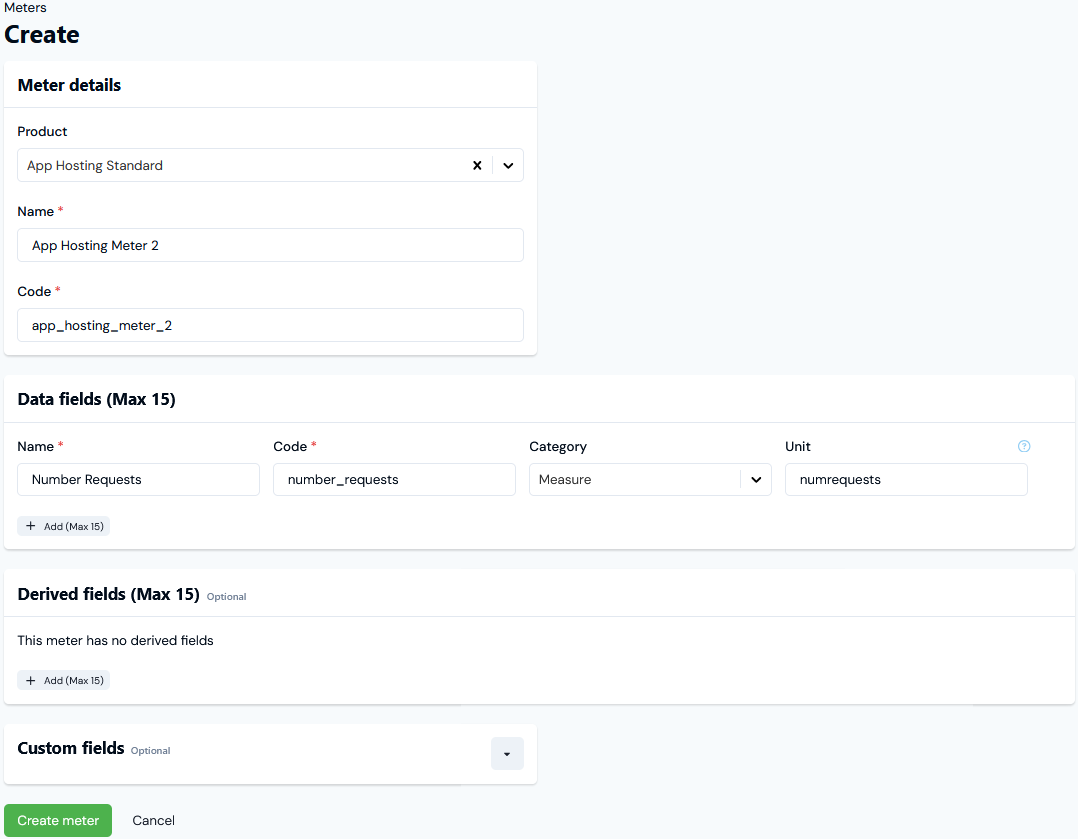
Return to the Meters pages and repeat steps 2 and 3 to set up a second Meter:
We’ve set up a second App Hosting Meter 2 and added a single Data Field called Number Requests to capture usage data.
Select Create meter.
We now have a two Meters for the example, which we can use to collect usage data on any Account that consumes the App Hosting Standard Product. This metered usage data will serve as the basis for the Compound Aggregation pricing metric we want to apply to rate Product consumption yet allow for a sign-up bonus.
Aggregations define how to transform into a single number the individual measurements submitted to a Meter Data Field as usage data. For example, you may choose to simply SUM the submitted usage data values. In this way, Aggregations define the usage-based pricing metrics you’ll use to set up pricing for your products and services.For the usage-based pricing model we want to implement in our example, we’ll need to create two simple Aggregations based on the usage data collected by our two Meters - App Hosting Meter 1 and App Hosting Meter 2. Each simple Aggregation will target a different Meter and field to define a metric:
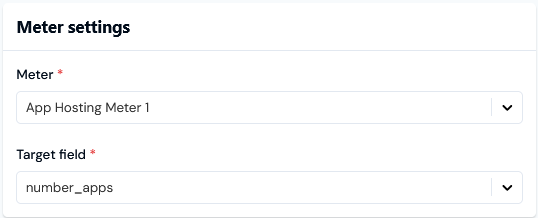
For the maximum number of hosted applications, we’ll target the Number Apps Data Field on App Hosting Meter 1.
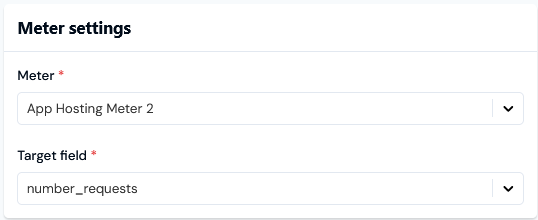
For the total number of requests made to hosted applications, we’ll target the Number Requests Data Field on App Hosting Meter 2.
We’ll then create a Compound Aggregation that references these two simple Aggregations and uses a calculation to ensure the sign-up bonus is factored into the pricing metric it provides.To create two simple Aggregations:
Select Metering>Aggregations:
The Aggregations page opens.
In the Product drop-down, select App Hosting Standard.
Select Create aggregation.
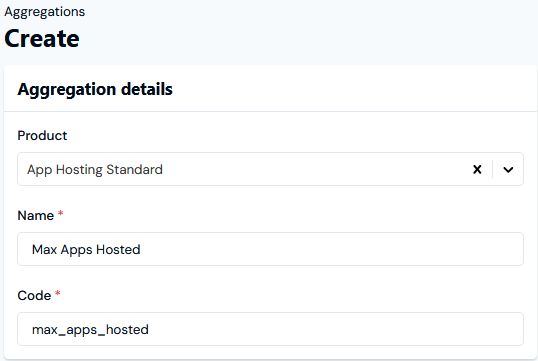
Here’s the setup for the first simple Aggregation:
Aggregation details:
Meter settings:
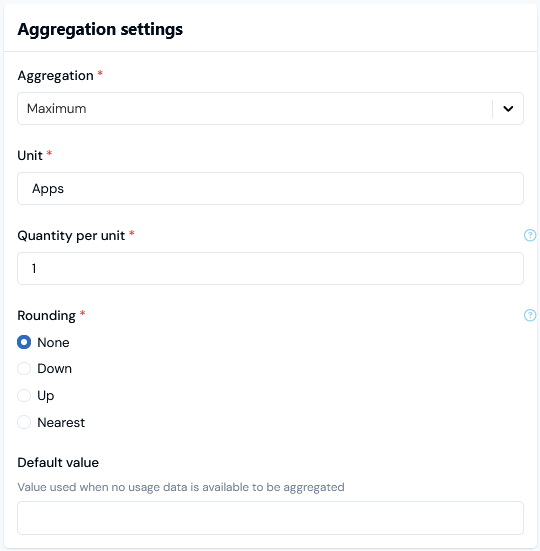
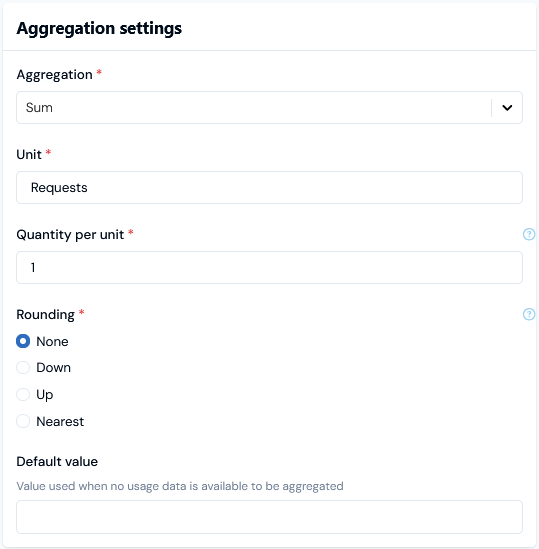
Aggregation settings:
The Max Apps Hosted Aggregation targets the Number Apps Data Field on App Hosting Meter 1 and uses the Maximum value of the field.
Select Create aggregation.
Repeat steps 3. and 4. to create a second Aggregation.
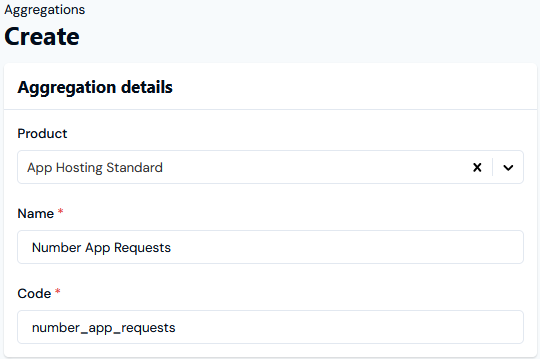
Here’s the setup for the second Aggregation:
Aggregation details:
Meter settings:
Aggregation settings:
The Number App Requests Aggregation targets the Number Requests Data Field on App Hosting Meter 2 and uses the Sum of values of the field.
Select Create aggregation.
We can now use these two simple Aggregations to set up a Compound Aggregation that provides the pricing metric we need to meet the sign-up bonus UBP use case.To create a Compound Aggregation:
Select Metering>Compound aggregations:
The Compound aggregations page opens.
In the Product drop-down, select App Hosting Standard.
Select Create compound aggregation.
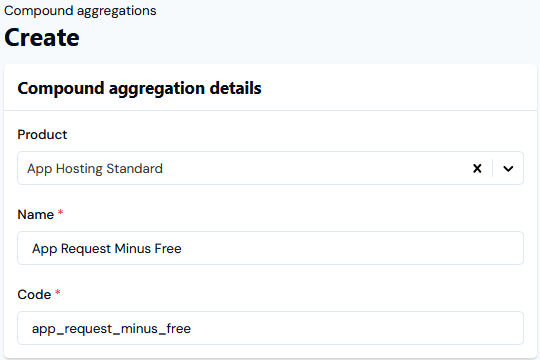
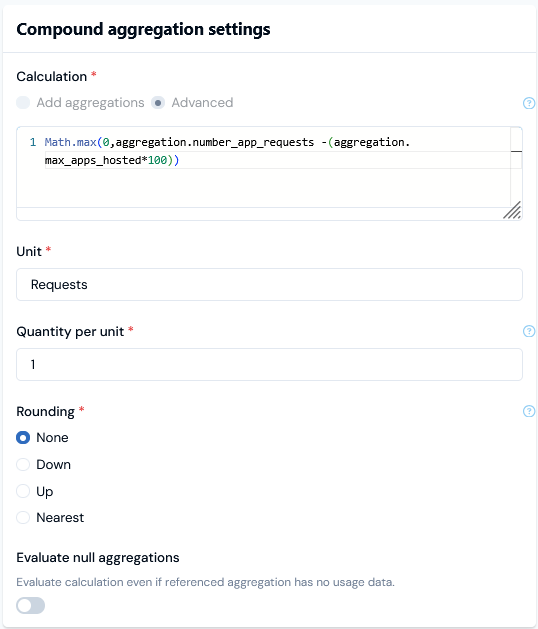
Here’s the setup for the Compound Aggregation:
Compound aggregation details:
Compound aggregation settings:
Note that for the Calculation:
We’ve switched to Advanced.
Entered a valid expression that references our two simple Aggregations using the format: aggregation.<<aggregation Code>>. The Calculation will ensure that the pricing metric the Compound Aggregation provides subtracts the appropriate numbers of requests for the promised sign-up bonus.
Plans represent a pricing plan for one of your products or services. A Plan is always derived from a Plan Template and inherits settings from the Plan Template which control billing operations, such as billing frequency and currency. You can override some of these settings when you create a Plan from a Plan Template. To meet the example requirements:
First, we’ll need a Plan Template for the App Hosting Standard Product. We’ll configure the Plan Template:
For monthly billing using a specific billing currency.
Omit any Standing charge or Minimum spend amounts to be applied for each billing period.
Second, we’ll create a Product Plan based on the Plan Template.
To create a Product Plan Template:
Select Pricing>Plan templates:
The Plan templates page opens.
In the Product drop-down, select App Hosting Standard.
Select Create plan template. The Create page opens.
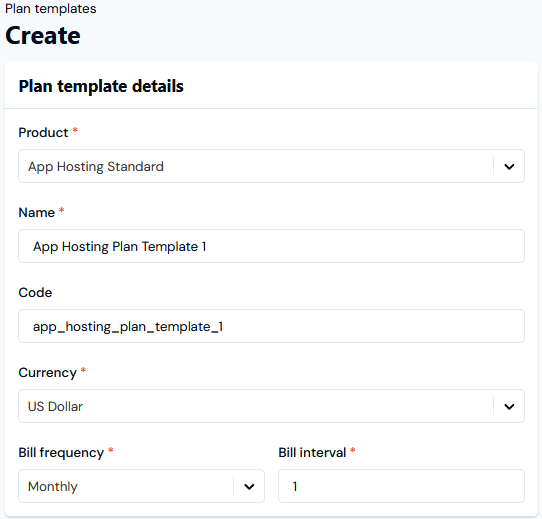
Here’s the setup for our Product Plan Template:For the App Hosting Plan Template 1 we’ve:
Chosen US dollars as the billing currency.
Note that if US Dollar doesn’t appear for selection in the Currency drop-down when you are creating your Plan Template, you’ll need to create it for your Organization:
Select Settings>Organization and open the Currencies tab.
Click Create currency and on the Create page add USD - US Dollar ($) as a Standard currency. You can define the Maximum decimal places for the currency also. Click Create - US Dollar will now be available for selection across your Organization.
Selected a monthly Bill frequency with a Bill interval of 1, which means Accounts put on the Plan will receive a Bill each month for a month’s period of usage.
Ignore the settings Standing charge and Minimum spend, which allow you to set up amounts for billing, neither of which are required for the example pricing model.
Select Create plan template. You are returned to the Plan template details page.
We can now create a Product Plan for the example based on this template.To create a Product Plan:
Select Pricing>Plans. The Plans page opens.
In the Product drop-down, select App Hosting Standard.
Select Create plan. The Create page opens.
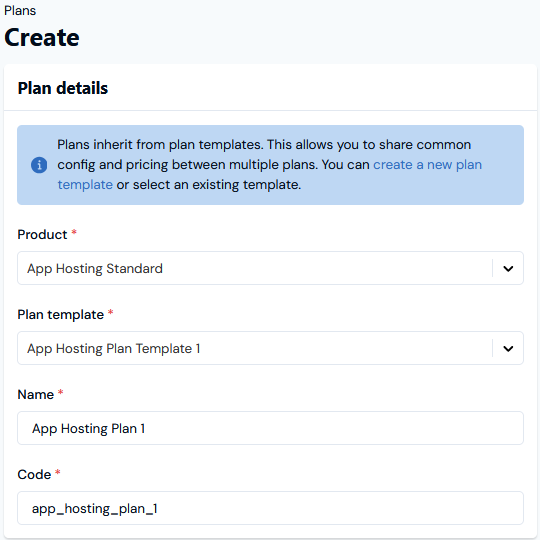
Here’s the setup for our Product Plan:
Note that no Standing charge or Minimum spend amounts are required for the example.
Select Create plan. The Plan details page opens for our new Product Plan.
We can now price this Plan using our App Requests Minus Free Compound Aggregation.
Pricing allows you to configure the cost of usage data under a specific Plan you apply to an Account, and is used to calculate bills.We can use the Pricing editor in the m3ter Console to quickly price up our Product Plan to meet the pricing requirements for the example.To price Product Plan:
Select Pricing>Pricing editor:
The Pricing editor page opens.
In the Product drop-down, select App Hosting Standard.
Select Add plans. The Select plans dialog opens and lists all Plans created for the App Hosting Standard Product.
Check App Hosting Plan 1 and select Confirm. The dialog closes and the Plan is added to the Pricingeditor page.
We’ll use the Compound Aggregation we created at Step 3 for the usage-based metric to price the Plan in accordance with the requirements set out in the example.
Click Add compound aggregations. A Select compound aggregations dialog appears and lists all Compound Aggregations created for the App Hosting Standard Product.
Note that you might also see global Compound Aggregations listed for selection. Global Compound Aggregations are not tied to any specific Product and can be used to price Plans across all Products.
On the Select compound aggregations dialog check App Requests Minus Free.
Click Confirm. The dialog closes and the selected Compound Aggregation is added to the Pricing editor page for the added Plan. You’ll see that no Active pricing has been configured for the Plan using this Compound Aggregation.
In the pricing grid, select Create Plan pricing for App Requests Minus Free. The Create pricing page opens:
You can read off details of the Compound Aggregation being used to create the pricing at the top of the page.
You can Switch to wizard to follow an alternative streamlined pricing workflow by Pricing type. For the example workflow, we’ll continue with the default advanced pricing format.
Under Pricing settings enter:
Start and End dates for the period the pricing is active for the Plan.
An Accounting product to link any Bill line items resulting from the pricing to a specific product line for your accounting purposes.
A Description that will appear for any usage charge line items on Bills, such as Requests Charges.
Ignore the Minimum spend settings, which are not required for the current example.
Under Pricing settings:
Leave the Apply as setting as the default - Debit.
Pricing type:
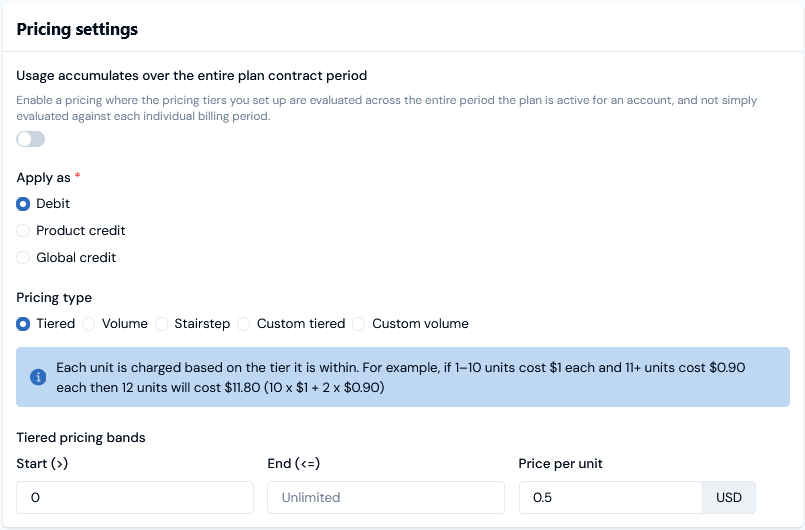
The pricing requirement was to charge at a flat rate by number of requests minus the free requests per billing period under the sign-up bonus offer. We have set things up carefully to ensure the Compound Aggregation factors in the appropriate number of free requests.
We can therefore implement this pricing, using a Tiered pricing structure with a single pricing band configured:
Ignore the Prepayment/Balance overage pricing settings. We are not setting up any Prepayments or Balances on Accounts in the current example.
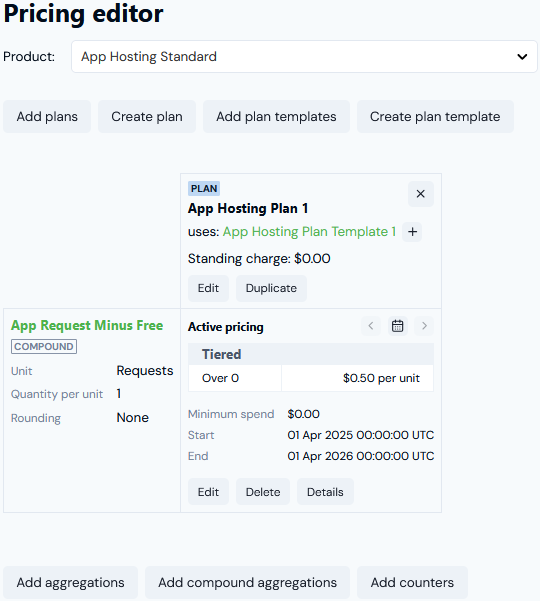
Select Create pricing. The Create pricing page closes and you are returned to the Pricing editor page:
We now have a Product Plan priced according to the pricing requirements.
Step 6: Create Test Account and Attach Priced Plan
An Account represents one of your end-customers, and contains the end-customer name and contact details:
When you attach a priced Plan to an Account, this creates a link between them to create an Account Plan. Attaching priced Plans to an Account determines the charges incurred by customers who are put on the Plan when they consume one of your Products.
For this step, we’ll create a test Account for the example and attach our priced Plan to it.To create a test Account and attach Plan:
In the main Console navigation, select Accounts. The Accounts page opens.
Select Create account. The Create page opens.
Enter the details of the new Account:
Name and Code. Required fields.
Note that when you enter a Name and click in the Code field, a default code is entered based on the name you’ve entered, which you can then edit as required.
Email Address. In addition to Name and Code, this is also a required field.
Other settings. These are optional fields, such as physical address settings, which you can add later by editing the Account.
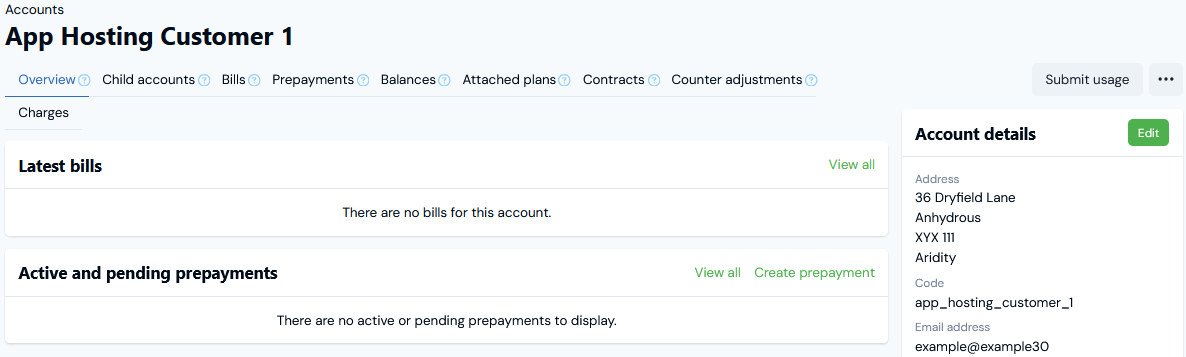
Select Create account. The Account details page for the new Account opens with the Overview tab selected:
For the worked example, we’ve created the App Hosting Customer 1 test Account.
Select the Attached plans tab.
On the Active and pending attached plans panel, select Create plan attachment. The Create page opens.
When you attach a Plan to an Account, you create an Account Plan, which lets you define the specific way in which you want the Plan to be applied to the individual Account. Note that the Account Plan you create when you attach the Plan to an Account is distinct from the Plan itself - you may want to attach the Plan to another Account but to configure the way the Plan is applied to that other Account differently.
On the Create page, leave the radio button for Plan as the default setting and enter the Plan attachment details for the Account Plan:
Use the Product drop-down to select the Product, which is App Hosting Standard for the example. The Plan drop-down selection field is enabled.
Use the Plan drop-down to select the Plan, which is App Hosting Plan 1 for the example.
Use the pop-up calendars to enter Start date and End date, which will define the period the Account Plan is active for the Account.
Ignore the Plan attachment settings - these can be left as the defaults for the current example.
Select Create plan attachment. Back on the Attached plans tab, the Account Plan is shown on the Active and pending attached plans panel:
We now have a test Account set up that will be billed according to the pricing schema we’ve configured for the Plan for any metered usage of the Product.
Step 7: Submit Data to Test Account and Check Bill
We’ll now submit some test data to our test account for App Hosting Meter 1 and App Hosting Meter 2, which will allow us to generate a Bill for the test Account and check that the usage charges on the Bill for the submitted test data are correct.
Select Accounts. On the Accounts page, select the Name hotlink text of the App Hosting Customer 1 test Account we created at Step 6. The Account details page opens with the Overview tab selected.
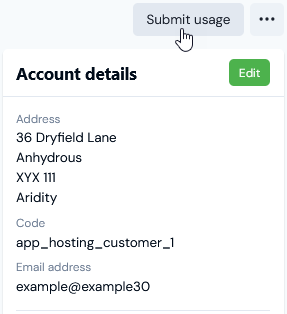
Select Submit usage:
A Submit usage data dialog appears. To submit usage data measurements for the Account, you must complete two stages using the dialog.
Under stage 1: Select a meter, use the Meter drop-down to select App Hosting Meter 1 and then select Next. The dialog adjusts to show stage 2: Define measurements and send:
Note that you can complete stage 2 using either a Simple or Advanced format, where the default is Simple.
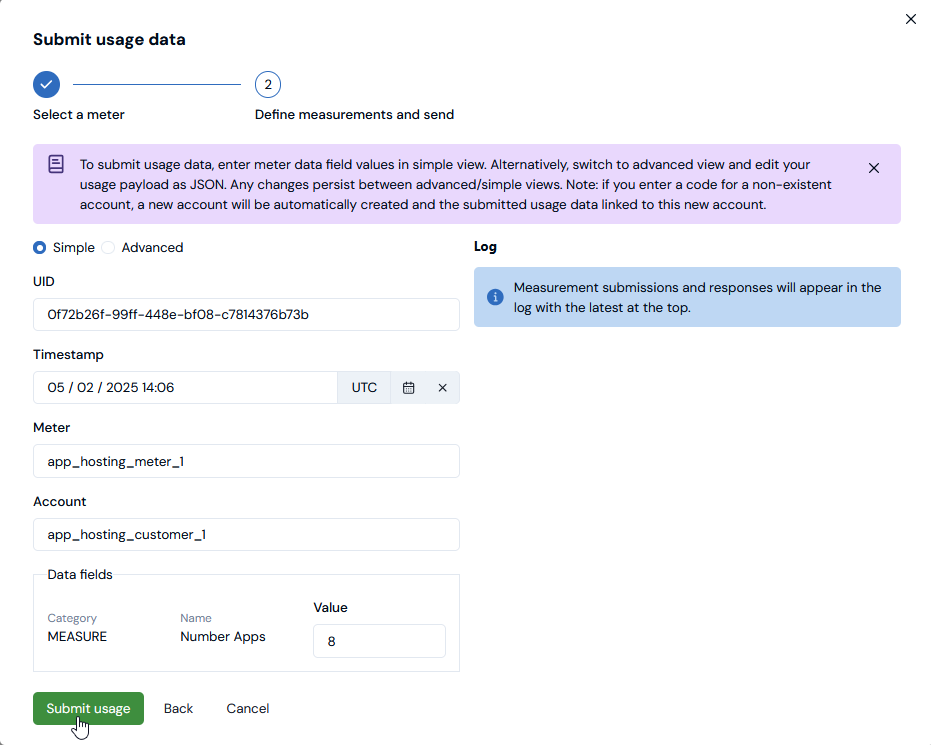
For the example, we’ll use the Simple format to submit our test usage data measurements:
UID. This field is automatically populated with a unique id for the measurement. For the example, we’ll use this as our measurement id.
Timestamp. The timestamp field is also automatically populated using the date/time the dialog was opened, and again for the example we’ll use this as the timestamp for the measurement.
Meter. The Meter Code is automatically entered.
Account. The Code of the Account we’re submitting the data measurement for is automatically entered.
Data fields. The single Data Field we set up for the Meter is shown with an empty Value field.
Enter a test data Value for the Number Apps Data Field:
Select Submit usage. If the measurement is ingested successfully, under Log you’ll see a {"result" : "accepted"} message under the Log section of the Submit usage data dialog.
Note that the Submit usage data dialog refreshes with a new measurement UID and readied for another data submission.
For the example, repeat steps 3. to 5. to submit two more measures for the App Hosting Meter 1>Number Apps Data Field:
7
5
Tip: Record the Test Data Values! Keep a record of the test Values you’ve submitted. You can then calculate manually what the respective charges should be when you generate a sample Bill for the Account.
Close the Submit usage data dialog.
Repeat Steps 2 to 7, to re-open the Submit usage data dialog, but this time select App Hosting Meter 2 and submit a series of measures for the Number Requests Data Field we set up on that Meter:
250
270
120
750
Go to the test Account details page and select the Bills tab.
On the Bills tab, select Run billing. The Run billing dialog appears.
In the example, we are using monthly billing and the test data was submitted in May 2025, so we select:
June 1st2025 for Invoice date.
Note - before running bills, it can be worth double-checking that your Organization configuration has the Month Epoch set to run Bills from the 1st of a month.
Monthly for Bill Frequency.
Select Run billing. The dialog closes and your Bill job is queued.
You can select the Running tasks button at top-right in the Console, whic:
This opens the Running tasks panel and you can follow the status of your Bill job.
When the Bill has generated, it will be listed on the Bills tab for the Account. Select the Reference hotlink text to open the Bill in Bill management.
Before checking a sample Bill we’ve generated for the Account, we can calculate manually what the cumulative usage charges should be for the usage-based pricing we’ve implemented:
Number Apps. We submitted 3 values - 8, 7, and 5 - for this Data Field and configured the Max Apps Hosted simple Aggregation to target this field and give the Maximum = 8.
Number Requests. We submitted 4 values - 250, 270, 120, and 750 - for this Data Field and configured the Number App Requests simple Aggregation to target this field and give the Sum = 1390.
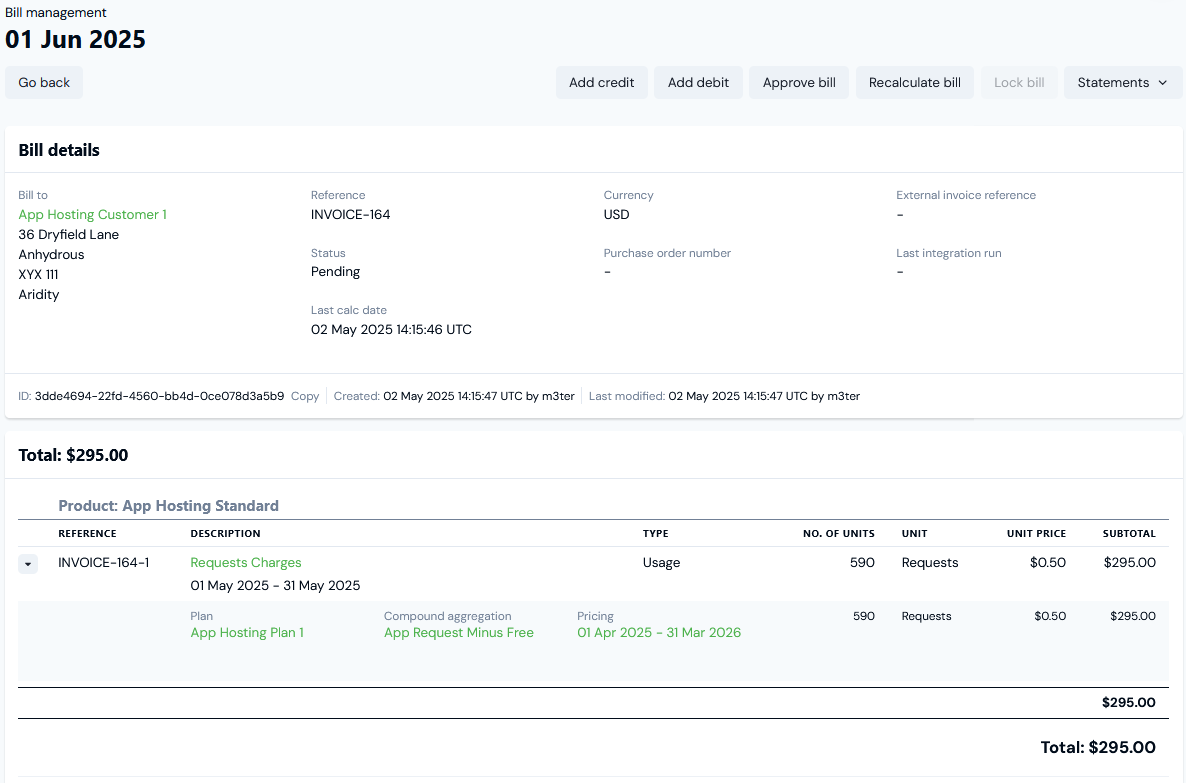
Our App Request Minus Free Compound Aggregation references these two simple Aggregations and applies a calculation to yield a value that allows for the sign-up bonus discount. For the test data this should mean the Account is charged for 1390 - (8 x 100) = 590 requests at the rate of $0.50 per request = $295.
For the example, we can see that the Bill based on test usage data we submitted has been calculated correctly in accordance with our usage-based pricing schema:Deploying to Production: Having submitted some metered test data against a test Account, generated a Bill for the Account, and confirmed that charges are in accordance with our pricing requirements for consumption of our Product, we can be comfortable deploying our usage-based pricing implementation to live production.
Tip: Billing beyond the first three months after sign-up bonus period expires? To ensure billing is adjusted from the fourth month of service forward, you can create a new Pricing for the same Plan that uses the Number App Requests simple Aggregation, and set a Start date for this Pricing at the 1st of the fourth month of service for the Account.