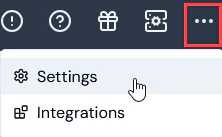
At Settings>Access in the Console, you can view Users, deactivate and reactivate them, assign permission policies to modify User access to your Organization, edit User profiles, and resend temporary password to Users:
The Settings section opens at the Organization page.
Select Access settings. The Access settings page opens with the Users tab selected. Any existing Users in your Organization are listed. For each User listed you can read-off:
Name
Email address.
Status - whether the User is currently set as ACTIVE or INACTIVE for your Organization.
Access end date - the date when the User’s access to your Organization will end.
To review a User’s Permission policies and User groups, select the Summary icon:
The User summary panel is populated for the selected User:
Tip: Users Missing? When you open the Users page, you should see all the Users you asked m3ter to set up for your Organization and any who you’ve invited and have accepted your invitation. If any are missing, please contact m3ter Support.
To view a User’s details, select their name hotlink text:
The User details page opens:From the User details panel, you can manage the User’s details:
Status:
Read-off the User’s Status - whether ACTIVE or INACTIVE.
Read-off the User’s unique ID and Copy it directly to your clipboard.
Check the User’s email address.
Audit data:
Read-off when the User was Created and Last modified.
Scroll down the page. From the User groups panel, you can add the User to User Groups you’ve set up for your Organization. See: Creating and Managing User Groups.
Select Settings>Access settings. The Access settings page opens with the Users tab selected. Any existing Users in your Organization are listed.
Select the Name text of the User you want to deactivate or reactivate. The User details page opens and you can read-off the current Status of the User - either ACTIVE or INACTIVE:
If ACTIVE, a red Deactivate user button shows, which you can use to deactivate the User.
If INACTIVE, a green Activate user button shows, which you can use to reactivate the User.
Use these Deactivate user/Reactivate user buttons appropriately to control the status of the User.
Warning - Deactivating a User does not remove User! If you deactivate a User, this does not remove them from your Organization - they remain dormant members and can be reactivated. If a deactivated User’s details are updated, then other Users in the Organization will be able to view the updated details.
Two types of Permission Policy are available for controlling User access to your Organization:
Managed. System generated Permission Policies. Two Managed Permission Policies are currently available to assign to your Users, Service Users, or User Groups:
Administrator. Read and write permissions. Can submit API calls.
ReadOnly. Read permissions only. Cannot submit API calls.
Note: You cannot edit Managed Permission Policies.
Custom. Permission Policies you create for your own Organization:
You can use the m3ter Permissions framework to create and configure Custom Permission Policies to impose precise levels of access on individual Users and User Groups.
Warning: Working with Permission Policies? Before creating Custom Permission Policies to control Users access to your Organization, we recommend that you review the Understanding, Creating, and Managing Permission Policies topic.
To add and manage Permission Policies for a User:
Select Settings>Access settings. The Access settings page opens with the Users tab selected. Any existing Users in your Organization are listed.
Select the Name text of the User whose Permission Policies you want to manage. The User details page opens.
If you want add a Permission Policy to the User, under Permission policies, select Add permission policies. A Select permission policies dialog opens.
Select the Permission Policies you want to add to the User and then select Confirm. The dialog closes and you are returned to the User details page and the selected Permission Policy shows in the Permission policies list for the User.
If you want to remove a Permission Policy for a User, select it in the list and select Remove selected. A confirmation dialog appears.