

- Example Use Case
- Configuration for Example Use Case
- Creating Segmented Aggregations
- Pricing Plans with Segmented Aggregations
- Reviewing Bills for Segmented Aggregation Pricing
- Custom Descriptions for Segmented Aggregations
- Using Copy or Cut and Paste to Create and Manage Segment Values
- Using Wildcards or Defaults in Segmented Aggregations
Example Use Case
Suppose you offer a service to companies to perform background checks on employee candidates to support their hiring process. Pricing for this service will vary by candidate location and the level of check done. The service is offered for candidate locations across three countries and you can perform three levels of background check for each location: Standard, Extended, or Complete. If you want to price differently for each possible combination of check for Country/Level, this would mean having to set up multiple Meters/Aggregations to support usage-pricing for all possible combinations. This then places the burden of deciding which Meter to use for pricing on you when sending customer usage data into the m3ter platform. For such cases, you can use Segmented Aggregations on the same Meter usage data, which means you can always send us data for the same Meter and allows a different pricing to be created for each segment.Configuration for Example Use Case
Here’s the configuration for the example.Meter
Create and configure a single Meter with three Data Fields:Aggregations
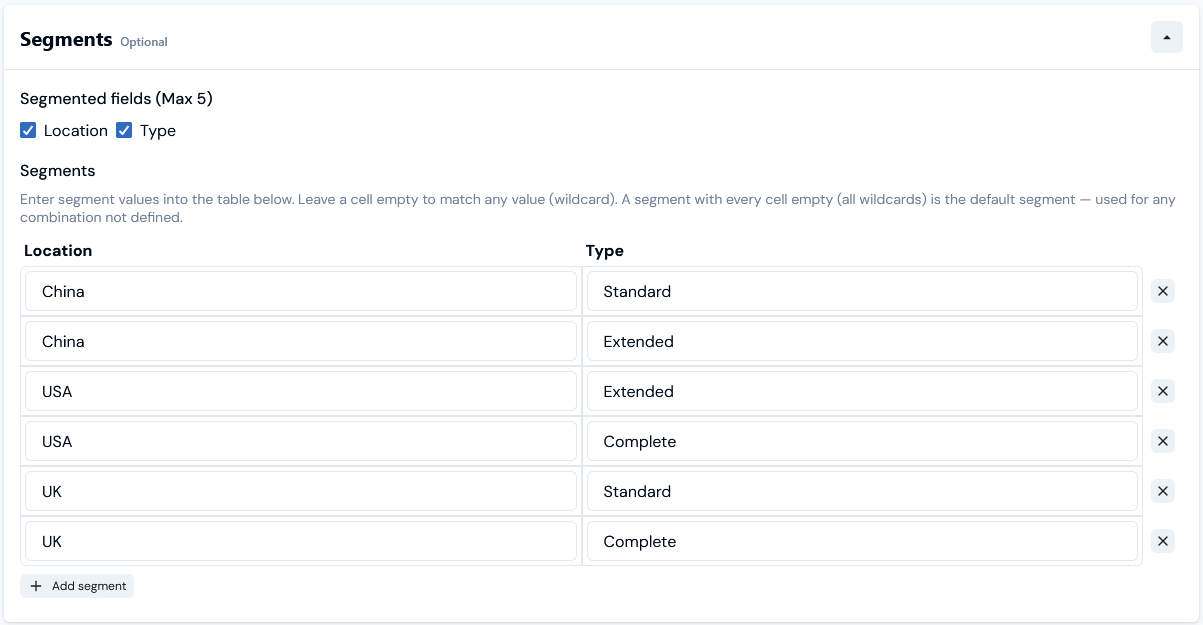
First, you can define which Meter Data Fields are part of the segmented Aggregation - for the current example, these are location and type. Second, you can then define different segmented values for the Aggregation, where for each value you want to assign a specific pricing. For the current example, let’s suppose we want to set up six segment values:Creating Segmented Aggregations
This section explains how to create a Segmented Aggregation for the example use case described in the earlier section of this topic. It’s assumed that a Meter with the required three Data Fields has been set up. To create a Segmented Aggregation:- Select Metering>Aggregations. The Aggregations page opens.
- In the Product drop-down, select the Product for which you want to create the new Segmented Aggregation.
- Select Create aggregation. The Create page opens.
- Under Aggregation details, enter a Name and Code for the new Aggregation:
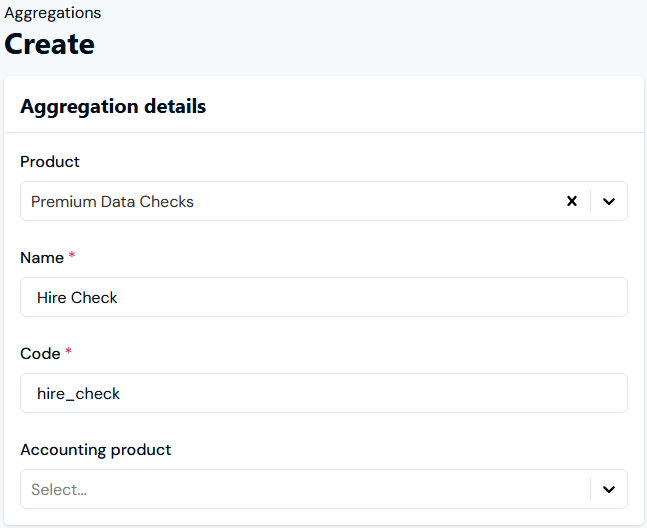
- Accounting product. Use the drop-down to select a Product. For accounting purposes, you can use this to link to a specific Product any usage line items on Bills that result from pricing a Plan using this Aggregation. (Optional)
- If you’ve also defined an Accounting product for a Pricing that uses this Aggregation, then the Pricing Accounting product takes precedence and is used.
- If no Accounting product is defined for a Pricing and you omit an Accounting product for the Aggregation, then the Product the Plan belongs to is used.
- Under Meter settings, select the Meter previously created for the example and with the required Data Fields: Location, Type, and Quantity:
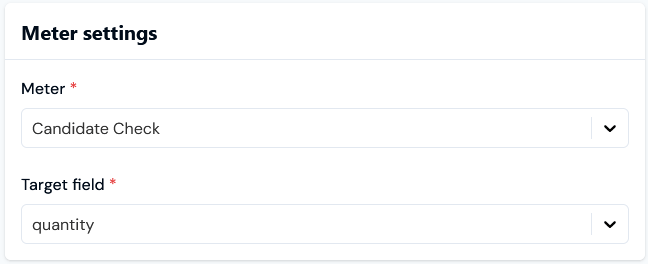
- Our Meter set up earlier is called Candidate Check.
- We’ve selected quantity as the Target Field.
- Enter the Aggregation settings:
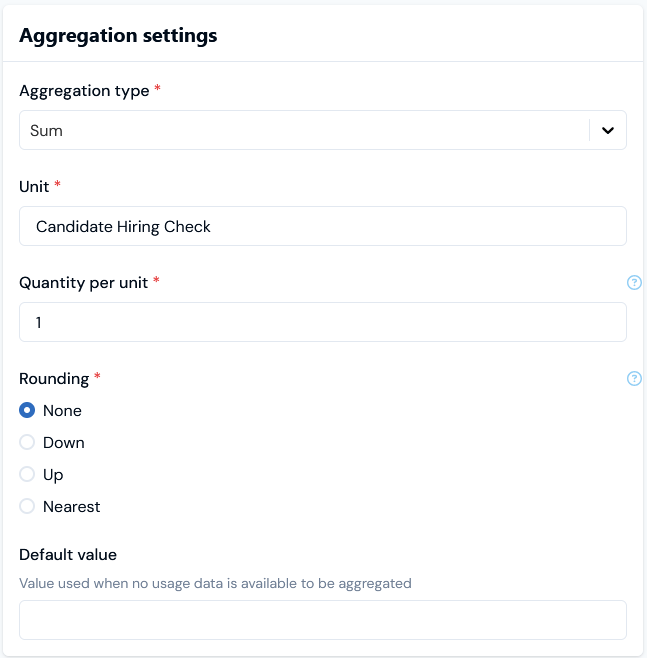
- We’ve selected to Sum the number of Candidate Hiring Checks.
- Open the Segments panel:

- Because the Candidate Check Meter has two Data Fields of the category that can be segmented - a Location>Where and a Type>What field - the Segments panel is loaded with these:
- In the Segments panel, select the Meter fields you want to use to create segments. The panel adjust to add a first blank row for the selected Meter fields:
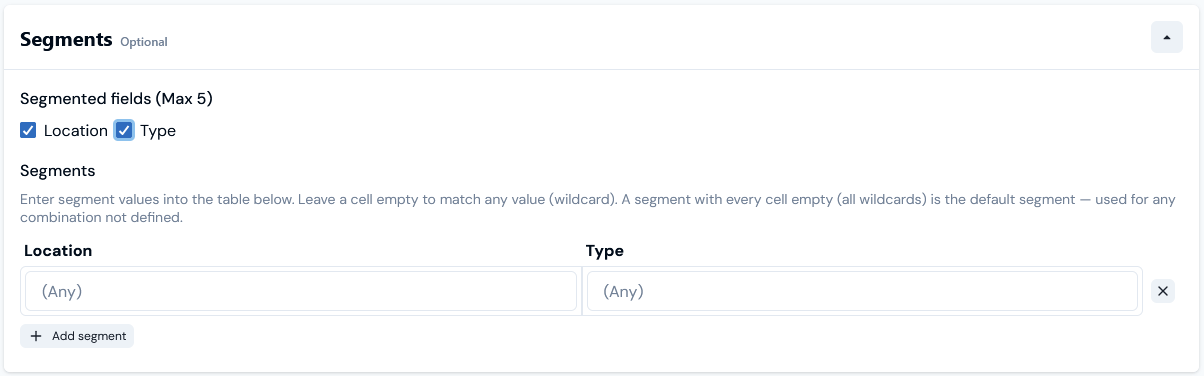
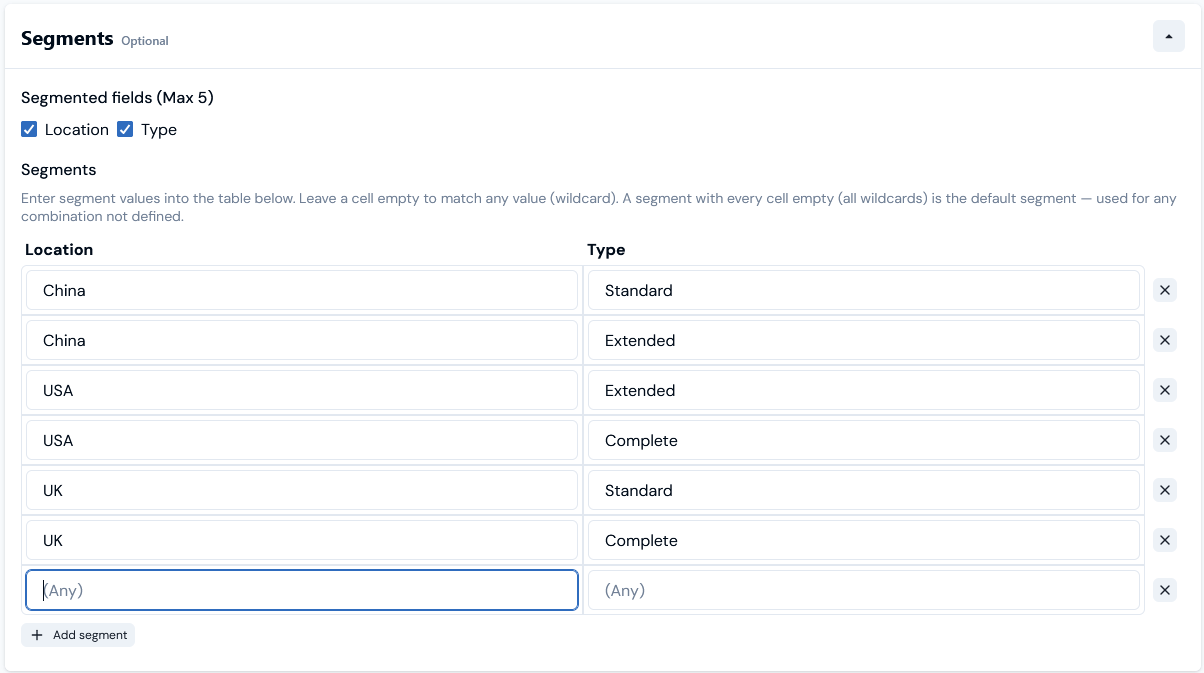
- Enter segment values for the first row and then use the Add segment button to successively add the required segments you want to price by. For the current example, we’ve added six segment values using the Location/Type Meter fields:
- Select Create aggregation. The Aggregation details page opens:
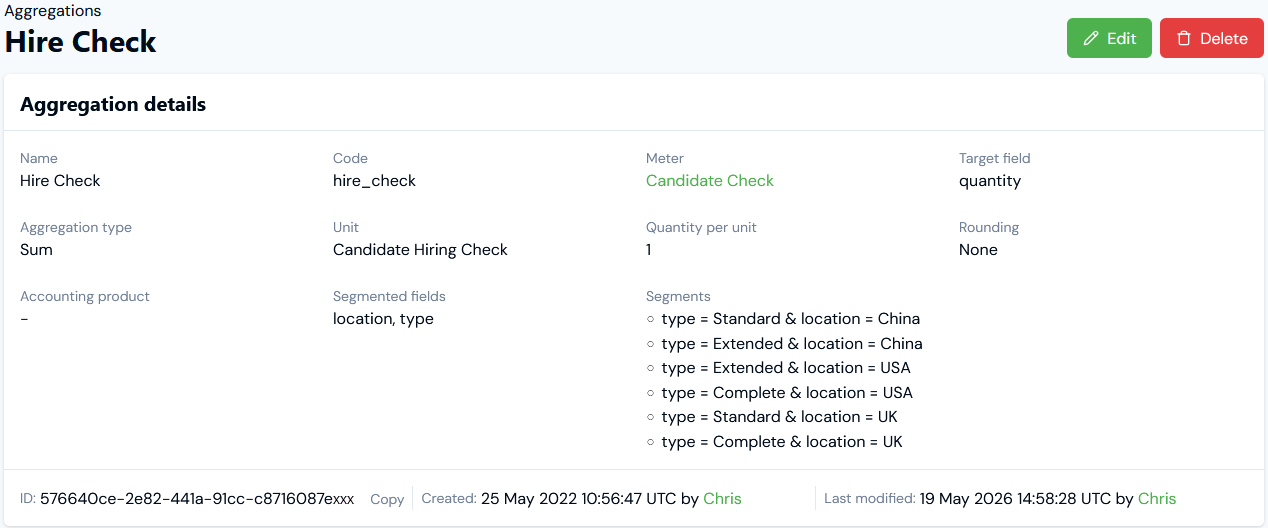
- If you want to edit an Aggregation’s details, select the Edit button, make your changes, and click Update.
- If you want to remove an Aggregation, return to the Aggregations page and select the Delete button for the Aggregation:

- Select Yes to confirm the delete action.
Pricing Plans with Segmented Aggregations
When pricing Plans you can define a pricing for each segmented value set up for an Aggregation. For more details on how to do this, see Pricing Plans Using Segmented Aggregations.Reviewing Bills for Segmented Aggregation Pricing
If you use Segmented Aggregations to price your Product Plans, then at billing one line item will be created per Aggregation segment value you’ve used for pricing and any default pricing you’ve used:- Each Bill line item shows a charge for a priced segment.
- If you do not use a segment value for pricing, then no line item for this appears on the Bill.
- Select Products>Premium Data Checks. The Product details page opens.
- Create a Plan Template for the Product configured for monthly billing in US Dollars and then create the Premium Data Check Plan based on the template. See Creating Product Entities for more details.
- Open the Plan details page for the Premium Data Check Plan and then use the Hire Check Segmented Aggregation to configure pricing for each segment.
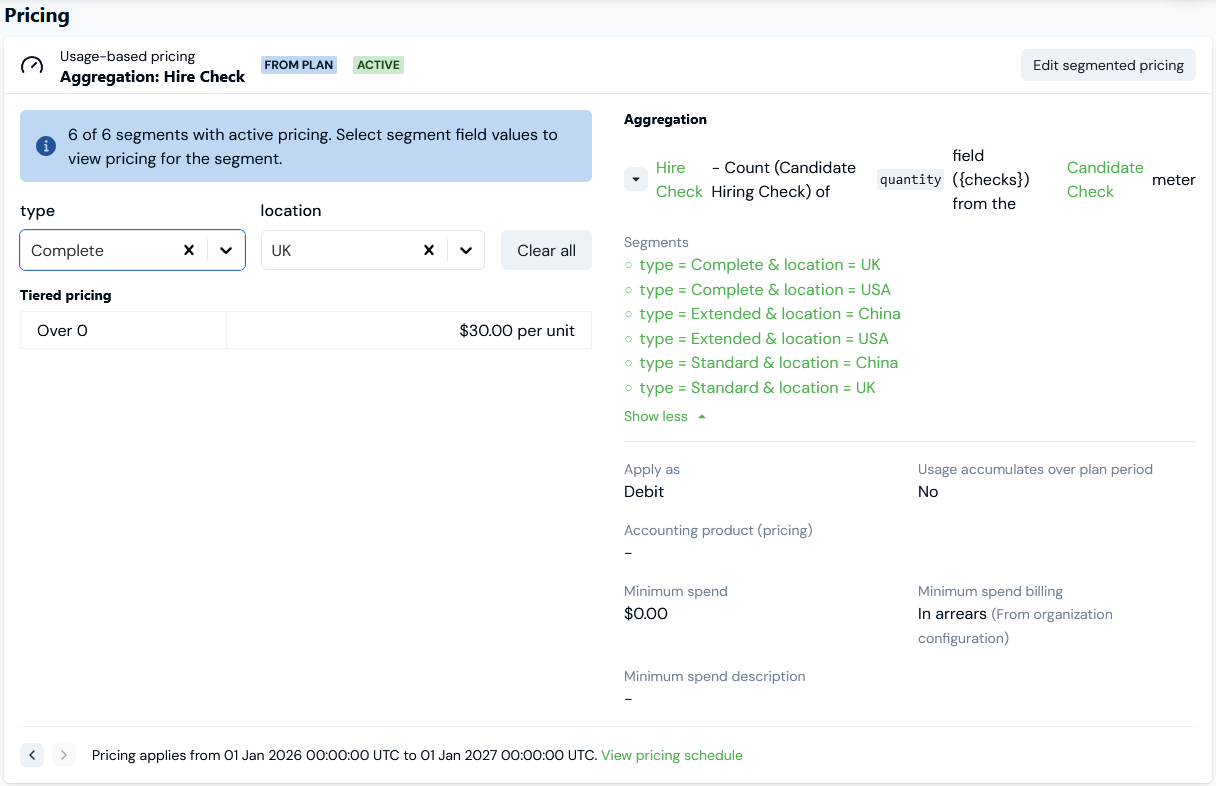
- See Pricing Plans Using Segmented Aggregations.
- For the current example, we’ve configured a flat-rate single tier pricing in US Dollars for each of the six segments defined for the Hire Check Aggregation as follows:
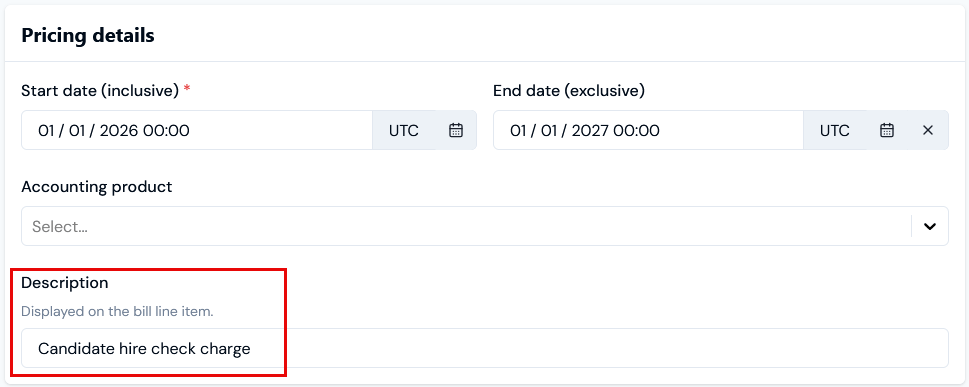
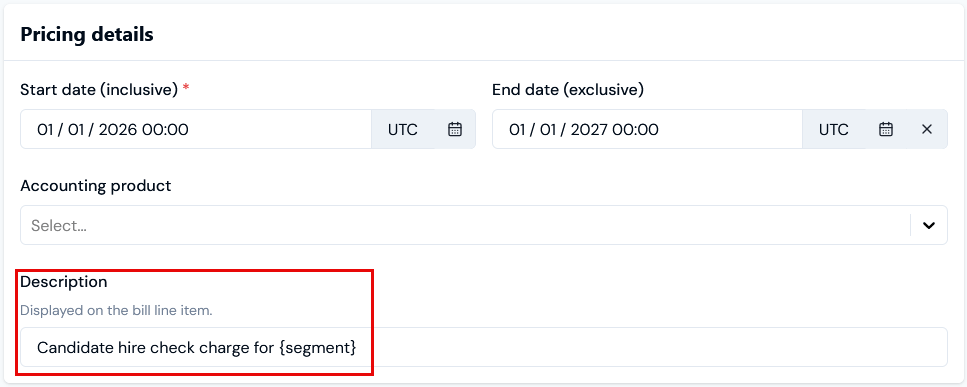
- For each segment Pricing, we’ve entered a generic description to appear on Bill line items:
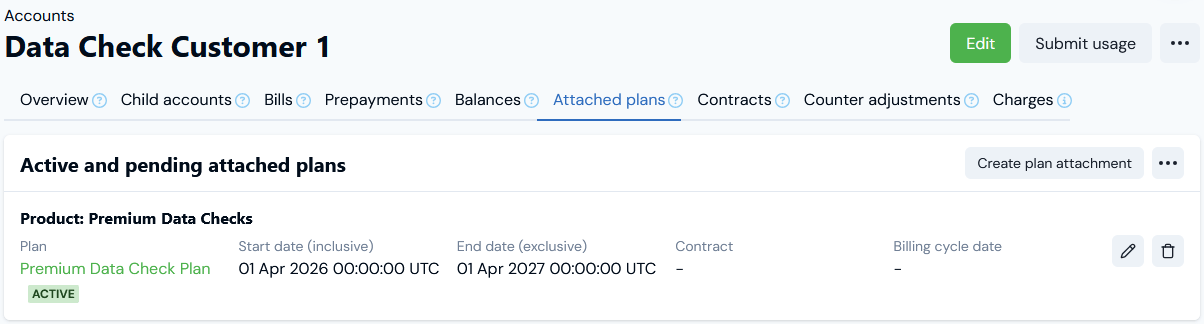
- Create a test Account and attach the Premium Data Check Plan to it. We’ve created the Data Check Customer 1 Account and attached the Plan to it:
- Select Submit usage
- On the Submit usage data modal, select Candidate Check for Step 1: Select a meter.
- For Step 2: Define measurements and send, submit a single test usage data measurement for each of the six segments we priced for the Premium Data Check Plan, and all within the same month. The correct Meter and Account fields will be preselected. For example:
- Select the Data Check Customer 1 Account Bills tab and Run billing for the month in which you made test usage data submissions. See Running Bills Manually.
- When the Bill job has completed the newly generated Bill will appear on the Bills tab. Select Bill Reference text hotlink to open the Bill:
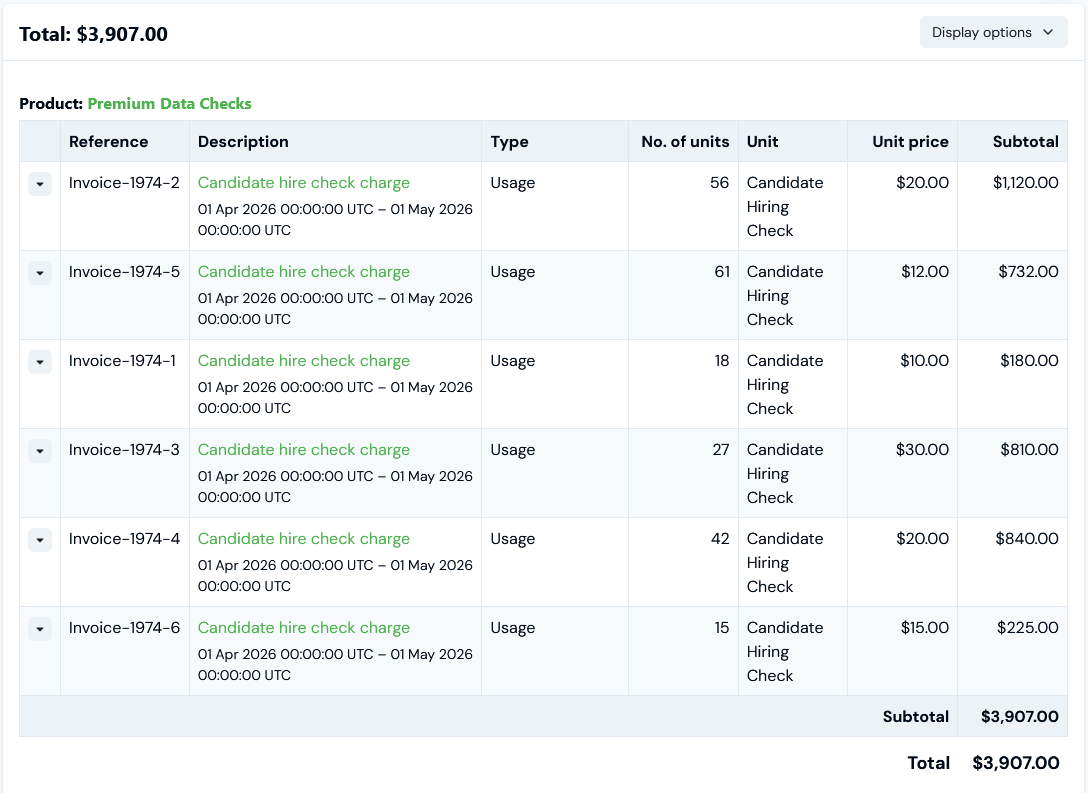
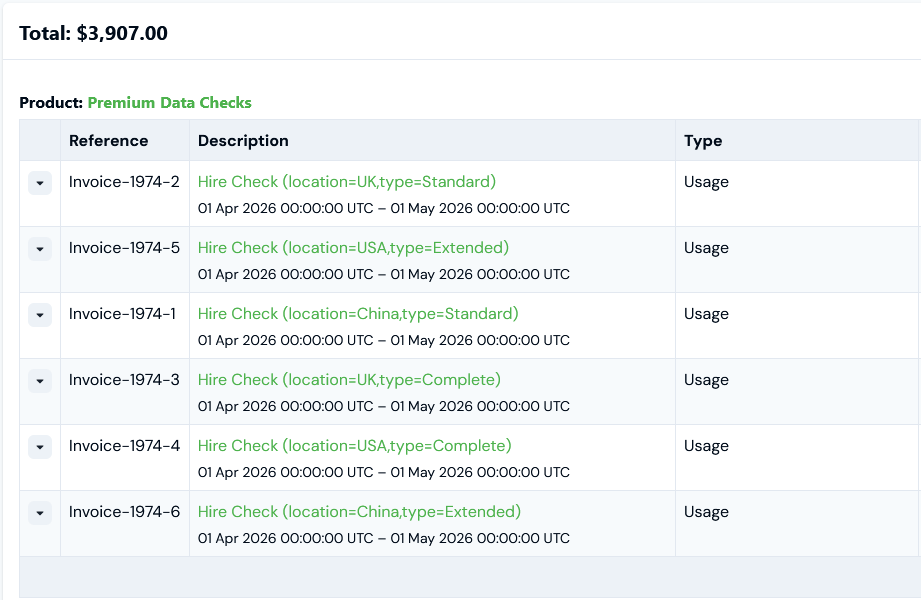
- As expected the Bill contains six line items - one for each of the priced segment values defined for the Hire Check Segmented Aggregation which we used to price the Premium Data Check Plan attached to the Account.
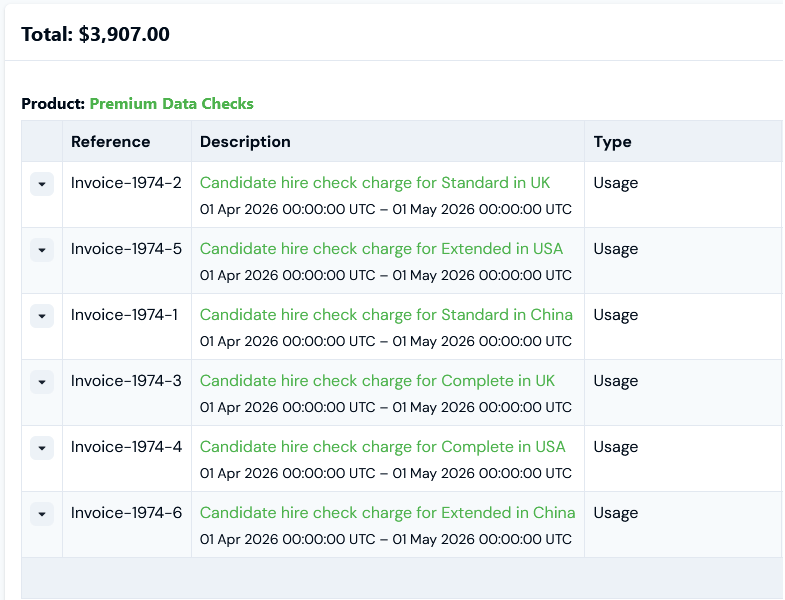
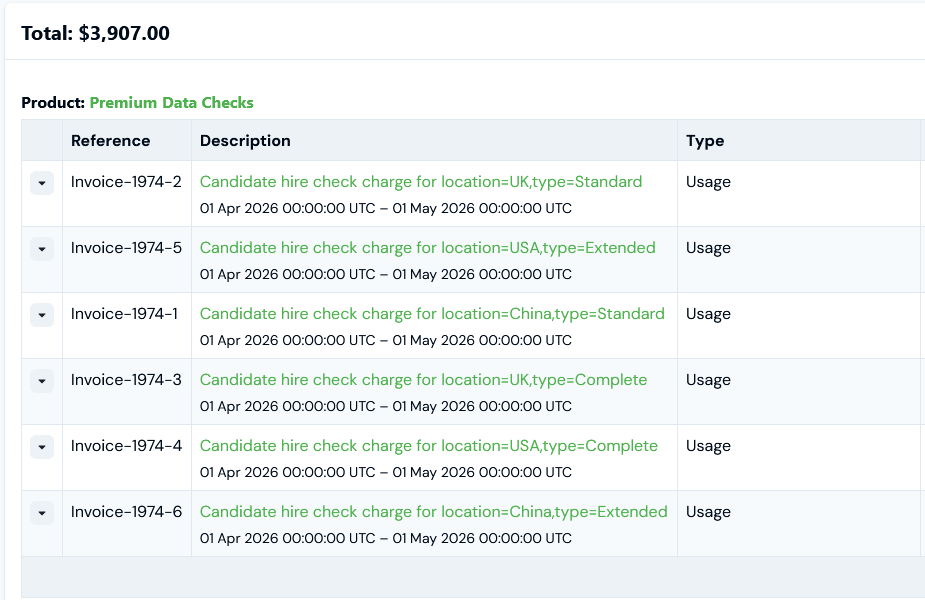
- However, the generic description we defined for each segment pricing fails to show us which particular segment value each line item applies to. You can reference the segment values in custom descriptions for segment pricing to ensure that when Bills are generated, the segment value the line item applies to can be distinguished.
Custom Descriptions for Segmented Aggregations
If you want to use custom descriptions for the line items on Bills generated when a segmented Aggregations has been used for pricing, you can use handlebar notation to reference segment values within the pricing description definition. For the example Bill we generated in the previous section, we can update each segment pricing description as follows: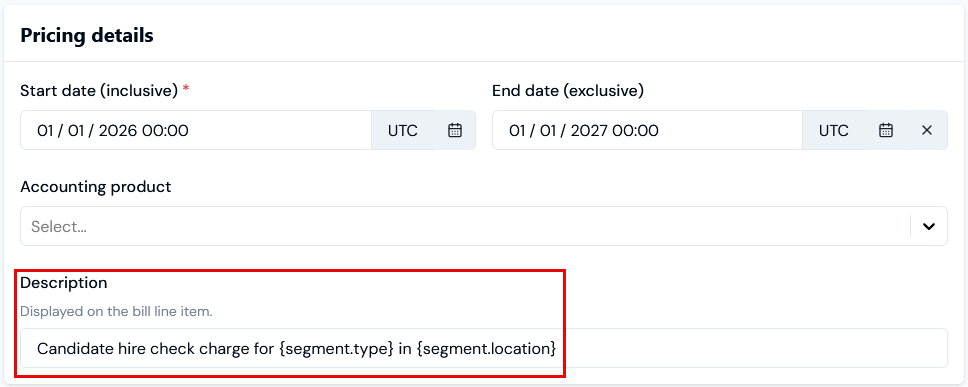
Using Copy or Cut and Paste to Create and Manage Segment Values
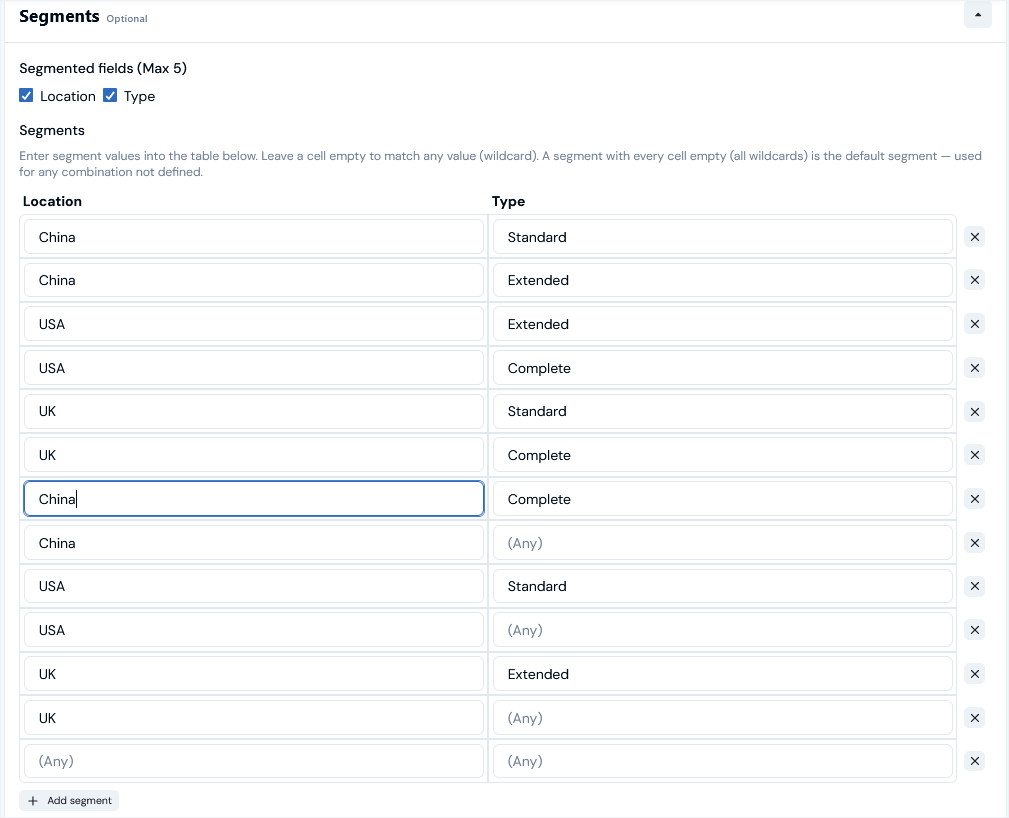
If you have a longer list of segment values to set up and manage for an Aggregation, you can copy/cut and paste values from a spreadsheet application into the Segments values grid. Suppose in the above example, you want to set up six additional segment values that you’ve already set out in a spreadsheet: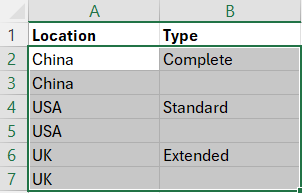
Using Wildcards or Defaults in Segmented Aggregations
You can use wildcards or defaults when setting up a Segmented Aggregation:Using Wildcards - An example
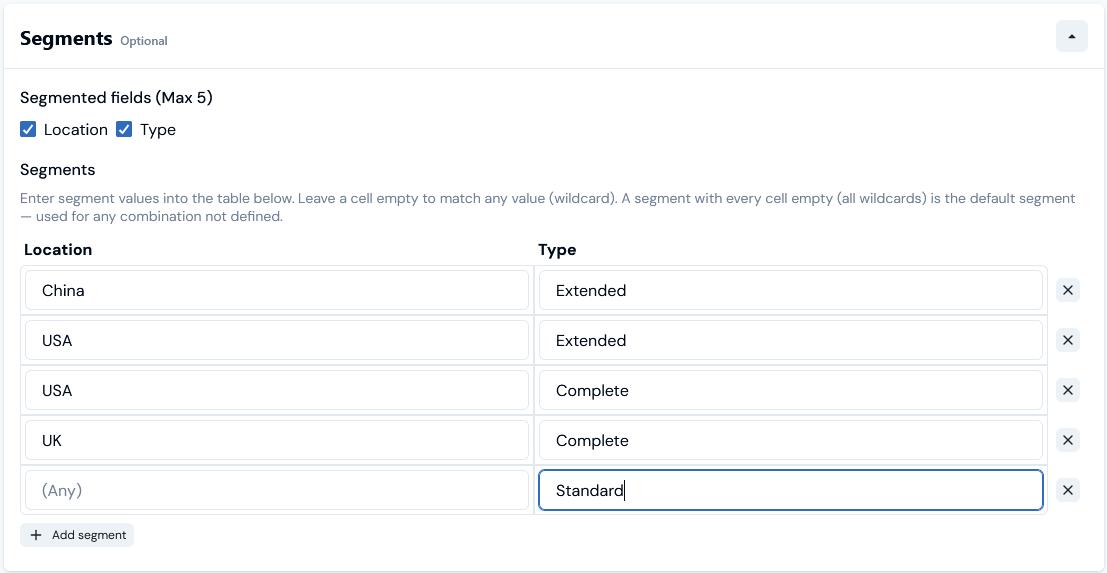
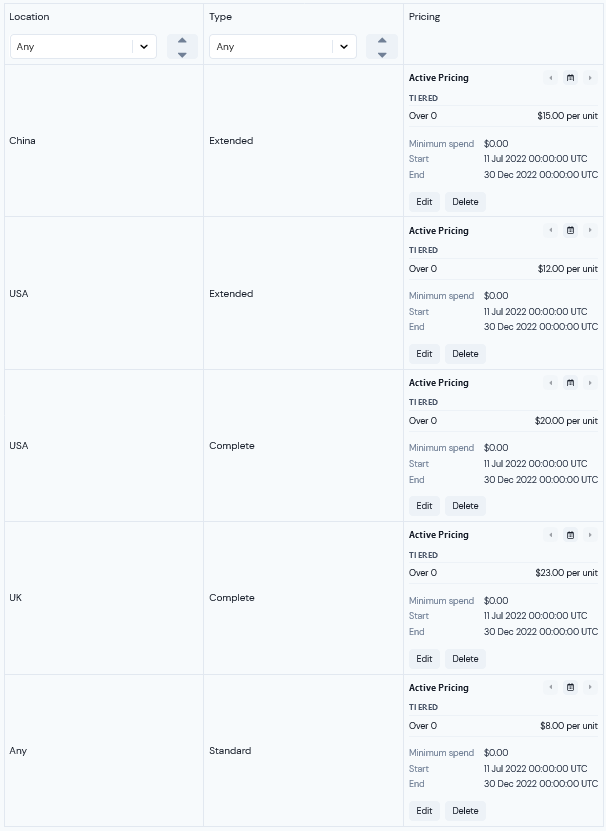
To illustrate, we can adapt the current example use case. Suppose, instead of wanting to charge a different rate for a Standard checks by Country, you want to charge the same amount as a default for a Standard level of candidate background check regardless of country of location. The schema for the segment values will now look like this:
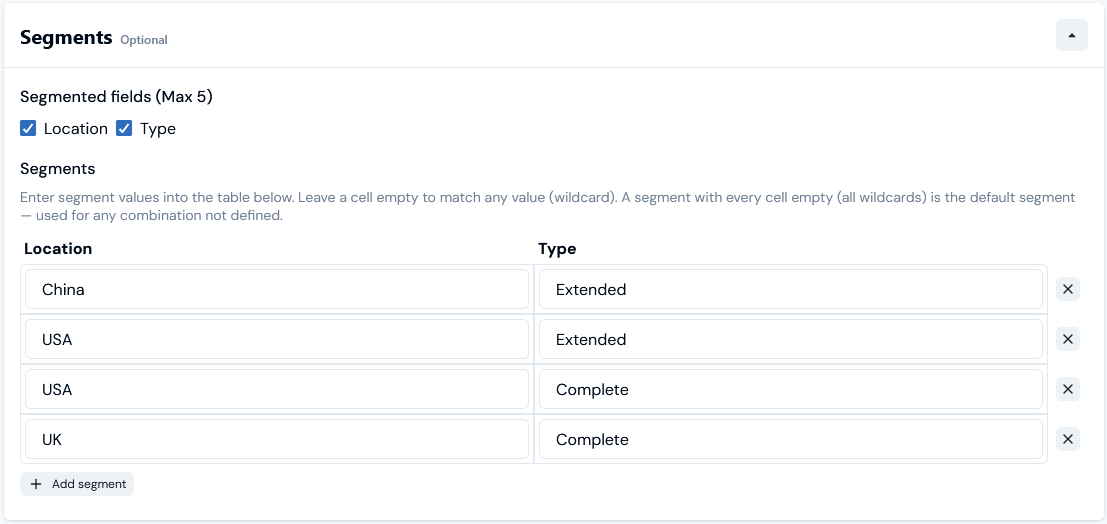
Using this schema, we can set up a second Aggregation - called Hire Check 2 (and see above) - that is segmented using the location and type fields in the following way for the required Extended or Complete level:
Using Wildcards - API Calls
If you use a Create Aggregation API call to set up a Segmented Aggregation, you can use wildcards when defining segments using the"segments" request schema parameter. For instance, if we take the example from the previous section, we can use this line in the request body of the call to define the five segment values:
"segments": [{"location" : "China", "type" : "Extended"}, {"location" : "USA", "type" : "Extended"},{"location" : "USA", "type" : "Complete"},{"location" : "UK", "type" : "Complete"}, {"type" : "Standard"}]
Note that for the last segment defined, where we want a wildcard for "location" value, we simply omit this field and only define a value for the "type".
Similarly, if we had wanted to define a double-wildcard segment for the Location/Type segmented fields, we can omit a specific value for both:
"segments": [{"location" : "China", "type" : "Extended"}, {"location" : "USA", "type" : "Extended"},{"location" : "USA", "type" : "Complete"},{"location" : "UK", "type" : "Complete"}, {}]
As another example, suppose you want to create a segmented aggregation that has only a single segmented field and you want to create a single wildcard segment. In this case, you can use the same syntax. Here’s an example request payload to illustrate:
Using Wildcards - Order of Evaluation
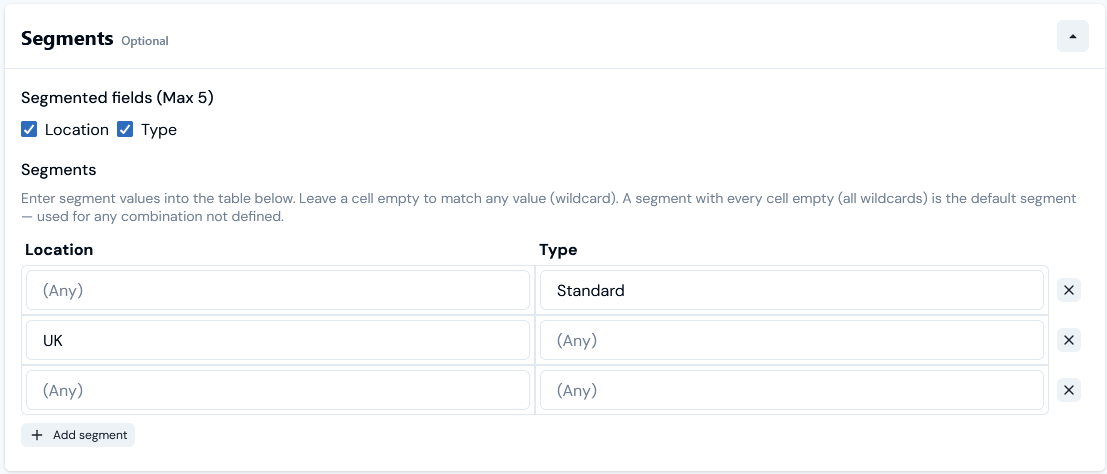
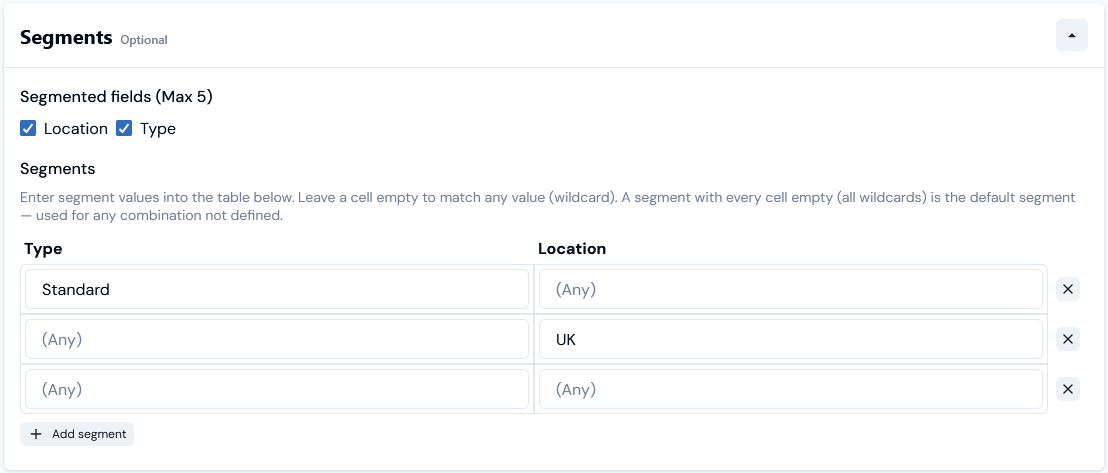
If you are using wildcards in your Segmented Aggregations, you should be clear about the order of evaluation. To understand this, we can develop the example use case for a third - Hiring Check 3 - that uses the same Candidate Check Meter for source usage data and we use the following schema for segmented values on this Aggregation using the location and type Data Fields with wildcards:
Again, we can configure the segment values when we create Hiring Check 3 to follow this schema using wildcards:
- location = UK
- type = Standard
- In this example, where the order of defined segmented fields is location then type, the data would be matched preferentially to the location value, and would be charged according to the pricing configured for the UK/(Any) segment value.
- If, however, we’d defined the segmented fields for the Aggregation in the order of type then location, the data would be matched preferentially to the type value, and would be charged according to the pricing configured for the Standard/(Any) segment value.
- location = USA
- type = Complete