

- Product
- Meter
- Plan
- Plan Template
- Account
- Account Plan
- Aggregation
- Compound Aggregation
- Contract
- You can define Custom Fields for these entities at two levels: at the Organization-wide level and at the level of individual entities:
- Note that Organization is the obvious exception.
- When you create Custom Fields at the Organization-wide level for any of the entities listed above, this allows you to set-up default Custom Field values for these entities.
- Custom Fields can be referenced in your Meter Derived Field calculations and in your Compound Aggregation calculations. Using number or string values stored in Custom Fields in this way offers you great flexibility when using those calculations to fulfill complex usage-based pricing use cases.
- For details on referencing Custom Fields in your calculations, see Referencing Custom Fields in Derived Field Calculations and Referencing Custom Fields in Compound Aggregation Calculations.
- If you want to use entity-level Custom Field values in your calculations - for example for a specific Account - you must first create a Custom Field for that entity type at Organization-level - in this example an Account Custom Field:
- This ensures a default Custom Field value exists for the entity type at the Organization-level.
- The entity-level Custom Field value will then be used for your calculation instead of the default value.
- Select Settings. The Organization page opens with the Overview tab selected.
- Select the Custom fields tab.
- On the Custom fields details panel, select Edit. The Edit page opens.
- Select Add under the entity for which you want to add Custom Fields - Organization, Product, Meter, Plan, Plan template, Account, Attached plan, Aggregation, Compound aggregation, or Contract.
- Enter a Name, select the Type, and enter the Value.
- If you want to add multiple Custom Fields, select Add again - a new row is added and you can repeat steps 4 and 5. The maximum number for any entity type at Organization-level is 25.
- Note that if you try to add two or more Custom Fields with the same name for an entity type, when you save your changes only the last one you added is saved.
- At the bottom of the page, select Update Custom fields. You are returned to the Organization>Custom fields tab the new Name/Value pair is shown under the entity in the Custom field details panel.
- If you now open the details page for an entity type you’ve created the Custom Fields for, the fields and their values will be shown on the metadata panel. For example, suppose you’ve created two Account Custom Fields at Organizational-level:
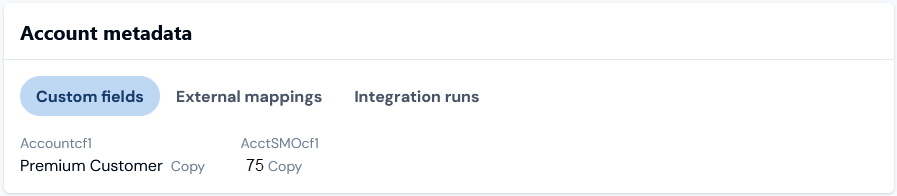
- In this example, Custom Fields have not been created at individual Account level and the default values that will be used are those configured at Organizational-level.
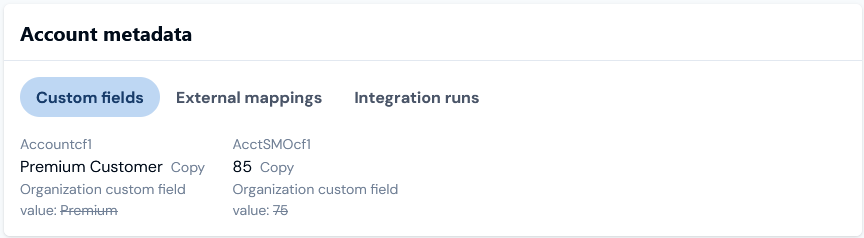
- In this example, Custom Fields have been created at the individual Account level and the values configured for those created at Organizational-level are struck out indicating clearly that the Account level values will be used.