

Note: This topic explains how to work in Plan details but the guidance given also applies for working in Plan Template details.
Reviewing Plan Details
You can use the Plan details page to review and manage a Plan’s setup:- Review specific and billing details configured for the Plan.
- Check and edit any standing charges, pricing, or minimum spends configured for a Plan.
- Add a usage-based or counter-based pricing to a Plan.
- Select Pricing>Plans. The Plans page opens.
- In the Product drop-down, select the Product the Plan you want to review belongs to. The Plans list adjusts.
- Select the Name hotlink text of the the Plan you want to review and work with. The Plan details page opens:
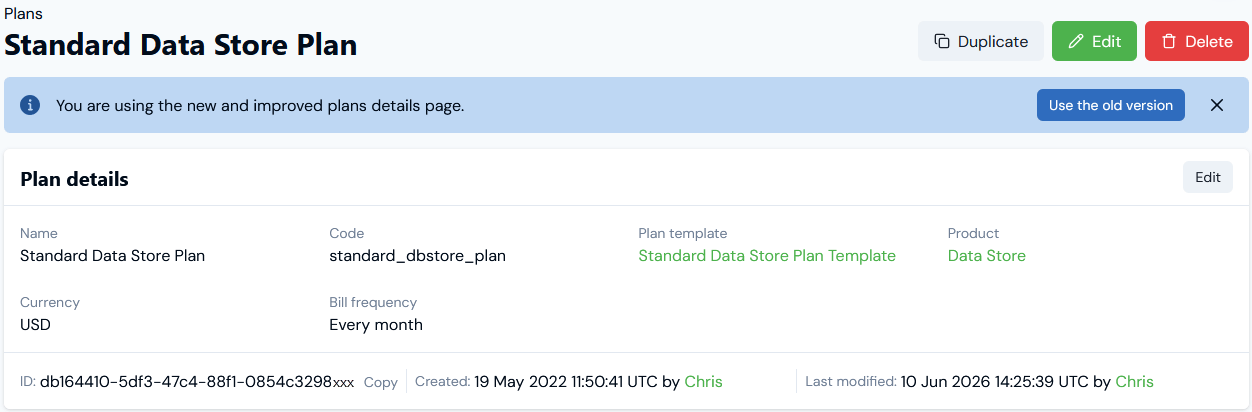
- Read-off the Plan’s Name and Code.
- Check the Currency and Bill frequency configured for the Plan.
- Use hotlink texts to open the Plan template the Plan is based on or the Product the Plan belongs to.
- Read-off which user Created and which Last modified the Plan and when.
- Check the Plan’s ID and Copy it to your clipboard.
Note: The new version of the Plan details page opens. If you prefer to work in the old version of the page, select Use the old version.
- Scroll down the Plan details page to check the Standing charge configured for the Plan:

- In this example, the Standing charge billing settings for the Plan are clearly labeled as inherited FROM PLAN TEMPLATE and you can read-off:
- Amount.
- Billed in arrears
- Interval for billing is every two Bills.
- No Accounting product is defined.
- You can select Override to edit the Standing charge if you want to define a specific Standing charge for the Plan:

- The panel adjusts to clearly label the Standing charge as FROM PLAN and the Plan template value is crossed out.
- Under Pricing, you can Add usage-based pricing or Add counter-based pricing. For example, to add usage-based pricing:

- A Select aggregations modal appears - for Aggregation type select to use either a simple Aggregation or a Compound aggregation and then select Next.
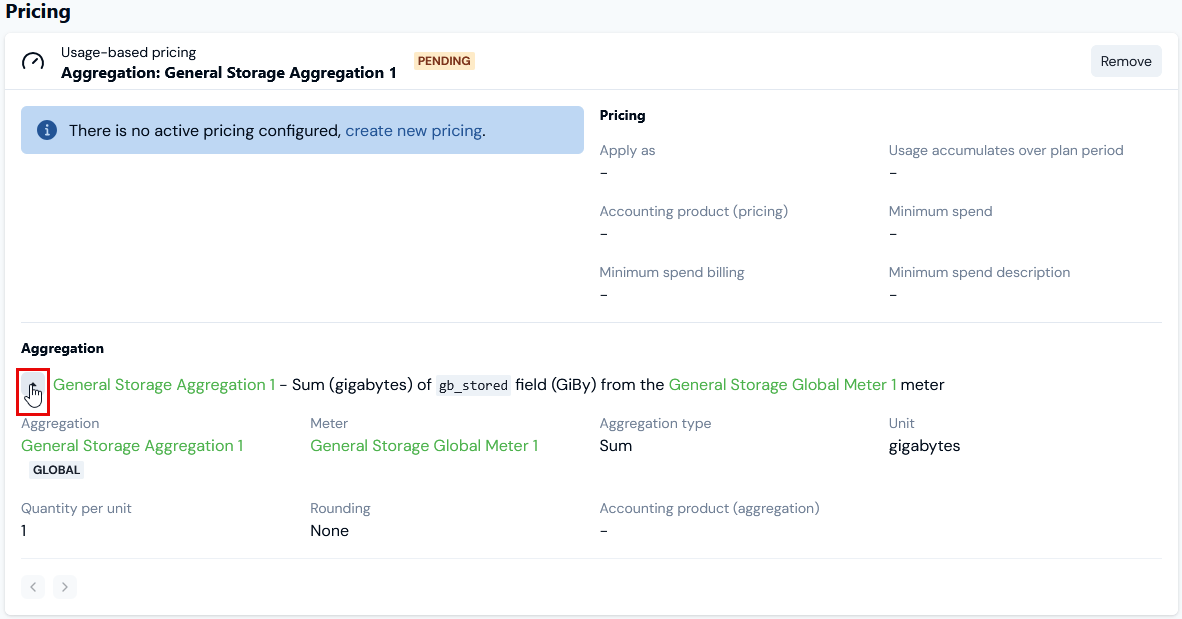
- Select the Aggregation you want to use, and then Confirm. The selected Aggregation is loaded into the Pricing panel and you can expand it to show details:
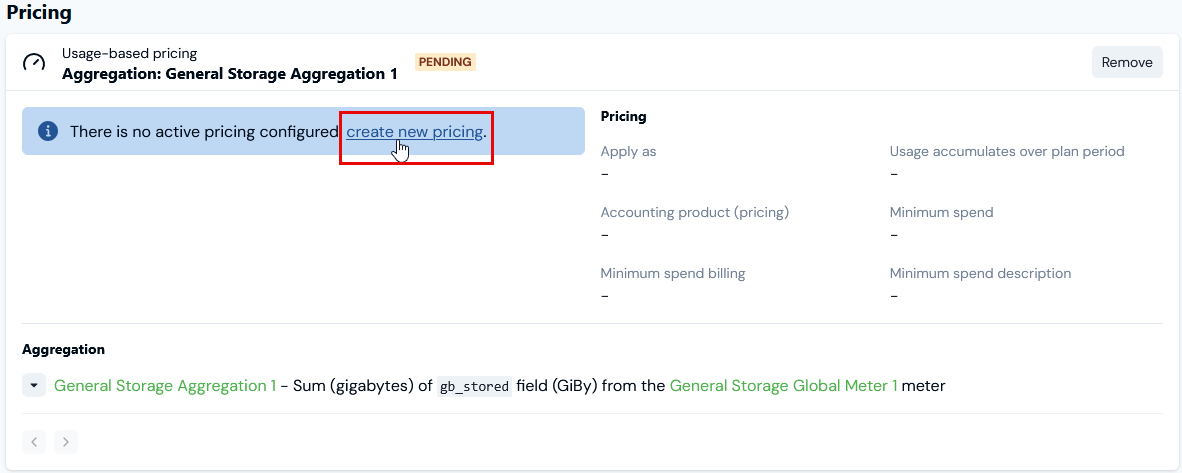
- You can then select to create new pricing:
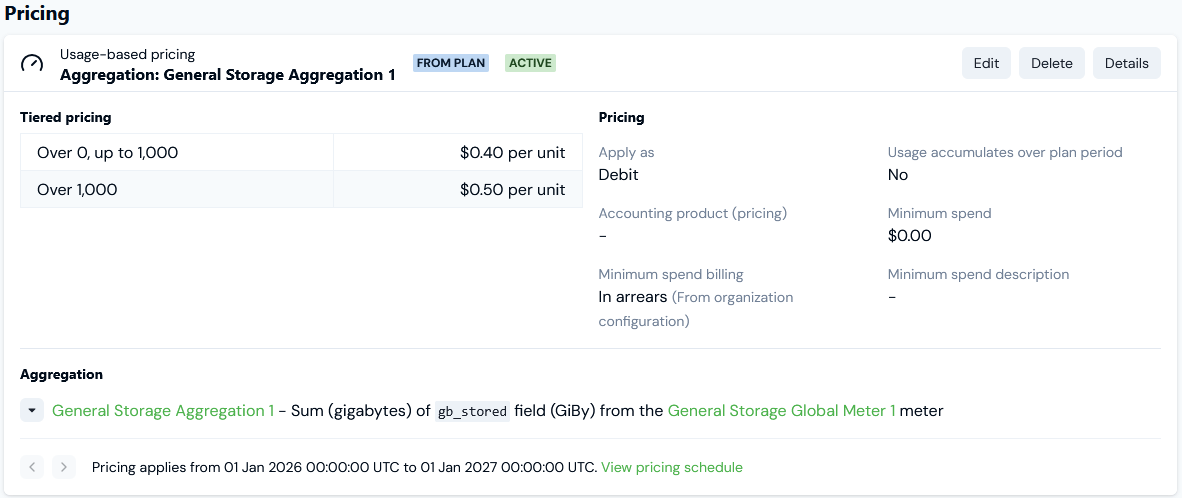
- The Pricing editor opens where you can create a pricing for the Plan - see Pricing Plans and Plan Templates. When you’ve completed pricing the Plan, you are returned to the Plan details page and the Pricing is laid out for reviewing and managing:
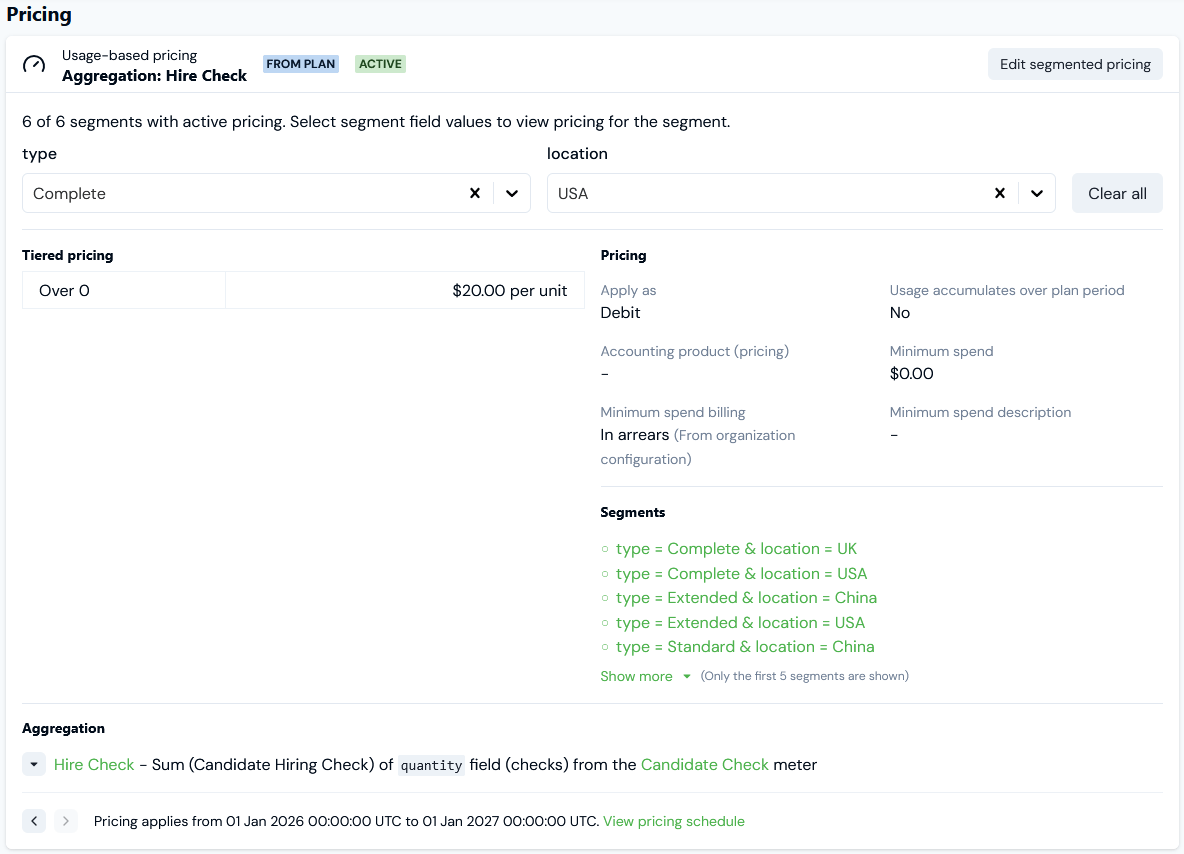
- If you’ve priced a Plan using a segmented Aggregation - see Pricing Plans Using Segmented Aggregations - you can review each individual segment’s pricing - for example:
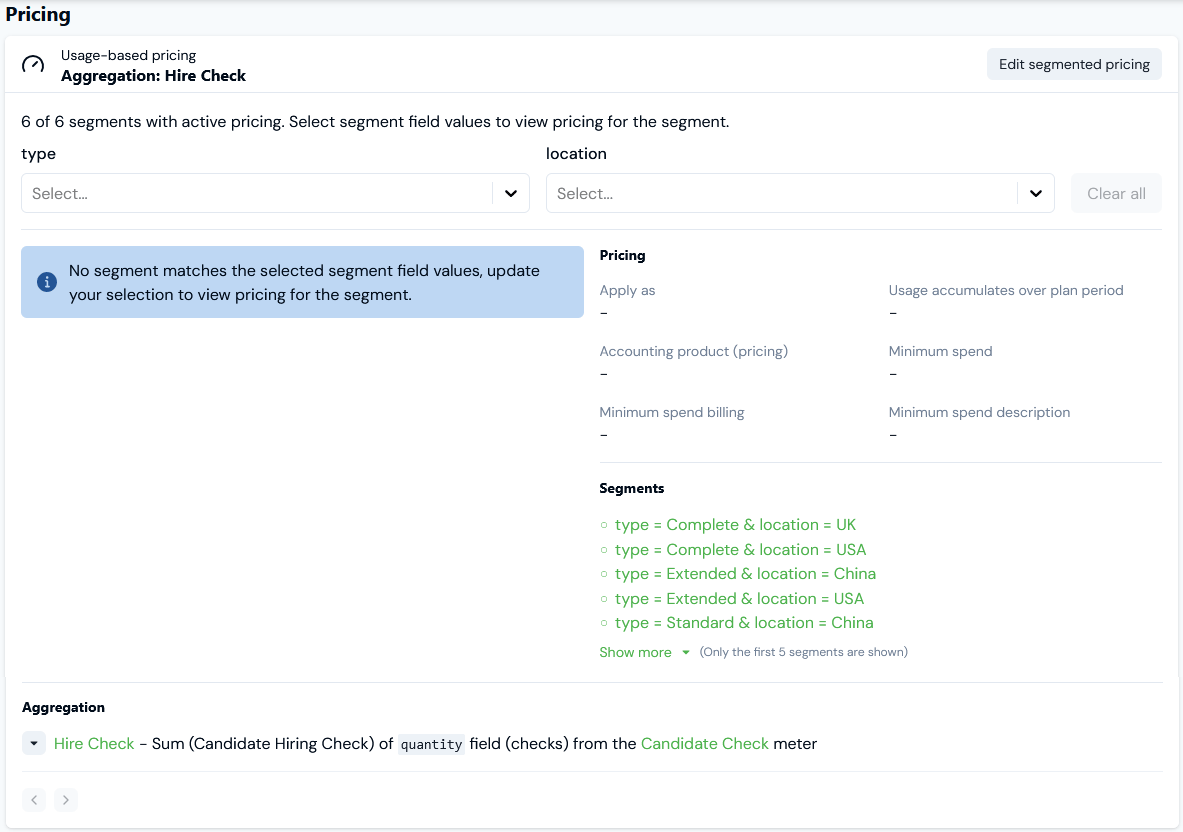
- In this example, where segments are defined by type and location fields, select the segment whose pricing you want to review:
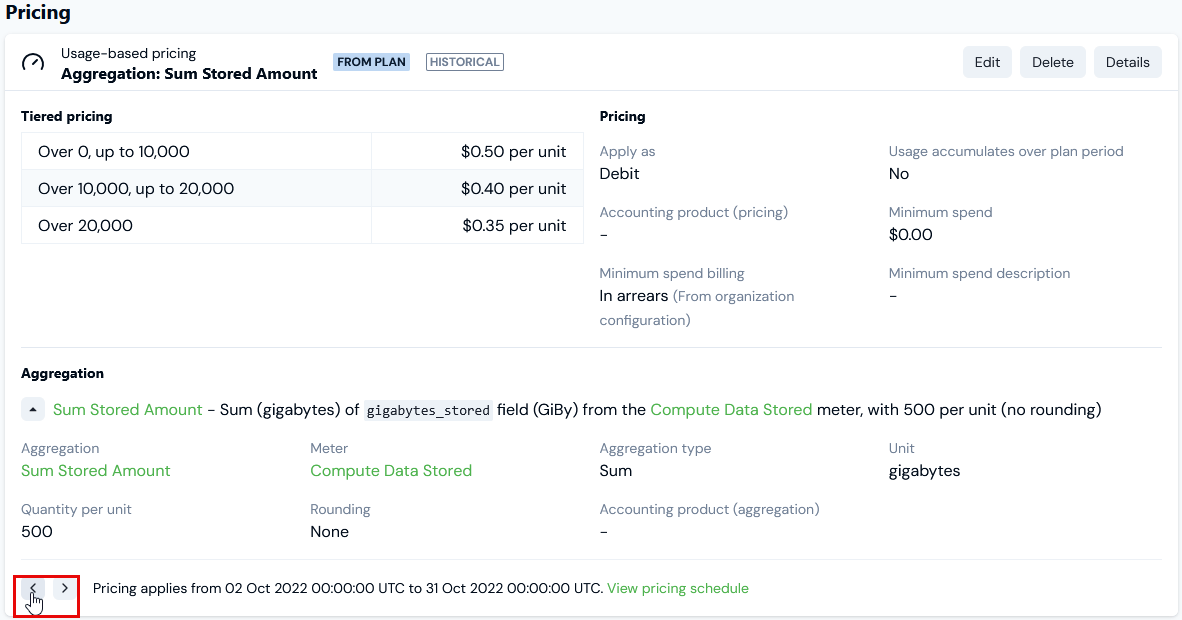
- You can view any historic or future pricing applied to a Plan using the paging arrows at the bottom of the Pricing card, for example a HISTORICAL pricing:
- Lastly, you can select the View pricing schedule hotlink to open the Pricing schedule for the Plan - see Viewing Pricing Schedule for more details.
- Scroll further down a Plan details page and under Adjustments, you can check the Product minimum spend configured for the Plan:

- You can Edit the Product minimum spend directly from this panel.
- If you want to edit the Plan’s details, select Edit at the top of the page, make your changes, and click Update plan.
Reviewing Plan Metadata
On the Plan details page, you can also review Plan metadata: Custom fields. Any Custom fields created for the Plan entity are listed, and you can Copy the String or Number value of a Custom Field to your clipboard:- If the fields have been created only at Organizational-level, these values will be shown:

- If the fields have also been created for an individual Plan, then the values configured for those created at Organizational-level are struck out indicating clearly that the individual Plan’s values will be used:


- The External system and External table mapped to are shown - such as NetSuite - Item in the above example. The External entity ID mapped to is also shown.
- If a listed External mapping is linked to an Integration, under Linked integration a hotlink text will be shown which you can use to open the Integration.
- Under Actions, you can edit or delete the External mapping.
- If the Plan has multiple External mappings created for it, you can use Search external mappings to search by External table and External entity ID and filter the list.
- You can commence a workflow to Create external mapping for the Plan directly - see Creating and Managing External Mappings for Accounts for an example.
Duplicating Plans and Plan Templates
You might require a Plan or Plan Template similar to one you’ve already set up:- You are planning to offer your customers a new Product line - for example a new premium service as an optional upgrade to your current standard Product service - and you expect the billing set up and pricing structure for this new Product line to be similar to the existing standard service Product offering.
- A customer is coming up for renewal of contract and their existing Product Plan is about to expire. You have agreed a slightly different Product pricing structure for their next service period.
Notes:
- Duplicating Plan Templates? This section explains how to duplicate an existing Plan from the Plan details page. You can duplicate an existing Plan Template from the Plan Template details page in the same way.
- Duplicating from the Pricing Editor! You can also duplicate Plans and Plan Templates you’ve priced from the Pricing Editor. See Duplicating Priced Plans and Plan Templates.
- Select Pricing>Plans. The Plans page opens.
- Search for and then select the Name hotlink text of the Plan you want to duplicate. The Plan details page opens:
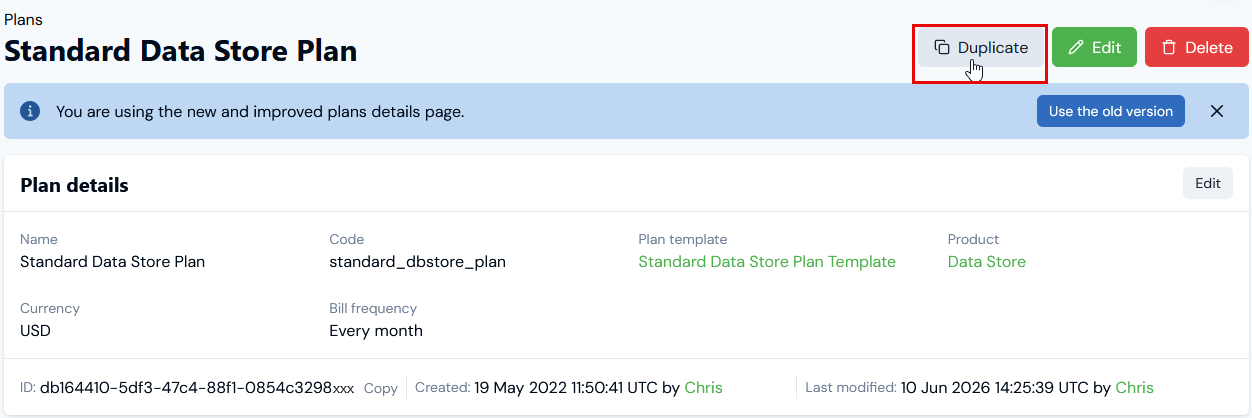
- Select Duplicate. A Duplicate plan popup appears:
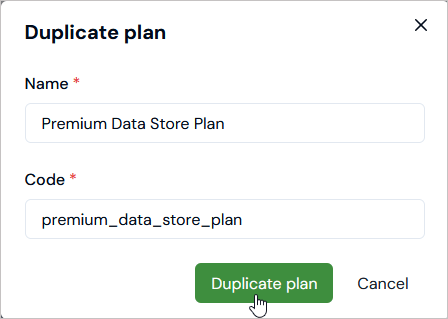
- Enter the Name and Code you want for the new duplicate Plan.
- Select Duplicate plan. The popup closes, a message shows to confirm Plan duplication, and the Plan details page for the new Plan opens:
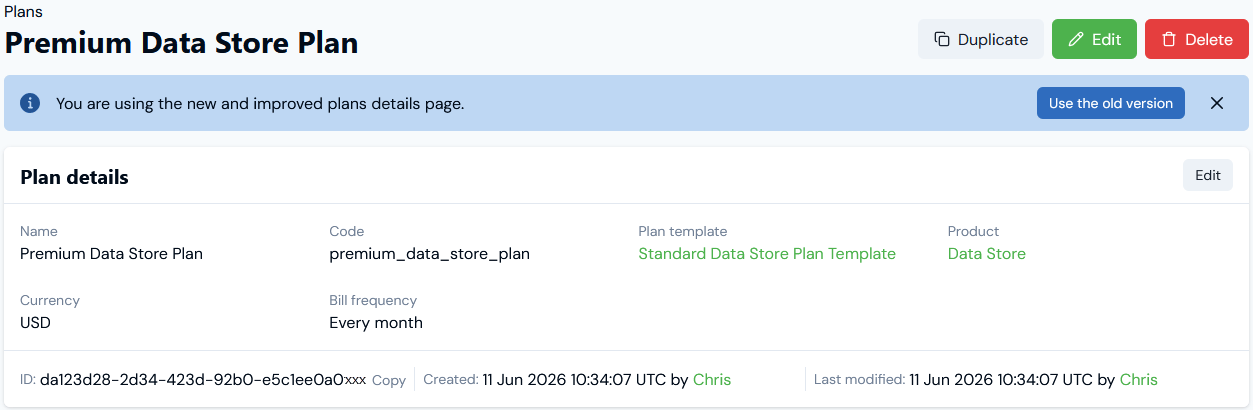
- Uses the same Plan Template as the original.
- Inherits the pricing structure of the original and you can now edit the duplicate Plan and its pricing as required. See Managing and Editing Priced Plans and Plan Templates.