

- Example Use Case for Plan Groups
- Creating Plan Groups
- Adding Plans to Plan Groups
- Removing Plans from Plan Groups
- Plan Group Minimum Spend vs. Plans Minimum Spends
Example Use Case for Plan Groups
Suppose you offer a cloud service for game developers, which they can use to build and host their games. You offer several features as key capabilities for game development, such as Team Login, Player Matchmaking, and Real Time Player Messaging. With respect to the inclusion of these different features, you want to offer three levels of contract to your end customers and impose different minimum spends amounts at the three levels:
More features are included for higher-level contracts, as well as a higher minimum spend amount.
For this example, you can create a Product - such as Game Dev Product - and then create and set-up a pricing Plan for each of the three features - such as Team Login Plan, Player Matchmaking Plan, and Real Time Player Messaging Plan. Using these feature Plans, you can then create different Plan Groups to use for charging customer Accounts that are placed on different contract levels:
- Independent Plan Group, which contains a single Team Login Plan.
- Professional Plan Group, which contains the Team Login Plan and Player Matchmaking Plan.
- Enterprise Plan Group, which contains the Team Login Plan, Player Matchmaking Plan, and Real Time Player Messaging Plan.
Creating Plan Groups
To create a Plan group:- Select Pricing>Plan groups:

- The Plan groups page opens and any existing Plan Groups are listed.
- Select Create plan group. The Create page opens.
- Enter the required Plan group details:
- Name. Descriptive name for Plan Group. (Required)
- Code. Unique identifier for Plan Group. (Required)
- Currency. Use the drop-down list to select the Currency. (Required) For example, select US Dollar:

- Enter Standing charge settings for the Plan Group, which are optional:
- Standing charge. A standing charge to be applied for Plan Group.
- Standing charge billing. Allows you to control whether any standing charges due are billed in advance or in arrears for the Plan Group:
- Use organization-wide configuration. Default selection. If enabled, the setting selected at Organization level for Standing charge billing will be used - it will be shown in brackets. If you select either of the other two options, the Organization level setting will be overridden. See Viewing and Editing Organization Configuration.
- Bill in arrears (end of each billing period)
- Bill in advance (start of each billing period)
- Standing charge accounting product. For accounting purposes, select a Product that will be linked to any Standing charge line items on Bills. (Optional)
- Standing charge description. You can enter a custom description for any Standing charge amounts, which will appear in the bill line item.

- Enter the Minimum spend settings for the Plan Group, which are optional:
- Minimum spend. Define a minimum spend across all Plans included in the Plan Group.
- Minimum spend billing Allows you to control whether minimum spends are applied to Bills in advance or in arrears for the Plan Group:
- Use organization-wide configuration. Default selection. If enabled, the setting selected at Organization level for Minimum spend billing will be used - it will be shown in brackets. If you select either of the other two options, the Organization level setting will be overridden. See Viewing and Editing Organization Configuration.
- Bill in arrears (end of each billing period)
- Bill in advance (start of each billing period)
- Minimum spend accounting product. For accounting purposes, select a Product that will be linked to any Minimum spend or Minimum spend adjustment line items on Bills. (Optional)
- Minimum spend description. You can enter a custom description for any minimum spend amounts, which will appear in the bill line item:

- If required, add any Custom Fields to the Plan Group:
- Currently, you cannot create Custom fields for Plan Groups at the Organization-level, and therefore you cannot reference the Custom fields values you create for an individual Plan Group in your calculations
- For more on Custom fields, see Adding and Editing Custom Fields. We strongly recommend reviewing Working with Custom Fields before you attempt to create and use Custom fields.
- Select Create plan group. The Plan group details page opens:
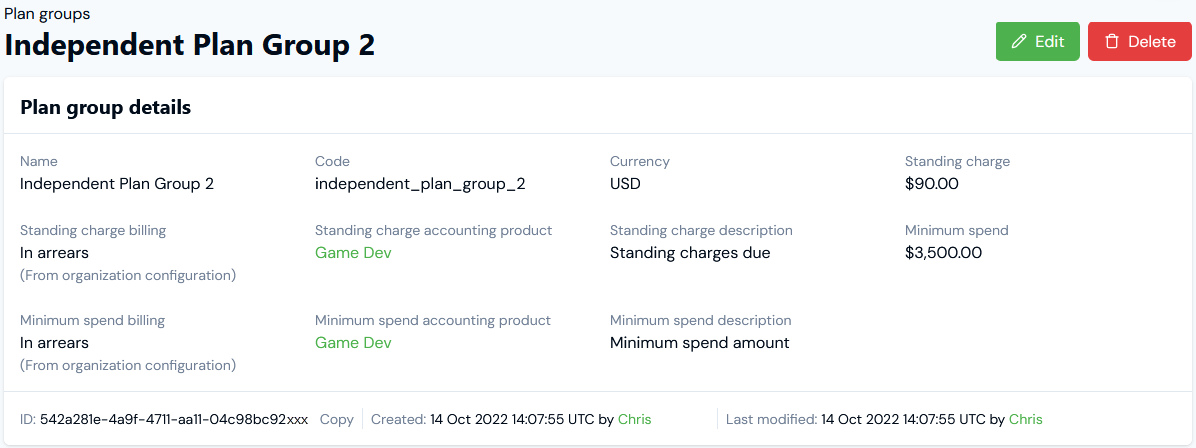
- On the Plan group details page, you can also review Plan group metadata:

- If you want to edit the Plan Group, select the Edit button, make your changes, and click Update plan group.
- If you want to remove a Plan Group, return to the Plans page and select the Delete button for the Plan Group:

- Select Yes to confirm the delete action.
Adding Plans to Plan Groups
To add Plans to a Plan Group:- Select Pricing>Plan groups. The Plan groups page opens and any existing Plan Groups are listed.
- Select Name text of the Plan Group you want to add Plans to. The Plan group details page for the selected Plan Group opens.
- Check the Included plans panel - any Plans already added to the Plan Group will be listed.
- Select Add plans. A Select plans dialog appears.
- Select the Plans you want to add to the Plan Group.
- Select Confirm. The popup closes and the selected Plans are listed on the Included plans panel:

Removing Plans from Plan Groups
To remove Plans from a Plan Group:- Select Pricing>Plan groups. The Plan groups page opens and any existing Plan Groups are listed.
- Select Name text of the Plan Group you want to remove Plans from. The Plan group details page opens.
- Check the Included plans panel - any Plans already added to the Plan Group will be listed.
- Select the Delete icon for the Plan you want to remove from the Plan Group:
- Select Yes to confirm removal of the Plan from the Plan Group.
Plan Group Minimum Spend vs. Plans Minimum Spends
When you define a minimum spend amount for a Plan Group, it does not override any Product minimum spend amounts you’ve defined for the Plans included in the Plan Group. Both remain valid settings and any minimum spends defined for included Plans is evaluated first. The Plan Group minimum spend is then evaluated. So, for example:- Plan Group X contains two Plans: Plan A and Plan B. The minimum spends defined for both Plan Group and Plans are:
- Plan Group X = $500
- Plan A = $100
- Plan B = $200
- Suppose for the first billing period the end-customer Account being charged using Plan Group X spends $50 on Plan A and $100 on Plan B:
- Plan A minimum spend is applied and bumps up the charge to $100.
- Plan B minimum spend is applied and bumps up the charge to $200.
- This comes to a charge of $300 due.
- Plan Group X minimum spend is now applied and bumps up the charge to $500.
- The Bill total is therefore $500.
Minimum Spends when Attaching Multiple Plan Groups
This principle is applied also if you choose to bill end-customers for different Products by attaching multiple Plan Groups to an Account. However, in this case the Plan Group minimum spends will be added for the billing total. To extend the above example, suppose you create two Plan Groups containing Plans for different Products:- Plan Group X contains one Plan: Plan A for billing Product A consumption. The minimum spends defined for both Plan Group and Plan are:
- Plan Group X = $500
- Plan A = $100
- Plan Group Y contains one Plan: Plan B for billing Product B consumption. The minimum spends defined for both Plan Group and Plan are:
- Plan group Y = $700
- Plan B = $200
- Product A:
- Plan A minimum spend is applied and bumps up the charge to $100.
- Plan Group X minimum spend is now applied and bumps up the charge to $500.
- Product B:
- Plan B minimum spend is applied and bumps up the charge to $200.
- Plan Group Y minimum spend is now applied and bumps up the charge to $700.
- Bill Total: The Plan Group X and Plan Group Y minimum spend amounts are now added for a Bill total of $1200.