

- The user license charges are a form of recurring subscription charges best served by a unit-based pricing model.
- The data storage charges are best served by a usage-based pricing model based on metered data storage volumes.
- Creating Product and Account
- Setting Up Pricing on Account
- Submitting Sample Product Consumption to Account
- Creating and Reviewing Bills on Account
Creating Product and Account
We’ll first set up a Product and Account for the hybrid pricing example. To set up a Product and an Account: First, create a Product:- In the Console, select Product and then select Create product.
- Under Product details enter a Name and Code for the new Product and then select Create product:
- For the example, we’ve called the Product: Dev License and Store.
- Select Accounts and then select Create account.
- Under Account details enter Name, Code, and Email address, and then select Create account:
- For the example, we’ve called the Account: Dev License n Store Account 1.
Setting Up Pricing for Account
For our hybrid pricing example to set up pricing for the Account, we’ll need to- Create two pricing metrics:
- First, an Aggregation that sums metered values for storage volumes on the Account.
- Second, a Counter to track the number of developer licenses the Account subscribes to.
- Third, create a Plan Template and Plan for the Product.
- Fourth, use our pricing metrics to price a Product Plan.
- Lastly, attach the priced Plan to the Account.
- Select Metering. The Meters page opens.
- For Product select Dev License and Store.
- Select Create meter. Here’s the Meter configuration:
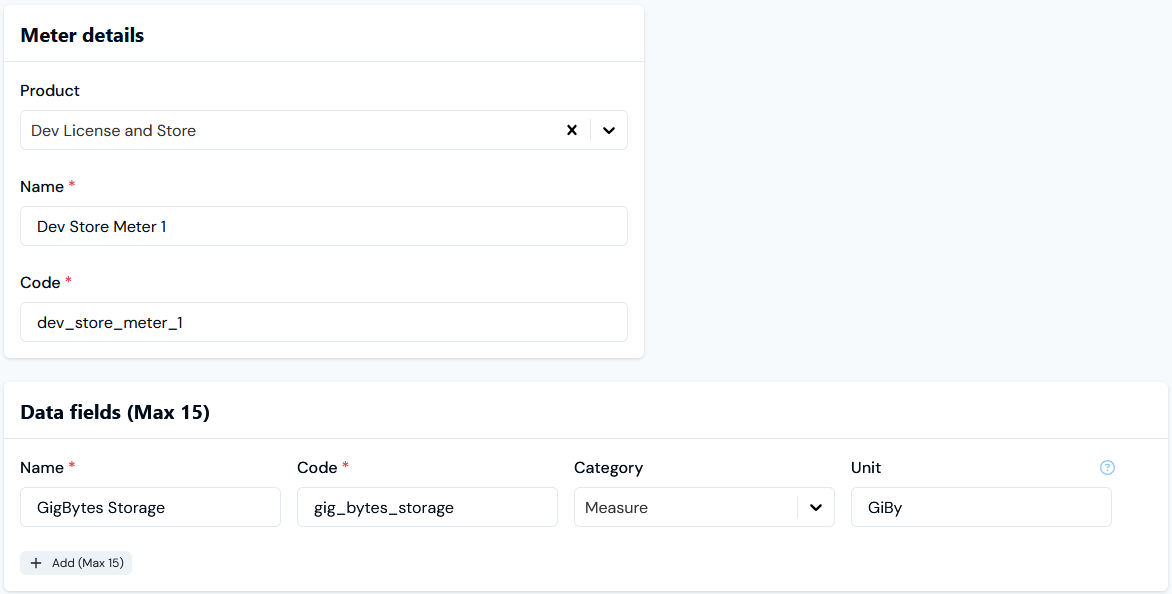
- For the example, we’ve created a Meter with a single Measure Data Field - GigBytes Storage -to collect usage data amounts for gigabytes of storage used: Dev Store Meter 1.
- Select Create meter.
- Select Metering>Aggregations. The Aggregations page opens.
- For Product select Dev License and Store, and select Create aggregation. Here’s the Aggregation configuration:
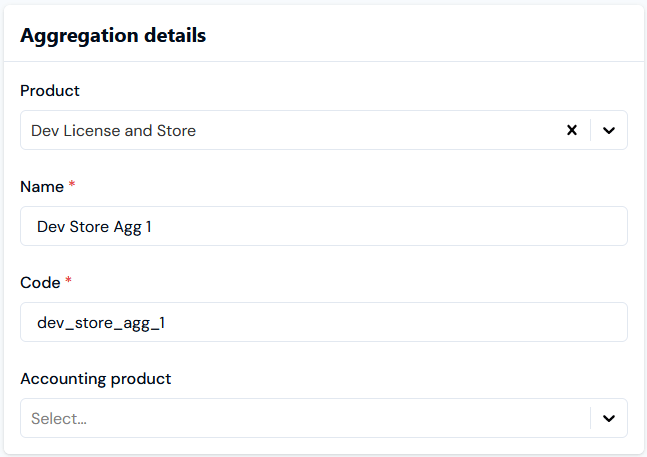
- We’ve called the Aggregation: Dev Store Agg 1.
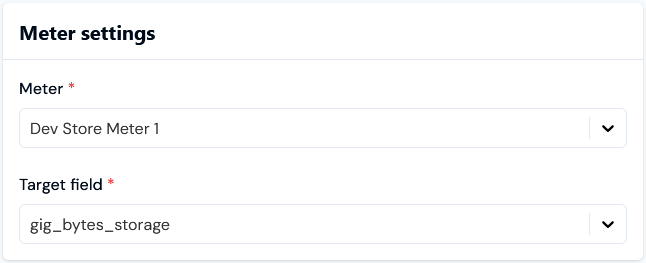
- The Aggregation targets the GigBytes Storage field on Dev Store Meter 1.
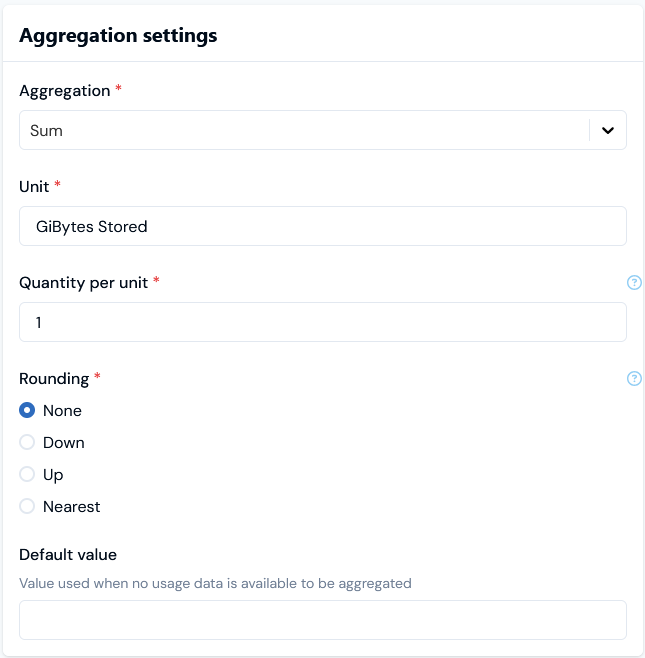
- The Aggregation applies a Sum function to give a usage-based pricing metric of the total of values submitted for the GigBytes Storage target field for a billing period.
- Select Create aggregation.
- Select Metering>Counters. The Counters page opens.
- For Product select Dev License and Store, and select Create counter. Here’s the Counter details configuration:
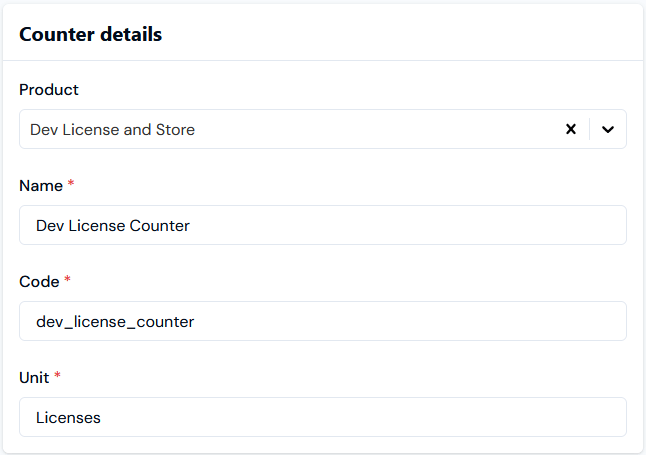
- For the example, we’ve created the Dev License Counter to use Licenses as the Unit.
- Select Create counter.
- Open the Pricing>Plan templates page.
- For Product select Dev License and Store and select Create plan template. Here’s the Plan template details configuration:
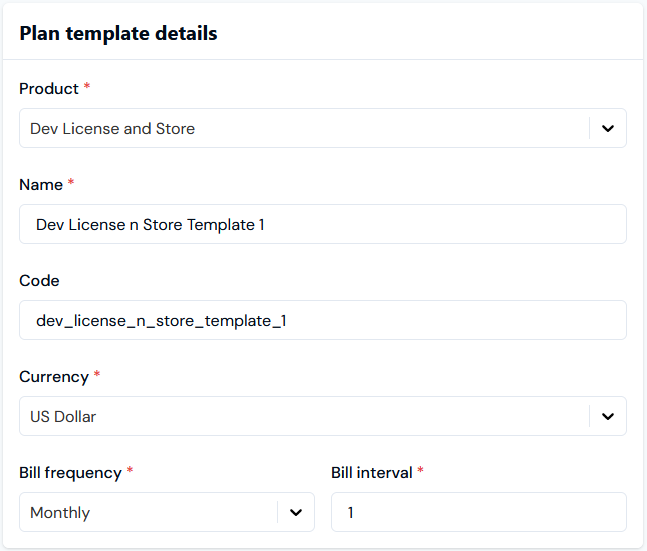
- We’ve created the Dev License n Store Template 1 and set it up for Monthly Bill frequency using US Dollar as the billing Currency.
- For the current example, we can omit setting up any Standing Charge or Minimum Spend amounts for the Plan Template.
- Open the Pricing>Plans page.
- For Product select Dev License and Store and select Create plan. Here’s the Plan details configuration:
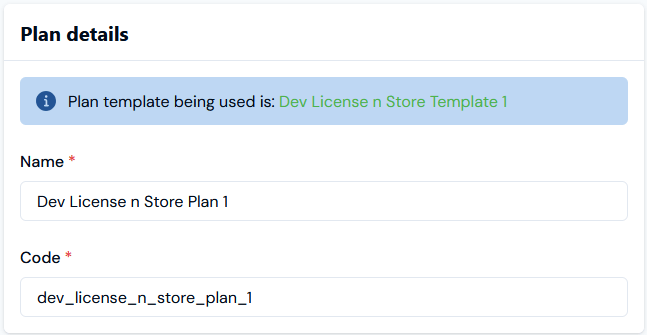
- The Dev License n Store Plan 1 is based on Dev License n Store Template 1. The Plan will inherit the Monthly Billing frequency and US Dollar billing Currency we set up for the template.
- For the current example, we can omit setting up any Standing charge or Minimum spend amounts for the Plan.
- Select Create plan.
- Open Pricing details for Dev License n Store Plan 1.
- Scroll down the page and on Pricing panel select Add usage-based pricing. A Select aggregations modal appears.
- Select Dev Store Agg 1 and then select confirm. The modal closes and the selected Aggregation is now shown under Pricing:
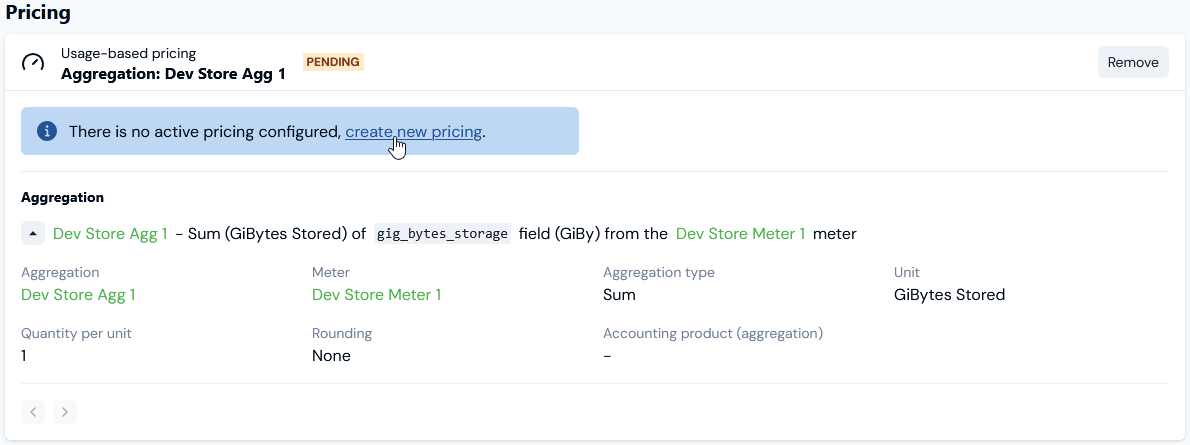
- Select the create new pricing text link. You are taken to the Pricing editor with the Pricing>Create page open.
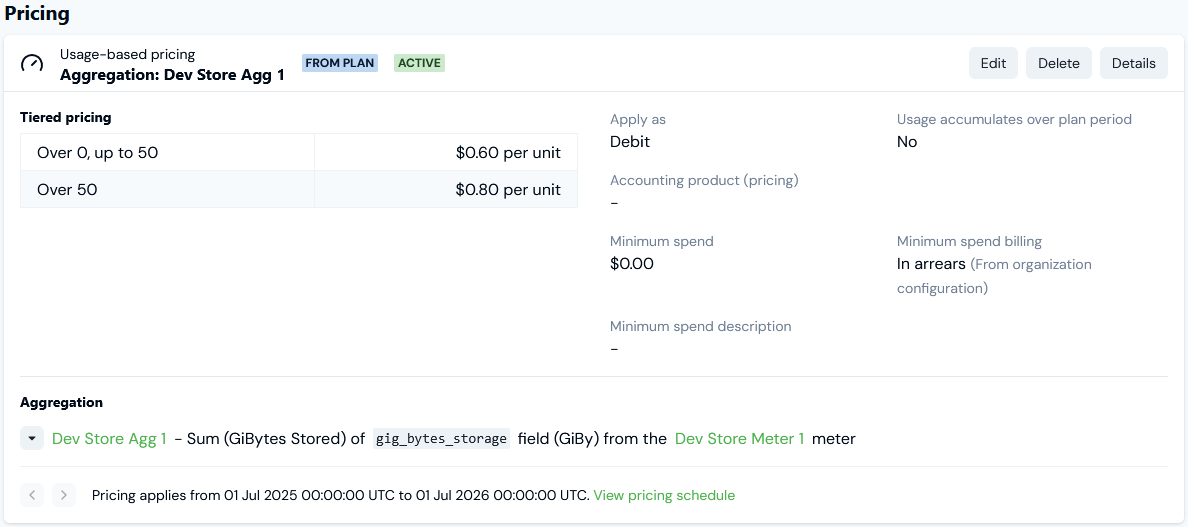
- Under Pricing details, create a pricing for the Plan using Dev Store Agg 1:
- Leave as default to Bill in arrears.
- Set the period the pricing will apply to the Plan as July 1st 2025 through to June 30th 2026.
- Define a two-tiered pricing:
- From 0 to 50 = $0.60 per unit.
- Over 50 = $0.80 per unit
- Select Create pricing. You are taken back to the Plan details page where the new usage-based Pricing is shown:
- Under Pricing, select Add counter-based pricing. A Select counters modal appears.
- Select Dev License Counter and then select Confirm. The modal closes and the selected Counter is now shown under Pricing:

- Select the create new pricing text link. You are taken to the Pricing editor with the Counter pricing>Create page open.
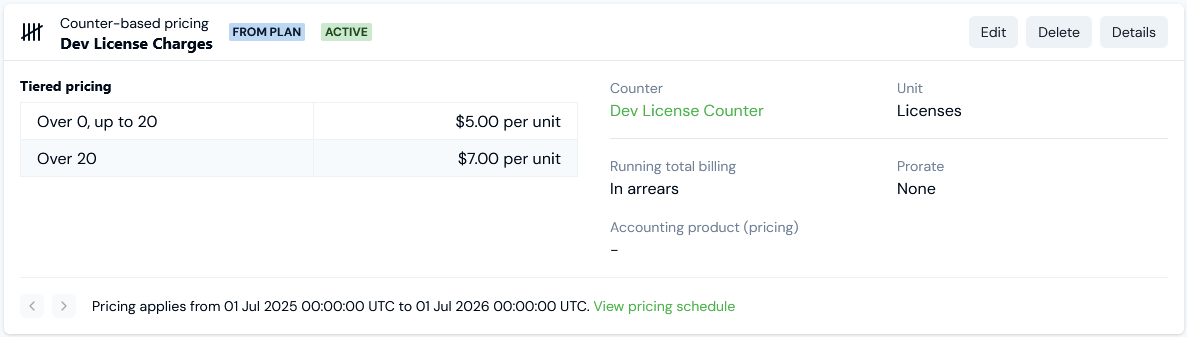
- Under Pricing details, create a pricing for the Plan using Dev License Counter:
- Set the period the pricing will apply to the Plan as July 1st 2025 through to June 30th 2026.
- Leave as default to Bill in arrears.
- Switch all of the pro-rating switches for Counter charges to disabled.
- Define a two-tiered pricing:
- From 0 to 20 = $5 per unit.
- Over 20 = $7 per unit
- Select Create counter pricing. You are taken back to the Plan details page where the new counter-based Pricing is shown:
- Open Dev License n Store Account 1, select the Attached plans tab, and select Create plan attachment. Here’s the Plan attachment details:
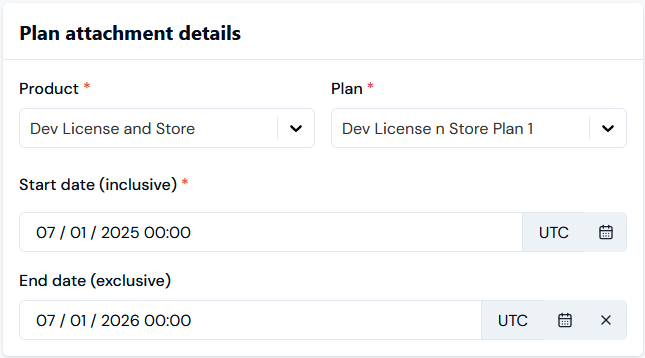
- Note that for convenience, we’ve set up the period the Plan will be active for the Account to correspond with the period the pricing applies to the Plan.
- For the current example, we do not need to change any of the Plan attachment settings.
- Select Create plan attachment.
Submitting Sample Product Consumption to Account
To be able to run billing against the Account, we’ll need to submit some sample Product consumption for the Account for a specific billing period:- Metered measures for stored data volumes used by the Account.
- Counter Adjustments for developer license numbers subscribed to on the Account.
- Select Metering. The Meters page opens
- For Product select Dev License and Store.
- Select Dev Store Meter 1 hotlink text to open the Meter’s Details page.
- Scroll down to the Submit measurements panel and select Submit usage data.
- For Account, select Dev License n Store Account 1 and submit two usage data measures using the Meter’s GigBytes Storage field:
- A measure Value of 50.
- A measure Value of 20.
- Make the Timestamp for each usage measurement as a Date/Time in July 2024.
- Select Accounts and open the Dev License n Store Account 1 page.
- Select the Counter adjustments tab.
- For Counter, select the Dev License Counter and then Create counter adjustment.
- Create a single Counter Adjustment for July 1st 2024. Here’s the Counter adjustment details:
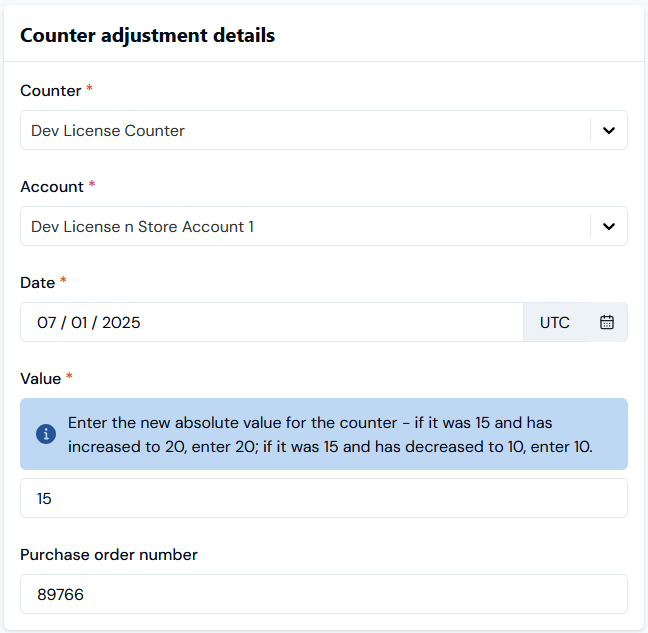
- Select Create counter adjustment.
Creating and Reviewing Bills on Account
We’ll run billing for the Dev License n Store Account 1 for the July 2025 billing period and review and check the Bill. To run billing for the Account:- Open the Dev License n Store Account 1 page and select the Bills tab.
- Select Run billing and on the modal that appears enter:
- Invoice date. Use the calendar pop-out to select August 1st 2025.
- Bill frequency. Select Monthly.
- Target currency. Select US Dollar.
- Select Run billing. The modal closes and the Bill job executes. When the Bill job completes the newly generated Bill is listed on the Bills tab.
- Select the Reference hotlink text for the Bill. The Bill opens in Bill management:
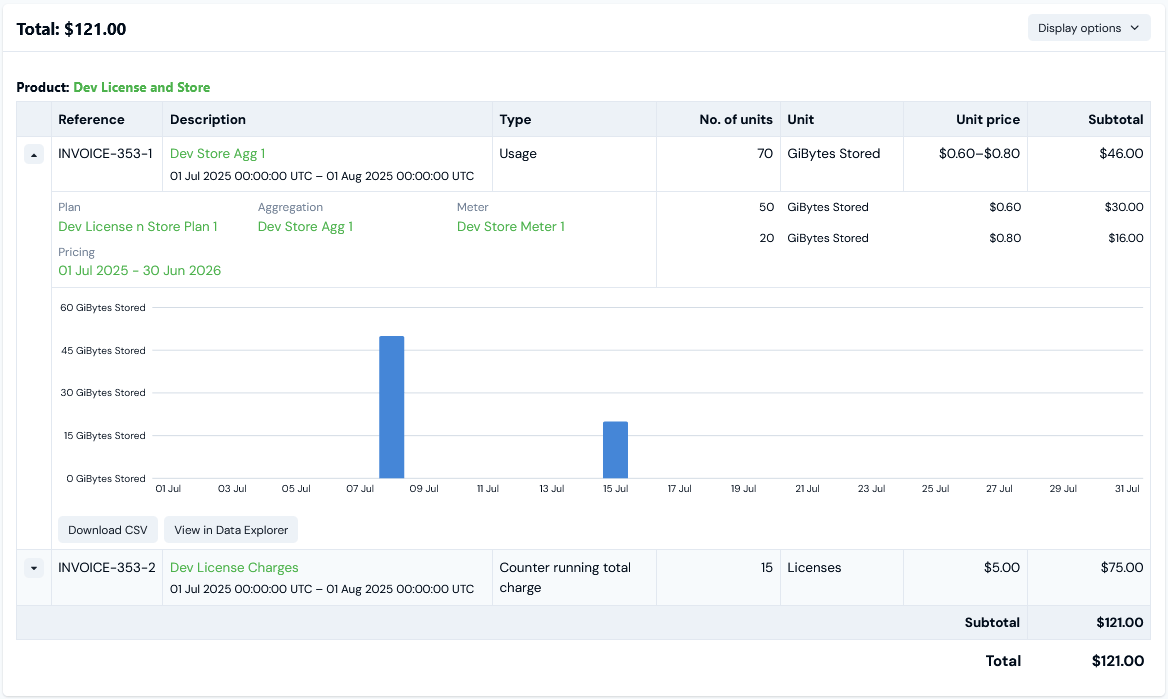
- The 70 GigBytes Stored are shown as Usage and are calculated correctly according to the two-tiered pricing we set up using the Dev Store Agg 1.
- The 15 Licenses are shown as a Counter running total charge and are calculated correctly according to the two-tiered pricing we set up using Dev License Counter.