

Creating Transactions for Balances
To create a Transaction for a Balance:- Select Accounts. The Accounts page opens.
- Select the Name text of the Account for which you want to add a Transaction to a Balance. The Account details page opens with the Overview tab selected.
- Select the Balances tab.
- Select the Name text of the Balance you want to create a Transaction for. The Balance details page opens. The Balance transactions panel lists any Transactions that have been created for the Balance.
- On the Balance transactions panel, select Create balance transaction. The Create page opens.
- Enter the Balance transaction details:
- Transaction type. Use the drop-down to select the Transaction Type. (Required)
- Amount. The amount of the Transaction. (Required)
- Transaction date. The date the Transaction will be logged for the Balance. (Optional).
- If omitted, then current date is used.
- Applied date. The date the Transaction will be applied to the Balance. (Optional)
- If omitted, then current date is used.
- Description. A description for the Transaction. (Optional)
- If the amount billed to the end customer will differ from the Transaction amount or the currency of payment differs from the currency defined for the Balance, you can optionally use the Balance transactions settings panel to enter:
- Currency. The currency in which payment was made.
- Amount. The payment amount.
- To credit a Balance on their Account in the amount of $200 USD and the end customer will then be billed for a payment in virtual currency credits of X amount.
- To credit a Balance on their Account in the amount of $200 USD and the end customer will then be billed for a payment of £100 GBP for that credit.
- To credit a Balance on their Account in the amount of $200 USD and the end customer will then be billed for a discounted payment of $195 USD for that credit.
- Select Create balance transaction. You are returned to the Balance details page where the new Transaction has been added to the Balance.
- If you want to add further Transactions of different types to a Balance, repeat steps 5 to 8:
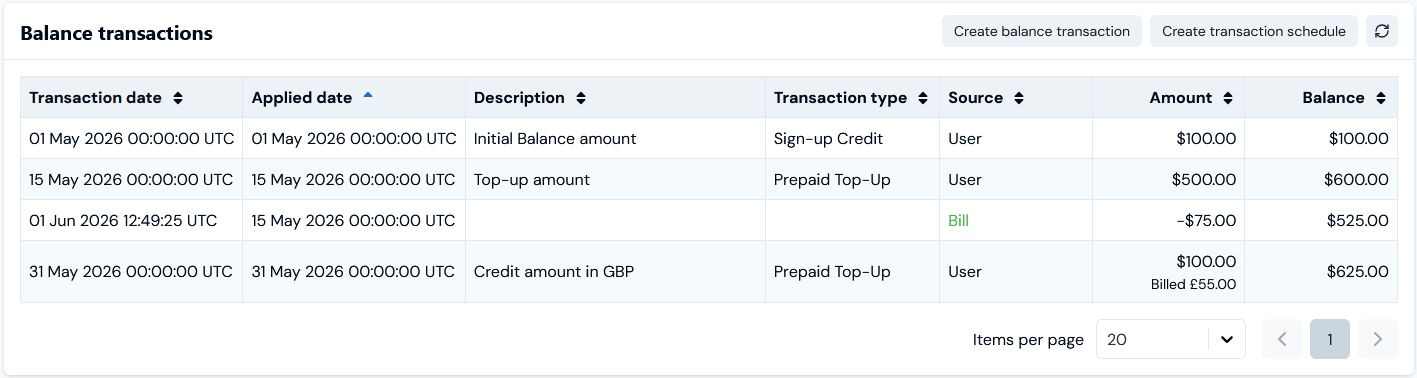
- We’ve manually added three credit Transactions of different amounts to a Balance. Note that the Transaction for $100 USD credit amount will be billed to the end customer in the amount of £55 GBP.
- There is a fourth debit Transaction, which shows an amount billed against the Account was drawn-down against the Balance.
- Source. Note that in each case the Source column in the Transactions ledger identifies who or what was responsible for the Transaction being added - such as a User or Bill.
- Note that if a Transaction is generated by a Transaction Schedule you’ve set up for a Balance, then the Source will be identified as: <Schedule Name> (Scheduler). See Setting Up Transaction Schedules for Balances.
Working with the Balance Transactions Ledger
The Balance transactions panel on the Balance details page provides a ledger for tracking credit and debit Transactions for the Balance, including billed amounts drawn-down against the Balance: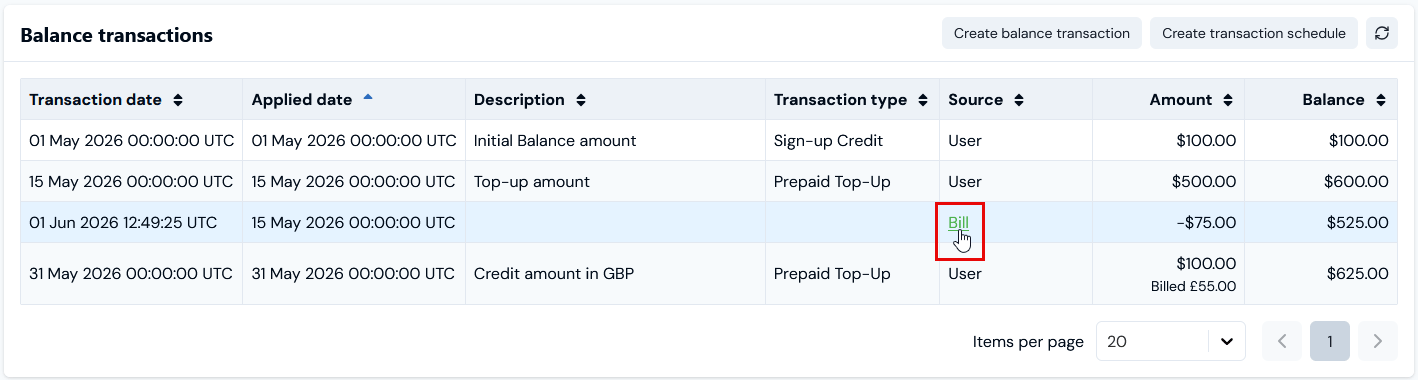
- Transaction date. The date the Transaction was logged for the Balance.
- Applied date. The date of application of the Transaction amount against the Balance.
- Note that in the case of a manual Transaction - such as when an Organization User adds a top-up credit amount to an Account Balance, the Transaction date and the Applied date will often coincide. However, in cases such as billed amount debit draw-down against the Balance, these dates often differ. In the above example, the Applied date for the billing draw-down item is the date of the Bill responsible for the draw-down against the Balance.
- Description. The description entered for the specific Transaction of that type.
- Transaction type.
- Source. The source of the Transaction:
- If a manually credited/debited Transaction, this is shown as Organization User.
- If a billing Transaction, this is shown as Bill with a hotlink text link allowing you to open the Bill responsible.
- If a Transaction is generated by a Transaction Schedule you’ve set up for a Balance, then the Source will be identified as: <Schedule Name> (Scheduler). See Setting Up Transaction Schedules for Balances.
- Amount. The Transaction credit/debit amount,
- Balance. Shows the running total for the Balance as credit or debit Transactions are registered against the Balance amount.