

Creating Transaction Schedules for Balances
To create a Transaction Schedule for a Balance:- Select Accounts. The Accounts page opens.
- Select the Name text of the Account with the Balance you want to set up a Transaction Schedule for. The Account details page opens with the Overview tab selected.
- Select the Balances tab.
- Select the Name text of the Balance. The Balance details page opens.
- On the Balance transactions panel, select Create transaction schedule.
- Alternatively, scroll down the page and on the Active and pending balance schedules panel select Create transaction schedule.
- Enter the Balance transaction schedule details:
- Name. (Required)
- Code. (Required)
- Transaction type. Use the drop-down to select the Transaction Type. (Required)
- Amount. The amount of each Transaction created for the Balance under the schedule. (Required)
- Start date (inclusive) and End date (exclusive). Use the calendar pop-ups to set start and end dates/times to define a time period for the Transaction Schedule. (Required)
- Frequency. Specify the daily, weekly, monthly, or yearly intervals for when Transactions are generated for the Balance throughout the defined time period. Default setting is every month. (Required)
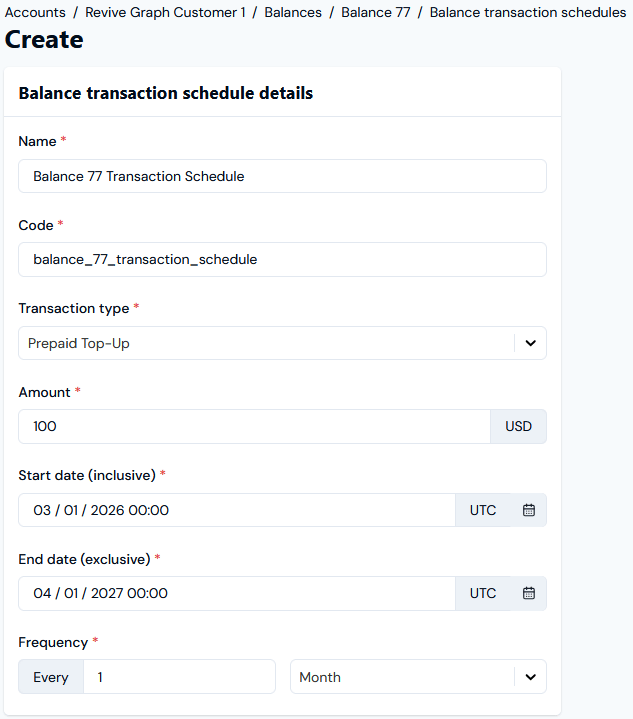
- The first Transaction will be created March 1st 2026, and then one on the 1st of each month following with a final Transaction created on March 1st 2027, a total of 13. Note that since the end date defined for the Schedule of April 1st 2027 is exclusive, a Transaction will not be created on that date.
- If the amount to be paid differs from the Transaction or the currency of payment differs from the currency defined for the Balance you can optionally use the Balance transactions settings panel to enter:
- Currency. The currency in which payment was made.
- Amount. The payment amount.
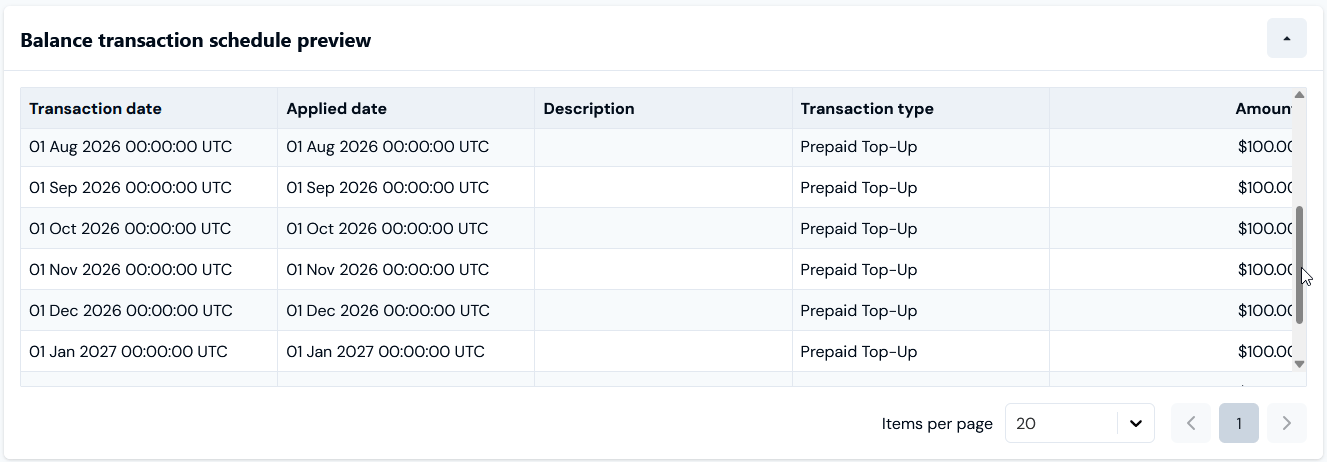
- If you want to check the transactions that will be created for the Balance under the Transaction Schedule configuration, expand the Balance transaction schedule preview card.
- If required, add any Custom fields to the Transaction Schedule:
- Currently, you cannot create Custom Fields for Transaction Schedules at the Organization-level, and therefore you cannot reference the Custom Fields values you create for an individual Transaction Schedule in your calculations.
- For more on Custom Fields, see Adding and Editing Custom Fields. We strongly recommend reviewing Working with Custom Fields before you create and use Custom Fields.
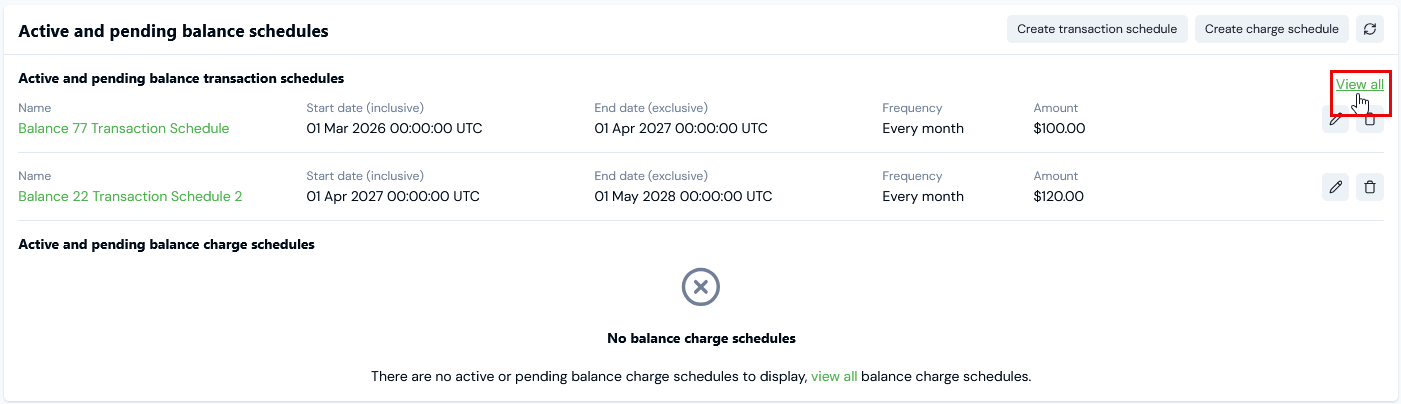
- Select Create balance transaction schedule. You are returned to the Balance details page where the new Transaction Schedule is listed on the Active and pending balance schedules panel under Active and pending balance transaction schedules:
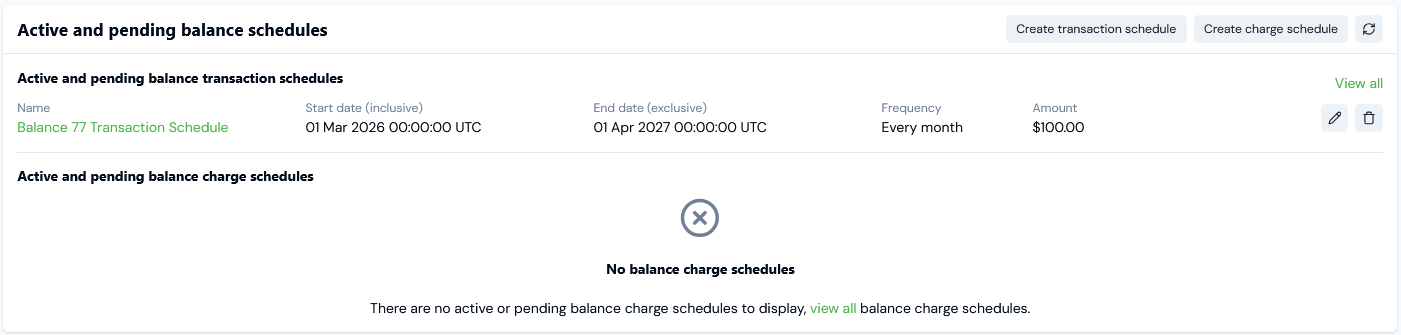
- If you want to edit the Transaction Schedule, select the Edit button:

- Make your changes, and click Update balance transaction schedule and return to the Active and pending balance schedules panel.
- If you want to remove a Transaction Schedule, select the Delete button:

- Select Yes to confirm the delete action.
Reviewing Transaction Schedules for a Balance
You can review the Transaction Schedules you’ve set up for a Balance. To review Transaction Schedules for a Balance:- Select Accounts. The Accounts page opens.
- Select the Name text of the Account with the Balance you want to review Transaction Schedules for. The Account details page opens with the Overview tab selected.
- Select the Balances tab.
- Select the Name text of the Balance. The Balance details page opens.
- Scroll down the page and on the Active and pending balance schedules panel any Transaction Schedules set up for the Balance will be listed under Active and pending balance transaction schedules:
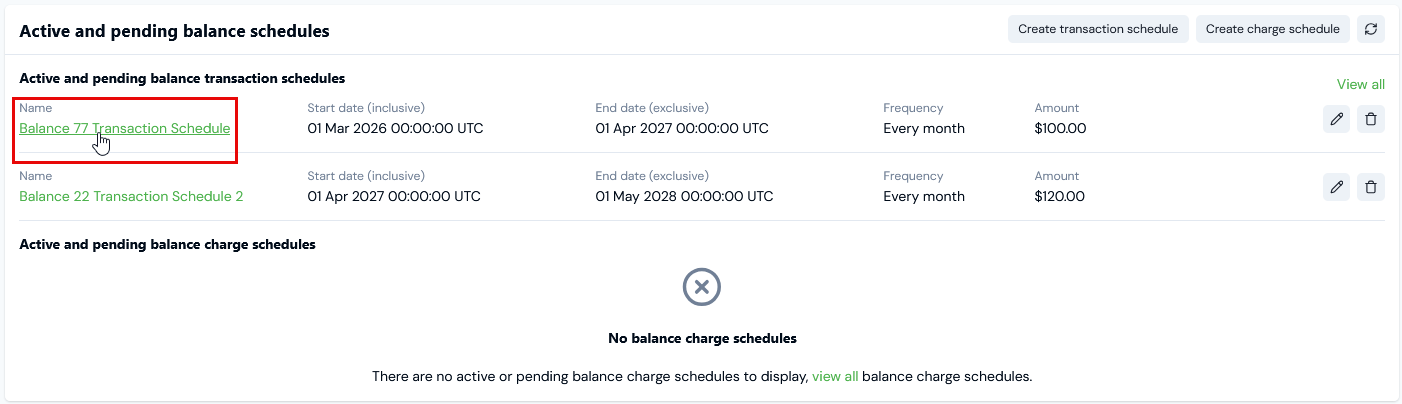
- Select the Name hotlink text of the Transaction Schedule you want to review. The Balance transaction schedule details page opens:
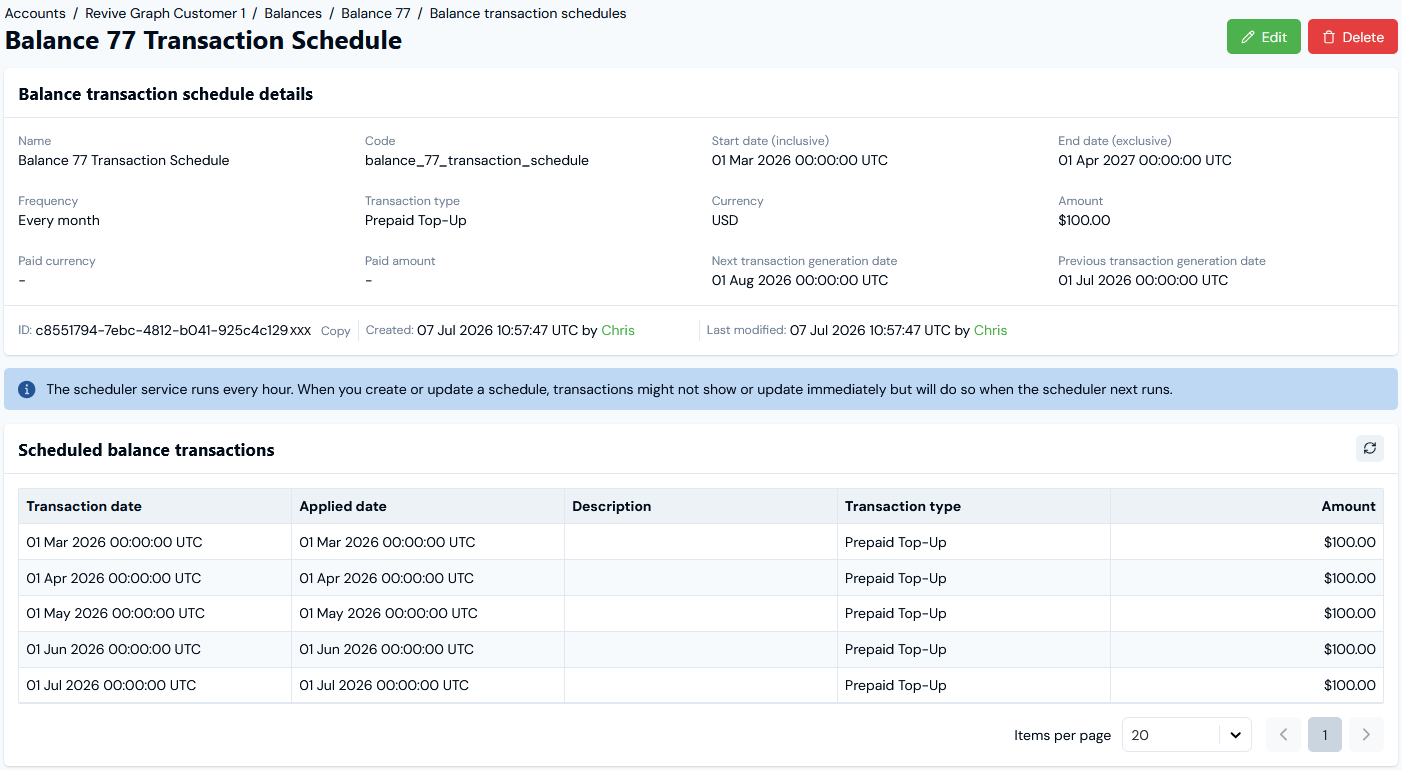
- Read off the Transaction Schedule ID, and copy it directly to your clipboard.
- Check at-a-glance the Next/Previous transaction generation dates under the schedule.
- Use the Scheduled balance transactions card to review a list the Transactions already generated for the Balance to date.
- Scroll down the page and expand the Balance transaction schedule preview card. Note that you can scroll and page the list to review the entire series:
- Scroll further down the page and you can review Balance transaction schedule metadata.
- Custom fields. Any Custom Fields created for the Transaction Schedule are listed:

- You can Copy the String or Number value of a field to your clipboard. See Working with Custom Fields for more details.
- Return to the Balance details page. If a Balance has multiple Transaction Schedules set up, on the Active and pending transaction schedules panel you can select to View all:
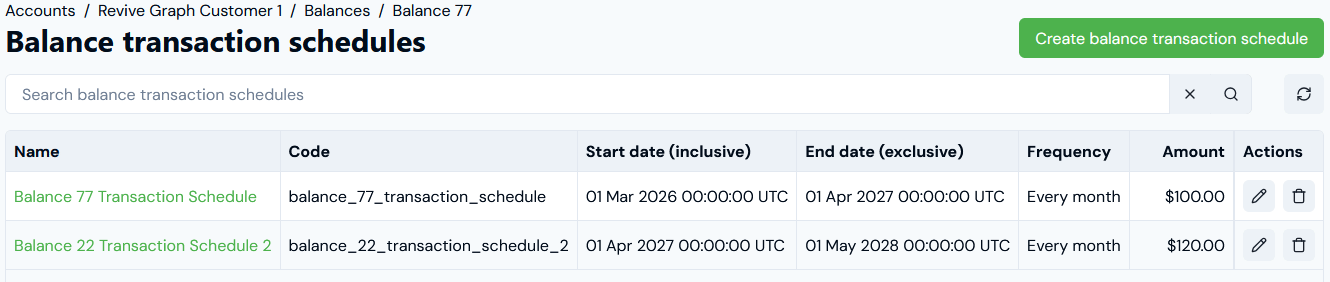
- Create a new Transaction Schedule for the Balance.
- Select the Name hotlink text to open an existing Transaction Schedule and review its details.