

- Switching on Two-Way Auto-Sync and Enabling for Objects
- How Two-Way Auto-Sync Works
- Monitoring and Troubleshooting
- Technical Details
- Additional Notes
- Recommended Next Steps
Switching on Two-Way Auto-Sync and Enabling for Objects
Before you can use this feature, you must ensure that you’ve set up an Entity Data Sync native integration with your Salesforce system for the m3ter objects you want to enable two-way auto-sync for. See Configuring Salesforce Entity Data Sync Integrations for more details. To switch on auto-sync and enable for objects:- In your Salesforce Org, navigate to the m3ter Admin app.
- Under Setup, select the Auto-Sync Settings tab:
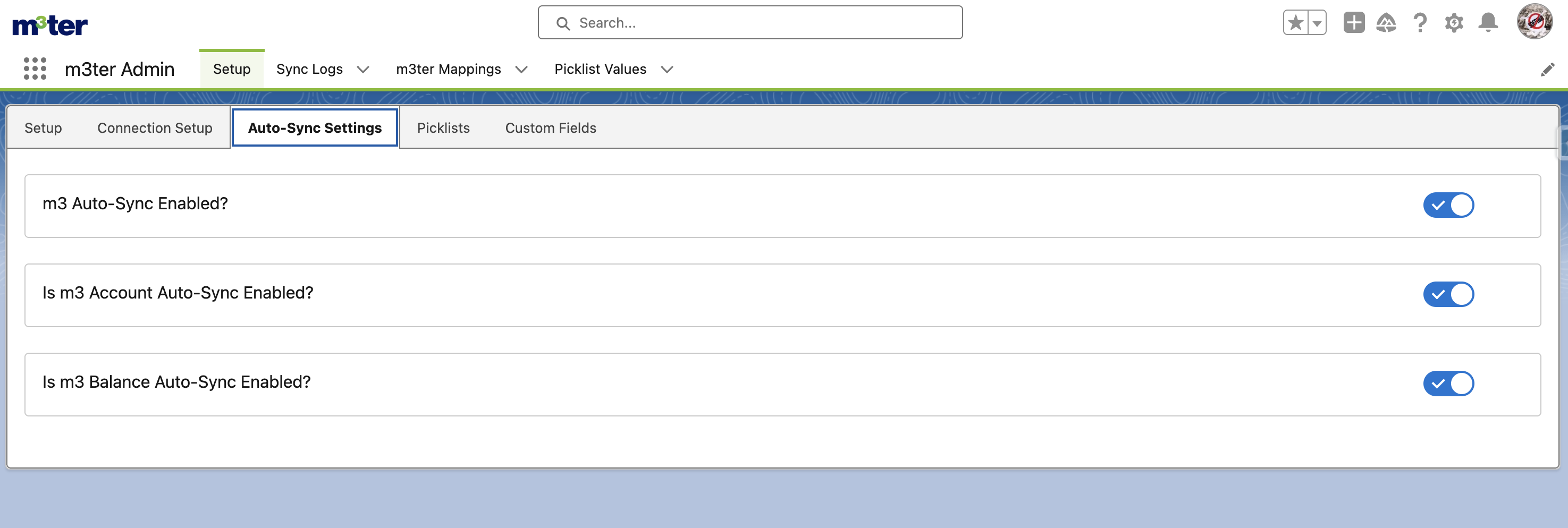
- Use m3 Auto-Sync Enabled? switch to turn the feature on. This is the master switch and controls all two-way auto-sync settings for objects.
- If you want to enable the feature for m3 Account objects, switch on Is m3 Account Auto-Sync Enabled?
- If you want to enable the feature for m3 Balance and m3 Balance Transaction objects, switch on Is m3 Balance Auto-Sync Enabled?
How Two-Way Auto-Sync Works
When enabled, the two-way auto-sync functionality:- Tracks any changes made to records in both systems.
-
Uses the
lastSystemToUpdate__cfield to identify which system made the most recent change. - Propagates changes:
- From SFDC to m3ter using Platform Events.
- From m3ter to SFDC via the m3ter Native Integration - see Configuring Salesforce Entity Data Sync Integrations.
Monitoring and Troubleshooting
If you encounter any issues with the two-way auto-sync feature, you can view Sync Logs to troubleshoot issues.Viewing Sync Logs
To monitor the synchronization activity:- In the m3ter Admin app, navigate to the Sync Logs tab.
- Review the logs to check sync operations, timestamps, and status.
Common Issues and How to Resolve
Here are some common issues, their possible cause, and how to resolve them:Technical Details
Architecture Components
The two-way auto-sync feature leverages several components:- Custom Settings:
m3AutoSyncSettings__ccontrols feature enablement. - Custom Fields:
lastSystemToUpdate__ctracks which system last modified a record. - Apex Triggers: Monitor record changes and initiate sync processes.
- Platform Events:
m3 Object Change Eventcommunicates changes between systems. - Flow:
Handle m3ter Object Change Eventprocesses the platform events.
Data Flow
- When a record is created or updated in Salesforce:
- The
lastSystemToUpdate__cfield is set to ‘sfdc’. - A Platform Event is fired with the record ID.
- The flow processes the event and invokes the “Sync To M3ter” action.
- When a record is created or updated in m3ter:
- The native integration updates the record in Salesforce.
- The
lastSystemToUpdate__cfield is set to ‘m3’. - No platform event is fired (to prevent circular updates).
Additional Notes
Please note:- Currently, only INSERT and UPDATE operations are supported for two-way auto-sync.
- DELETE and UNDELETE operations are not yet supported in the current implementation.
Recommended Next Steps
After enabling two-way auto-sync, we recommend:- Testing the sync by making sample changes in both systems.
- Review sync logs to ensure proper functionality.