

Viewing Workflow Runs
From the Workflow details page, you can view the ten most recent runs for a Workflow or open the Runs page and view all runs. To view m3sh Workflow runs:- Select Integrations. The Integrations page opens.
- Select Workflows:
- Select the Name hotlink text of the Workflow whose runs you want to view. The Workflow details page opens.
- Scroll down the page to the Latest workflow runs panel:

- Read-off the Start time, Trigger, and Status.
- You can select the Start time hotlink text to open the details page for an individual run - see the following section.
- Select View all. The Runs page for the Workflow opens:
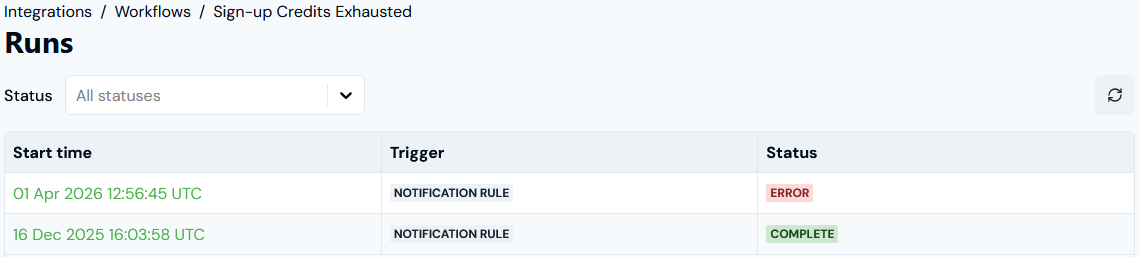
- Note that you can filter the Runs list by Status, and by default All statuses are shown.
Reviewing Workflow Run Logs
From the Workflow details page, you can quickly open an individual m3sh Workflow run and review detailed run logs on a step-by-step basis. To review individual m3sh Workflow run logs:- Select Integrations. The Integrations page opens.
- Select Workflows
- Select the Name hotlink text of the Workflow whose run you want open and review logs for. The Workflow details page opens.
- Scroll down the page to the Latest workflow runs panel. The ten most recent Workflow runs are listed:
- If the Workflow run you want to review run logs for is listed, select the Start time hotlink text of the run. The Workflow Run details page opens.
- If the Workflow run you want to review run logs for is not listed, select View all. The Runs page opens listing all Workflow runs. Select the Start time hotlink text of the run you want to open and review. The Workflow Runs page opens:
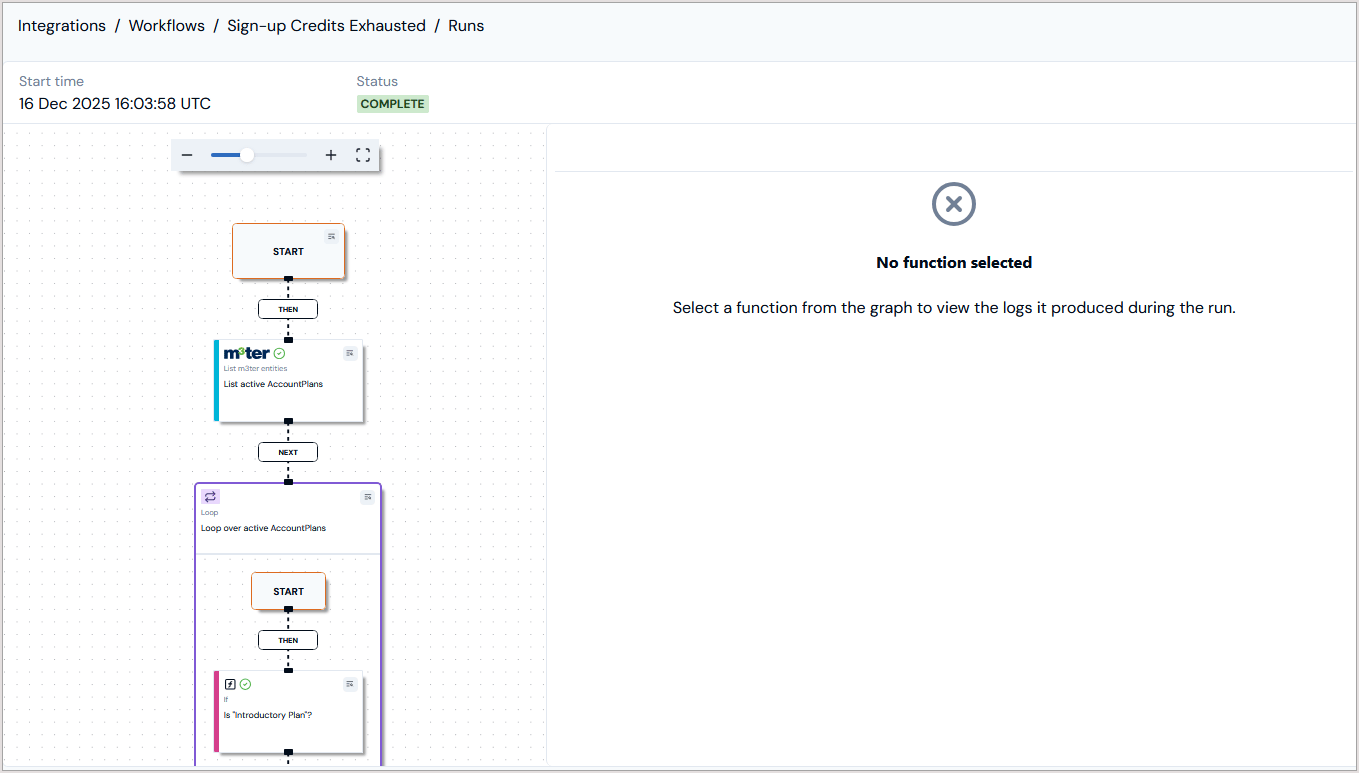
- The Start time and Status of the run are shown.
- You can use the controls to zoom in/out or fit to view.
- If you want to inspect the log details for a specific step, select the details icon for the step. For example, for the Workflow Start:
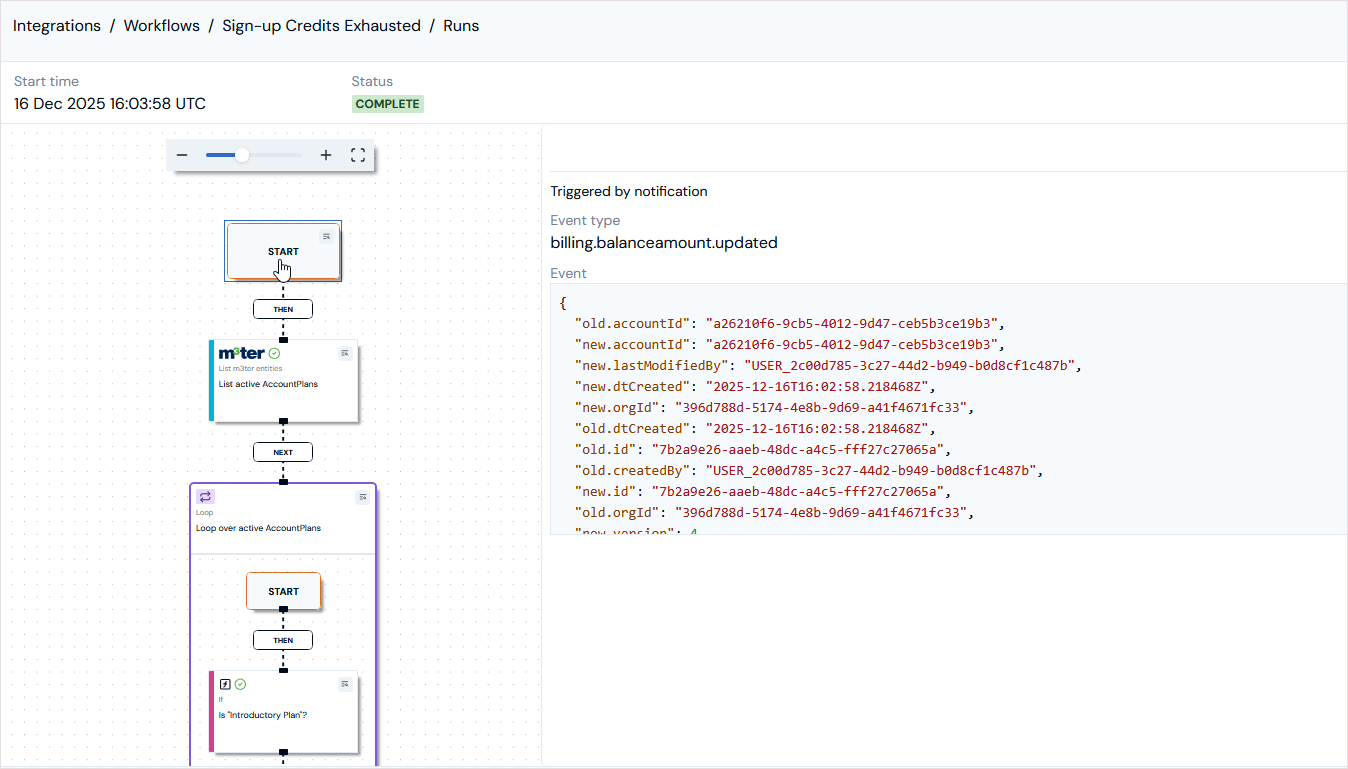
- In this case, the JSON returned for the
billing.balanceamount.updatedEvent that triggered the Workflow run is loaded. - Similarly, you can review the log details for a functional step performed in the Workflow run:
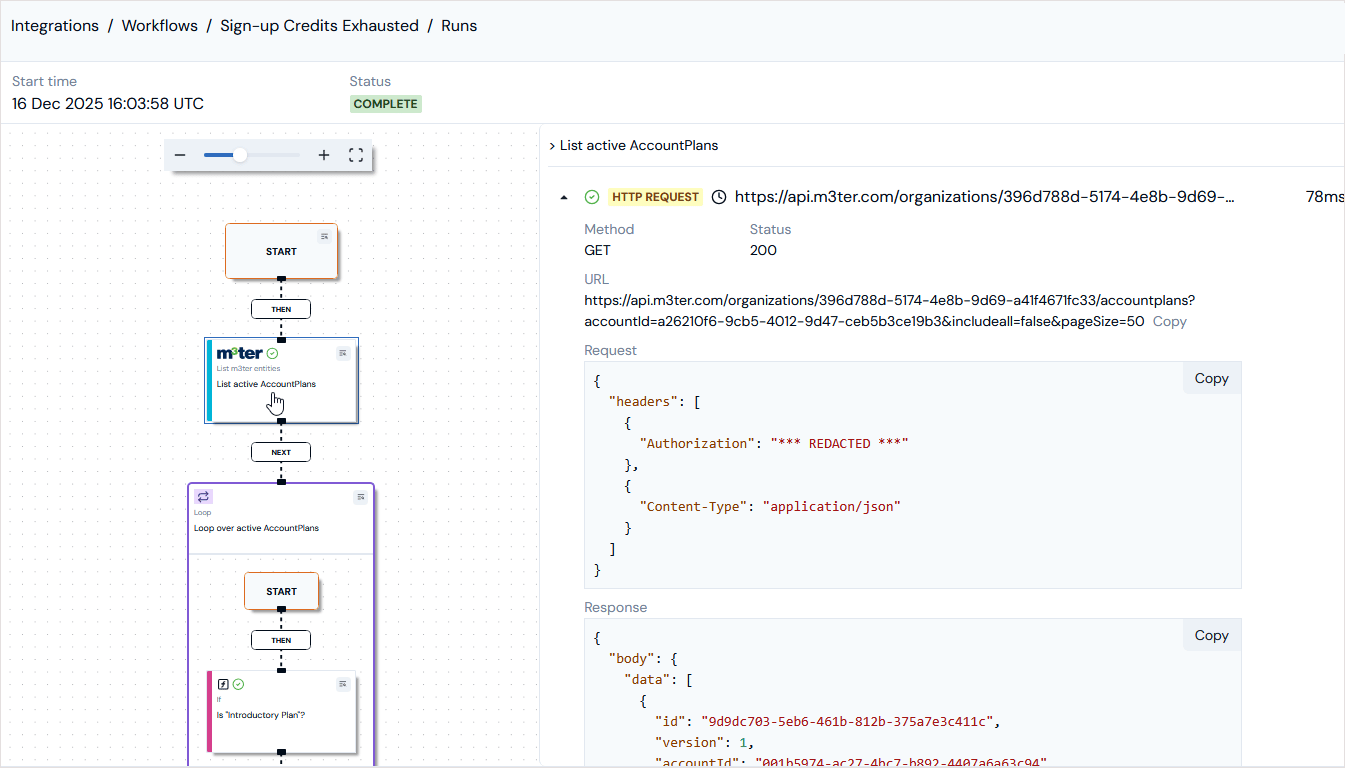
- In this case, the HTTP REQUEST performed by a m3ter API function is shown and you can expand the call to inspect the Request and Response JSON.