

Note: you can export a Workflow from one Organization and import it into a different Organization if required.
- Select m3sh:

- The Workflows page opens.
- Select the Name text of the Workflow you want to export. The Workflow opens in Draft mode.
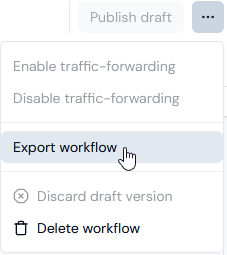
- On the drop-down menu, select Export workflow:
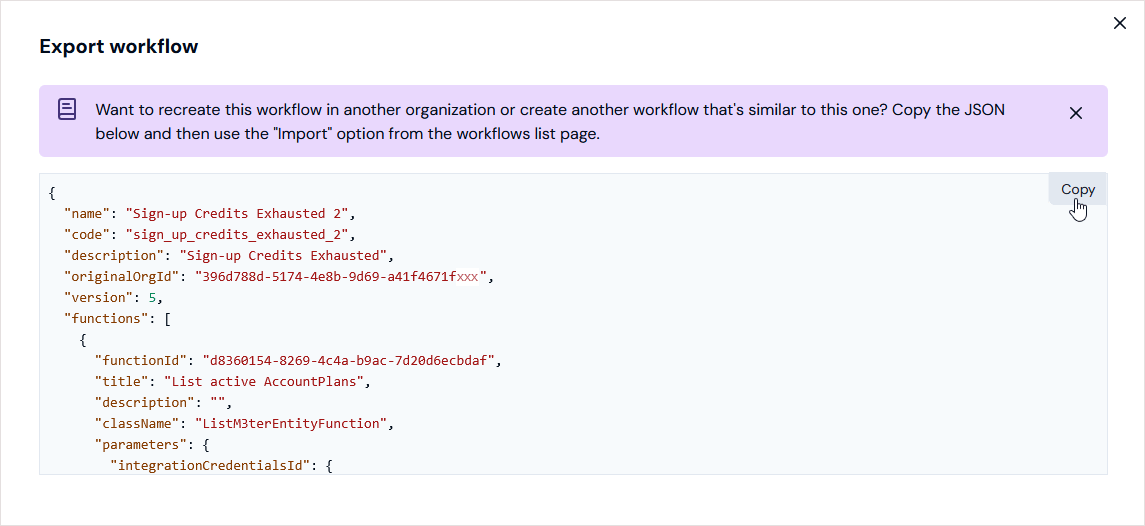
- Review a help text.
- Scroll down the Workflow JSON to review it before proceeding with the export.
- Select Copy and close the Export workflow panel.
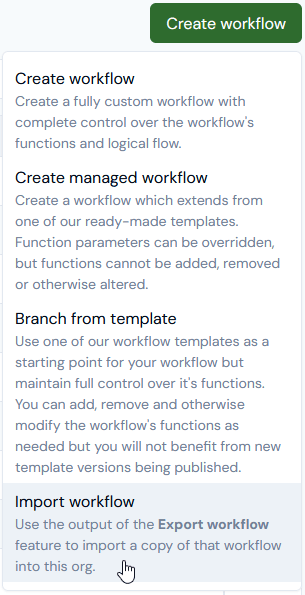
- Go back to the Workflows page and select Create workflow>Import workflow:
- Paste the Workflow JSON you copied from the Export workflow panel into the Import workflow panel:
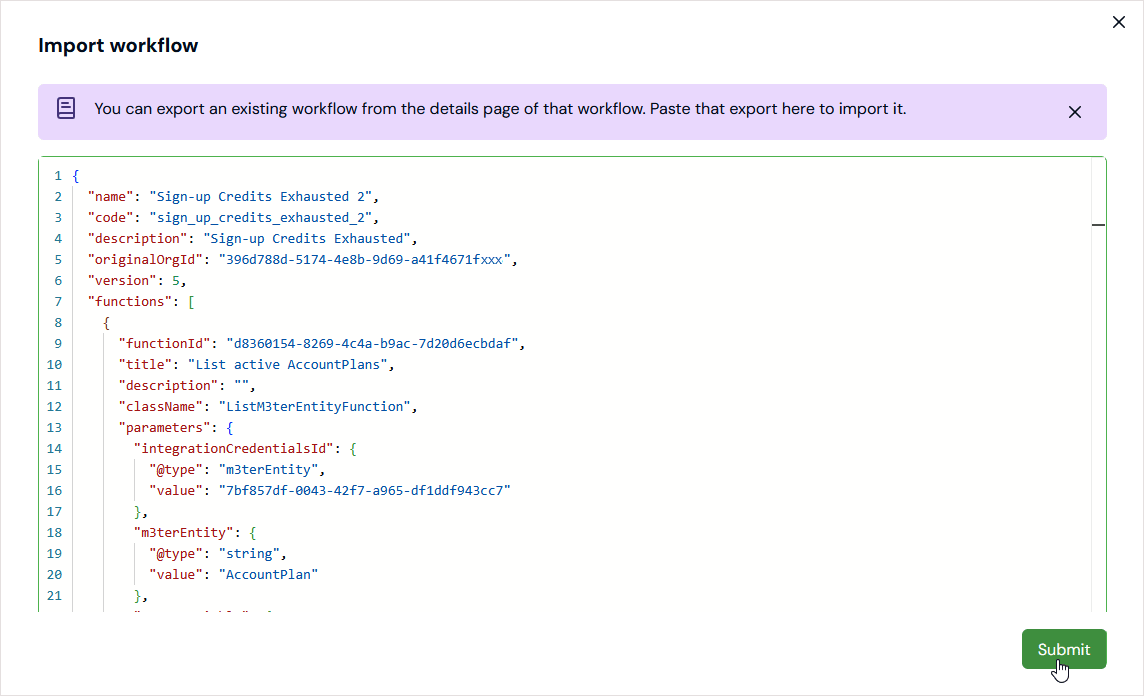
- Select Submit. The Import workflow panel closes and a message shows to confirm that the Workflow was imported successfully:
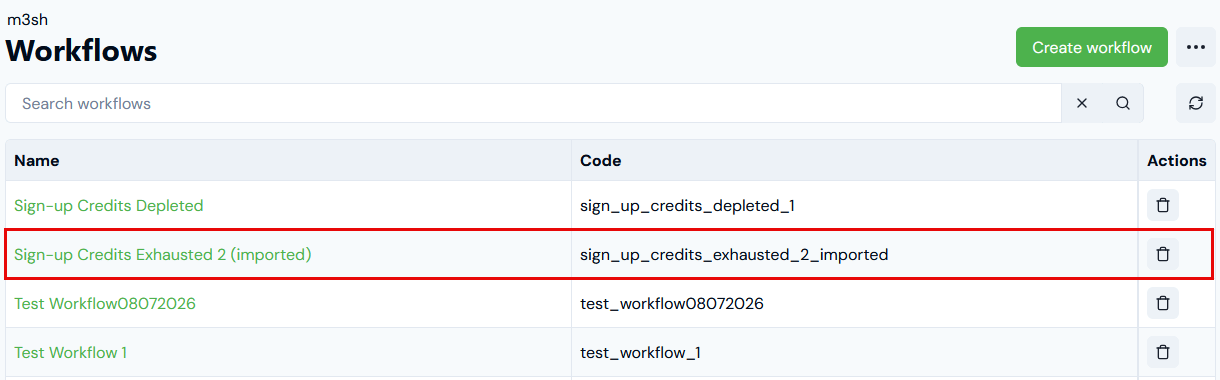
- The imported Workflow is now listed on the Workflows page with “imported” appended to the Name and Code of the original Workflow.
- You can now open the new imported Workflow, edit the Name and Code, and modify it as required.