You can enable a Balance on an Account as a Grant. This means the Account is credited with an amount of pre-rated usage, which can be drawn-down to reduce the amount of usage that is rated and would result in charges against the Account.This topic provides a worked example to explain how to enable an Account Balance as a Grant allowance for pre-rated usage. Some example test data is then submitted against the Account and Bills are ran to show how pre-rated usage is draw-down against the Grant before rating is applied and charges billed against the Account:
Note: Grants in Preview Release! Please note that the Grants feature is currently available only in Preview release version. See Feature Release Stages for Preview release definition.
Suppose you offer a product for cloud storage and charge on the basis of gigabytes stored by your end-customers and which you bill on a monthly basis in US dollars (USD). However, you want to offer new customers a free pre-rated usage allowance at sign-up for your product - say 1000 gigabytes. Only when the customer’s usage has exceeded this initial free usage allowance will they start to be charged at the normal pricing rates per gigabyte stored on your platform.In m3ter, you can enable a Balance as a Grant to implement a solution for this kind of use case.
The rating and pricing setup for an Account must be completed in a way that allows a Balance Grant to implement a free pre-rated usage allowance on an Account. The key part of the overall configuration is:
Create a custom currency for your Organization and define this as the unit of aggregated usage used to price a Product Plan attached to the Account.
When a Balance is enabled as a Grant for the Account with the Plan attached, use the same custom currency for the Grant as you’ve defined as the unit of aggregated usage.
Here’s the setup for pricing and rating we’ll use for the worked example:
Create Product. We’ve created the Standard Storage Free Allowance Product.
Create Product Plan Template and Plan. We’ve created a Plan Template and used it for a Product Plan called Standard Storage Allowance Plan 1. Ensure the Plan Template is set up for monthly billing and uses USD as the billing currency.
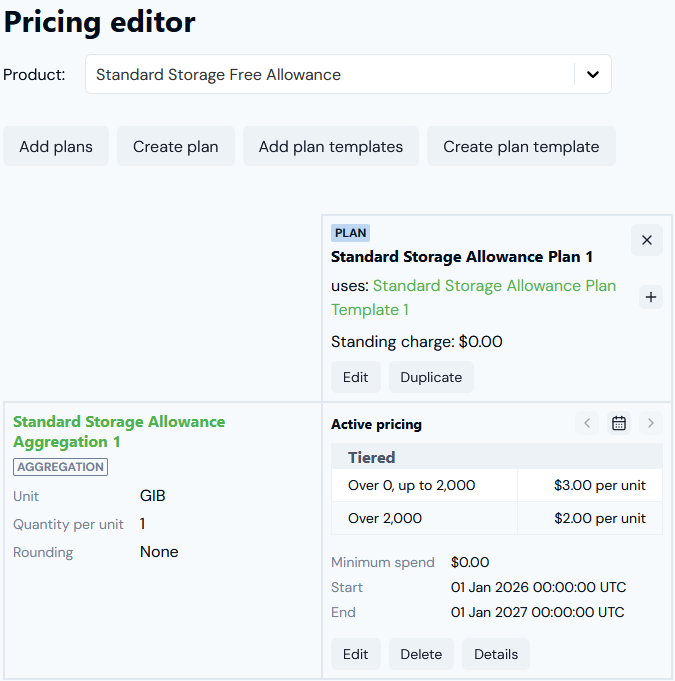
Create Product Meter and Aggregation. We’ve created the Standard Storage Allowance Aggregation 1 that targets the Standard Storage Allowance Meter 1, and we’ll use this Aggregation to price the Product Plan to SUM the metered usage and defined a Unit of GIB:
Aggregation Unit. When we set up a Grant, we’ll select a currency that matches the Aggregation’s Unit.
Price Product Plan. In the Pricing Editor, we’ve created a tiered pricing for Standard Storage Allowance Plan 1 using Standard Storage Allowance Aggregation 1:
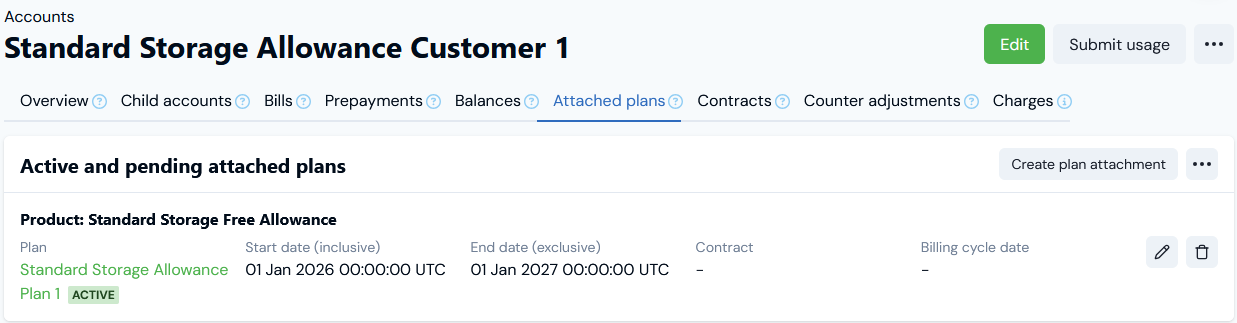
Attach Plan to Account. We’ve attached the priced Standard Storage Allowance Plan 1 to the Standard Storage Allowance Customer 1 Account:
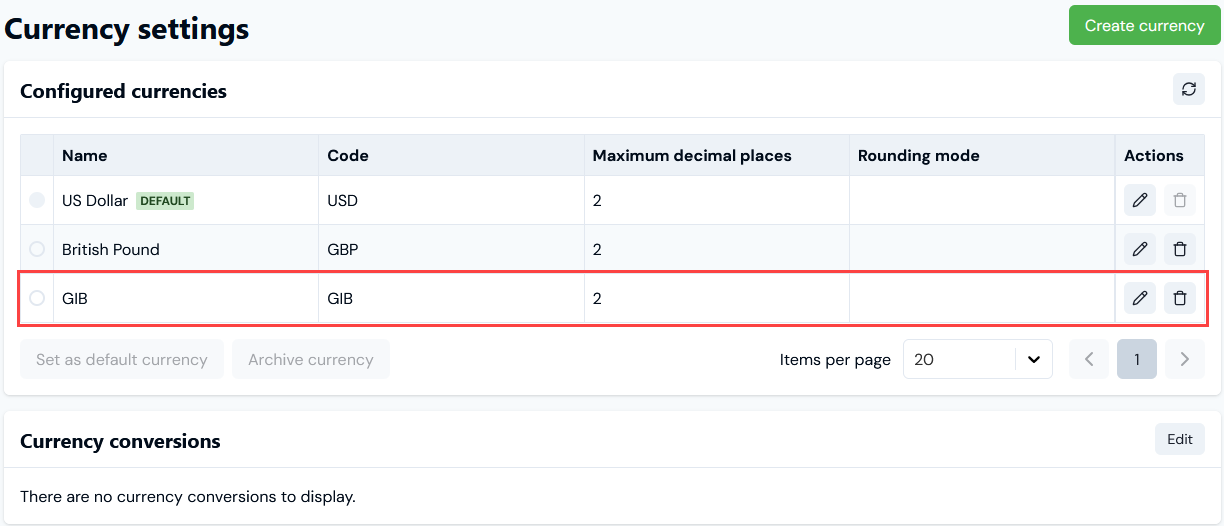
Custom Currency. In Settings>Currency settings, we’ve created a Custom Currency for our Organization called GIB to match the Unit we defined for the Standard Storage Allowance Aggregation 1:
With the required rating and pricing setup completed, we can now set up a Balance as a Grant on the Account for the worked example.To enable a Balance as a Grant:
Open the example Account: Standard Storage Allowance Customer 1 and select the Balances tab.
Select Create balance. The Create form opens.
Under Balance details enter:
Name and Code.
Use the Grant switch to enable the Balance as a Grant.
Select the GIB for Currency.
This ensures the Grant Currency and Aggregation Unit match.
Note that when you enable the Grant switch, the Create form adjusts and an information text shows to remind you that the Grant currency must match the unit of the Aggregation used to price the Plan attached to the Account. You can select to View aggregation units to open an Aggregation units modal to help you check for and select the correct Currency for the Grant:
Enter a Start date and End date.
The remaining options can be omitted for the current worked example.
Select Create balance. The Balance is listed on the Account balances tab.
Select the Name hotlink text to open the Balance details page.
Scroll down the Balance details page and on the Balance transactions card, select Create balance transaction.
On the Create page under Balance transaction details enter details:
In this section, we’ll submit some test usage data for the example Account and then run billing to check that the Grant we’ve set up for the Account is being correctly drawn-down against.To submit test usage data and run billing:
Open the example Account: Standard Storage Allowance Customer 1.
Select Submit usage.
On the modal that appears, select the Meter set up for the example: Standard Storage Allowance Meter 1, and select Next.
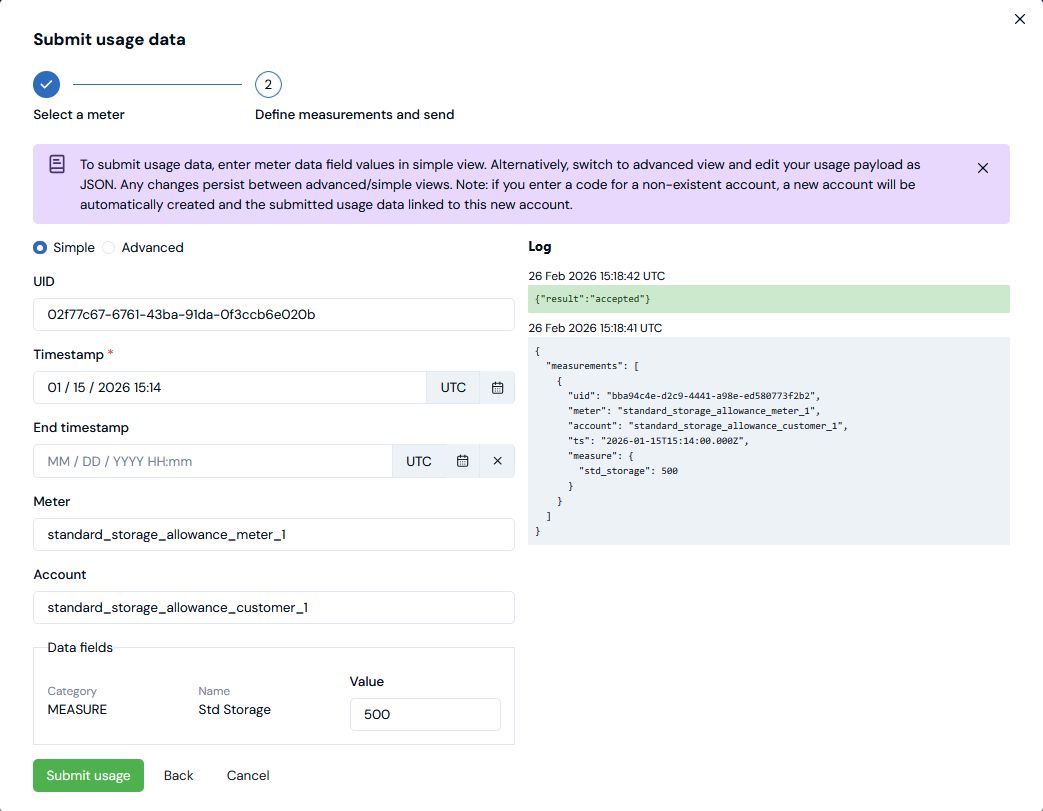
On the Submit usage data, since billing frequency is monthly we’ll submit a single 500 amount for January 2026 using the Std Storage measure Data Field that the Standard Storage Allowance Aggregation 1 targets and will SUM as a GIB amount:
Select Submit usage.
Open the Bills tab for the Account and select Run billing.
On the Run billing modal, for the Invoice date select the next monthly billing date - February 1st 2026 for current example - Monthly as the Bill frequency, and select Run billing.
When the Bill is generated, open it from the Account’s Bills tab:
As expected, we can see that the Bill is zero and the Grant pre-rated usage allowance has a Balance consumed line item covering the 500 GIB usage amount for the single test submission.
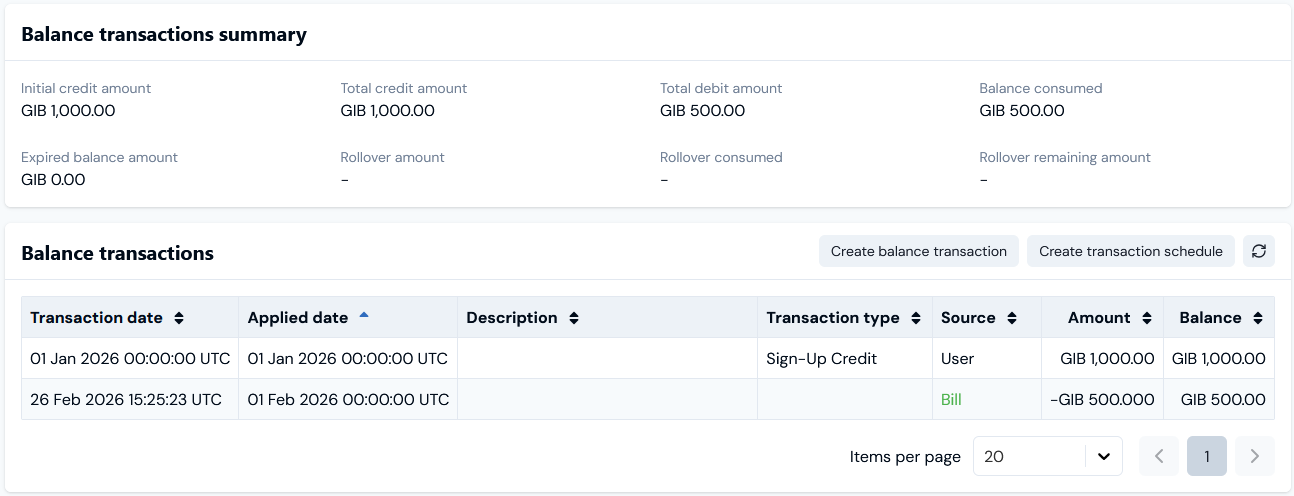
If we return to the Balance details page, we can see that the draw-down against the Grant’s pre-rated usage allowance on the Balance when the Bill was generated is entered on the Balance transactions ledger:
To check that rating cuts in correctly for the Account if the Grant pre-rated usage allowance is exceeded, we can now make a second test usage submission of 700 for January and re-calculate the February 1st Bill:
The second test usage data submission takes the total aggregated usage amount to 200 GIB above the Grant’s 1,000 GIB pre-rated usage allowance, and we can see that the Account has been correctly charged for the 200 GIB at the $3.00 per GIB rate we configured for the priced Plan attached to the Account.
Assistant
Responses are generated using AI and may contain mistakes.