

- Select Accounts. The Accounts page opens.
- Select the Name text hotlink of the Account you want to review the Balances summary for. The Account details page opens.
- Select the Balances tab:
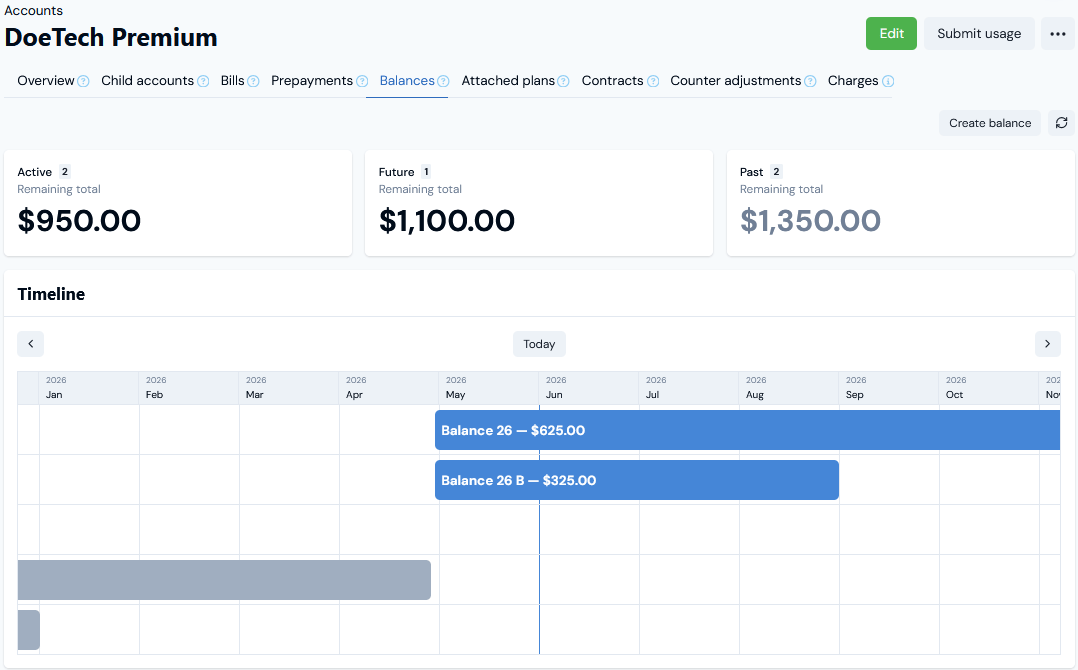
- The Account has two currently Active Balances, two Past Balances, and one Future Balance.
- The Remaining total is given for the currently Active, Future, and Past Balances.
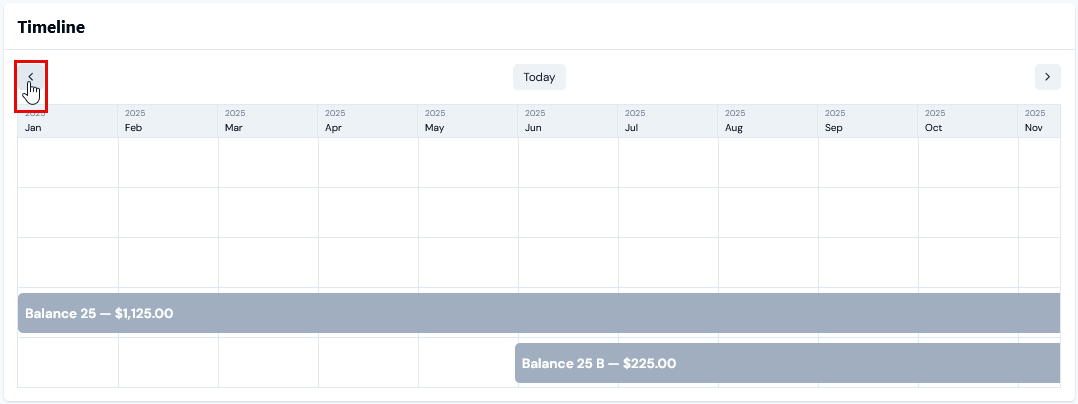
- On the Timeline chart, you can use the paging arrows to move backwards or forwards in time to review Past Balances:
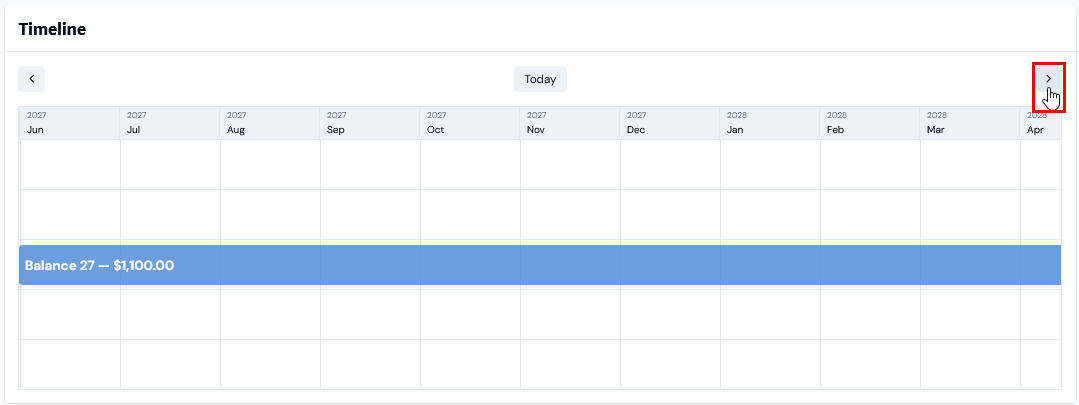
- Note that you can also scroll the Timeline chart for Balances on an Account.
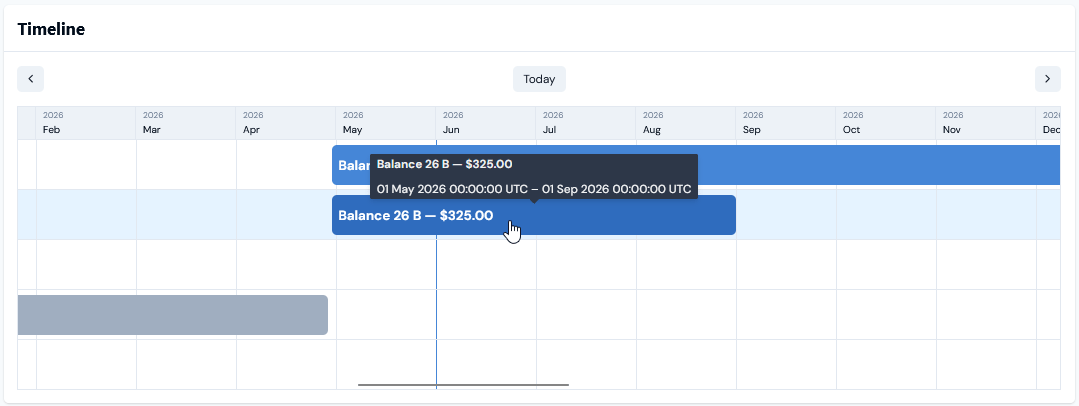
- If you want to review further details of a Balance select it in the Timeline chart to open the Balance details page:
- Also provided is a detailed view of the Active, Future, and Past Balances for an Account. In the current example, the Active:
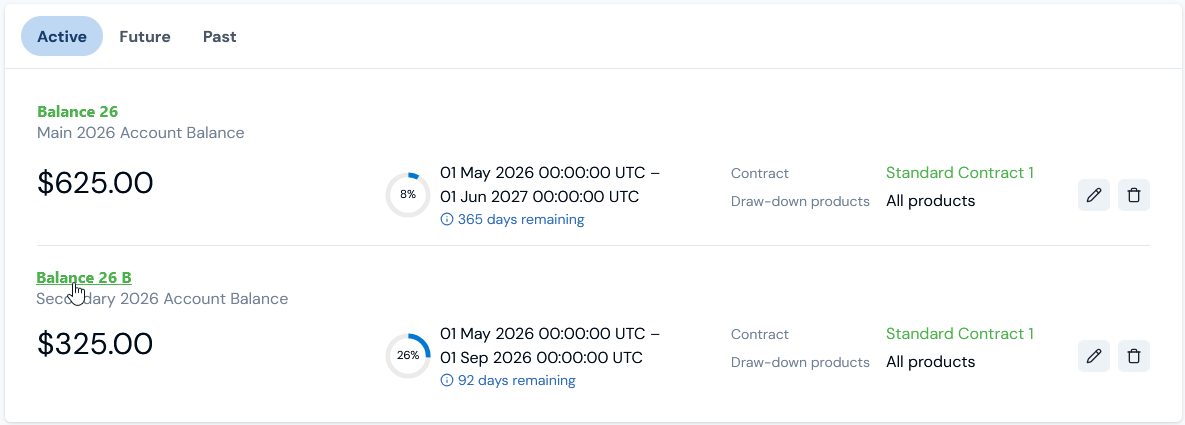
- The period configured for a Balance:
- For Active Balances, the percentage of the period to date, and the number of days remaining.
- For Future Balances, that the period sits at zero percentage and the number of days before the period starts.
- For Past Balances, that the period is has reached 100% and the number of days elapsed since the period ended.
- Any Contract the Balance has been linked to.
- The Draw-down products configured for the Balance.
- If you want to review further details of a Balance, select the name hotlink text to open the Balance details page.