The m3sh Webhook Triggers capability in the m3ter Connector for Salesforce managed package offers Salesforce administrators a declarative, no-code solution to send Salesforce record data to m3sh Workflows via webhook endpoints.This topic explains how to set up and work with the m3sh Webhook Triggers feature:
Check Version. The m3sh Triggers feature is only available in version 0.13 and above of the m3ter Connector for Salesforce managed package. See m3ter Connector for Salesforce - Changelog for details on how to check your current installed version.
The m3sh Triggers feature is built on top of the existing custom metadata framework developed for the m3ter Connector. Three distinct integration patterns are supported:
Scheduled Polling. Automated batch jobs that run on a configurable schedule - at 15, 30, or 60 minute intervals.
Manual/On-Demand Execution. Administrator-initiated webhook sent from the UI.
Flow/Apex Invocable Actions. Developer-triggered webhook sent from Salesforce Flows or custom Apex code.
All three patterns leverage the same underlying webhook delivery infrastructure, ensuring consistent behavior, authentication, payload formatting, and execution logging across all integration methods.
In order to create m3sh Webhook Triggers for your m3ter Connector for Salesforce, you must first enable them in the m3ter Admin App.To enable m3sh webhook triggers:
In your Salesforce Org, navigate to Setup > Custom Settings > m3 Org Settings > Manage > Edit:
Check the Enable m3sh Triggers box and then select Save.
The m3sh Webhook Triggers feature will make callouts to your m3ter Organization, which means you must configure a remote site setting for m3sh Webhook endpoints.To create aremote site setting for m3sh Webhook endpoints:
In your Salesforce Org, navigate to Setup > Security > Remote Site Settings:
Under Remote Site Settings >Remote Site Details enter these settings for the m3ter Webhook endpoint:
Remote Site Name: m3ter_Webhook
Remote Site URL: https//<m3ter_Org_ID>>.webhook.m3ter.com
When you’ve enabled m3sh Webhook Triggers feature for the m3ter Admin App in your Connector for Salesforce, you can create m3sh Webhook Triggers.To create a m3sh webhook trigger:
In your Salesforce Org, navigate to the m3ter Admin app.
Under Setup, select the m3sh Triggers tab:
Select Create New Trigger. The tab adjusts and you can enter the details of the new Trigger:
Use the m3ter Workflow drop-down to select the m3sh Workflow in your m3ter Organization that will be triggered. (Required)
Enter the Webhook URL.
Use the Salesforce Object drop-down to select which object’s data will be sent to the selected m3sh Workflow. (Required)
Select Active to enable the new Trigger.
Tip: m3sh Webhook Trigger naming? A composite name is given to a new m3sh Webhook Trigger using the Salesforce object selected followed by a dash followed by the name of the target m3sh Workflow selected - in the above example: Account - Amazing m3sh Workflow. You can update the name as required either by going directly to the CMDT record in the backend or after creating the trigger click Edit.
Select Create. The new m3sh Trigger is saved:
Note that if you want to review or edit an active m3sh Webhook Trigger, you can return to the m3sh Triggers tab and use the Active drop-down to select the Trigger:
Select Edit if you want to update the configuration of the Trigger.
Use the Active switch if you want to deactivate the Trigger.
This section provides further guidance on successfully implementing the m3sh Webhook Triggers feature for your m3ter Connector for Salesforce managed package:
m3sh Workflows in m3ter can be configured to use different types of Trigger, including webhooks. In addition to the setup required in your Salesforce Org when implementing the m3sh Webhook Triggers feature, you must also ensure a corresponding webhook is configured in the m3ter Console as the Trigger for the target m3sh Workflow.The correct credentials set up is necessary for the webhook you configure as a Trigger for the m3sh Workflow, and the m3sh Webhook Triggers feature uses the same Integration Credentials setup as used in the Connector for Salesforce managed package to sign requests made to m3ter. Therefore please ensure that when setting up the webhook Trigger for the m3sh Workflow, the integration credentials used match those of the service user used to set up the sync between the m3ter Connector for Salesforce managed package and m3ter, that is, the integration credentials in the managed package.
Once a m3sh Webhook Trigger has been successfully configured and tested, you are ready to implement it in your process. Three different implementation patterns are available.
You can find this by navigating to the underlying CMDT record, that is from Setup > Custom Metadata > find** m3sh Trigger Configs** and select Manage Records.
Record IDs:
The Ids for the Salesforce Records to send to the Webhook. These must be of the same type as the configured Salesforce Object.
The platform will send each record in a separate transaction.
Note: Because the Invocable Action makes callouts, it needs to be added to an Asynchronous Path.
For a configured m3sh Webhook Trigger, you can to set up scheduled Apex jobs to periodically send records to the m3sh Webhook:After selecting a Run Interval - available options are every 15 mins, every 30 mins, or every hour - select Enable Scheduled Runs:With this feature enabled the m3ter Connector for Salesforce managed package will, for every configured m3sh Webhook Trigger:
Query all the fields for the records from the associated Salesforce Object that have been updated/created since the last run.
Prepare the request payload.
Send the records to the Webhook endpoint.
Tip: Switching off scheduled jobs? You can easily turn off scheduled jobs using the Disable Scheduled Runs button from the Setup UI.
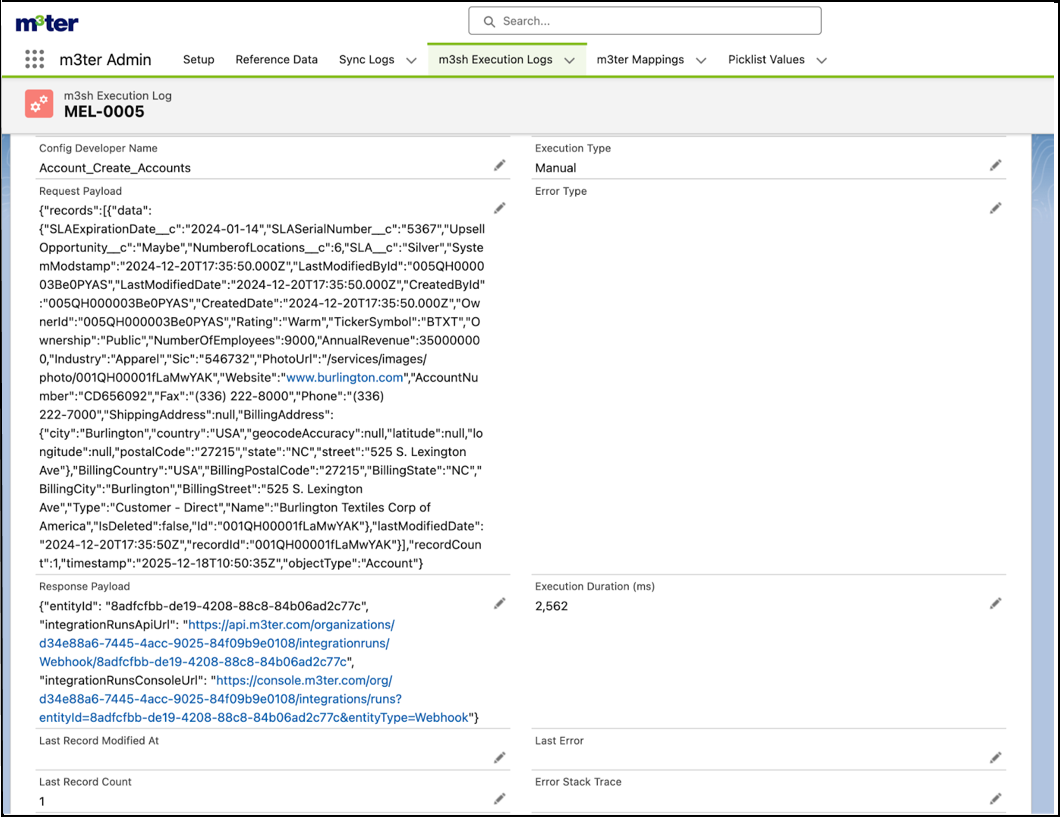
To aid debugging and monitoring of the callouts made to m3sh Workflows, a new object and tab has been added to the m3ter Connector for Salesforce managed package. This new tab in the m3ter Admin App is called m3sh Execution Logs:Each time a callout is made, the request payload, the response, and HTTP Status code is logged, along with other useful information like the Execution Type and name of the CMDT Config. The possible values for the Execution Type are listed below:
Scheduled - From scheduled batch jobs.
Manual - From admin UI Run Now or Test buttons.
Invocable Action - From Flow or Apex invocations.
Assistant
Responses are generated using AI and may contain mistakes.